The Best Bed & Nozzle Temperatures for Perfect TPU Prints

Don't let stringing or warping ruin your flexible prints. Get the ideal temperature ranges to help you master TPU on any printer.
Why is printing with flexibles, like TPU, so challenging?
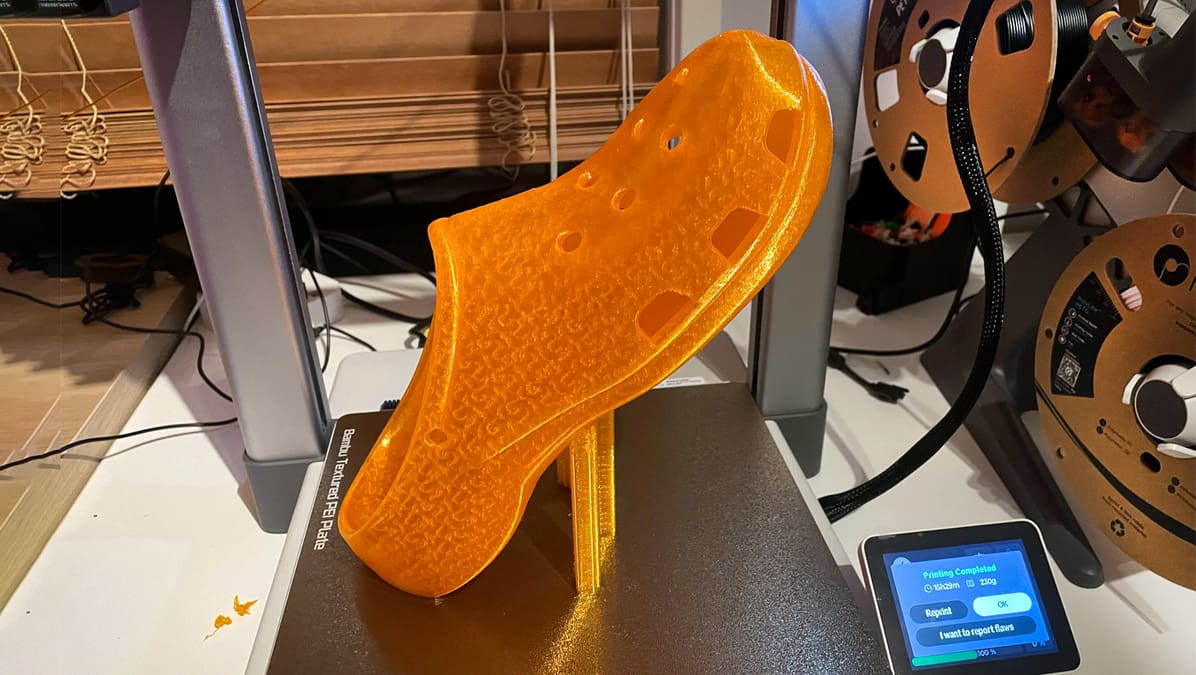
Thermoplastic polyurethane, more commonly known as TPU, is a popular 3D printing material known for its natural flexibility and elasticity ideal for flexible or impact-absorbent parts like rubber feet, Go-Pro mounts, cable ties, and even footwear.
Although there are many TPU filament brands, one thing they have in common is their difficulty to print compared to other printing materials. TPU’s natural flexibility and elasticity make it hard for the extruder to properly push the filament through the hot end without altering its diameter and causing nozzle jams, under-extrusion, over-extrusion, and menu of other headaches.
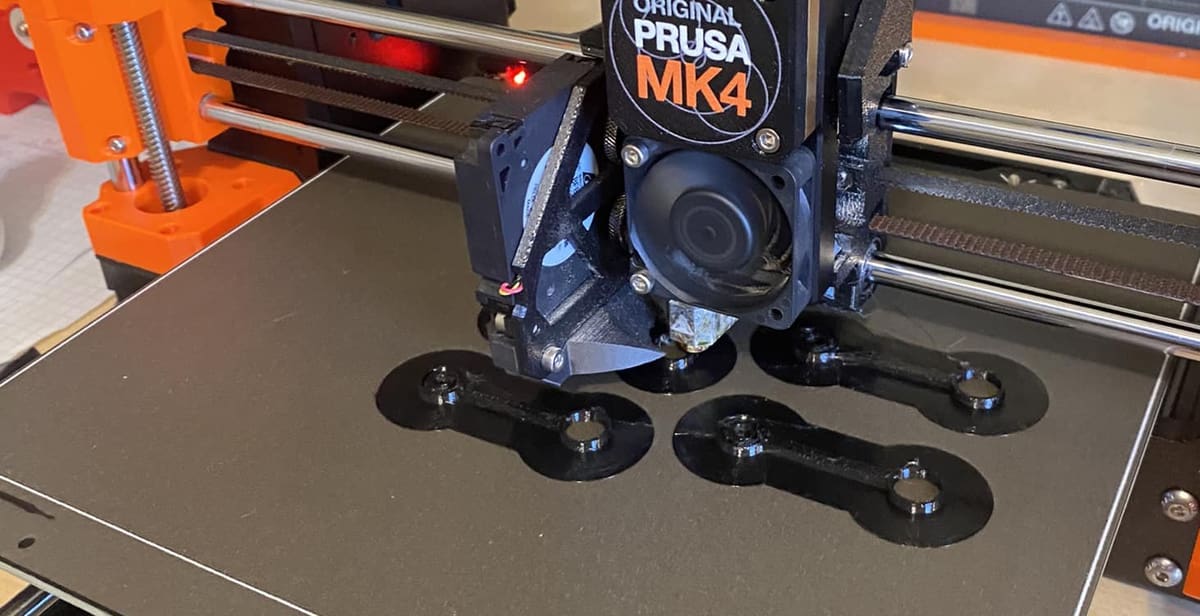
The main challenge for printing TPU is usually the extruder, but there are other factors that also affect printability. The hot end temperature is perhaps the most critical slicer-controlled setting for any material, especially TPU, which already has its fair share of extrusion issues. The bed temperature is also very significant, as you don’t want your TPU models to warp on the print bed. Then there’s the way you feed TPU into your printer, which may require a modification.
Yet, once you master TPU, it opens up a world of new parts to print.
Below, we’ll go over the ideal hot end and bed temperature ranges for printing TPU, along with some other tips and tricks. We’ll also discuss some trouble signs to look out for when printing TPU and how they may be related to your temperature settings. Let’s dive in!

Average TPU Print Specs: At a Glance
No Two TPUs Print the Same
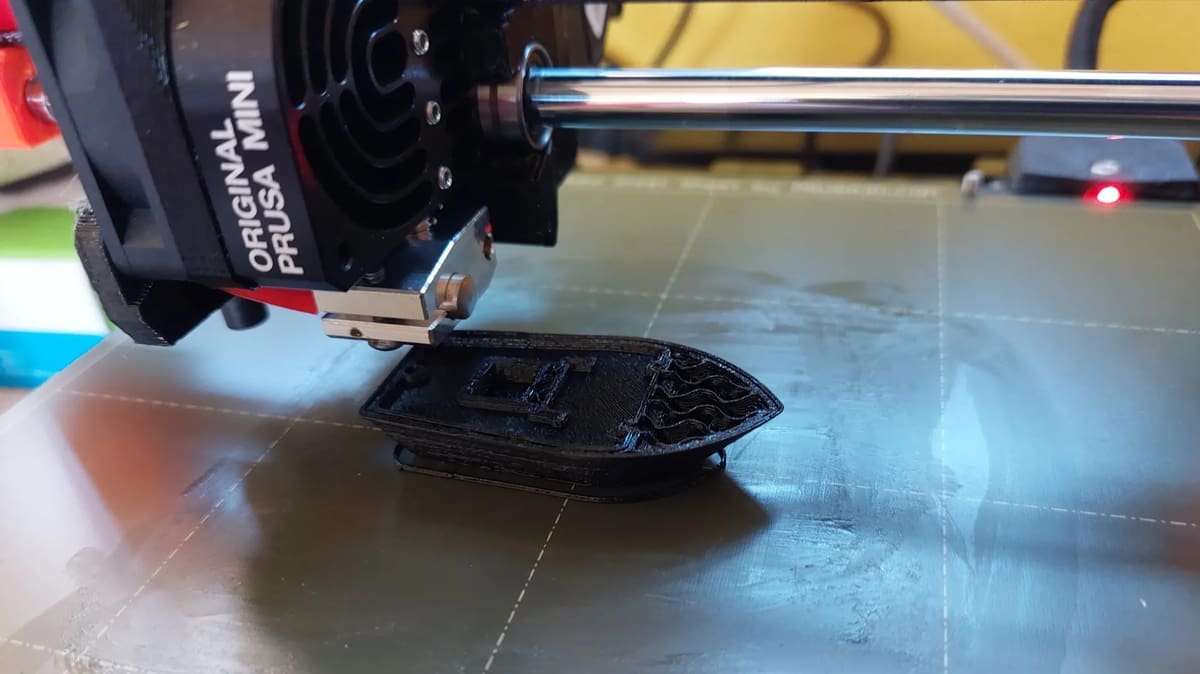
Like any printing material, TPU has no single, exact hot end temperature guaranteed to work for every brand and variety of this material. In fact, there are a lot more different kinds of TPU today, from high-speed TPU and variable-hardness TPU to translucent TPU and carbon-fiber filled TPU.
However, you should be able to achieve high-quality results with most TPU filaments using a hot end temperature between 210 °C and 230 °C.
Typically, more flexible filaments, like NinjaTek’s NinjaFlex, require higher printing temperatures (225 °C – 250 °C) than less flexible options like MatterHacker’s Pro Series TPU
(220 °C – 240 °C).
Of course, the manufacturer of your specific filament spool, typically provides the best printing temperature in the technical data sheet (TDS) that comes with your filament or is downloadable from the manufacturer’s website. Some manufacturers even offer downloadable printer profiles for their materials on specific machines. How convenient is that!
As you can see from the five brands of TPU above, print settings can vary substantially.
Test Print to Trouble Shoot
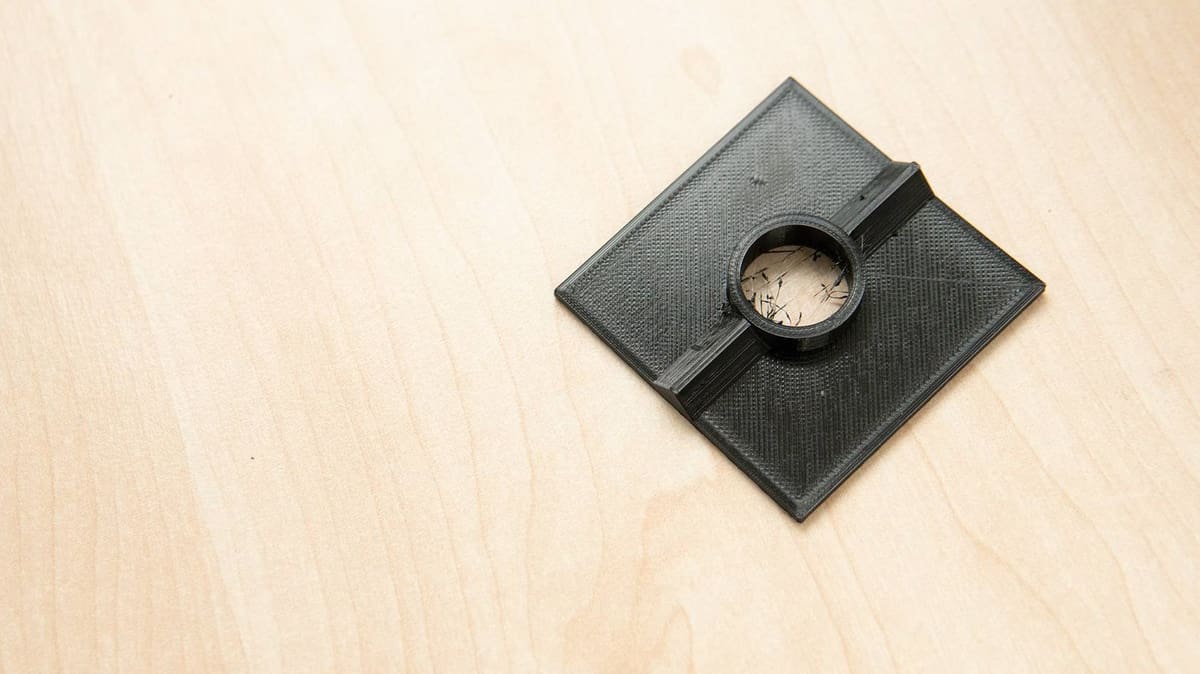
Of course, even if you’re using a temperature inside the recommended range, you could still run into temperature-related issues, as 3D printing materials tend to be sensitive to temperature changes larger than 5 °C. There are two main trouble signs that indicate whether you need to increase your temperature. You can uncover these by printing a few test parts.
Under-Extrusion
The first and perhaps most common problem when printing with TPU is under-extrusion. Small gaps in your print, a clicking noise from your extruder, and filament grinding are all bad signs of under-extrusion. This is likely the result of using a nozzle temperature too low to melt the filament fast enough and ensure proper layer-to-layer adhesion. If this is the case, consider raising the hot end temperature.
Under-extrusion can also come from how your filament is fed into your printer (see below), so check that out, too.
Over-Extrusion
On the flip side of under-extrusion, we have over-extrusion, which is excess material on a print that can look like blobs and zits. This type of scarring on your model is due to a temperature setting that’s too high for your materials making it flow out of the nozzle faster than your extruder can move. If you notice these issues, lowering your hot end temperature.
Alternatively, boosting your print speed could also fix the issue, so experiment with one at a time.
For both under- and over-extrusion, adjust your hot end temperature in increments of 5 °C until the issue goes away. Any increment larger than 5 °C could be an overcompensation and cause other issues. You can do this while the printer is printing on most machines or print separate small parts at different temperatures and then compare them.
A temperature tower test print is a quick way to gauge your machine’s print quality at different temperatures without having to print a model for every temperature.
TPU Likes a Heated Bed
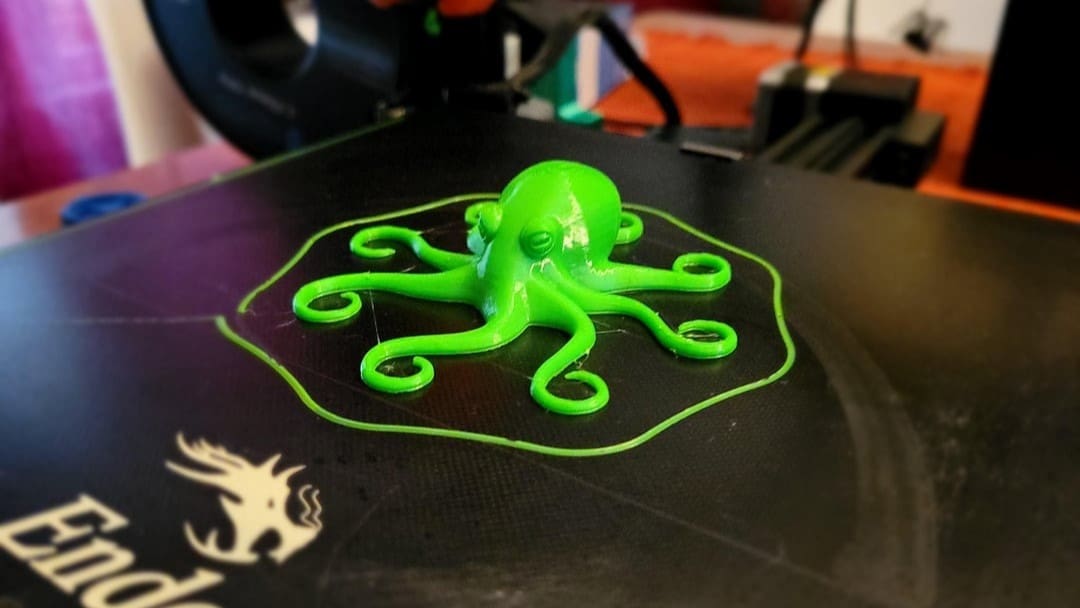
Although the hot end temperature affects extrusion, the heated bed temperature affects adhesion and can be adjusted to control how well models, specifically their first layer, stick to the printing surface.
Most filament manufacturers recommend a heated bed for TPU. Printing the material without one typically leads to warping, so it’s best to have one. An ideal bed temperature for printing TPU falls between 30 °C and 60 °C. However, the bed temperature isn’t as sensitive as the hot end temperature, and you might not notice a difference in prints as long as you meet the minimum temperature to prevent warping.
The main concern when finding the right bed temperature is the ambient temperature. If the room where your printer is located is cold, you should use a higher bed temperature. Alternatively, you could invest in an enclosure, which helps to maintain ambient temperature around the printer and prevent unwanted drafts.
How to Stick TPU to Your Bed
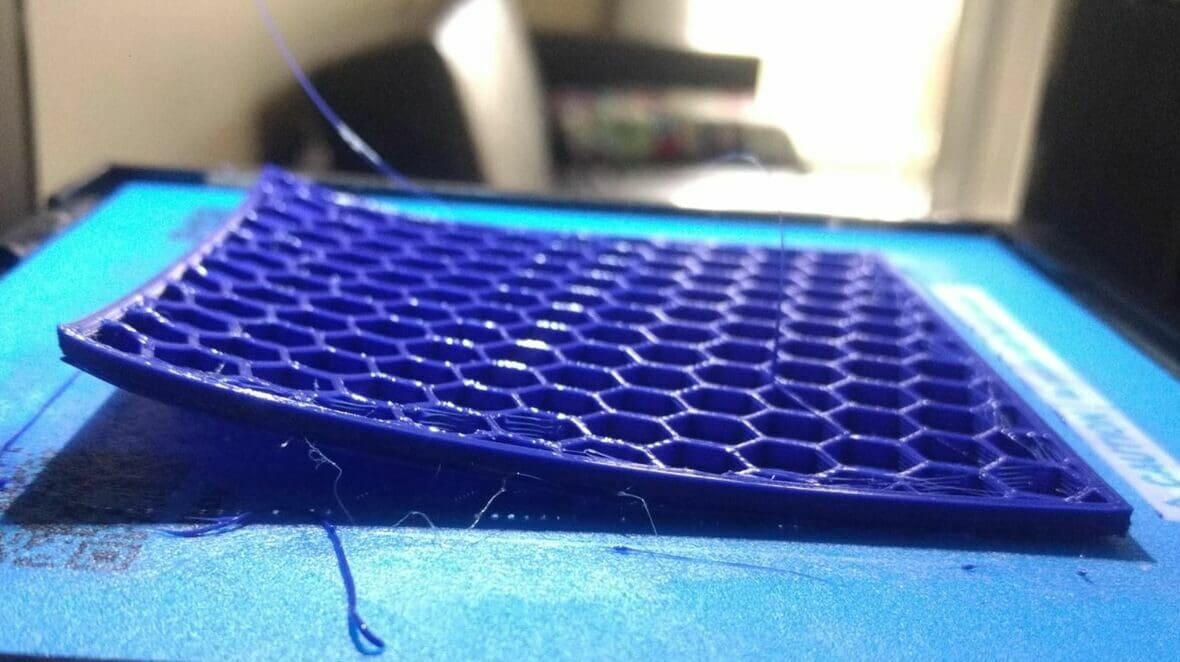
The most obvious indicator of an incorrect bed temperature is warping, where the areas of a print that contact the build plate don’t stay down and lift up (usually on the corners of prints). You can prevent warping on prints by raising the bed temperature to help the first layer more securely stick to the build plate. Using a glue stick can also help bed adhesion when working with TPU.
The opposite of warping and another sign that bed temperature needs to be adjusted is a problem known as elephant’s foot. This is when the edges of a print that touch the build plate expand and stick out past the outline of the model, which is a form of over-extrusion. As you might expect, elephant’s foot can be eliminated by lowering your bed temperature.
As with the hot end temperature, make adjustments to your bed temperature in increments of 5 °C. This will ensure you don’t overcorrect your issue and accidentally cause the inverse of the problem you’re trying to fix.
TPU Likes a Cool Breeze
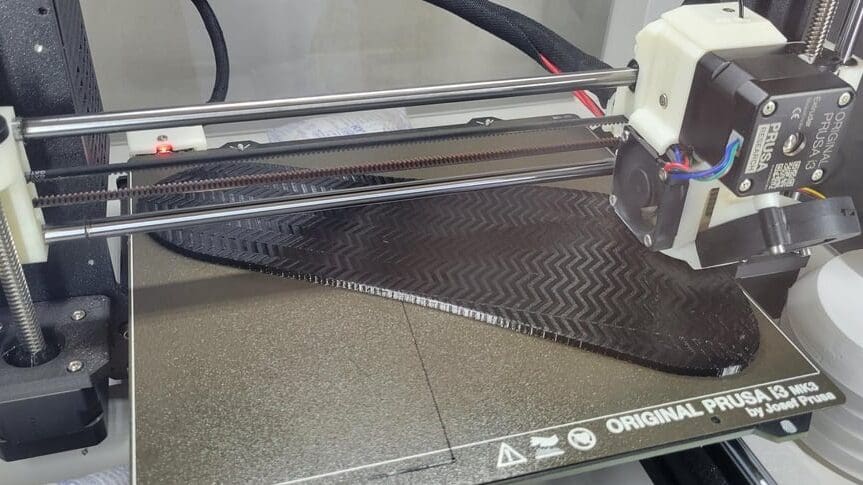
Unlike rigid filaments, the part cooling settings are generally not a make or break issue for TPU. Although too much cooling can lead to layer adhesion issues, you’ll want some cooling to prevent stringing.
A good practice is to disable the part cooling fan for the initial layers to ensure sufficient first-layer bonding. After that, setting a fan speed in the range of low to medium speed for most cases. If you’re noticing layer bonding issues, decrease the fan speed or turn it off completely.
On the other hand, certain model features like overhangs and bridges would benefit from increased part cooling. These features are particularly challenging to print with TPU, but the general advice is to slow the print speed and up the nozzle temperature slightly.
Still Having Problems? Here's What Else It Could Be
Let’s says you’ve run a series of experiments at a variety of temperatures for both your nozzle and print bed but prints are still not perfect. What else could it be?
Even when a problem may look temperature-related, it may not be. Issues like a partially clogged nozzle, an uncalibrated extruder, and, expeically, wet TPU filament can all yield low-quality prints similar to what might occur from using a bad temperature. TPU is particularly hygroscopic, so it’s essential to dry the filament completely before printing with it or else you’re likely to end up with all sorts of wonky surface defects.
Tuning your printer’s retraction settings can also play a big role in achieving high-quality prints. Retraction is a 3D printer feature meant to eliminate stringing by pulling back (retracting) filament when the printhead moves to a new location. Doing so counteracts the hot end pressure and helps prevent excess material from flowing when it’s not supposed to.
Because TPU is stretchy, retraction stretches the filament inside the extruder path the compresses when pushing forward again, which can lead to over or under extraction. TPU cannot be retracted as quickly as PLA so you typically need to set you “retraction speed” to what the filament manufacturer recommends, somewhere in the of 10 – 20 mm/s for regular TPU and 20 – 40 mm/s for high-speed TPU.
There’s another setting called “retraction distance.” This should be set according to your specific TPU but typically between 0 to 1 mm or 1 to 3 mm for high-speed TPU.
You can enabled and adjust retraction when preparing a model for printing in a slicer, like Cura or PrusaSlicer. With well-tuned settings, they can eliminate stringing, blobs, zits, and other extrusion-related print quality problems.

Modify Your Filament Feed
When printing TPU filament, the difference between a direct drive and a Bowden 3D printer becomes especially important because TPU is soft, flexible, and compressible.
Direct drive extruders are mounted on the printhead and push the filament directly into the hot end. Meanwhile, Bowden extruders usually have the extruder mounted on the frame of the printer, so they have to push the filament further through a long tube to reach the printhead, giving it a lot of opportunity to compress.
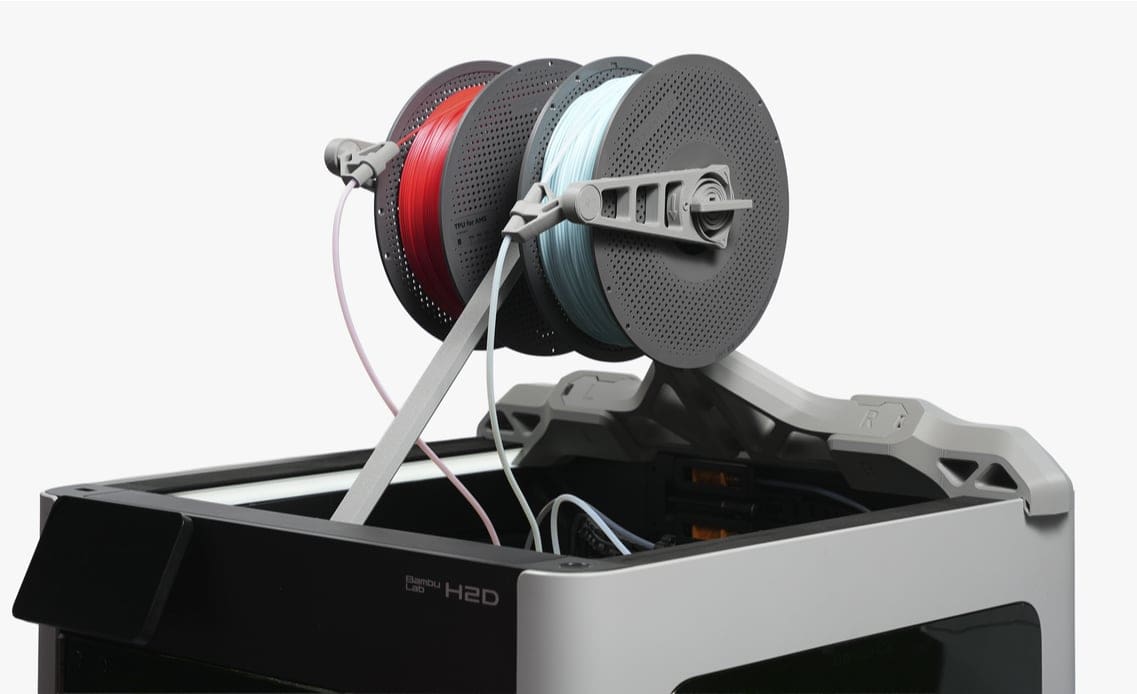
Your Bowden-style 3D printer is going to make your use of TPU a lot more challenging. But even direct drive machines like Bambu Lab recommend a different set up, consisting of modifications, to best feed TPU into the machine. The modification above that gently drapes the TPU filament into the extruder is what Bambu Lab recommends.
You May Also Like:

License: The text of "The Best Bed & Nozzle Temperatures for Perfect TPU Prints" by All3DP is licensed under a Creative Commons Attribution 4.0 International License.