Does Text-to-CAD Model Generation Really Work? We Tested CADscribe

There's a lot of buzz around AI model generators. So, we're putting them to the test. Is CADscribe up to snuff?
There are plenty of AI model generators these days, and they’re proliferating. Many export STL files – which are not fun to edit. In Autodesk Fusion, for example, STLs can be converted to solid bodies for easier editing, but users report challenges with the functionality available in the personal use version of the software.
The emergence of text-to-CAD model generators piqued our interest. Thereotically, this type of AI model generator would allow users to create editable CAD models from text prompts, then further refine them in CAD software. For makers and engineers, this could help to save time and effort during design process.
We found a few generators that can export models as STEP files – a much better format than STL when it comes to precision and how the models are described. In this article, we’re going to give one of them, CADscribe, a spin to see how well it works.

Why CADscribe?
If you’re curious to try text-to-CAD tools, CADscribe is a great option primarily due to the price. You get 10 free model generations, which are referred as “messages” in the application. After that, a premium subscription costing €4,99 (~$6) per month offers unlimited file generation and access to their Thinking Model feature, which the developers claim is more accurate.
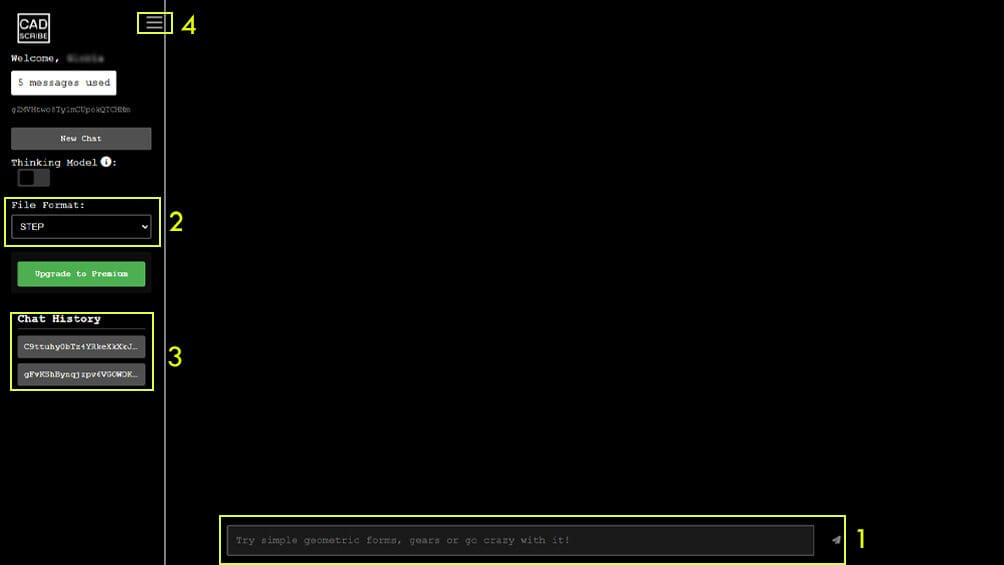
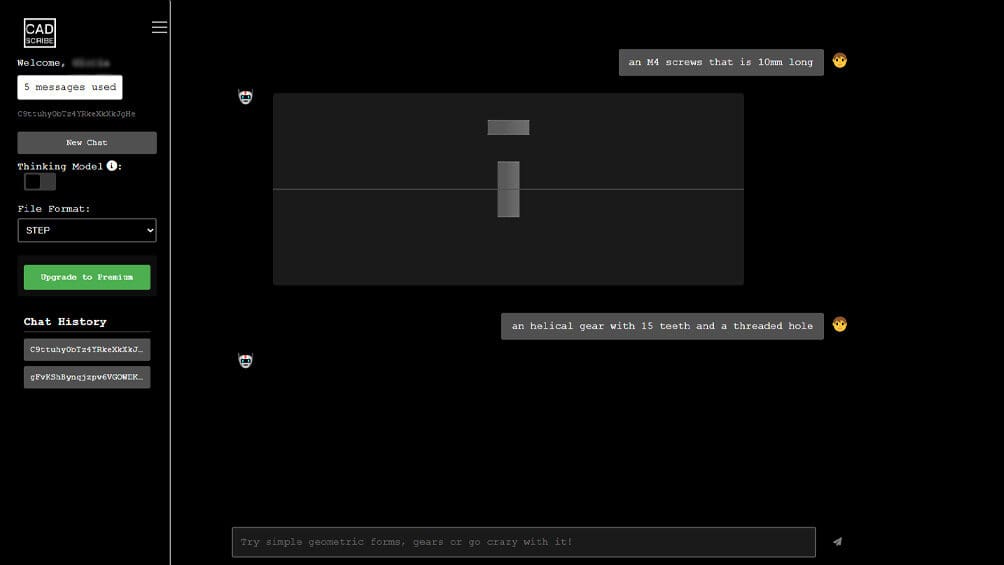
The UI is really simple and intuitive.
- The central area of the window is dedicated to the chat, where you send your prompts to the AI. Here, you’ll see all of the messages and generated models.
- This software can export models to either a STEP or STL file format. To choose which format to download, you can simply select the desired file type from a drop-down menu on the left panel under “File Format”.
- Also on the left panel, you’ll find the “Chat History” (3), which allows you to easily recover a past chat. You’ll also be reminded of how many messages (generations) you’ve used.
- Simply click on the hamburger button to close the left panel so you can have a larger area dedicated to the chat.
But none of this is important if the model quality isn’t good. So, let’s see whether CADscribe is a great tool for CAD modeling.
First Model: Let's Start Simple
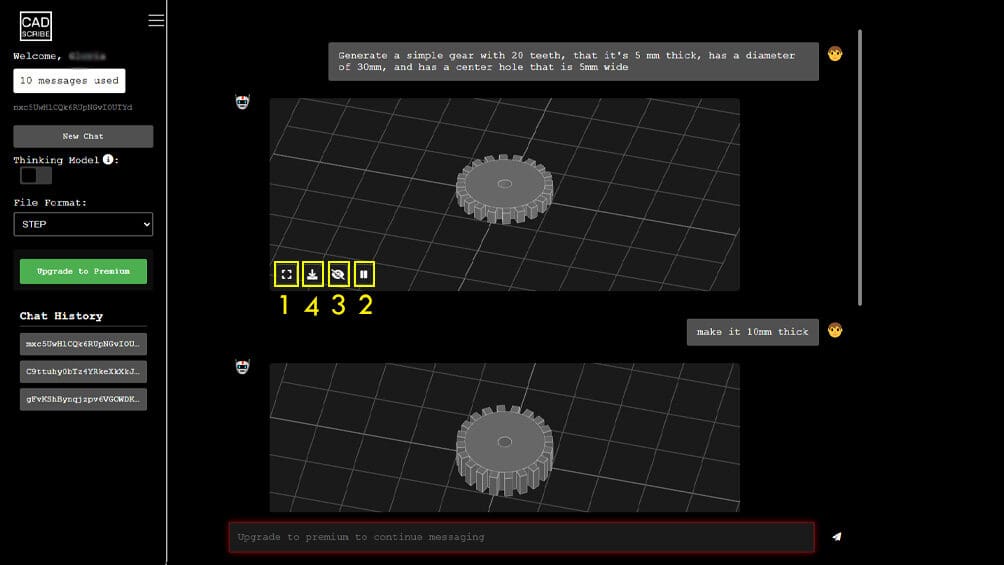
Let’s begin with a simple model to warm up and check whether the AI can create basic models like a simple gear. We have used the following prompt: “Generate a simple gear with 20 teeth, that it’s 5 mm thick, has a diameter of 30 mm, and has a center hole that is 5 mm wide”.
Once the model is generated, it appears in the main chat. You’ll see a preview of the model in a dedicated window with a few useful commands:
- The first icon shows you the model full screen.
- By default, the model will be animated, but you can stop the rotation by clicking on play/pause button.
- You can also hide or show gridlines depending on your preference.
- When you’re ready to export the model, click the download icon.
It’s also possible to refine the generated model by sending new prompts to the AI. For example, we wrote “Make it 10mm thick”, and CADscribe adjusted the model accordingly.
Now that we have the model, let’s export it as a STEP file, then import it into a CAD program. For this article, we’re using Autodesk Fusion.
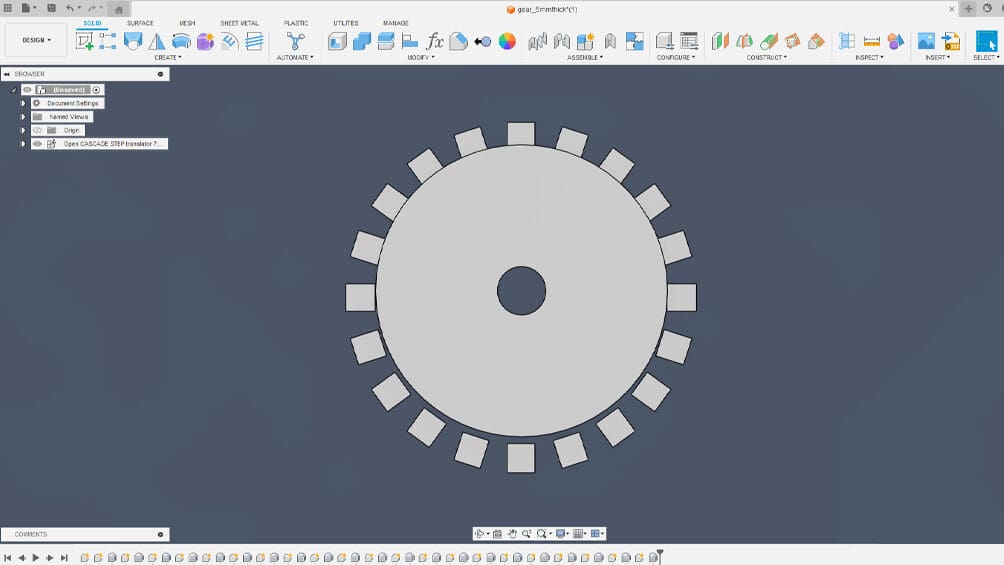
Unfortunately, we’re not off to a great start. Opening the gear in Fusion, we see that the model imported correctly, but the geometry isn’t what you would expect: The teeth are disconnected from the central part of the gear.
At least the dimensions are spot on. The diameter of the body of the gear is 30 mm, and the hole diameter measures 5 mm. The thickness of the first gear model is 5 mm and the second one, 10 mm.
Second Try
I decided to give CADscribe another chance. This time, we simplified the prompt: “Generate a simple gear with 20 teeth”.
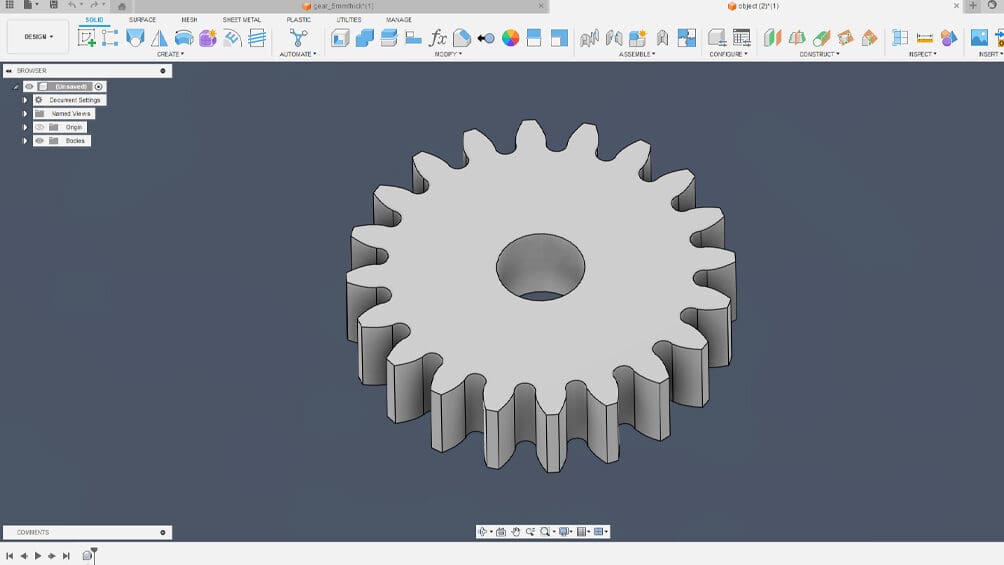
The result is much better and resembles a classic gear. Importing the model into Fusion, we see that it’s a solid body with no geometry artifacts.
It seems that it’s better to start with a simple prompt and use the power of iterative design to add further constraints, such as dimensions.
Second Model: Up the Difficulty a Notch
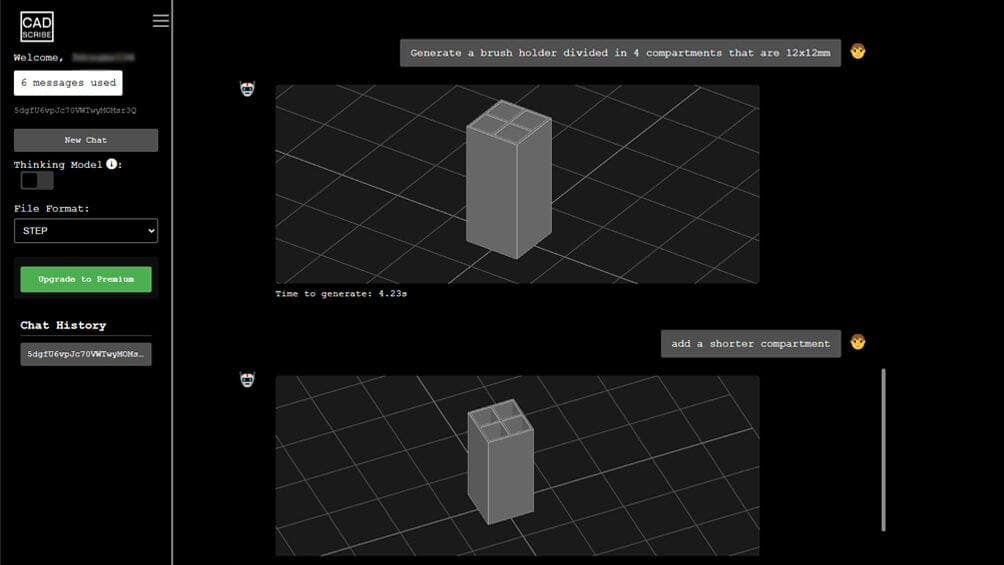
Let’s try something more difficult but still functional, such as a brushholder. Since we’ve learned to start simple and work our way up, let’s begin with this prompt: “Generate a brush holder divided into 4 compartments that are 12 x 12 mm”.
The first result is a really simple model that will be a good base to start building upon. It’s possible to modify the dimensions or revise the geometry with elements such as chamfers, but the problems start when we try to add complexity to the geometry.
We tried to add another compartment to create a small base to put additional items, but it won’t generate – even when trying different prompts. So, let’s export the STEP file and try to add a new compartment in Fusion.
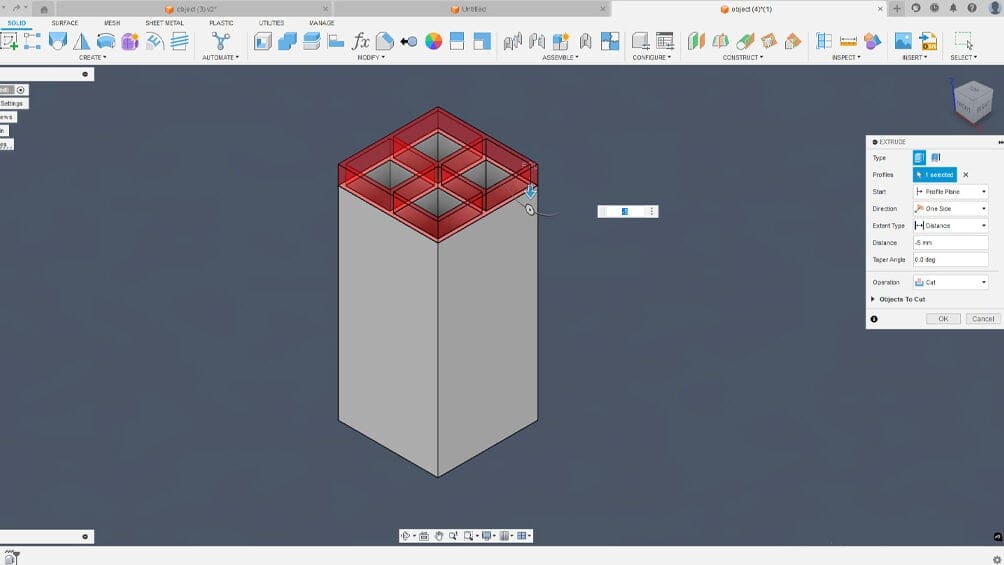
After opening the file, we checked the dimensions. The compartments are actually 12 x 12 mm, so the indicated dimensions were respected. Now, let’s modify the geometry a bit and test if it can really be refined.
First of all, the model doesn’t present artifacts, and the faces have been correctly identified by the CAD software. You can directly modify the model. For example, we made it shorter with an extrusion and didn’t encounter any problems.
Now, let’s add the small tray we weren’t able to generate in CADscribe. We created a sketch and used the edges of the generated model as reference geometries. Fusion didn’t have a problem projecting these edges, so that’s good news.
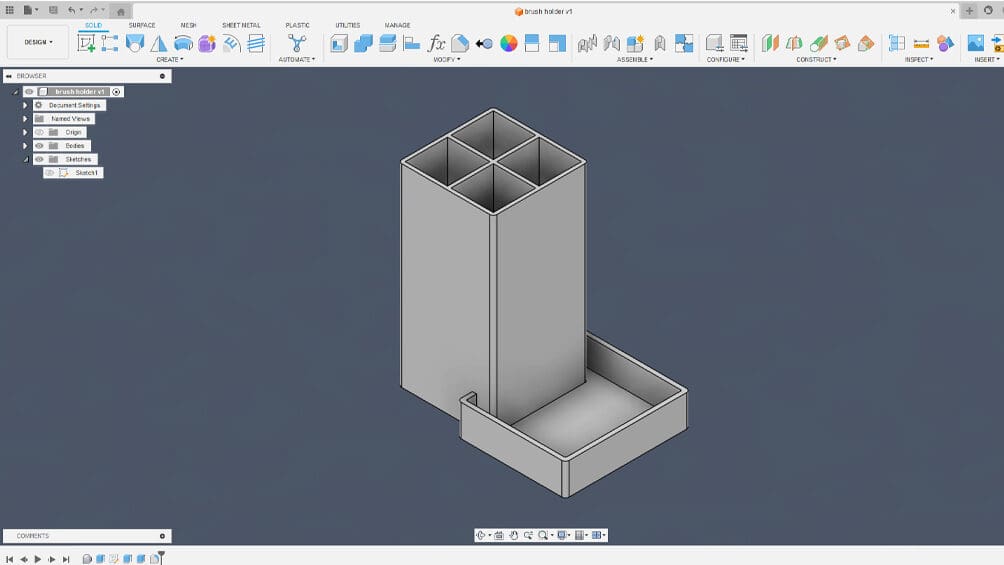
Having drawn the tray geometry, we can extrude it. The software joined the original geometry with the extruded tray correctly, creating a solid body without issues.
The final touch is to add fillets. Fusion executed the fillets correctly, returning a model that is ready for manufacturing. Read on to see the final result.
Third Model: Torture It With Organic Shapes
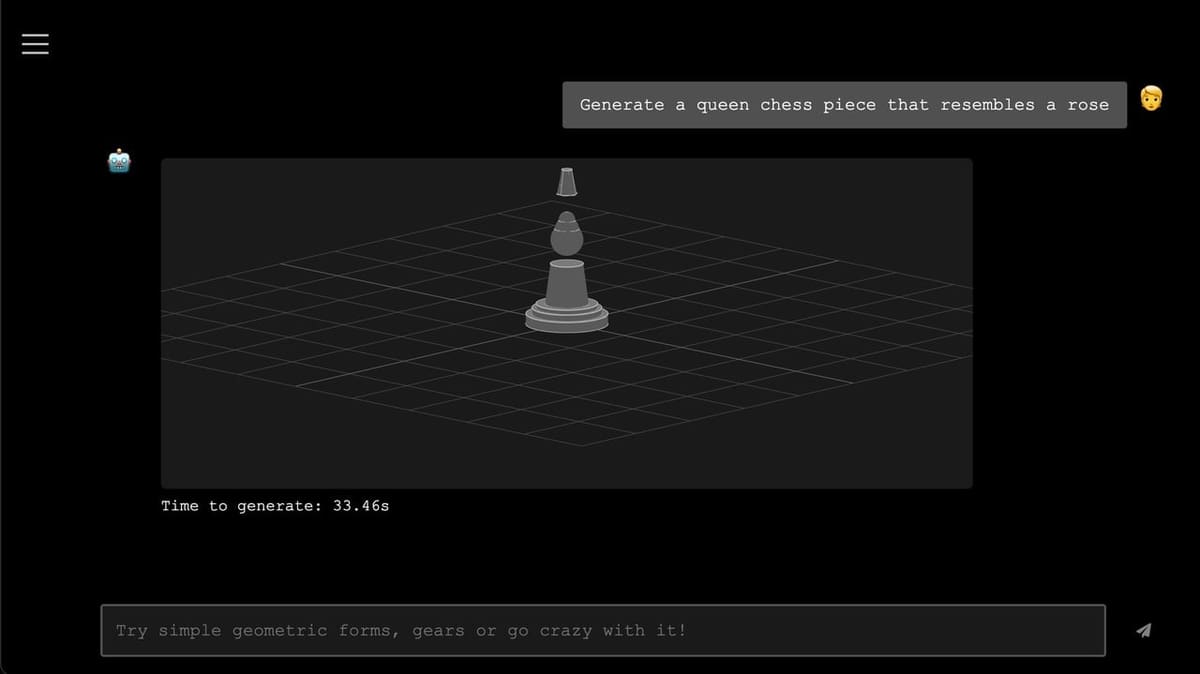
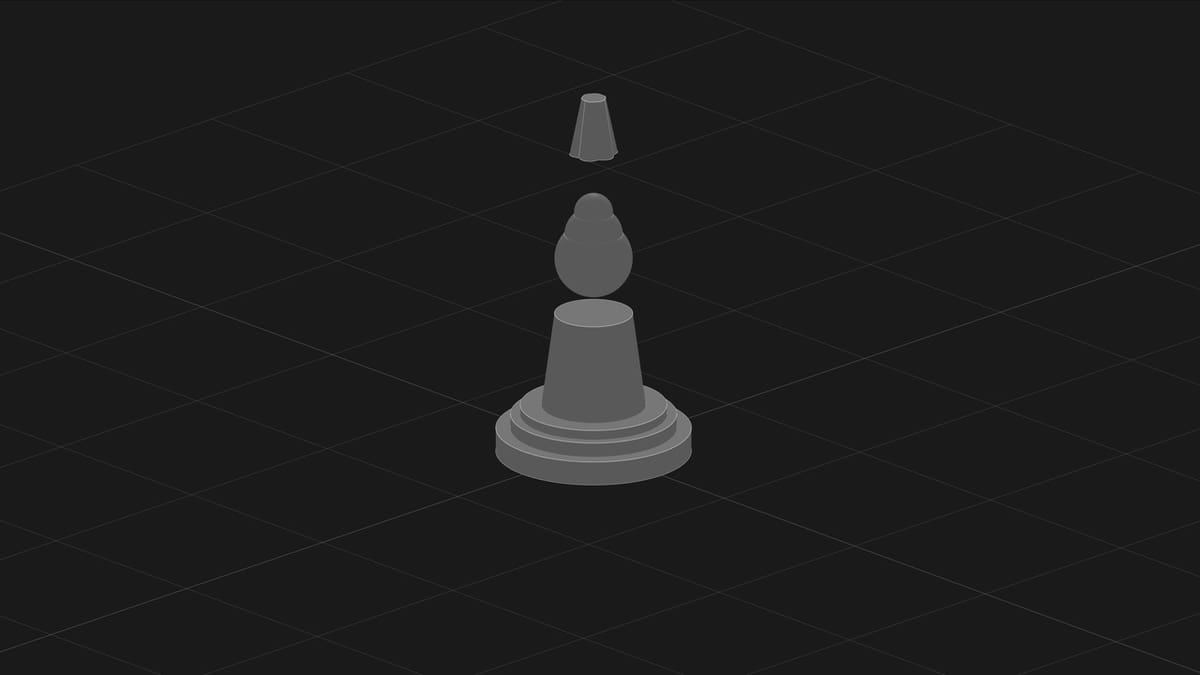
The directions in the chat field warns us to try “simple geometric forms”, but I’d like to see how it does with more complex shapes and organic geometry. We used this prompt: “Generate a queen chess piece that resembles a rose.”
The result was, uh…, surprising. The model consisted of three separate pieces that didn’t convincingly resemble a queen chess piece. We sent a new prompt:”Revise the generated model so that all parts are connected”.
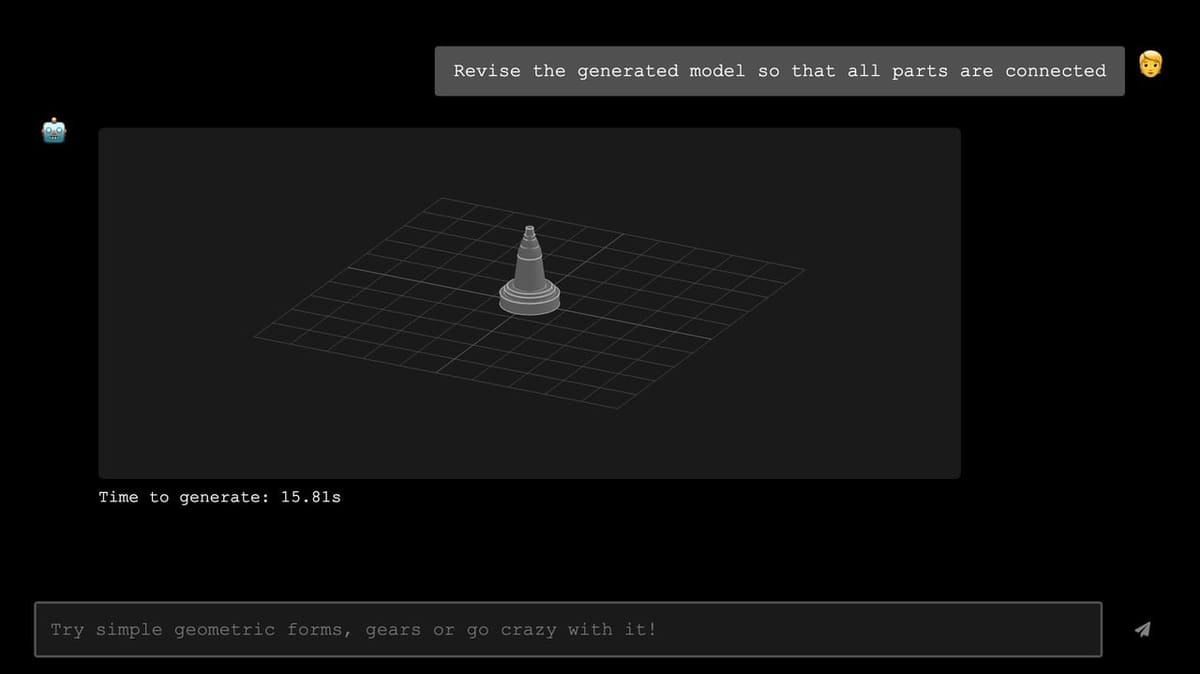
As per our request, the generated model is made up of the same parts as before but connected together. Now, let’s import the two models in Fusion to see what we get.
The results are interesting. Fusion interpreted the different pieces of the first “queen” made as an assembly with different components. This is great because it’s especially useful when working on assembly models.
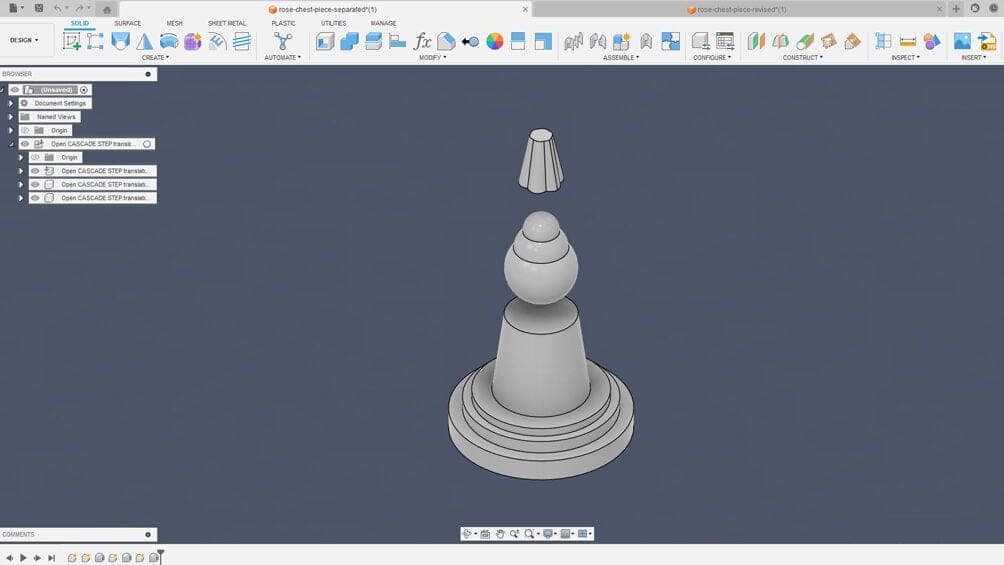
In Fusion, we can manually connect the parts to create a solid model, but overall, we didn’t achieve the rose vibe we were going for.
The second generated model with the joined parts is identified as a solid body from Fusion, which is exactly what you would expect.
CADscribe did warn us to go with simple geometric forms, so we can’t judge the tool too harshly for not delivering convincing organic shapes. But just for fun, we asked the AI to generate 3D printable models of a rose and also a man. The latter definitely caused an LOL moment.
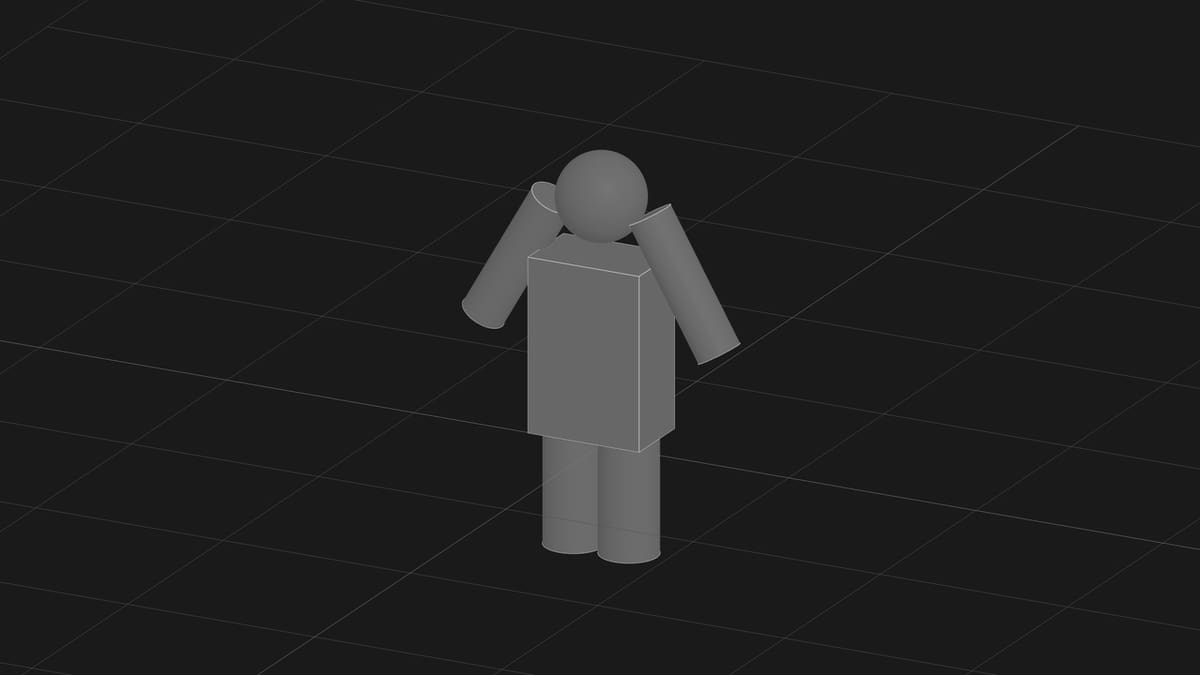
The lesson here: It’s more convenient to design organic shapes from the ground up directly in CAD or 3D modeling software.
3D Printing
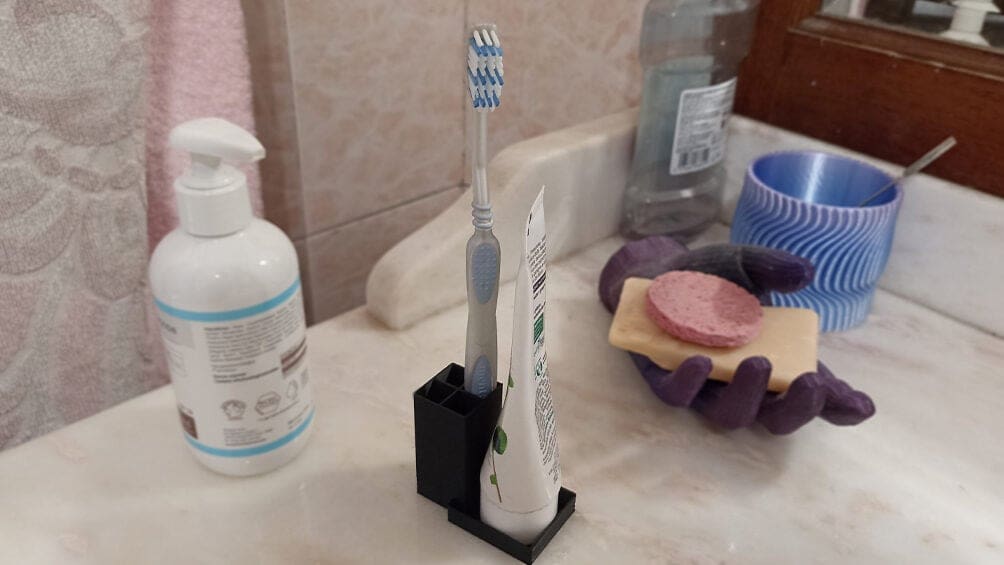
I was curious to check out whether we can 3D print the generated models. So, I decided to print the brushholder.
Slicing the model went fine. Orca Slicer didn’t report any non-manifold edges to repair. The file sliced correctly with no abnormal time required, and the G-code preview doesn’t show any artifacts.
The print came out great. There were no issues during the printing, and the part is free of imperfections. The dimensions are correct, and the model is functional, making this experiment a success.
Verdict
When used as directed, CADscribe can generate editable, dimensionally accurate CAD models. The initial result will depend heavily on the prompt used. Even slight changes in the phrasing can result in models that are very different from previous attempts. We found that simple prompts to define the base model, then basic modifications with new instructions worked pretty well.
When it comes to organic modeling, just don’t bother. CADscribe is not the right tool for them; other AI STL-model generators might be a better fit.
In our testing, the site got stuck sometimes, but no error message was displayed. Further, it’s often under maintentance. As relatively new software, this is understandable but, nevertheless, a little inconvenient.
A more significant problem is CADscribe’s inability to generate threads of screws, nuts, bolts, and the like. Fortunately, software like Fusion makes that easy, but this functionality would be cool with an AI tool.
All in all, we were surprised by the results. Our expectations were pretty low given the big claims of many AI model generators. The fact that we were able to produce editable CAD models of designs – albeit simple ones – was a success.
License: The text of "Does Text-to-CAD Model Generation Really Work? We Tested CADscribe" by All3DP is licensed under a Creative Commons Attribution 4.0 International License.