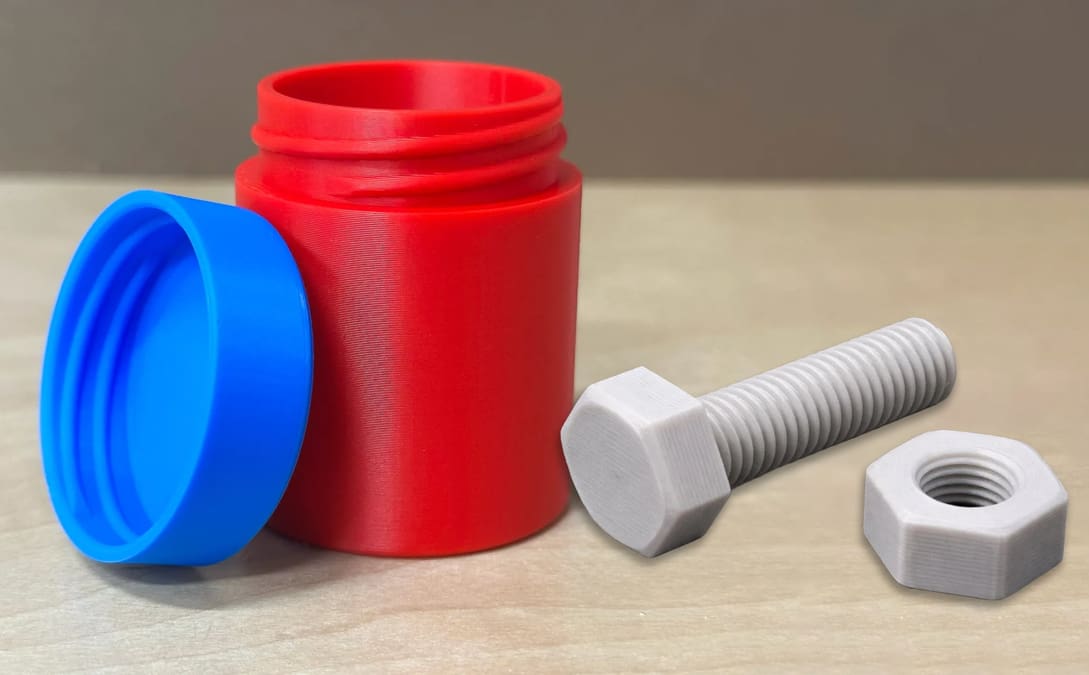
Threaded Parts, Screws & Bolts: 3D Print Them Perfectly Every Time

3D printing threads and screws that fit is a challenge. Check out this simple guide to learn how to successfully design and print them!
Getting 3D printed threads right can feel like trial and error, but with a few key design principles, you can start creating perfectly fitting, functional screws and threads straight off the print bed.
Although conventional metal fasteners are generally stronger, printing threads opens up some interesting design possibilities, such as custom screw-on connections for parts that aren’t available off the shelf. Think threaded lids for storage containers, replacement caps, unusual adapters, or enclosures that can be opened without tools. You can also integrate threads directly into a printed part, eliminating the need for separate fasteners or additional assembly steps.
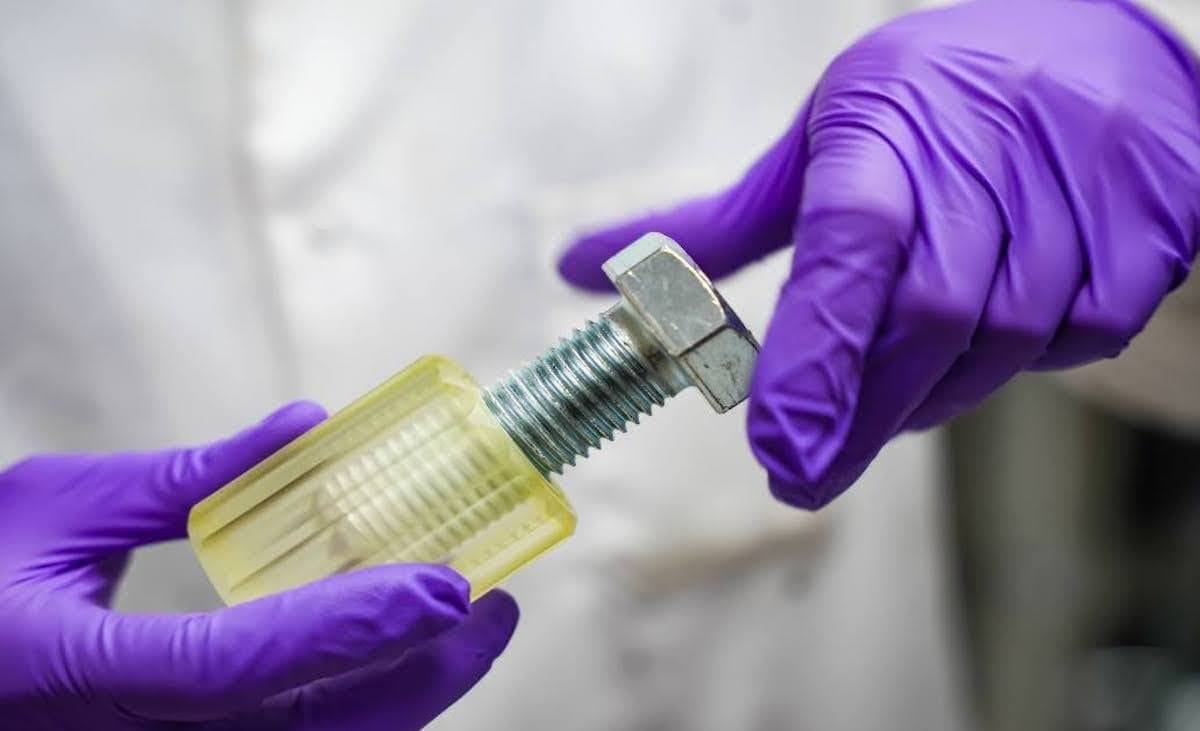
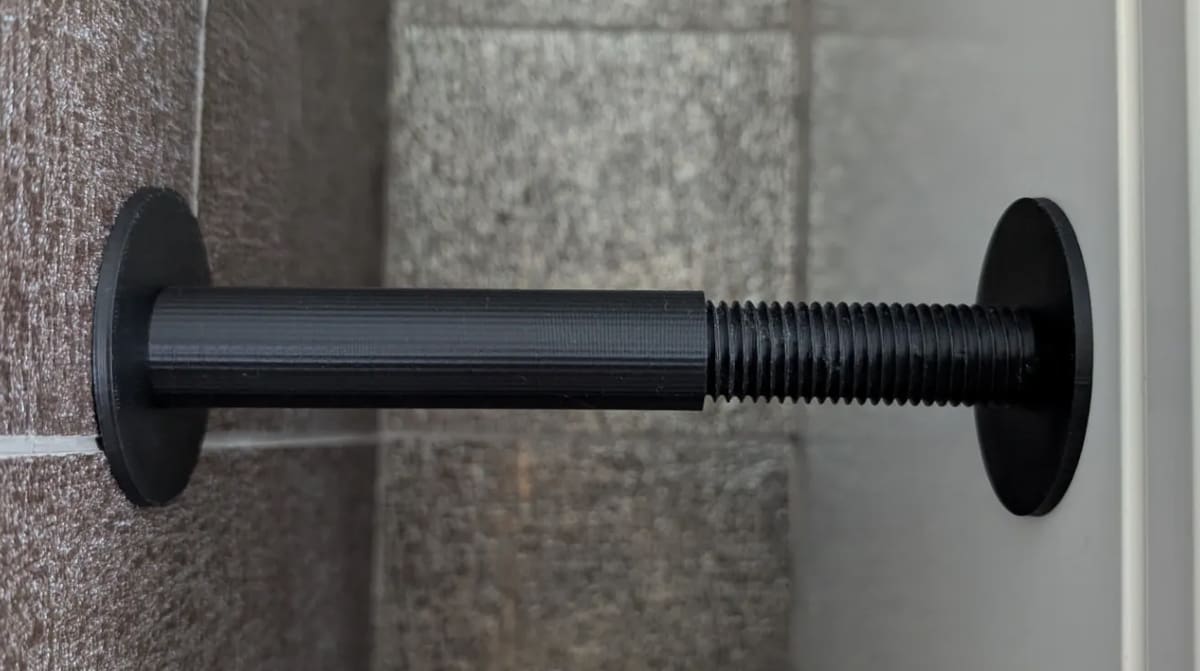
Threads aren’t limited to joining parts, either. They can also be used to create adjustable mechanisms, such as screw clamps or leveling feet.
That said, printed threads are best suited to relatively low-load applications, particularly when they’re large enough to print reliably. For smaller fasteners, frequently assembled connections, or applications requiring higher strength, conventional metal screws and threaded inserts are often the better choice.
Tools For Quick & Easy Automated Threaded Parts
While the rest of this guide covers designing and printing your custom threaded parts, if you’re looking for a simple threaded container, a bolt and nut pair, or a set of standard screws, there are several quick online apps you can try. These are prebuilt parts but with measurements you can customize, like the length of the bolt or the width of the container.
Some threaded apps we like are at MakerWorld, including:
- Customizable Bolt, Nut & Washer M3–M24 Left/Right by 3Dkastle
- Parametric Screw-Top Containers by Gentle Design
- Eye Bolt Generator by Maochen
If you plan to design threads yourself in CAD, below we guide you through the essentials.
Threads: What You’re Actually Printing
A screw or a bold is a part, but a thread is a feature, and it’s the thread that causes most of the trouble when 3D printing.
They’re also used on screw-top lids, containers, pipe fittings, adjustable mechanisms, and countless other objects. What all threads have in common is their basic geometry: a continuous helical ridge or groove with a specific cross-section, running around the outside or inside of a cylindrical surface. External threads, such as those on a bolt or the neck of a jar, engage with internal threads, such as those in a nut or screw-on lid.
Thread profiles come in several forms. Triangular threads are commonly used for fastening, while trapezoidal threads are typically used to transmit motion and force in lead screws and linear drives. Screw-top lids and containers often use other profiles, such as rounded or modified trapezoidal threads, designed for easy engagement and repeated opening. Threads can also follow metric or imperial standards, although custom printed parts don’t necessarily need to follow either.
Regardless of the application, 3D printing introduces the same basic challenge. A printer builds a thread layer by layer, turning the smooth helix in your CAD model into a tiny staircase of plastic. Getting two threaded parts to fit and move smoothly together comes down to thread geometry, print orientation, accuracy, and tolerances. The following sections explain how to get these right.

Basic Terms
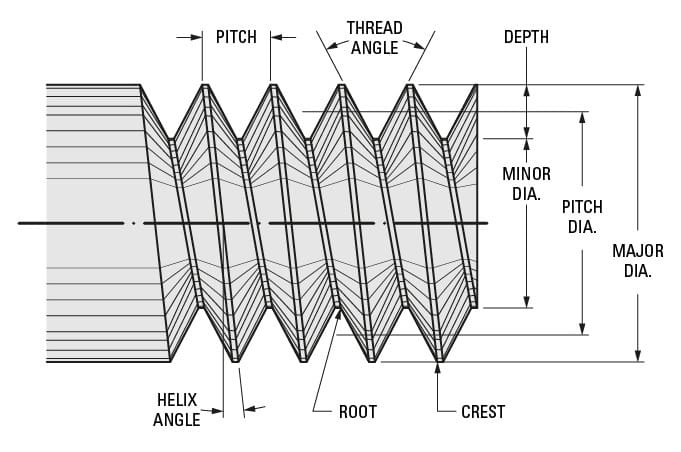
Before starting to design threads, there are a few terms and concepts you should be familiar with:
- External or internal thread: An external or male thread extends from a cylindrical surface. An internal or female thread is the exact negative of an external thread, meaning it’s carved into a negative cylindrical surface. Bolts, for example, employ external threads, while nuts use internal threads.
- Thread direction: Threads screw either toward the right or the left. Right-handed threads run clockwise, and left-handed threads run counterclockwise. If you turn a right-handed thread counterclockwise, it will unscrew. Moreover, a right-handed nut won’t screw onto a left-handed screw. Although right-handed threads are the most common, you can find left-handed threads in places like showers or sinks for the hot water handle.
- Thread axis: This is the line running through the center of the cylinder on which the thread is formed.
- Root: This is the bottom of the groove running around the thread body.
- Crest: This is the highest point of the thread profile.
- Major diameter: The diameter of the cylinder that encircles the crest of the external thread or the root of the internal thread is known as the major diameter. This cylinder is concentric to the thread axis.
- Minor diameter: This is the diameter of the cylinder that encircles the root of the thread in an external thread or the crest in an internal thread. This cylinder is concentric to the thread axis and the major diameter. The minor diameter is also known as the “drill size diameter” when referring to inner threads.
- Pitch: This is the distance between equivalent points on adjacent threads. For example, the distance between two neighboring crests of a triangular thread.
Printing Threads at a Glance
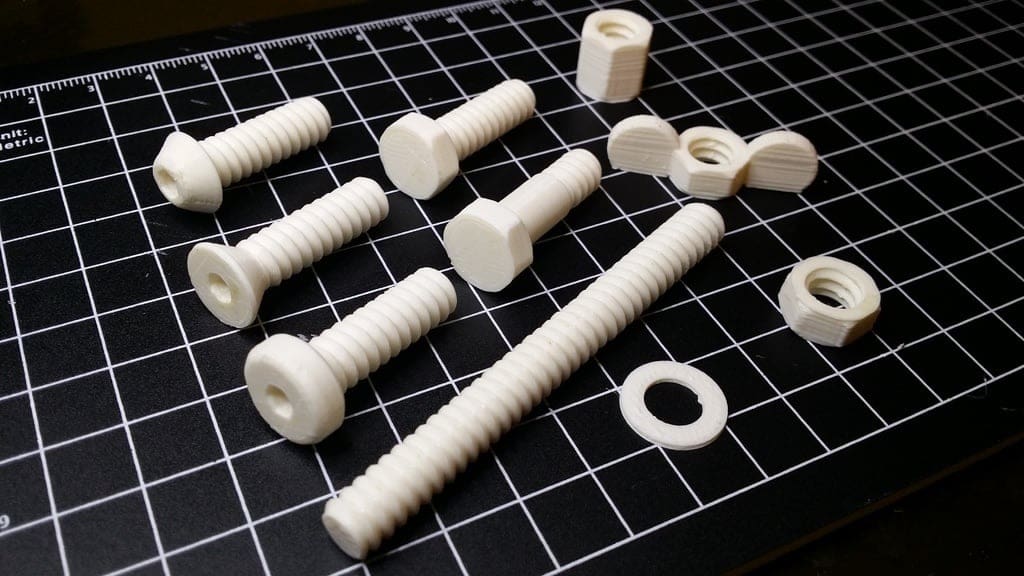
Designing a part with threads? Here are the main bases to cover before you print, along with our recommendations for each. We go into more detail later in the article.
Design Rules for Printable Threads
Regardless of your method, the important thing is to understand the basics. It’s not only about how to use CAD software but also about knowing the design rules for threads.
Follow the Standard or Go Rogue
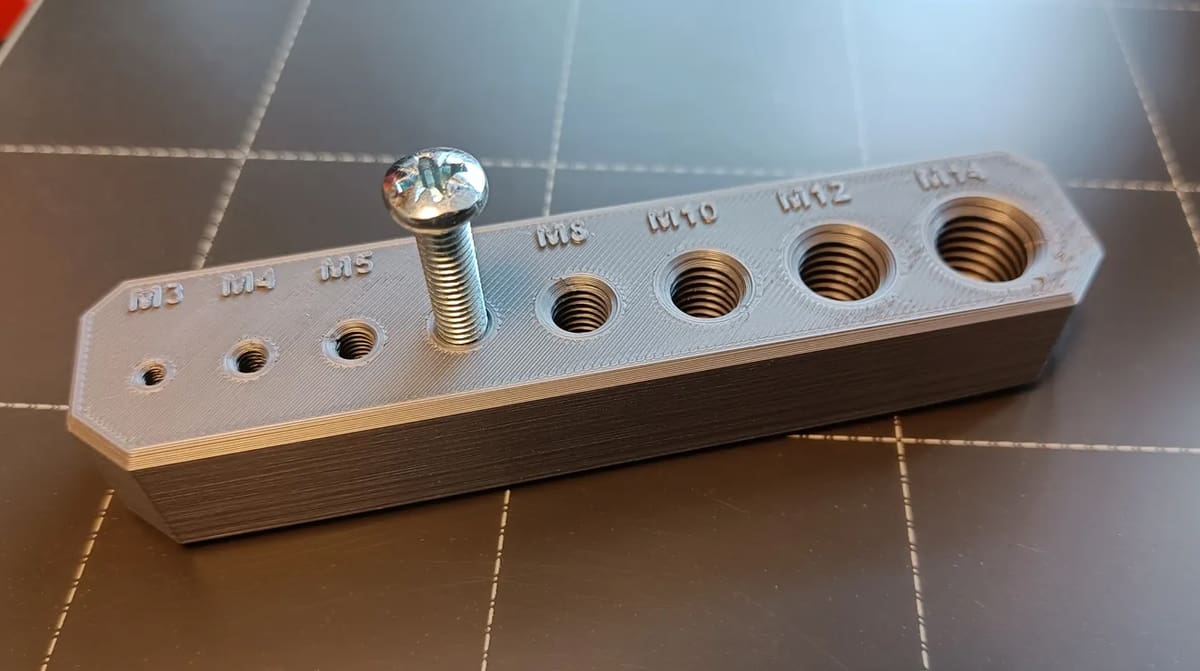
Most commonly available machine screws follow established standard. For example, as ocket-head cap screw has an already defined pitch, angle, and tooth dimensions. Therefore when you model a threaded element, the dimensions should be based on a standard if you’re going to be using standard hardware.
Of course, for a custom part that you’re designing yourself, like a screw top enclosure, you only need to understand the basics of the geometry, not follow any particular measurement.
Below, we cover that international standard measurements if that’s the type of product you’ll be printing.
- Metric threads: The ‘M’ designation of a metric thread indicates the nominal outer diameter of a thread in millimeters. For example, the M5 thread has a nominal outer diameter of 5 mm. In an external thread, the nominal outer diameter is equivalent to the major diameter. In an internal thread, the nominal outer diameter can be determined by measuring the minor diameter and consulting a metric thread table.
- Inch threads: Inch threads are designated using a number of standards, including the Unified Thread Standard (UTS), which primarily names standard thread sizes with numbers (e.g. #4). The two most important measurements in the UTS are the major or minor diameter in external or internal threads, respectively, and the threads per inch (TPI).
Therefore, when you want to design threaded elements, you should get the specifications of pitch, angle, and all the rest from the recommended standard tables.
The tables below list common coarse-pitch sizes to get you started. Tap drill sizes are approximate (major diameter minus pitch), so check a tap drill chart before drilling.
Clearance
3D printed parts don’t always come out at exactly the dimensions you modeled. Small variations are caused by factors such as material shrinkage, printer calibration, and how the material is deposited or cured. With FDM printing, for example, extruded lines can spread slightly, and holes often end up smaller than designed. These differences might be barely noticeable on their own, but they can prevent two threaded parts from fitting together. If you model a bolt and nut, or a container and screw-on lid, without any clearance between their threads, they may be difficult or impossible to screw together.
To avoid this, build in a small gap between mating threads. One approach is to model the internal thread at its nominal size and apply a small negative offset to the external thread. For FDM printing, around 0.1–0.2 mm per side is a common starting point, while resin printing can often work with smaller clearances. Materials that shrink more as they cool, such as ABS and ASA, may need additional clearance. It’s worth printing a small test piece before committing to a larger part.
You can also make this adjustment in the slicer instead of in CAD. See Slicer Compensation.
Thread Profile
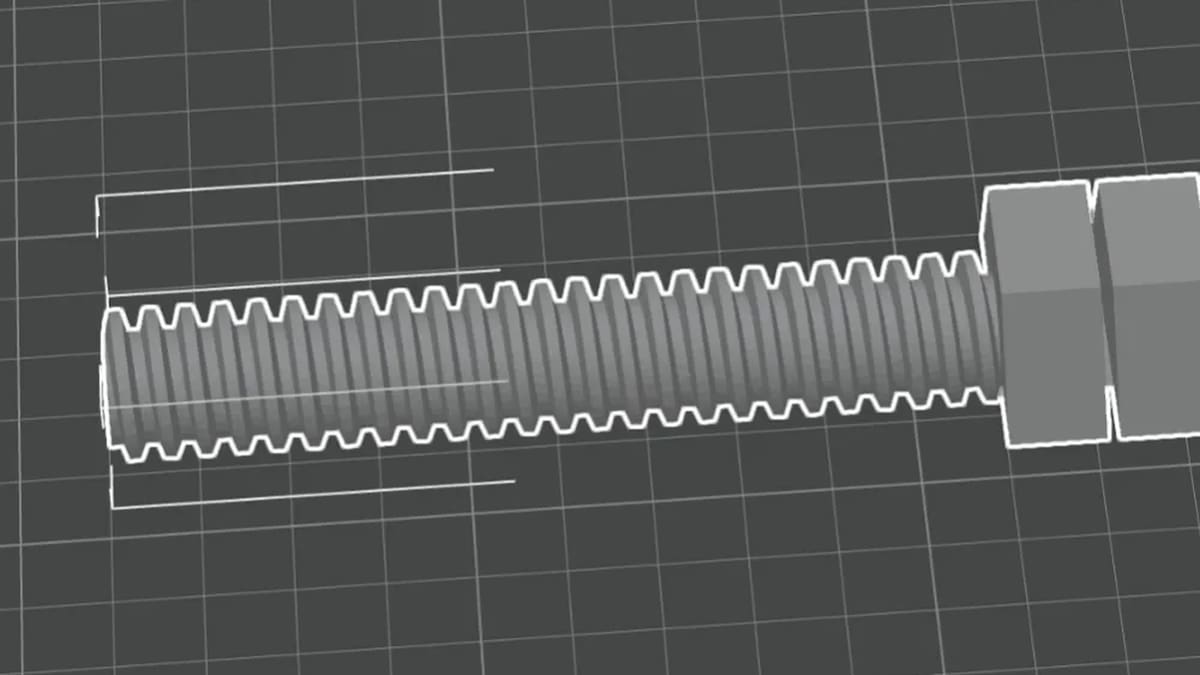
In most cases, the cross-section, or form, of a thread is triangular or trapezoidal. Standard triangular threads have a sharp 60° profile, and the overhangs on their flanks don’t print well. Trapezoidal or ACME profiles are more stable layer by layer and tend to run more smoothly, which is why they’re a good choice for printed screws that don’t need to match store-bought hardware.
If your printed thread has to mate with a metal screw or nut, stay with the standard triangular profile and rely on clearance instead.
Adding a 45° chamfer to the tip of the bolt and to the entrance of the nut also helps the two parts find each other and start threading.
Size Limits & Fit Tests
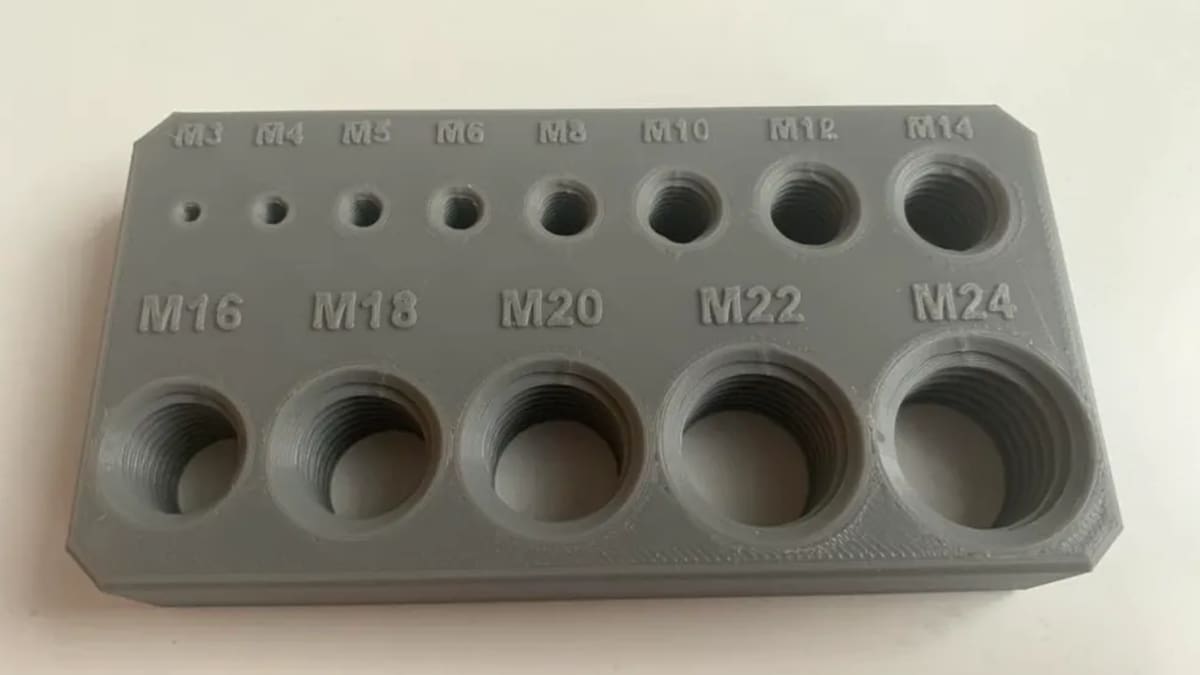
It may seem like a simple thing to do, but printing threads isn’t always easy, especially if you want small diameters.
Small external threads can be challenging to print accurately, particularly with a standard 0.4-mm FDM nozzle. While functional threads smaller than M6 are possible, their strength and reliability depend on the material, print settings, and intended load. For critical or heavily loaded connections, consider metal fasteners or inserts.
In general, it’s a good idea to try printing a thread test. This is the best way to test your 3D printer’s capabilities.
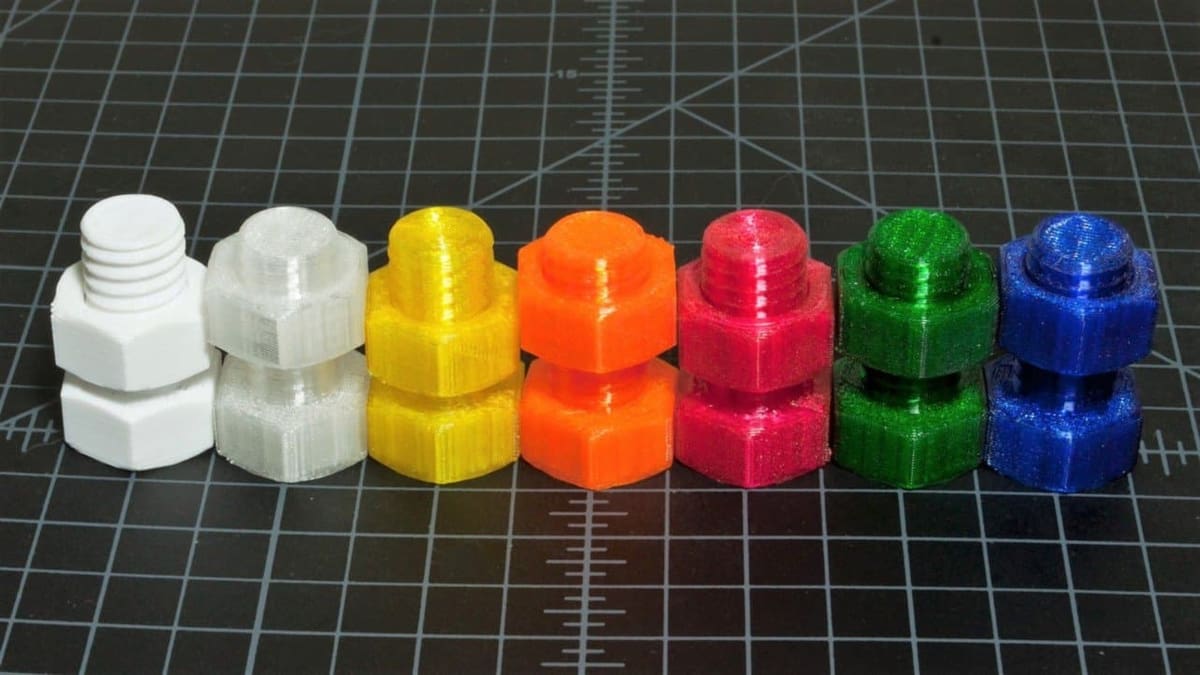
Before you start printing large parts with threads, also print a small nut and bolt to check the fit. Some materials shrink more than others, so you may end up with a tight thread when printing internal threads or a very loose thread when printing external threads. Adjust the clearance and print again until the two parts turn smoothly.
Designing a Screw-Top Lid
Screw-top lids are a great example of why you might want to 3D print threads rather than use conventional fasteners. Whether you’re making a storage container, a custom enclosure, or a replacement cap, you can design both parts to fit together without any additional hardware.
The basic principle is simple: the container has an external thread around its neck, while the lid has a matching internal thread. Both need the same pitch and thread profile, but they also need a little clearance so they can turn without binding.
Start by modeling your container and lid in CAD. For a custom design, you don’t need to follow standard metric or imperial thread sizes. Larger, coarser threads are generally easier to print, and rounded or trapezoidal profiles can be more forgiving than fine, sharp triangular threads. You can create these using a helix or coil feature, depending on your CAD software.
Once you’ve created the matching threads, add some clearance. For FDM printing, a radial gap of around 0.1–0.2 mm per side is a reasonable starting point, although the ideal value depends on your printer and material. Adding a small chamfer to the beginning of each thread can also help the lid engage more easily.
Print both parts with their thread axes vertical where practical. For the lid, placing its closed, flat top against the build plate is often a good option. This can help reduce the need for supports inside the threads, although the best orientation depends on the design.
Before printing a large container, consider making a short test section of the threaded neck and a matching piece of the lid. This lets you check the fit and adjust the clearance without wasting material on a complete print.
Finally, remember that a screw-on connection isn’t necessarily airtight or watertight. If your container needs to seal, you may also need to incorporate a gasket or O-ring into the design.
If you’re looking to a simple container, there a Parametric Screw-Top Containers customizable app at MakerWorld.
Modeling Threads in CAD
When designing threaded elements, you’ve two possibilities. You can use the existing toolboxes in CAD software that contain models of many commercial machine elements. The tools available in toolboxes vary software-to-software, and some may have to be purchased.
Alternatively, you can model threaded elements from scratch. To model threaded elements from scratch, Autodesk Fusion, for example, provides a simplified thread generation function. Other CAD programs have tools of varying degrees of similarity.
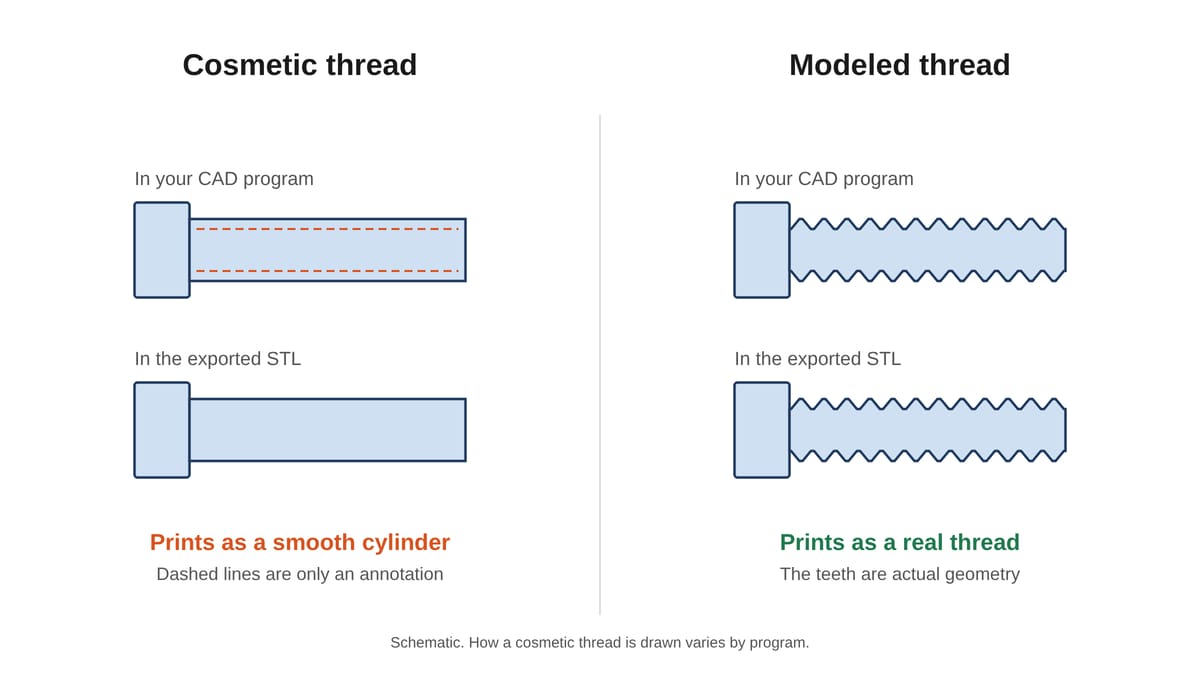
Whichever route you take, make sure the thread is real geometry. Most CAD programs can show a thread in two ways. A cosmetic thread is only a visual marker, an on-screen texture or an annotation, so the model looks threaded while the surface underneath is still a smooth cylinder. A modeled thread has actual teeth built into the solid. Only modeled threads make it into an exported STL or 3MF file, so a cosmetic thread prints as a smooth cylinder.
Using Software Toolboxes
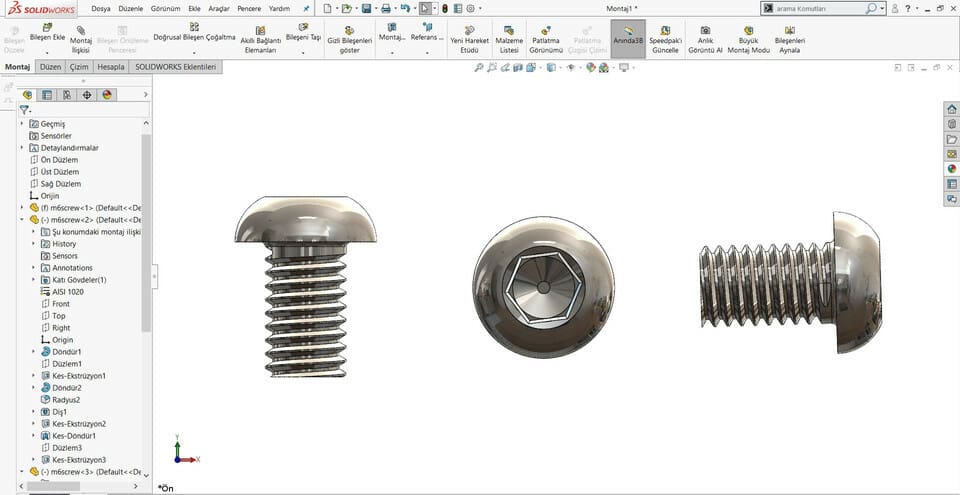
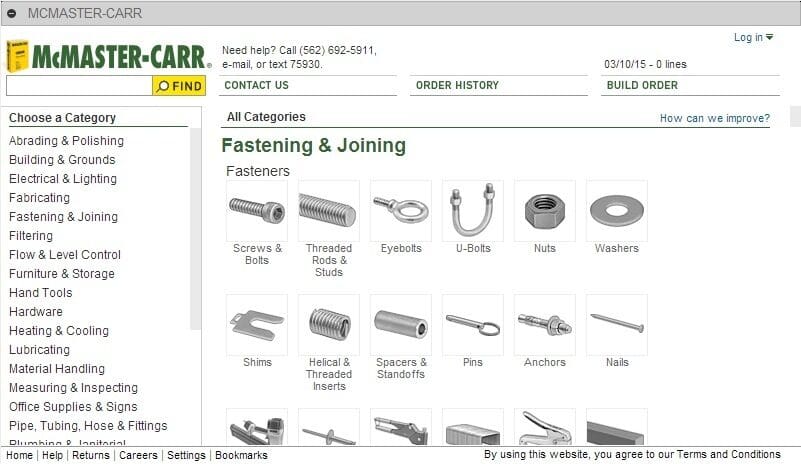
In many cases, it won’t be necessary to model the part from scratch. Many CAD programs include toolboxes of standard parts, such as SolidWorks Toolbox or Fusion’s McMaster-Carr library, and if the part you’re using is an existing commercial part, you may get lucky and not have to model it. Use them to check fit and get exact dimensions for the metal hardware your printed part will hold, not as printable threads, because these models have no clearance built in.
Autodesk Fusion relies on add-ins to increase the software functionality. When it comes to fastening elements, McMaster-Carr is the most popular. It includes elements like screws and bolts, threaded rods, washers, pins, and nails.
To access it, click Insert, then “Insert McMaster-Carr Component”.
You can browse through the many categories or search directly for what you want in the search field. Once you select something – a screw, for example – you can choose the thread size and length, then add it to the workspace.
Modeling Threads in Autodesk Fusion
If the threaded element you need isn’t conveniently available, you’ll have to model it from scratch. Below, we’ll demonstrate the process of designing external and internal threads using Fusion’s thread generation function.
External Thread
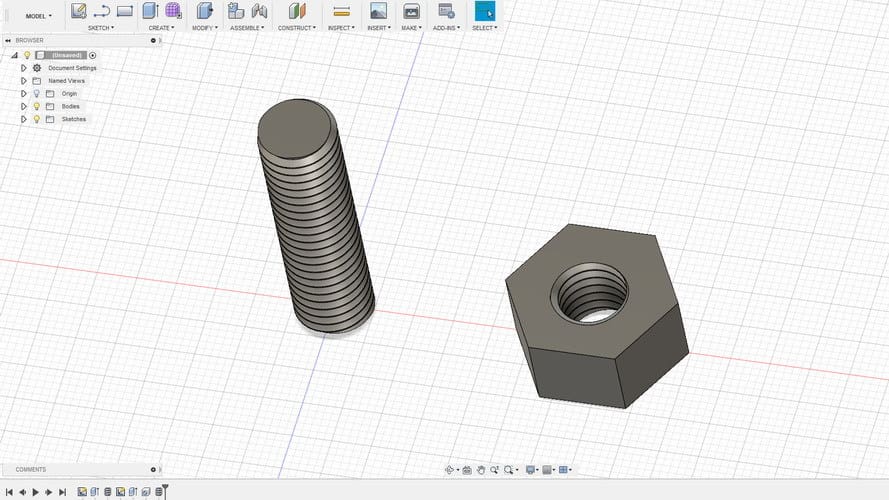
- Draw a circle with the diameter as the desired thread’s major diameter.
- Create a cylinder by extruding the circle to the desired thread’s length.
- Go to “Create” and select the “Thread” option.
- Select the cylinder you just created. Make sure that the “Modeled” checkbox is checked, then set the thread type and other thread parameters.
- Hit “OK”.
And, that’s that — you have your external thread! To make it a proper bolt, you’ll have to attach it to a head of your liking.
Now let’s design the nut with an internal thread.
Internal Thread
- Draw a hexagon. For the purposes of this tutorial, just make sure it’s bigger than the thread you want to design.
- Extrude it to the desired height.
- Make a hole in the center by selecting the “Hole” option in the “Create” menu. The hole diameter should be the thread’s major diameter.
- Select the internal surface of the hole you just created, go to “Create”, then choose the “Thread” option.
- Remember to check the “Modeled” option. Set the thread size and other parameters.
- Click “OK”.
There you go. Your first threads are ready to print.
Fusion’s Thread dialog also has a Class setting, which sets the manufacturing tolerance for a tighter or looser fit. For printed parts, you’ll usually still need to add the clearance described above.
Other CAD Programs
Other CAD programs may have similar tools. As we said before, however, it is most important to understand the basics, including the terminology, established standards, and design principles – all of which we discussed above. With this knowledge, it should be possible to use any capable modeling tool to manipulate models and input values to generate the desired threads. A few things to know about popular programs:
- Onshape: The Hole and External Thread features show cosmetic threads on screen. For printable geometry, community FeatureScripts like ThreadLab, and its print-focused fork Kochlias, model the thread and add a clearance offset.
- FreeCAD: Version 1.1 (March 2026) redesigned the Hole tool, added more thread profiles (British Standard Whitworth, Fine, and Pipe, plus National Pipe Threads), and sped up modeled threads.
- Blender: Blender is a mesh modeler, not a parametric CAD program, so it has no Thread command. The free BoltFactory extension (Blender 4.2 and newer, from the Extensions platform) generates bolts and nuts at real-world size from a small set of metric presets; check the pitch against a thread table before printing. You can also build a thread yourself with the Screw modifier or Geometry Nodes. Blender has no built-in thread tolerance setting, so add the clearance yourself, either through BoltFactory’s dimension fields or by offsetting the mesh. Run the free 3D Print Toolbox extension before exporting to catch non-manifold geometry.
Whichever program you use, make sure the thread is modeled and not just cosmetic. A cosmetic thread is only a visual marker, and it won’t be part of the exported STL or 3MF file.
Materials and Printer Setup
One of the first things you’ll need to consider is the material you’ll be printing with, as this plays a big role in how well the printed element will work. A screw exerts a considerable vertical force along its length, which in the case of a 3D printed screw, is simply a series of bonded layers.
For weak materials like PLA, it’s possible that this force can cause the screw to snap at a critical point. Therefore, consider using stronger materials like PETG, ABS, or nylon for this type of application.
With the material decided, there are a couple of important printer setup steps before you start printing threaded elements. You’ll want to make sure your printer is properly calibrated. The extruder’s calibration is important, including the flow rate: too much material makes for tight threads, and too little makes them weak. It’s also highly recommended that you level your print bed.
Slicer Settings
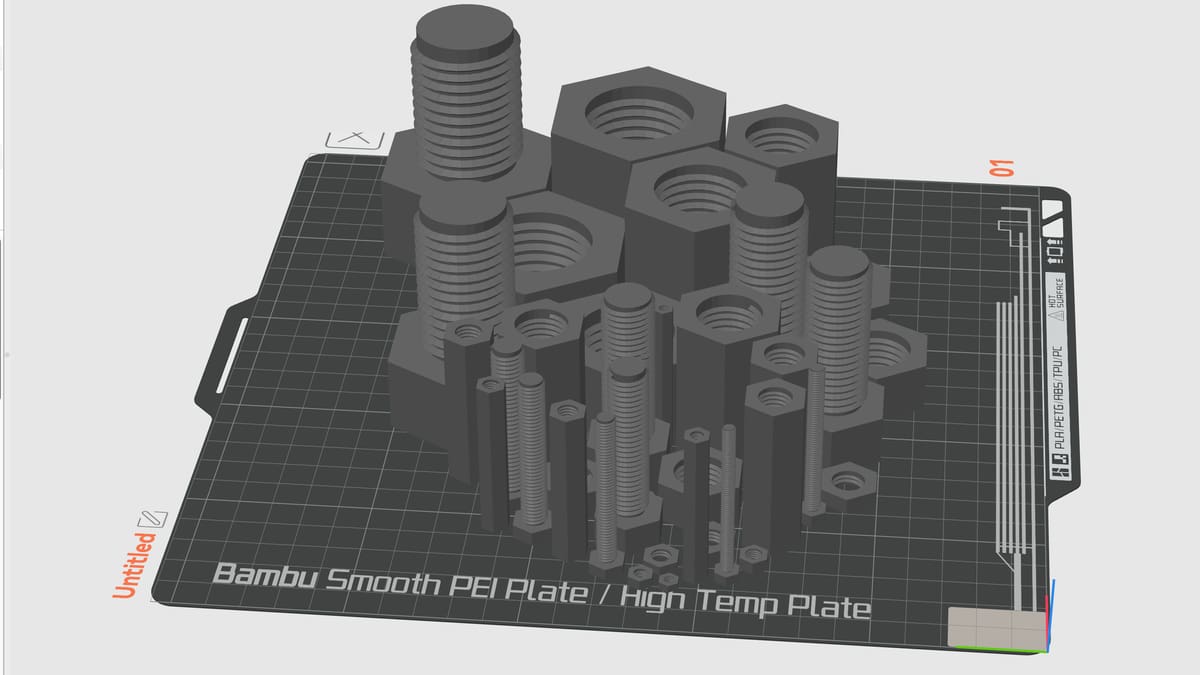
The following are some general guidelines for setting up your print for the best possible threads.
- Orientation: Print vertically, with the thread axis perpendicular to the print bed. It gives the cleanest thread shape and needs the fewest supports and the least post-processing. Horizontal is possible, but expect a rougher thread.
- Supports: Print without supports, or at least keep them out of the thread. They are hard to remove without damaging it, especially in internal threads.
- Walls and infill: Use three to four shells (or about 2 mm walls) for a strong thread, and around 25% infill or more depending on the application.
- Layer height: Thinner layers give smoother operation. 0.2 mm works for threads larger than M12 or 1/2″, while smaller threads need around 0.12–0.16 mm.
- Cooling: External threads on bolts and screws need extra cooling, because the nozzle has nowhere else to go between layers. Internal threads in larger parts usually cool fine. Test your printer before printing many thin external threads.
Slicer Compensation
Even a well-modeled thread can come out too tight or too loose. Most slicers can correct this without touching the CAD file:
Change one value at a time in small steps, and repeat the fit test after each change. Bambu Studio suggests steps of 0.02 mm for its manual offset.
Troubleshooting
You Might Also Like:


License: The text of "Threaded Parts, Screws & Bolts: 3D Print Them Perfectly Every Time" by All3DP is licensed under a Creative Commons Attribution 4.0 International License.