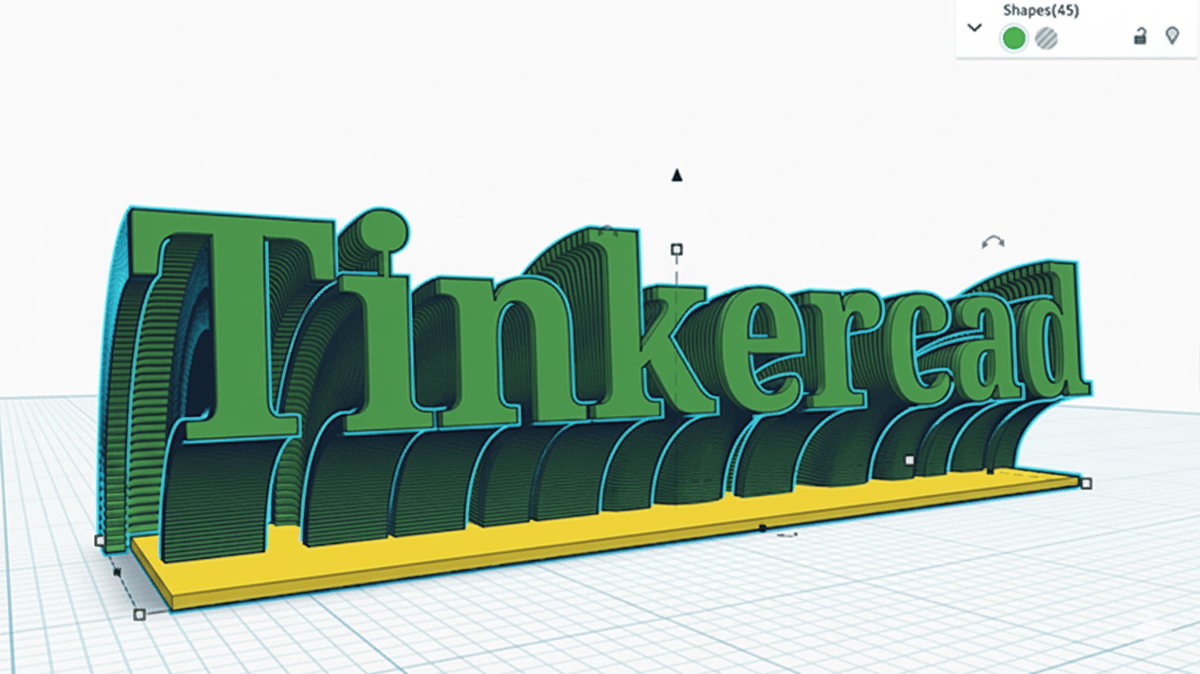
Tinkercad Updates Change Export Behavior, Adds Group Tools

We recently reported on Tinkercad’s update adding object grouping, but there’s more. Changes to grouping extends to exports, too, letting you configure multiple-component assemblies, set up for color-printing, and object-based modifiers.
A week ago, we noted in a bulletin that a recent Tinkercad update brought new sophistication to how the tool handles multiple objects. Rather than creating a union of the selected objects when grouped, Tinkercad can now simply, well, group them.
It sounds simple but the implication goes beyond in-model design considerations – another post on the Tinkercad blog since we published our bulletin details even more changes, focusing this time on export behavior, making for a bumper week of significant changes for the popular design tool.
Recapping the object grouping changes, the terminology is a little clearer, with the new grouping behavior termed “Bundle Group” and the expected, classic Tinkercad grouping behavior called “Union Group”. Both can achieve what appears to be the same outcome – objects frozen in space in relation to one another – but the difference in utility and speed in your workflow can be stark.
Union groups merge the selected objects into a single object. While you can, theoretically, “undo” a group and unpick your way to the component objects, it’s messy, and resource intensive and can take minutes to process depending on the complexity of the action. In contrast, bundle groups preserve the individual objects, pinning them in place as a single selectable object group.
The new post describes behavior that’s more “what you see is what you get” than before. At export, Tinkercad will now preserve the separate shapes, rather than creating a union of everything prior to export as it always has.
This allows for what the platforms calls more downstream workflow possibilities for designs, like configuring color 3D prints with separate shapes corresponding to colors. Using OBJ for the export allows modern slicers to interpret the colors as set in Tinkercad and match up to the filaments you have loaded, for example. You can build custom shapes to serve as part modifiers right into the printable design file, rather that doing it separately as you would before the update.
Wondering to yourself “What’s a bulletin?“ Bulletins are short notes from the editors that appear exclusively on the All3DP homepage, so be sure to keep an eye out for them!
Read more recent news:
License: The text of "Tinkercad Updates Change Export Behavior, Adds Group Tools" by All3DP is licensed under a Creative Commons Attribution 4.0 International License.