Meshy’s New AI Edit Tool Tested: Fast Changes, Frustrating Results

You can finally edit parts of your AI models, but while broad model changes happen in seconds, getting the precise details right will test your patience.
The appeal of Meshy’s new Edit feature is straightforward: You love the 3D model the AI generated … except for that one little flaw keeping it from being perfect.
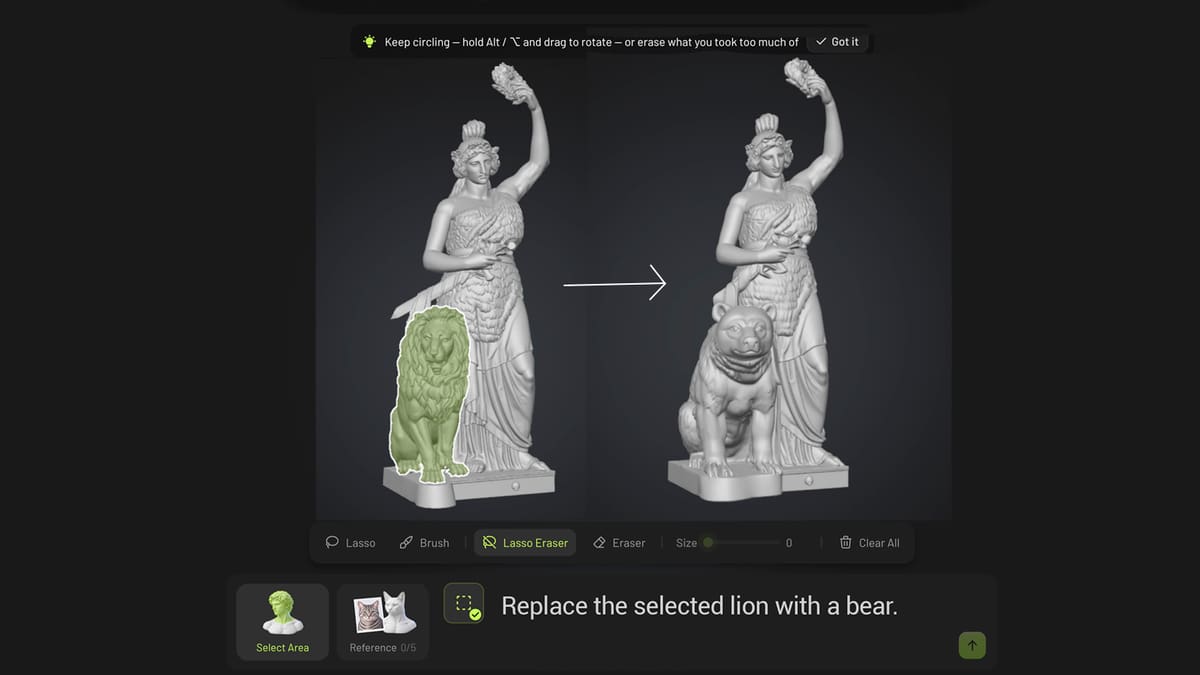
The first time I used Meshy, it generated a fantastic model of my favorite statue in Munich. Unfortunately, the lion at the statue’s feet had two tails. Fixing that sort of defect meant turning to computer-aided design (CAD) software, like Blender, which isn’t easy or convenient if you’re not already familiar with 3D modeling. So when Meshy introduced its new Edit feature, I was excited.
After putting it through its paces, though, my enthusiasm quickly faded. The new Meshy Edit has real potential, but it may take a few more versions before it becomes genuinely useful, especially for 3D printing.
Let’s take a closer look.
Meshy Edit Is Full of Surprises
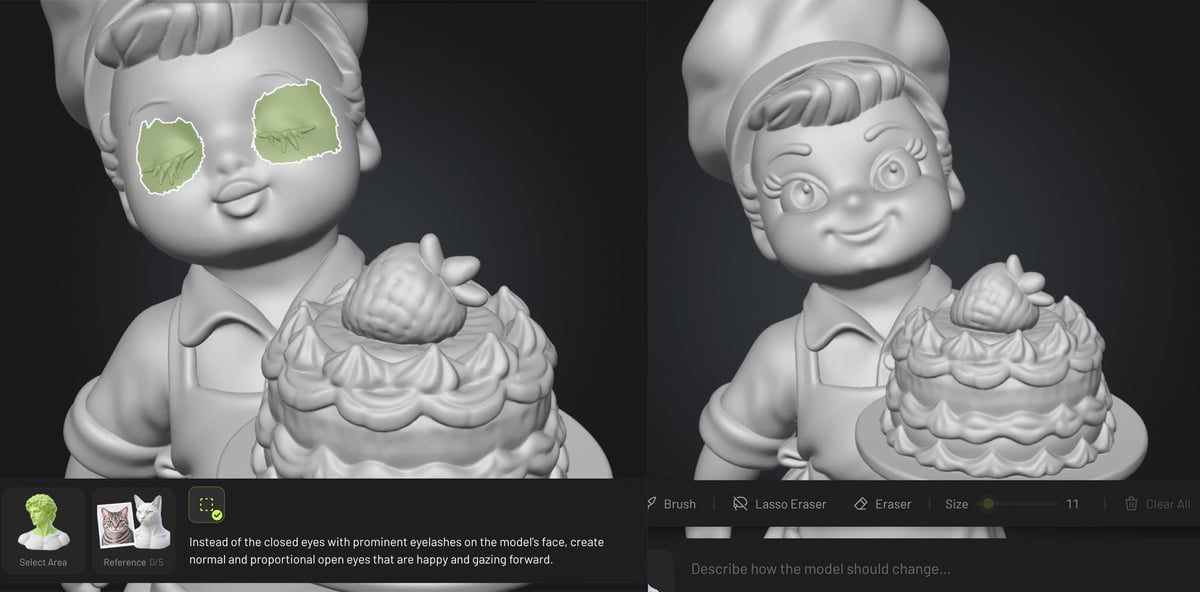
Meshy launched its AI editing tool last month, promising a quick and easy way to fix 3D models without starting over.
"Meshy Edit is Meshy's new way to edit a 3D model, and its first tool, local editing, changes only the part you select and keeps the rest of your model unchanged. Select a part, describe the change with text or reference images, and add, remove or replace it."
That sounds like a solution to one of the biggest frustrations with AI-generated 3D models: having to regenerate a model from a prompt or image multiple times to get the version you want, if you ever do.
In practice, however, Meshy Edit is much more limited than that promise suggests. We had some successes, but testing repeatedly exposed the gap between requesting a small change and controlling the results. The engineers at Meshy told us they have a list of fixes and new features planned, so hopefully, the future tool will be less … buggy.
Note: Meshy set us up with a pro subscription and a cache of free tokens to play with, but had no influence over or input into this review.
No Figurine Is Safe From a Bad Hair Day
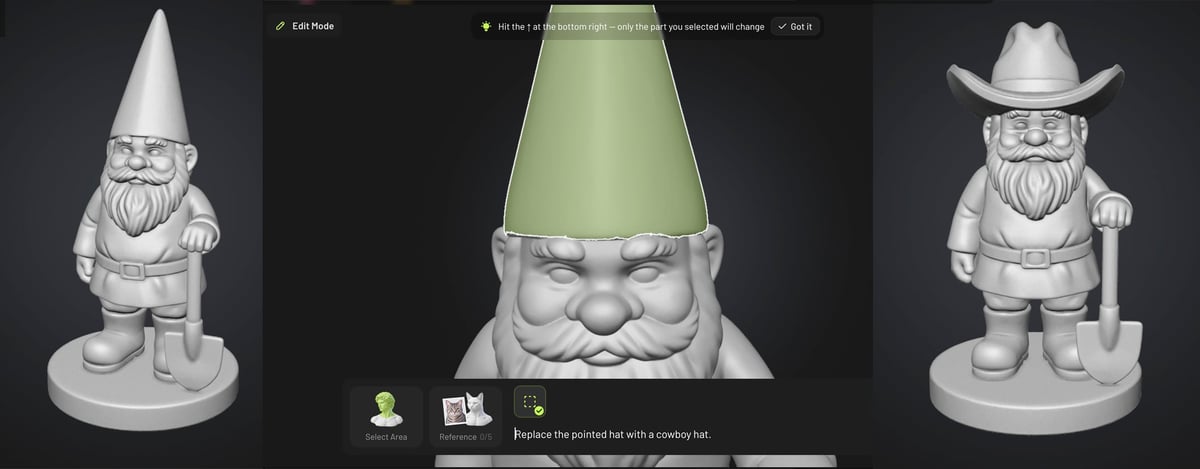
According to Meshy, an ideal use case for the new tool is customizing miniatures. Say you’ve generated a figurine but don’t like its shoes. Select them and enter a prompt such as “Replace the shoes with bunny slippers.”
Sounds simple enough.
We created a gnome figurine using Meshy’s text-to-3D model generator. One limitation worth noting upfront: At the time of testing, Edit only worked with models created in Meshy. You couldn’t upload an outside STL file or other 3D model to edit, but this may be added at a later date.
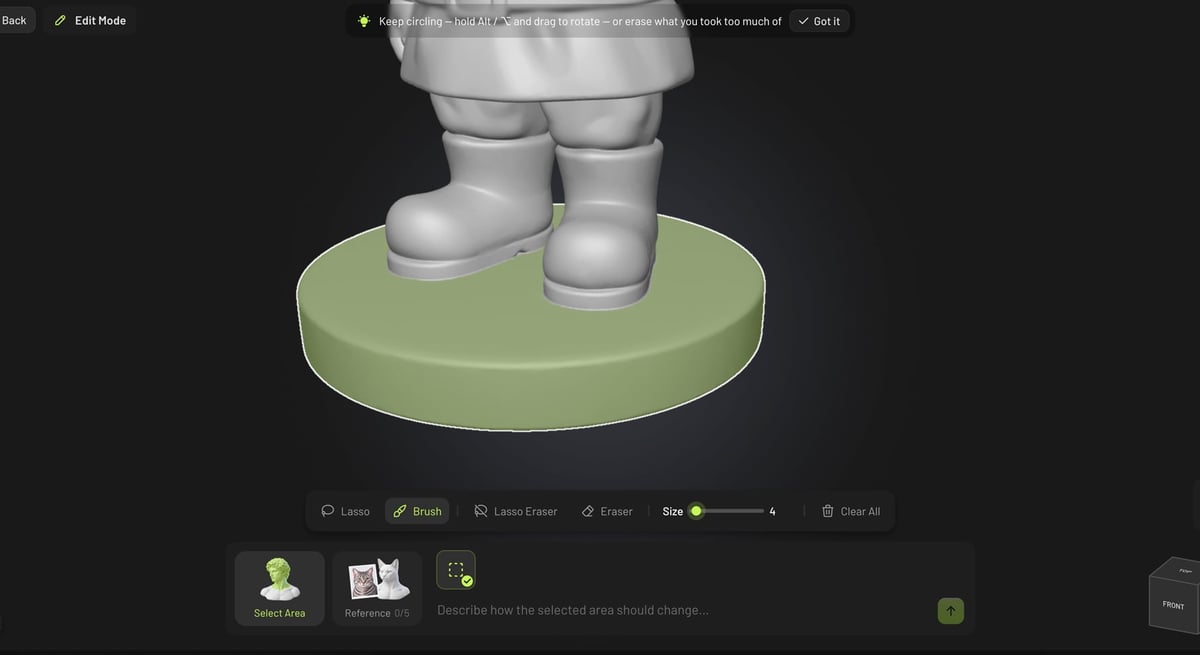
We started by selecting the gnome’s pointy hat and asking Meshy to remove it. The basic workflow was easy to understand: Select an area, describe the change and submit. Each edit costs 20 credits.
The prompt “Remove the hat” produced a bald gnome with hair around the sides of his head. So, if you’ve ever wondered what’s under a gnome’s hat, according to Meshy, the answer is nothing.
Next, I wanted to add a cowboy hat, and that’s where things started to go wrong.
Meshy Edit works by changing a selected part of the model. Without a selection, the results can be unpredictable. For example, when I asked for a cowboy hat to be added to the bald gnome without selecting a region, the result was deformed and odd-looking. Selecting the original pointy hat gnome model and asking Meshy to replace the pointy hat with a cowboy hat worked much better.
But it wasn’t perfect.
The gnome’s face changed slightly after the edit, even though it was outside the selected region. New folds appeared above the cheeks and below the eyes. This wasn’t an isolated incident. Meshy explicitly says only the selected areas will change, but that wasn’t our experience.
Meshy engineers cautioned me to check selections carefully because even a tiny spot selected by accident can affect the results. I checked that no part of the face was selected, yet the unwanted changes appeared anyway.
That brings us to one of my biggest frustrations with Meshy Edit: selecting the parts you want to change.
Selecting Is the Real Work
Meshy provides Lasso and Brush selection tools, along with corresponding erasers. Neither makes isolating a complex part particularly easy.
The Lasso tool selects through the model, meaning an outline that looks correct from the front will also capture unwanted surfaces behind it. And Meshy doesn’t automatically recognize individual parts, such as hats, boots or shovels. You have to trace around them with the lasso or paint over them with the brush, rotating the model as you go to cover every angle.
Unfortunately, the Edit panel wouldn’t let me zoom in nearly as close as I needed to make precise selections. That became a recurring frustration.
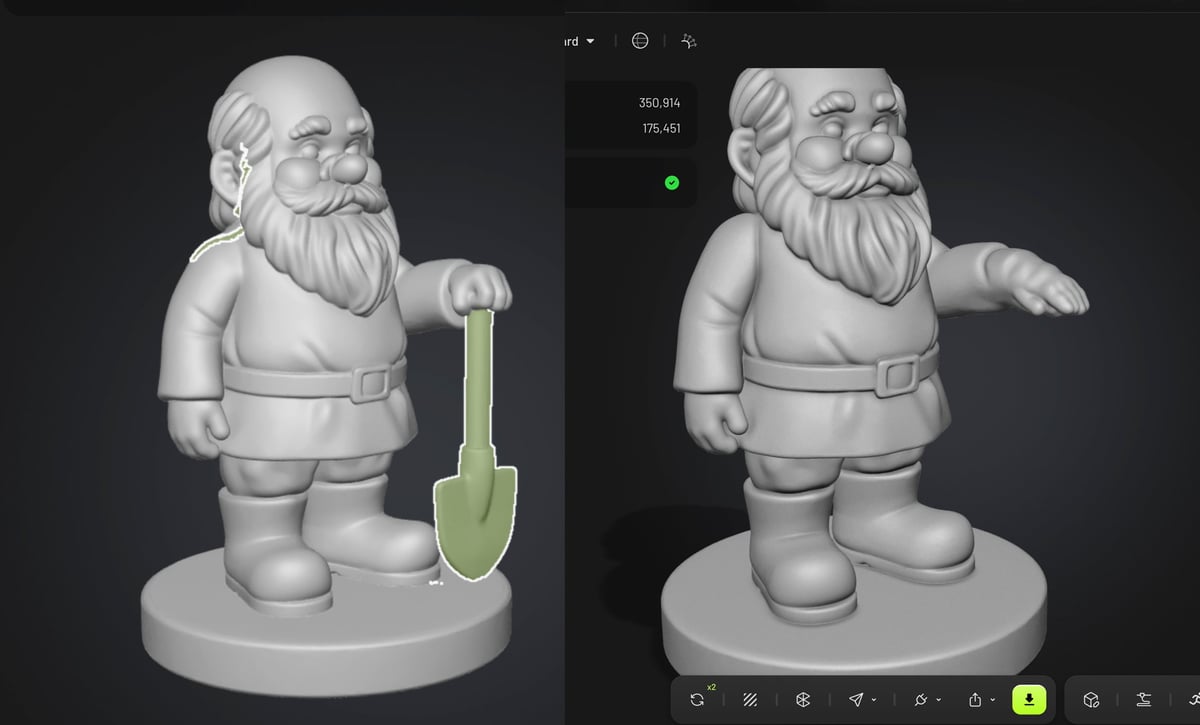
Isolating the gnome’s shovel, for example, took several minutes of switching between selection and eraser tools while rotating the model to separate the shovel from the underside of the hand.
My first attempt to remove the shovel left the gnome with a distorted hand (above). I suspect I had accidentally selected part of the hand along with the shovel.
A more careful, time-consuming second attempt worked much better. The shovel was cleanly removed.
The generation step may be automated, but preparing a reliable selection can demand considerable manual effort.
Adding to Your Model
Removing the gnome’s hat and shovel produced our cleanest results. Adding or modifying AI-generated elements was considerably less successful.
The cowboy hat, for example, was passable but bulgy and wrinkled. When I selected its brim and asked Meshy to smooth it out, the result was even more wrinkled.
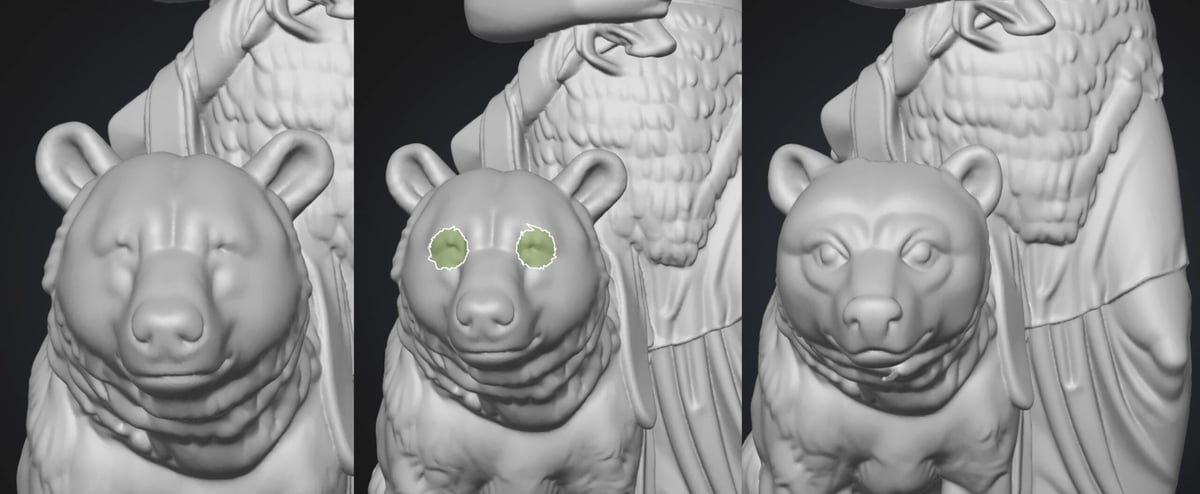
Next, I returned to my favorite Bavaria statue that I created in my very first Meshy review earlier this year. Could Meshy Edit replace the lion at her feet with a bear? Yes, mostly.
Armed with my new selection skills, I spent more than 10 minutes rotating the model and carefully selecting the lion. I then asked Meshy to replace it with a bear in the same pose and position.
And up popped a bear! Success, sort of. The bear looked reasonably good, except it didn’t really have eyes. Could I edit my edit?
I selected the eye area and prompted Meshy to add more detailed, fully open eyes. This time, the result was just what I wanted except for one tiny odd, stick-like defect protruding from the bear’s neck. No problem, I thought. One more edit (20 credits).
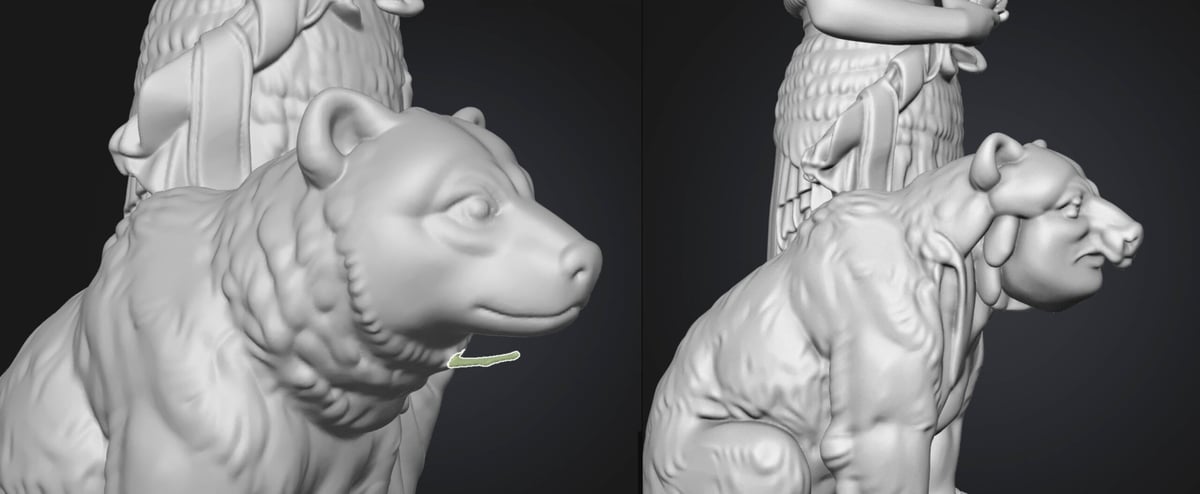
I selected the defect and asked Meshy to remove it and close any resulting hole in the model.
Apparently, that was asking too much. The resulting bear had a completely different face now, one that looked more human than bear, complete with a pig-like nose. And all I had selected was that one small defect on its neck.
Can Reference Images Help?
So far, text prompts had produced mixed results. Could uploading reference images give Meshy more control over the changes?
Because Edit only works with models already in my Meshy assets folder or newly generated in Meshy, I chose another statue model for the next experiment: the Angel of the Waters I created for my review of Meshy 7 back in August.
This time, I uploaded a photo of myself from my LinkedIn profile to see whether Meshy could put a recognizable likeness on a figurine. Perhaps a little vain, but it seemed like a reasonable test.
Again, it worked. Sort of.
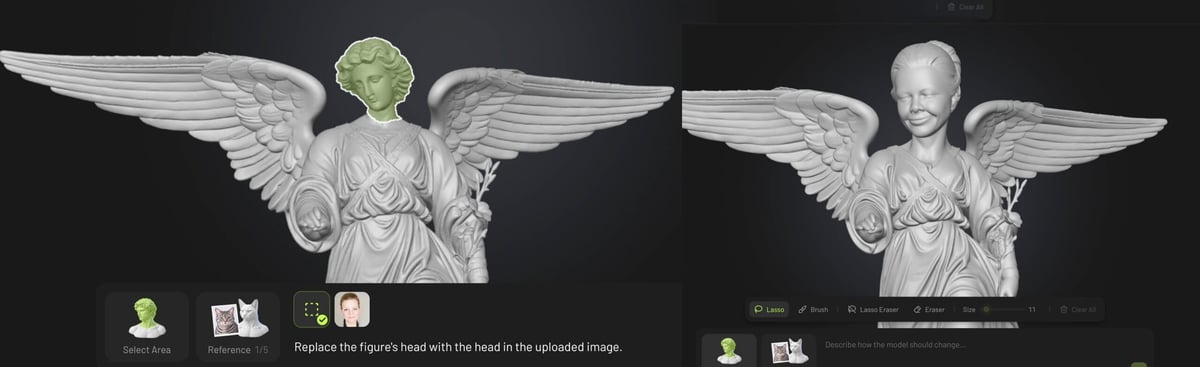
I selected just the statue’s head and asked Meshy to replace it using the uploaded photo. The first attempt produced a head with obvious chunks missing, so I hit the free Retry button.
The second result had a generally better head, but now the statue’s body was distorted and duplicated, with new free-floating pieces appearing around the model. So Meshy had clearly taken the reference image into account. Unfortunately, it had also made a mess of the rest of the model.
Meshy Edit accepts up to five reference images. Would multiple views improve the accuracy?
I found front and side views of Angelina Jolie online and uploaded them along with a rear view of someone else’s head to provide a hairstyle reference.
The resulting model did vaguely resemble Jolie, but it was far from clean. A chunk was missing from one cheek, and two new floating defects had appeared.
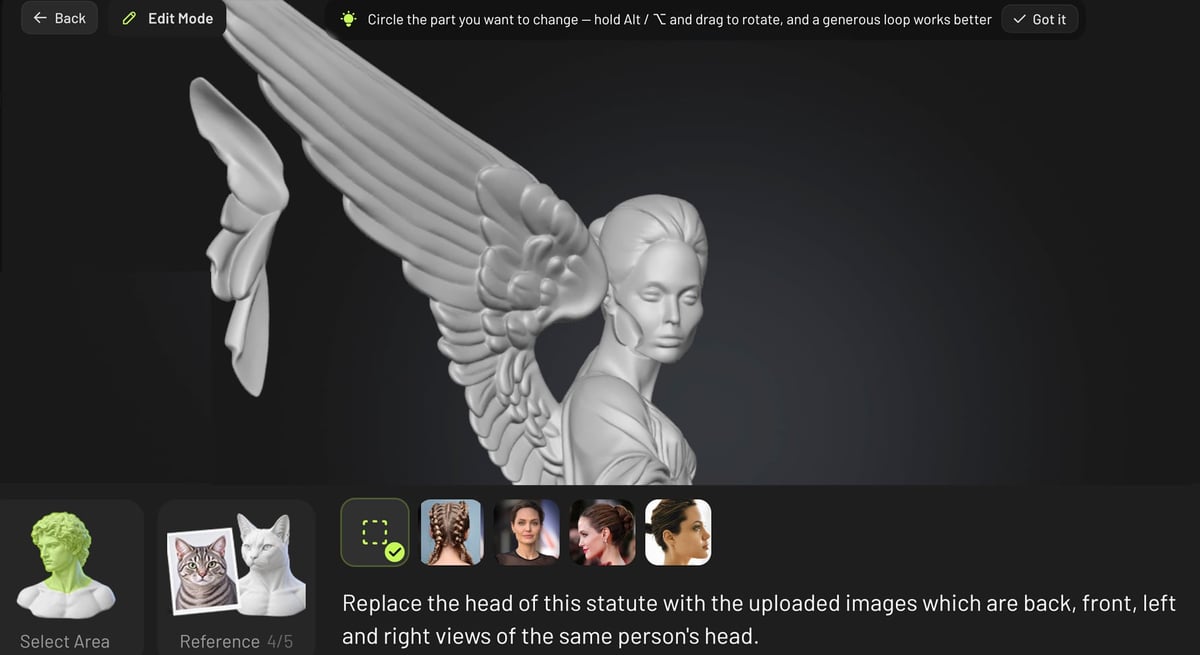
Another edit, another 20 credits, and the floating pieces were gone. Then I tried fixing the cheek.
After carefully selecting the damaged area from every angle, I asked Meshy to make it match the cheek on the opposite side of the face.
Instead of repairing the damage, the edit made the cheek defect worse. At this point, the pattern was becoming clear: Fixing one problem often created another.
The Verdict: Useful for Experiments, Unreliable for Precise Edits
We continued testing Meshy Edit with a few more practical tasks.
We asked it to make the gnome’s shovel thicker so it would be easier to 3D print. The shovel became thicker, but the back was distorted. We tried moving a floating piece of a model so it would connect to the main body. The result was distorted.
We also asked Meshy to make a selected part twice as large, but the tool appeared to ignore the instruction completely.
Across our tests, Meshy Edit performed best when removing clearly defined elements from carefully selected areas. Removing the gnome’s hat and shovel worked well, and replacing the lion with a bear showed that more ambitious changes are possible.
Those successes deserve recognition. The problem is reliability.
Precise selection was laborious, limited zoom made the process harder, and completed edits sometimes changed features well outside the selected area. Repeated corrections often introduced new defects rather than fixing existing ones.
For 3D printing, that’s a significant limitation. A model that looks acceptable on-screen isn’t necessarily ready to print, especially if an apparently minor edit introduces distorted geometry or floating pieces. Visual defects don’t automatically mean a mesh is unprintable and the printability check on our meshes all showed watertight models.
Meshy Edit is fun to experiment with, and there’s real potential in the idea of correcting AI-generated models without leaving the platform. Overall it’s an exciting shift toward AI-assisted, conversational 3D modeling that we will no doubt see accelerate in the coming years, many just months.
But for now, it’s better at improving the workflows for hobbyists, artists, miniature creators, and designers iterating on visual concepts.
AI editing in general is not yet a replacement for CAD or a dependable way to fix one small problem and immediately print the result.
However, we’re defiantly on the cusp of something new here and Meshy Edit appears particularly promising.
You Might Also Like:


License: The text of "Meshy’s New AI Edit Tool Tested: Fast Changes, Frustrating Results" by All3DP is licensed under a Creative Commons Attribution 4.0 International License.