We Tested Meshy 7.1: Does the New Ultra 4K Really Improve 3D Prints?

We pushed the latest version of this AI model generation tool to its limits to see if the upgraded resolution translates into better geometry for physical models.
When it comes to producing digital 3D models of parts, pets, and fantasy figurines, Meshy is an impressive AI tool. We’ve tested its various features several times and, while not perfect, it’s rapidly pushing the boundaries of what AI can generate.
This time, we focused on what’s new in Meshy 7.1. Specifically, whether the extra geometric resolution of Meshy’s new Ultra 4K mode produces models that are meaningfully better, more accurate, and more printable. We put it to the test.
What is Ultra 4K?
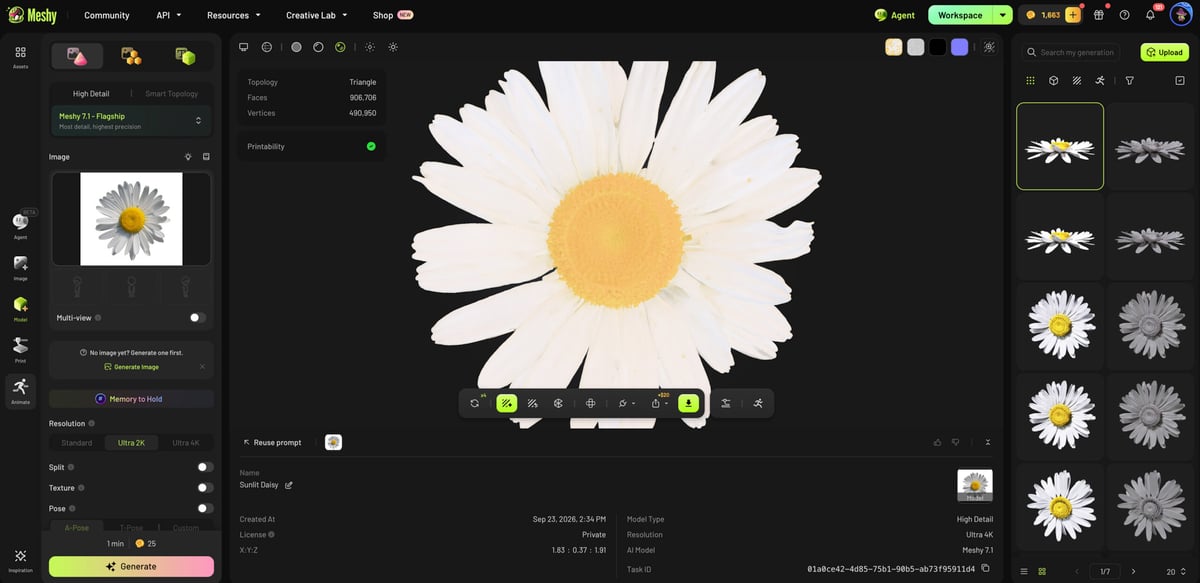
Meshy launched in the Ultra 4K in mid-September touting it as the highest resolution AI model generator on the market. “A raw Ultra 4K mesh straight from the model, before any simplification, can contain up to 80 million triangles,” the company says.
That level of resolution has clear advantages for digital environments, but how does it relate to objects you intend to 3D print? In other words, does high resolution in a digital model translate to a better or higher-resolution 3D print?
Our answer: yes and no.
Meshy’s new Ultra 4K resolution feature, compared with Ultra 2K, produces a 3D model from a photo (or illustration) with finer ridges and grooves, and more faithful curves and edges in the generated mesh (provided those features are clear enough in the source image for the AI to interpret correctly). It also reconstructs the geometry more faithfully. That, however, doesn’t directly translate into a more 3D printable model.
You could think of the difference between the 4K and the 2K like seeing an object that’s one foot away versus one that’s 12 feet away. Ultra 4K clearly captured more detail in our test images and adds it, pretty accurately, to the 3D model mesh. It also seems to “think” about the geometry more realistically, we found.
Whether that improvement matters once you hit print is another question: much depends on the model, its size, and the resolution your printer can reproduce.
Take a look at the experiments we put the platform though.
Note: Meshy set us up with a pro subscription and a cache of free tokens to play with, but had no influence over or input into this review.
The Details are in the Daisy
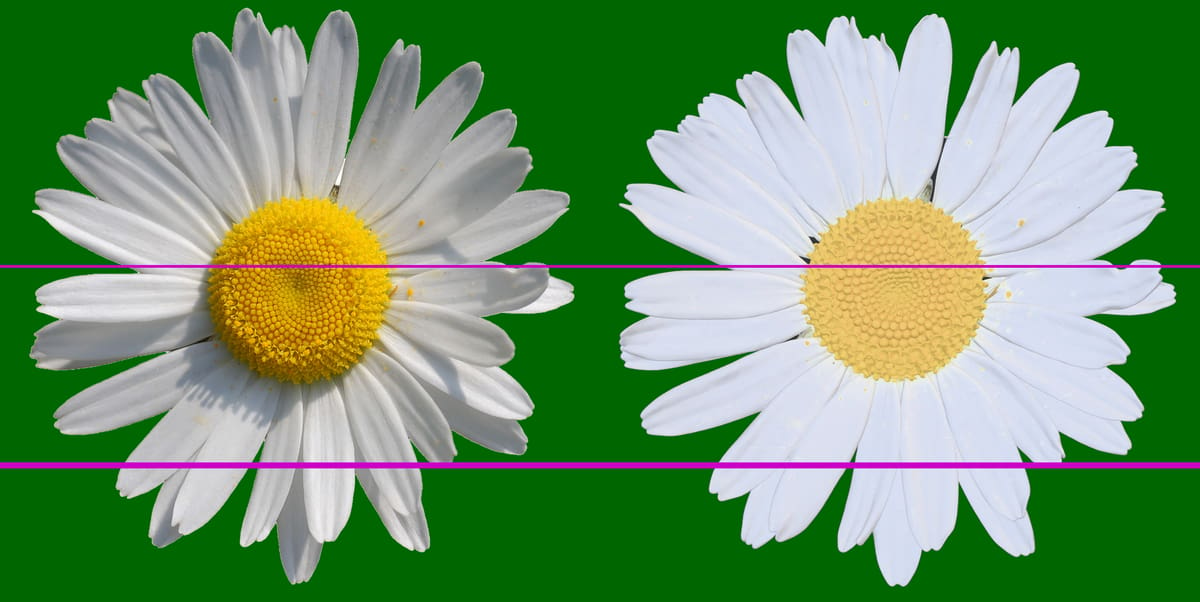
When we uploaded a high-resolution photo of a daisy, for example, the 4K model (without the AI “enhancement” option) looked noticeably more detailed and faithful to the photograph than the 2K version.
Our Tip: if you’re looking for accuracy, don’t toggle on the “image enhancement” feature, because its AI interpretation can reduce fidelity to the source image.
The 4K output preserved the smooth petal shapes more faithfully, while the 2K version sometimes misread shadows as rips or duplicate petals. The 4K daisy image has exactly the same petal count, petal shape, and configuration as the photo.
Despite the impressively accurate digital 3D model, when it comes to 3D printing it into a physical object, the extra fidelity of 4K has limited practical benefit.
Let me clarify: If you want to 3D print a daisy, any daisy, Meshy can take a photo and generate, with AI enhancement or without, a lovely daisy in seconds. There are tools to optimize the model for 3D printing by thickening the walls if necessary, repairing non-manifold edges, and closing holes. It can apply texture and color and send a ready-to-print color model 3MF directly to your slicer.
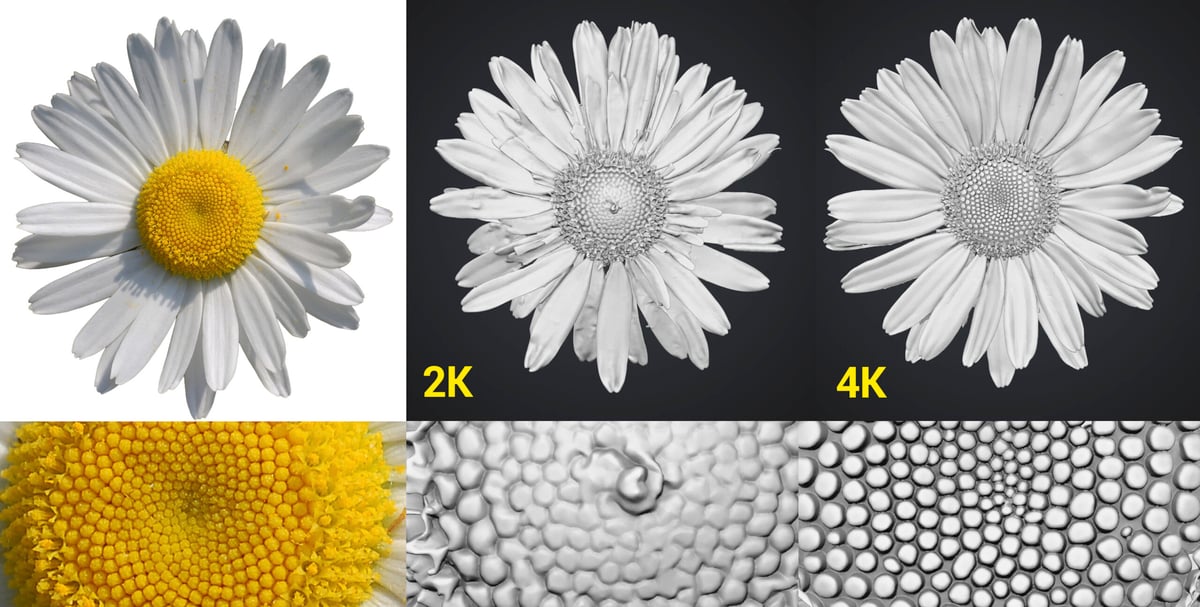
But if you want this specific daisy, above, accurately, on the front, back, and sides, Meshy isn’t quite there yet. There was no way for the app to know what the back of the flower looks like or how far apart the pedals were stacked horizontally because it can’t accurately determine depth from a photo. It can guess, but can’t promise accuracy.
Meshy isn’t a replacement for 3D scanning when dimensional accuracy matters, and it isn’t really intended to be.
After all, it’s a creative tool, not an engineering one.
Still, with our next test, we were pleasantly surprised how well the new Ultra 4K recreated (interpreted) not-shown geometry from a photo.
Ultra 4K Delivers More Usable Geometry
The daisy test for accuracy was a tough one. Petals can be various distances apart and no two daisies are exactly the same. Meshy 4K did much better on a part that was a bit more geometrically predictable, and it showed a vast improvement over the 2K.
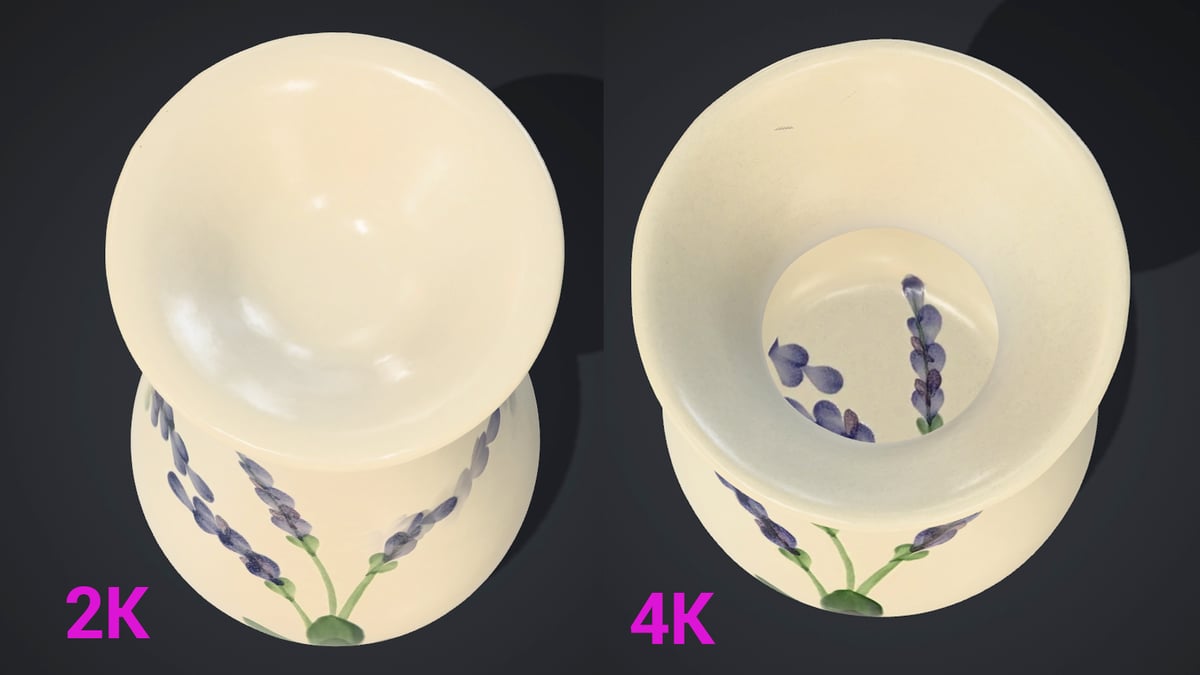
When we uploaded a photo of a hand painted vase, Meshy 4K and 2K both got the general shape and color very close to accurate. Again we did not use the AI image enhancement toggle here. The difference was that the 2K model was solid, whereas the 4K model was hollow, like a true vase. The walls were proportionally thick as in the photo and the resulting model showed no obvious printability issues in the slicer.
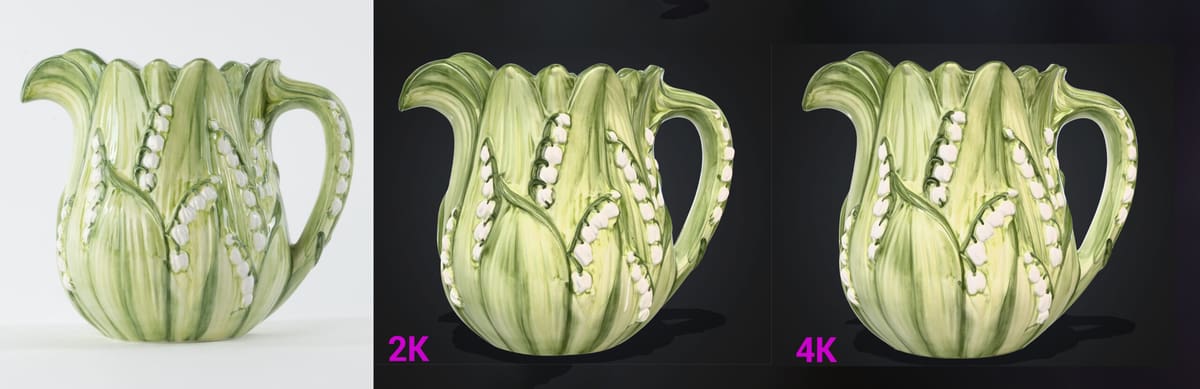
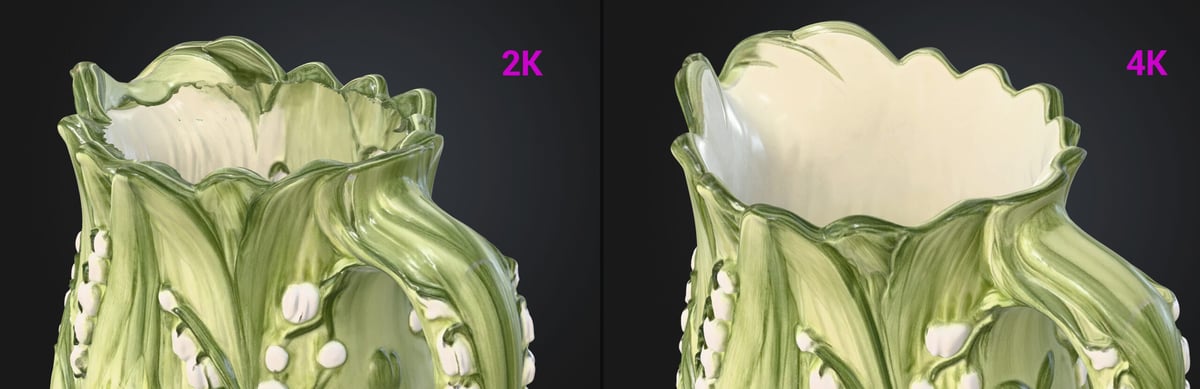
Likewise when we tried the same experiment with a Lilly of the Valley-themed water pitcher. The geometry of the 2K version was incomplete, had thin unprintable walls, and wouldn’t function as a pitcher without substantial CAD work since the spout was interpreted as hollow. The 4K, however, interpreted the geometry from the single photo proportionally correct and produced a plausible, printable spout that required no obvious CAD correction.
Essentially the 4K produced a functional model, while the 2K simply did not.
Accurate Color Mapping Saves a Lot of Hassle
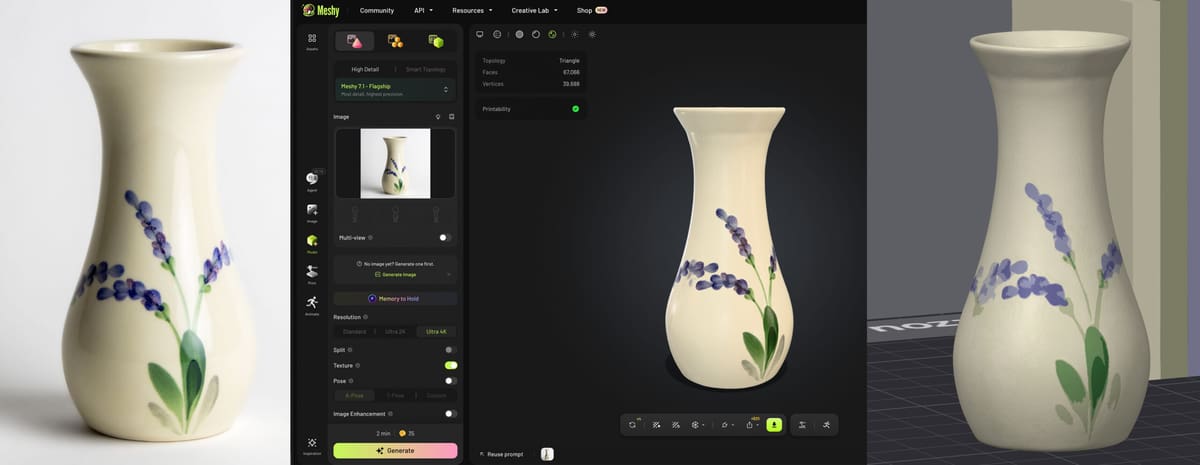
Both the vase and the pitcher were rendered in Meshy using the color and texture options. We wondered whether flat patterns would render accurately. Surprisingly, the color mapping was similarly accurate in both 2K and 4K. Of course, since the 2K geometry was not usable (it was a solid vase) that made the color rendering moot anyway.
Using the Multi-Color Print tool we converted the digital model into a printable color model and export a 3MF format that carries color assignments mapped to filaments in our Bambu Lab multicolor printer. You simply select how many colors you want to print the model with and which colors you have. Meshy assigned the selected colors to the appropriate regions with no manual cleanup.
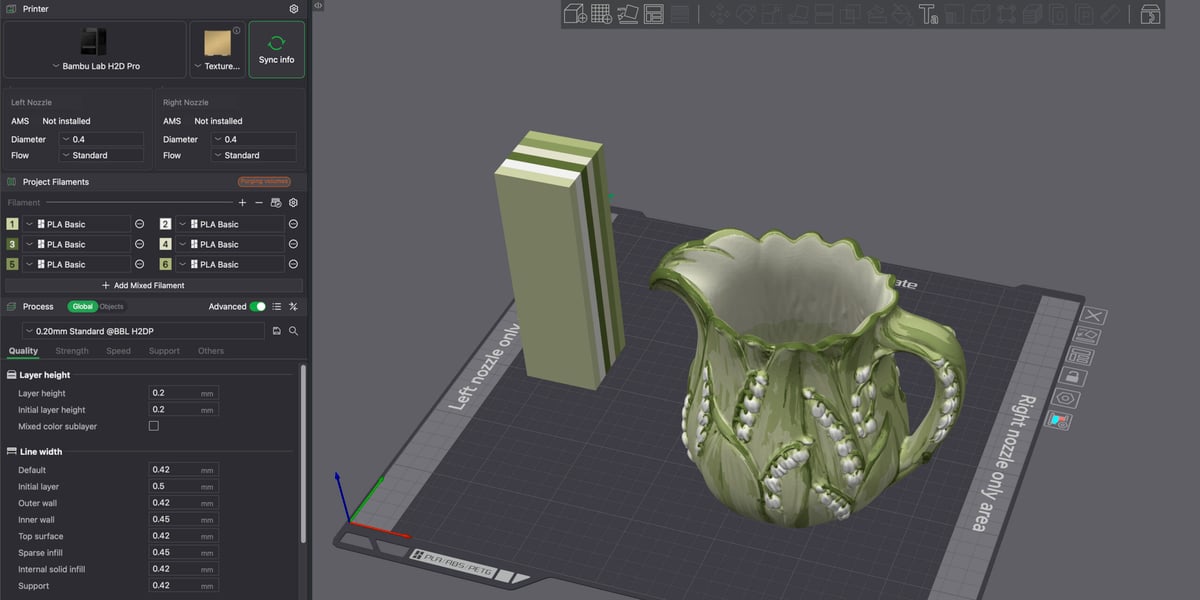
Opening the 3MF in our slicer and printing it in the selected colors required no additional setup; we only needed to sync the imported colors with the filaments loaded in the material changer.
Accurately mapping color to a 3D printable model saves a significant amount of effort and time versus assigning colors in the slicer, painting the model in the slicer, or, of course, even hand painting the finished model.
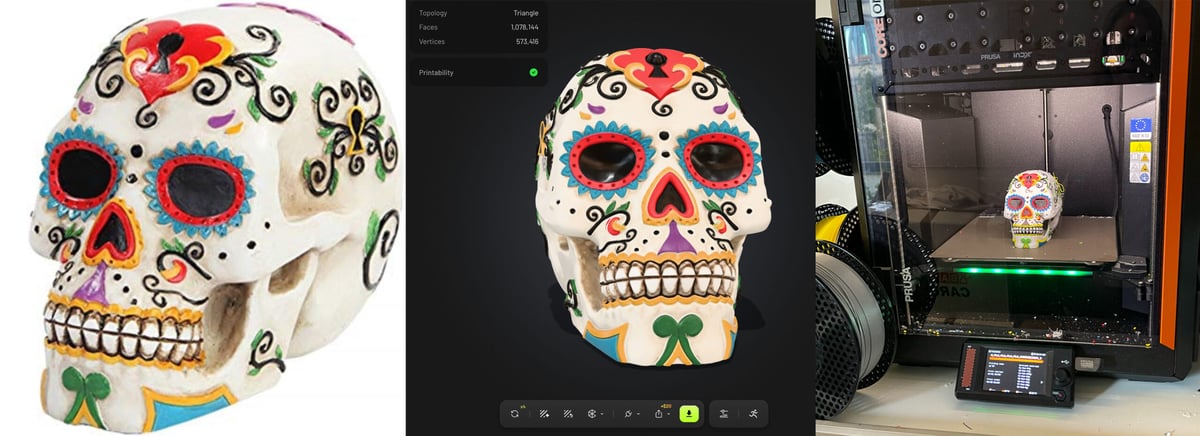
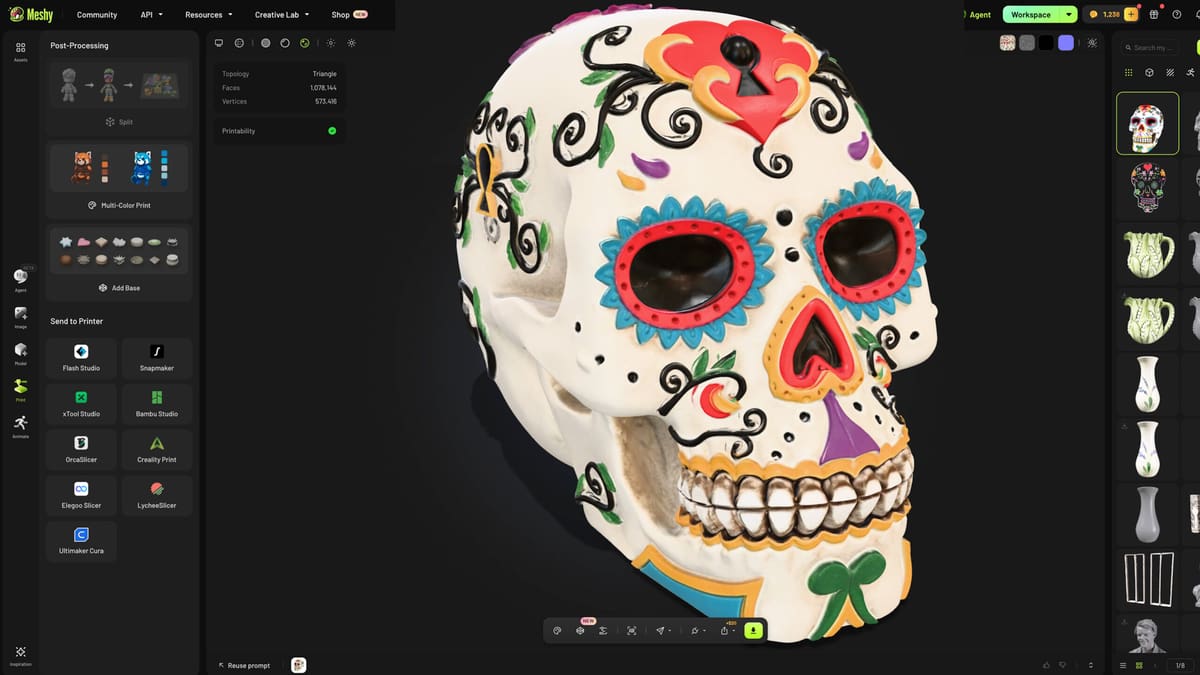
Since we had the new Prusa Core One+ INDX in our lab, we went ahead with an ambitious 8-color print of a Day of the Dead skull we found on Amazon. With just one angle, Meshy’s Ultra 4K created the full color 3D model shown above. We exported it as a 3MF, mapped our actual color filaments to the ones indicated on the model and hit print.
3D Printing in High Resolution
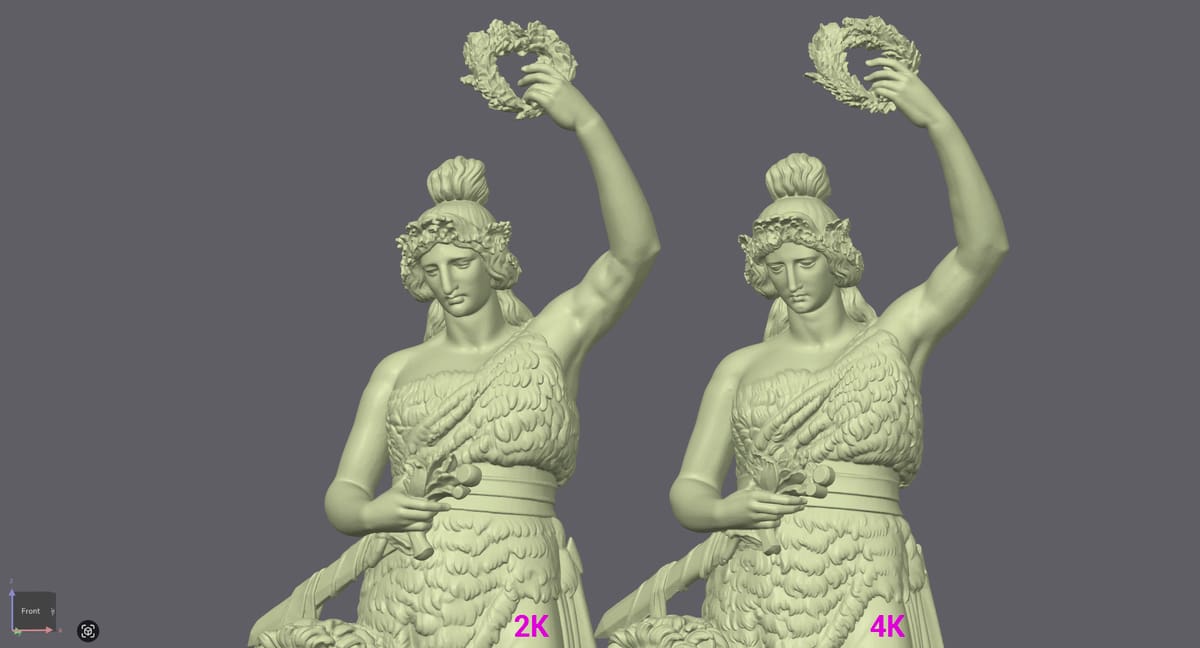
So when it comes to turning an uploaded photo or drawing into a 3D model, Ultra 4K produced noticeably better digital models in our tests. But does it translate to better 3D prints?
Our Ultra 4K digital daisy model had more than 1 million faces and enough data to print with detail at 75 cm wide, according to the app.
Meshy recommends remeshing print models to roughly 20,000–50,000 faces to reduce file size and improve slicer performance, but that would soften the daisy’s fine petal detail.
Which brings up the point of model resolution vs. print resolution.
High resolution is great for generating a digital model, but your 3D printer will only print to the finest resolution that it’s capable of. For FDM using a typical 0.4-mm-nozzle setup, your XY detail is typically constrained by extrusion width, commonly around 0.4–0.45 mm, while layer height limits vertical detail, commonly around 0.12–0.20 mm. Small ridges, grooves, or edge changes below those scales will generally be merged, rounded, or omitted during slicing.
That doesn’t make Ultra 4K irrelevant to 3D printing. Its biggest advantage may come earlier in the workflow: it gives you a more faithful digital model to start with.
Even if you’re using Meshy to generate a starting point for your digital design, the 4K option provides better data to import into CAD, like Fusion or SolidWorks. Although the 4K feature is only available when uploading single images (not multi-images), you could upload several angles individually and stitch them together in CAD, likely saving a lot of manual work compared to designing from scratch. But, I’m drifting back into engineering applications, rather than the creative fun that Meshy promises.
Meshy Agent Beta Is So Promising, but Still Rough
To have some fun with Meshy, we tried a few of its most popular features. The Multi-View Image to Model lets you upload four views of an object with the aim of producing a more accurate 3D reconstruction. When we tested it earlier this year with our Bavaria statue, we liked the overall result but found the reconstruction accuracy underwhelming.
Did the multi-view AI to model generator get any better?
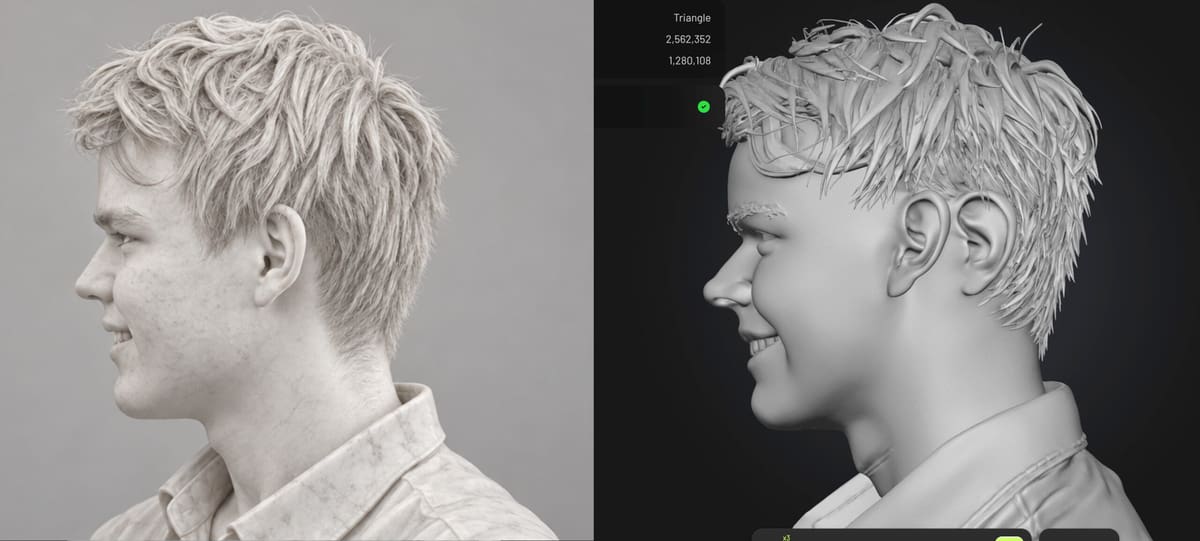
To find out, we enlisted our new intern as the model. We took high resolution photos of his head (front, back, left, right). We uploaded all four, but unfortunately, the resulting bust just didn’t look enough like him. Each free retry drifted farther from the reference, eventually becoming absurd. We got better results (below) using the single image model generator, but still nothing our intern could bring home to Mom.
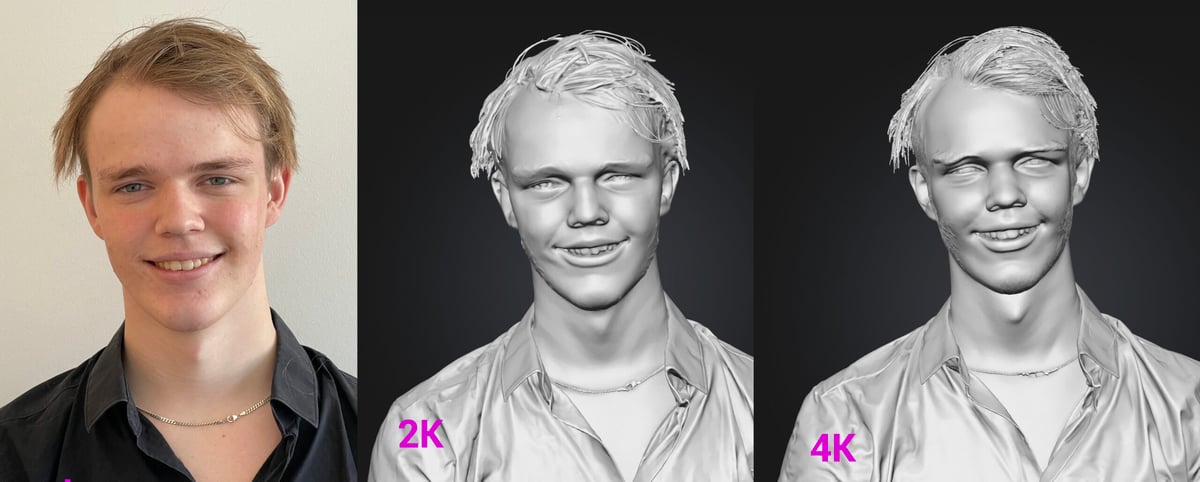
Instead we tried the Agent feature we’ve been looking forward to. It launched in July and remains in beta—and our testing showed why. It’s rough around the edges, but has such exciting potential.
Meshy Agent Beta provides a chat interface for building 3D assets along with templated “skills”, such as Marble Statue Me, Pet Memorial, Photo Christmas Ornament, and several more.
This is convenient because, instead of choosing every tool and setting manually, you can use the skills or describe an objective, upload reference images, and refine the result through chat.
Agent is coming close to the AI feature we’ve been waiting for: the ability to refine the image though direct feedback to the AI instead of exporting it to CAD or making do with something that’s almost right.
The workflow starts with the Agent developing your requested concept. It then asks for feedback and approval before generating a 3D model (and using credits) or applying textures. We uploaded the four images of our intern to the Marble Statue Me skill in the Agent and had ChatGPT write a long prompt explaining exactly what we wanted.
Our Tip: If you have access to the desktop version of ChatGTP, open Meshy via the browser inside of ChatGPT. This way, ChatGPT can guide you as you work toward the right tools to get the desired result and reduce wasted credits.
Unfortunately the Agent simply timed out without generating a model on the first few tries. Later it did generate a 3D model that resembled our intern but not closely enough.
We then tested the Creature Totem Agent skill using several photographs of my cat, Lucy. Meshy first generated a convincing front concept that preserved recognizable features, including the head shape, ears, muzzle, eyes, and grey-and-white markings. Getting the fur markings pretty exact was way more than I expected. It created a consistent four-view concept sheet for the model. These two image-generation steps cost 12 credits each.
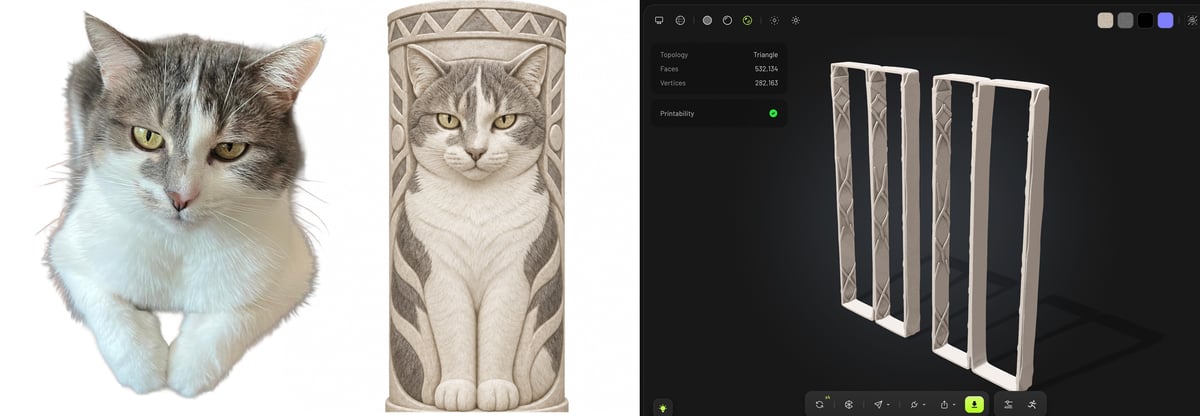
That’s as far as we got, unfortunately. The conversion to a downloadable 3D model was unsuccessful. The first attempt interpreted the concept as thin rectangular frames (above). A retry got closer, but distorted the cat and produced four separate narrow columns, apparently treating the four views as four objects.
Like we said, it’s still in beta.
Ultimately, though, if Meshy can work our these bugs, the back-and-forth creative process with the AI to refine a 3D model will dramatically improve the platform’s appeal.
For now, the step up from 2K to 4K is itself, very impressive.
(Overall, we used around 800 credits on Meshy for these experiments, along with some missteps and do-overs. That falls within the Pro subscription for about $20 a month.)
License: The text of "We Tested Meshy 7.1: Does the New Ultra 4K Really Improve 3D Prints?" by All3DP is licensed under a Creative Commons Attribution 4.0 International License.