G28 G-code: All You Need to Know about Homing

The G28 G-code command brings your machine's axes to their true zero position or home. Read on to learn all about the G28 command!
G-code is the programming language based on RS274 (ISO standard 6983-1:2009) that’s used by machines like 3D printers, CNC machines, and laser engravers. Essentially, it’s the instructional commands that a printer’s firmware interprets so that the printer can function as you want it to. The ‘G’ in G-code is one of the command letters from RS274, and other letter codes (‘M’, ‘S’, and more) exist, too. However, when someone says “G-code” nowadays, they’re usually referring to the RS274 language as a whole.
Each G-code specification is written with a letter followed by a number, and every combination has a different function and purpose. For example, the command G0 tells your printer to move rapidly while the command G1 is for moving in a controlled manner.
Every line of G-code can also contain multiple commands, and some commands only work with specified coordinates that go after that initial command. For example, you can’t just use input G0. Instead, you have to specify the coordinates such as G0 X10 Y10, which tells your printer to rapidly move to 10 units on the X- and Y-axis. For reference, every print or machining job can contain hundreds, if not thousands, of G-code lines.
As we said, each G-code command serves a different purpose, and some are used for movement, while others are used for heating, pausing, and more. The G-code command G28 is a handy one that moves your machine’s axes to their true zero position or home. In this article, we’ll go over the G28 command, reviewing what it does and how you can use it with examples.
How To Use It
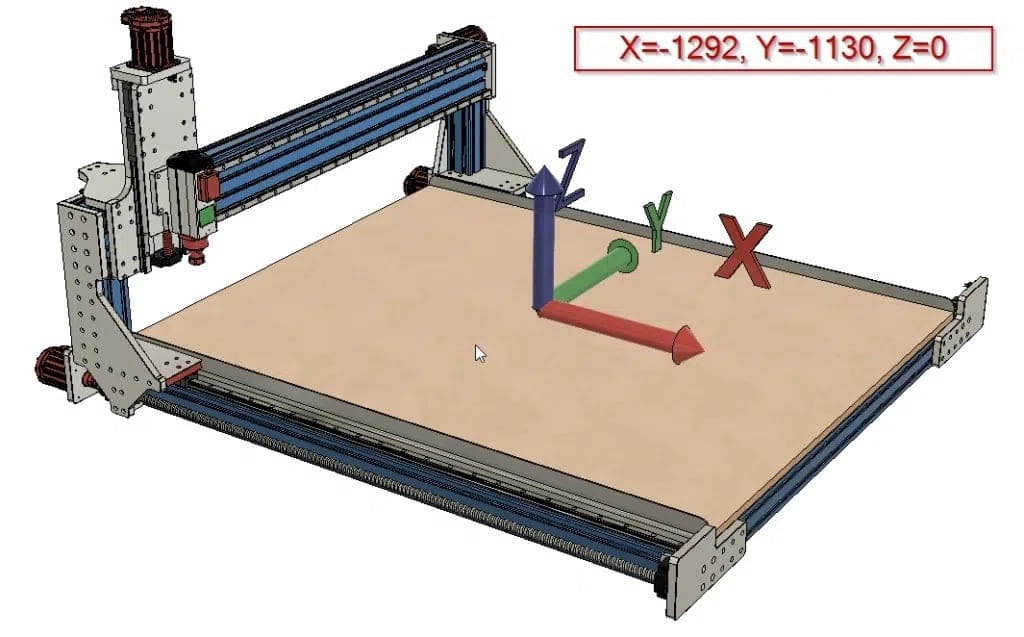
CNC machines – including 3D printers – that use stepper motors, figure out their position by counting the distance they have moved at all times. There are machines with position feedback, but at time of writing, these are rare or expensive and not covered here. The home position is X0, Y0, and Z0, and all machine movements will be recorded against this origin point.
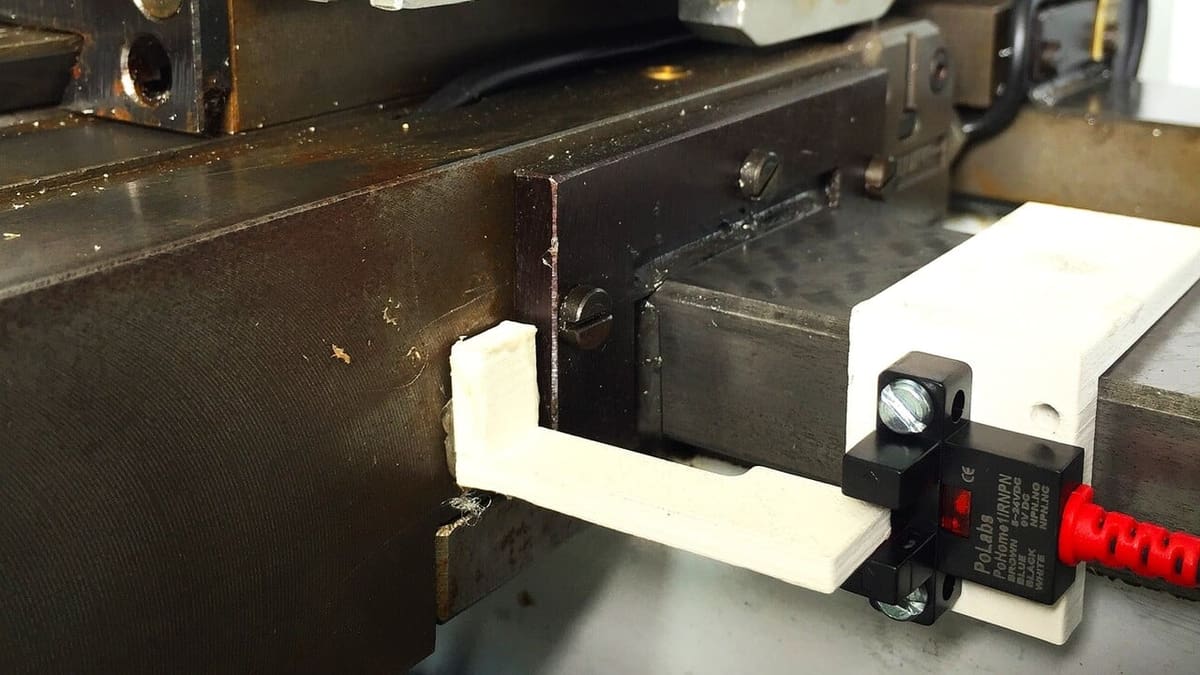
In a 3D printer, the G28 command homes all of your machine’s different movement axes, pushing any carriages on the X-, Y-, and Z-axis to their endstop. The endstop is the sensor device that signals when the end of the path on an axis has been reached. This may be achieved through several methods, though there are two main approaches.
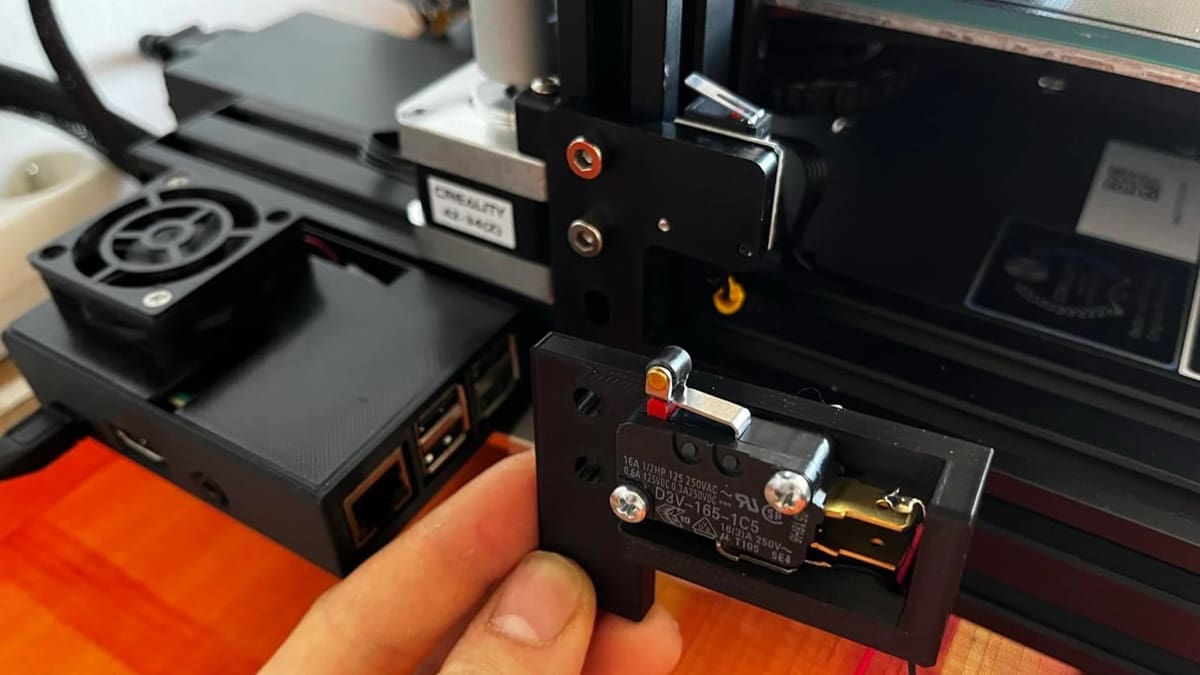
The first is the use of an electrical switch that is triggered when the moving element, being an X carriage, toolhead, or machine bed, for example, nears the end of its travel. At this point, it will contact an arm or level that triggers the switch. This signal is fed to the control board and monitored by the software; when it changes state, the relevant axis is in a known position.
The second method involves continuously reading and looking for a sharp rise in current drawn by the motor while the axis is moving. This indicates the motor is pushing against something hard, like the side of the machine, and is known as sensorless homing.
While sensing current might seem more difficult, it’s generally done by the motor drivers to enable their protection circuits anyway, and can be implemented in software. Using an electrical limit switch is generally considered more accurate; if you’d like to know more, check out our article on sensorless homing.
Although many CNC machines don’t have end-stops, they still respond to the G28 command, but the home position is just a digitally set or fabricated location. So, sending the G28 command on a CNC machine will bring the axis to their last set or recorded home origin position.
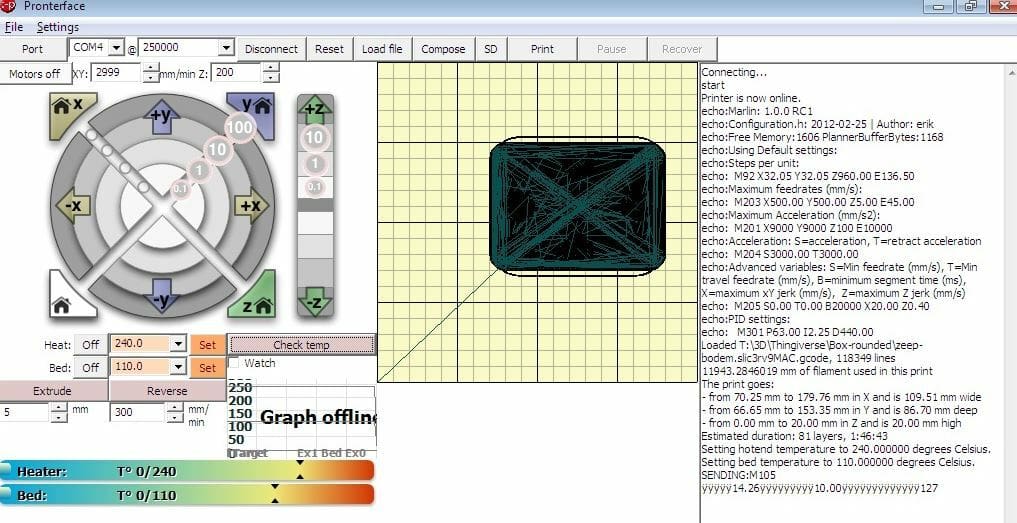
It might sound daunting, but using this G-code command is super easy! All you have to do is open up a G-code terminal like Pronterface, Klipper’s web interface, or the one integrated in OctoPrint’s UI. Then input G28 followed by the specific axes you want to be homed, and your machine will bring the specified axes to their home position. This will happen regardless of any endstops of temporary work offsets, like the ones set by the G92 command. The command will frequently be issued as part of a pre-defined set of movements, such as with macros in Klipper.
While it appears that the G28 command is just a condensed form of G0 X0 Y0 Z0, it’s slightly more complicated and depends on your machine. Issuing a G0 X0 Y0 Z0 command will move all axes at the same time until the head reaches 0. In most 3D printers, issuing a G28 will move the axes one at a time, toward a point past 0 in order to probe the endstops and find the 0 position. In many CNC machines, G28 will move as fast as it can towards 0 on all axes, but in some it will move Z first for object avoidance. Others require issuing a G91 as part of the command, which is not normally needed in hobbyist 3D printers.
Unless you specify which axis you want to home (G28 X), it will home all axes. So, for example, G28 would equate to G0 X0 Y0 Z0 and tell your printer to move to those coordinates (one axis at a time), while G28 X Z would mean G0 X0 Z0 (telling your printer to move the X- and Z-axis to their endstop home positions).
If you use an auto-bed leveling (ABL) sensor like BLTouch, the sensor serves as your endstop. When you use the G28 command with an ABL sensor, your printer (if its firmware is set up correctly) will move the Z-axis down until the endstop ABL sensor is triggered.
When to Use It
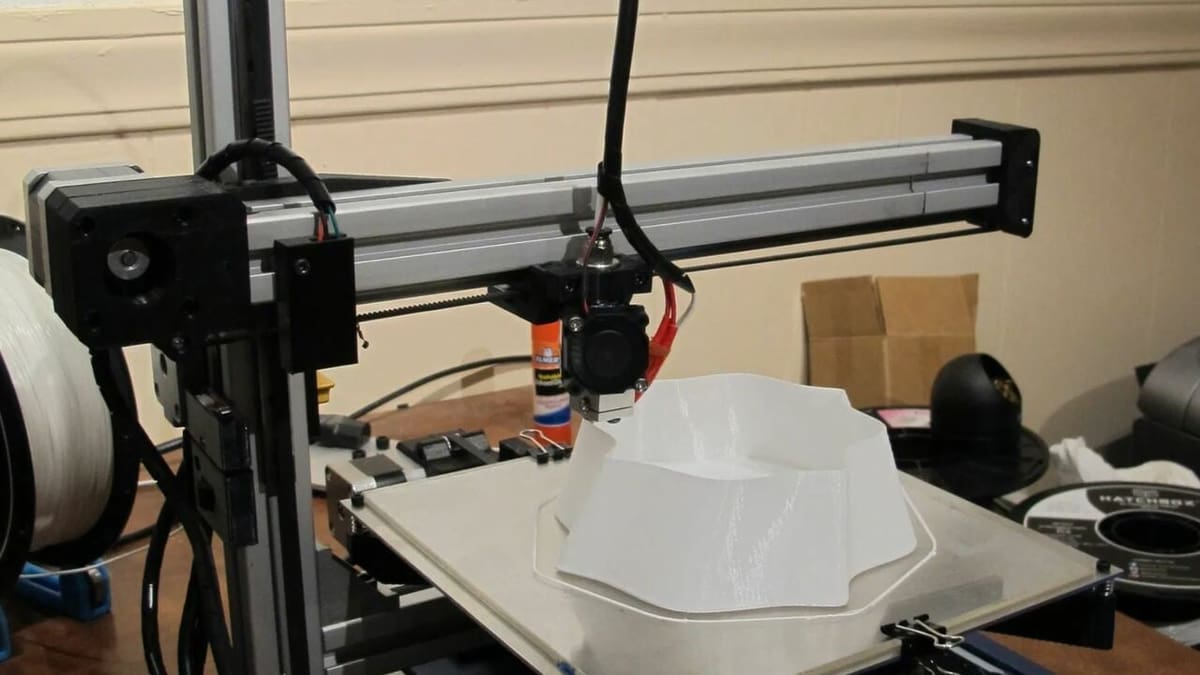
For 3D printing, basically every slicer will include the G28 command as one of the commands in the start G-code script. Without it, you’d have to manually move your printhead to its home starting position, as you have to do on a CNC machine to home the axes.
You should use the G28 command before any print job on a 3D printer because you want every axis carriage to be at its true home position before the printer starts reading new G-code script. If you didn’t home your 3D printer before use, it would start a print job relative to wherever it’s currently located.
You can also use G28 in 3-axis CNC routers to zero the toolhead before flipping (or otherwise repositioning the stock) or turning off the machine. This can make it easier to line up the workpiece on some machines, particularly the cheaper ones.
If you’re using a CNC machine, be mindful to put the machine into relative mode using G91, which issues commands relative to the toolhead. In contrast, absolute mode issues commands with respect to the work origin. When you enter G28 X0 Y0 Z30 for example in relative mode, the toolhead will move up 30 mm (on metric machines) before moving to home; in absolute mode, the toolhead will move to 30 mm above the origin before moving to the home position.
This is far less important on 3D printers which usually perform Z homing last (Marlin and Klipper) and don’t often have anything on the bed to crash into when homing (unlike a CNC machine), but it’s still good practice. You must also remember to set the machine back to absolute mode using G90 before stating a job. Most 3D printing slicers will do this for you, but it’s good practice to know what mode your machine is in while you’re using it.
Overall, the G28 command is necessary for any machine or print job because it allows it to find its home and origin. The G28 command is easy to send and use, and no coordinate specification is required unless you want to only home certain axes. Plus, the command isn’t constrained by temporary work offsets, and you can even use the G28 command on machines without endstops.
Common Issues
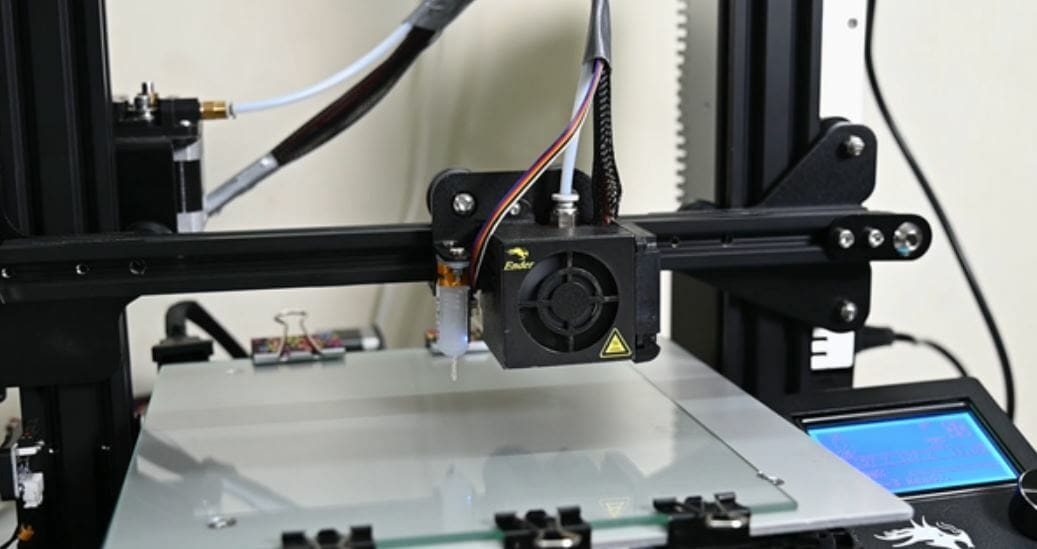
While there aren’t that many issues with the G28 command, you may have some trouble using it. Below are a couple of problems and solutions you can use to get the G28 command to function properly:
- Bed leveling values lost: If you’re using a bed leveling method and the values aren’t being applied to prints, your firmware needs to be changed. All you need to do is add the command
M420 Safter every instance of the G28 command, or, if you have Marlin firmware, you could use the commandRESTORE_LEVELING_AFTER_G28. - ABL sensor pin deploys: One user mentioned how on their printer with two endstops on the Z-axis, the sensor deployed when they sent the G28 command. In response, a developer for Marlin firmware recommended connecting the ABL sensor to a pin that’s not
Z_Min_PIN, enablingZ_MIN_PROBE_ENDSTOP, and disablingZ_MIN_PRBE_USES_Z_MIN_ENDSTOP_PINin Marlin firmware. - Badly written macros (Klipper): The homing macro is particularly important in the Klipper config file and several people have reported issues with G28 within their homing macros. These issues are usually centered around either sensorless homing or multi-MCU setups, such as using a toolhead board.
Lead image source: Core3D Custom Printers
License: The text of "G28 G-code: All You Need to Know about Homing" by All3DP is licensed under a Creative Commons Attribution 4.0 International License.