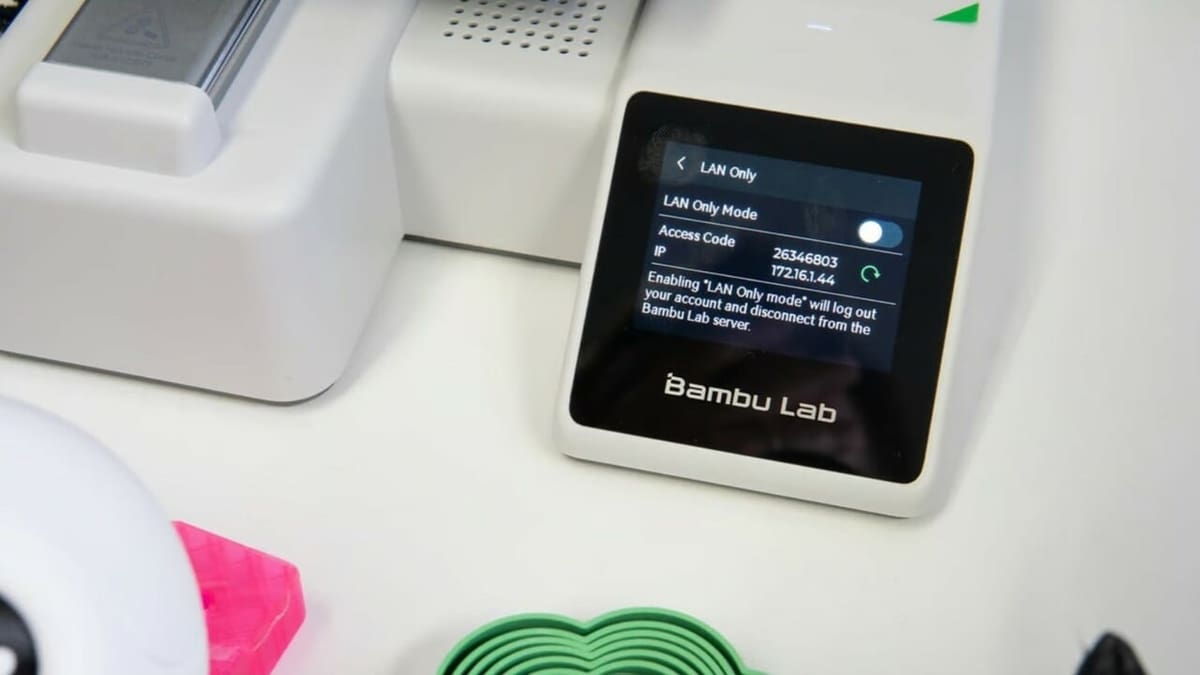
Bambu Lab: LAN Only Mode – Simply Explained

Here's all you need to know about Bambu Lab's LAN Only and Developer modes. Read on to learn about uses, pros, cons, and how to set them up!
Bambu Lab printers are great machines all around, but they do have a few drawbacks. An important one to many Bambu users is the constant sending and receiving of data to and from Bambu’s servers. This can worry privacy and security-centric users who want to keep their printer’s data away from possible prying eyes.
Fortunately, Bambu designed a mode to counter exactly this, LAN Only mode. It’s a highly useful tool for keeping your prints and printer secure on the network.
LAN Only mode, as the name suggests, forces the printer to operate solely on the local network. This means that the printer is allowed to communicate with, for example, a computer on a home or workplace network where the printer is located, but it’s not allowed to communicate with any external device.
This can present some pros and cons: The printer will remain “private” and will no longer be able to contact any servers, including Bambu’s, but this also means losing access to quite a few features that depend on this connection.
In this article, we’ll go a bit deeper into the benefits and drawbacks of LAN Only mode, and we’ll then explain how to set it up on your own printer.

Pros & Cons
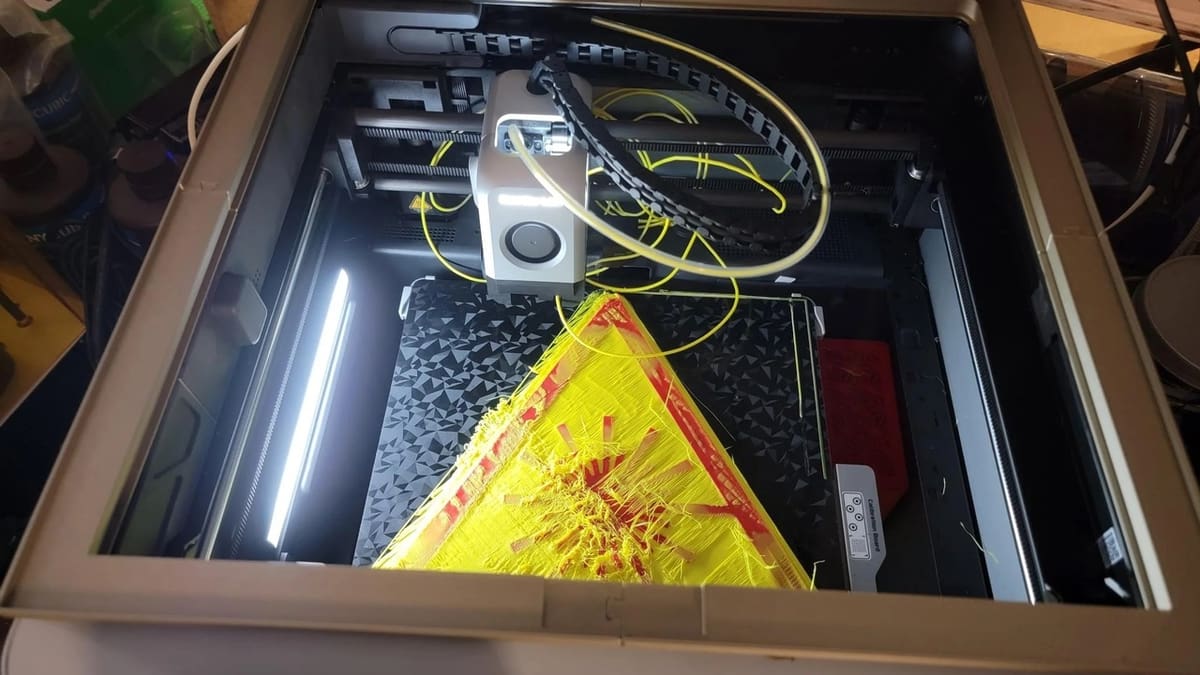
LAN Only mode is useful in that it provides a good balance between a completely offline and a completely connected printer.
Prints can still be started and monitored via Bambu Studio running on a device on the local network, and the printer can still automatically detect print failures (on capable models such as the X1 Carbon), although it is recommended to upgrade your firmware regularly to have the best performance of this tool.
On the other hand, not being able to reach Bambu’s servers results in the downside of not being able to start or monitor prints outside of the local network, the inability to use Bambu Handy, and the lack of a Print History function.
Although this does result in losing some of the printer’s functionality, it may still be worth it for security-conscious users who don’t want their printers being monitored or even controlled by Bambu. Additionally, cloud-based systems can have issues and might go offline from time to time or start unprompted, so keeping everything local is an effective way to ensure that things continue working even when the cloud falters.
How to Set It Up
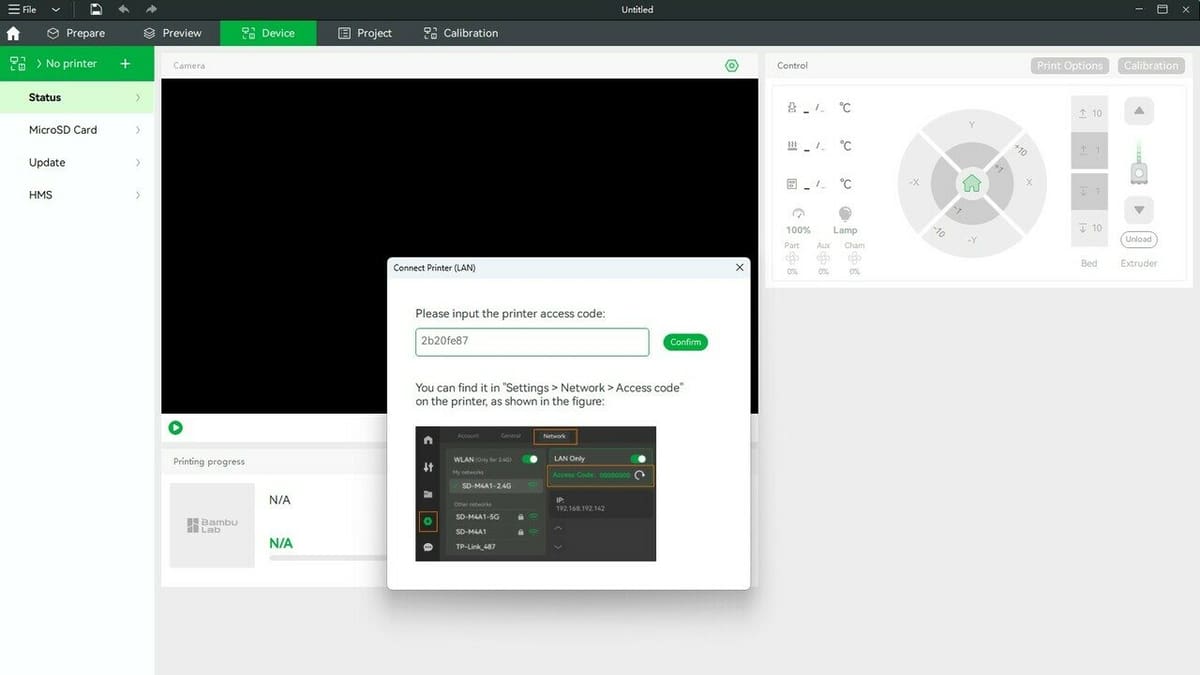
Now that we’ve gone over LAN Only mode and its benefits and drawbacks, we’ll explain how to set it up on your machine.
This is a two-part process. The first occurs on the printer, and the second is done in Bambu Studio.
Where you need to navigate for the first part differs slightly based on your printer model, but the common objective is to find and take note of the “Access Code” for the second part.
- For the P1 series (P1P, P1S): In the printer’s settings menu (the gear symbol), select “WLAN”, enable “LAN Only Mode”, and confirm the selection when prompted. Here, the Access Code is located right below the printer’s IP; remember to take note of it.
- For the X1 series (X1, X1C): In the printer’s settings menu, under “General”, enable the “LAN Only” option; you’ll be asked to confirm the selection. You’ll find the Access Code directly under the LAN Only switch.
- For the A1 Mini: In the printer’s settings menu, scroll down to and select “LAN Only Mode” and, when prompted, toggle the switch. The Access Code is visible under the option to enable the mode.
Now, it’s time to bind the printer to Bambu Studio.
- Ensure the device running Bambu Studio is on the same network as the printer. Some users recommend starting with a clean installation of Bambu Studio.
- In Bambu Studio, under the “Device” tab, open your list of printers (using the plus icon) and find the one that you just enabled with LAN Only mode. You may have to wait a bit for it to show up.
- Click on said printer, and enter the Access Code that you noted down from the previous step.
That’s all! Your printer is now set up, cloud-free.
Developer Mode
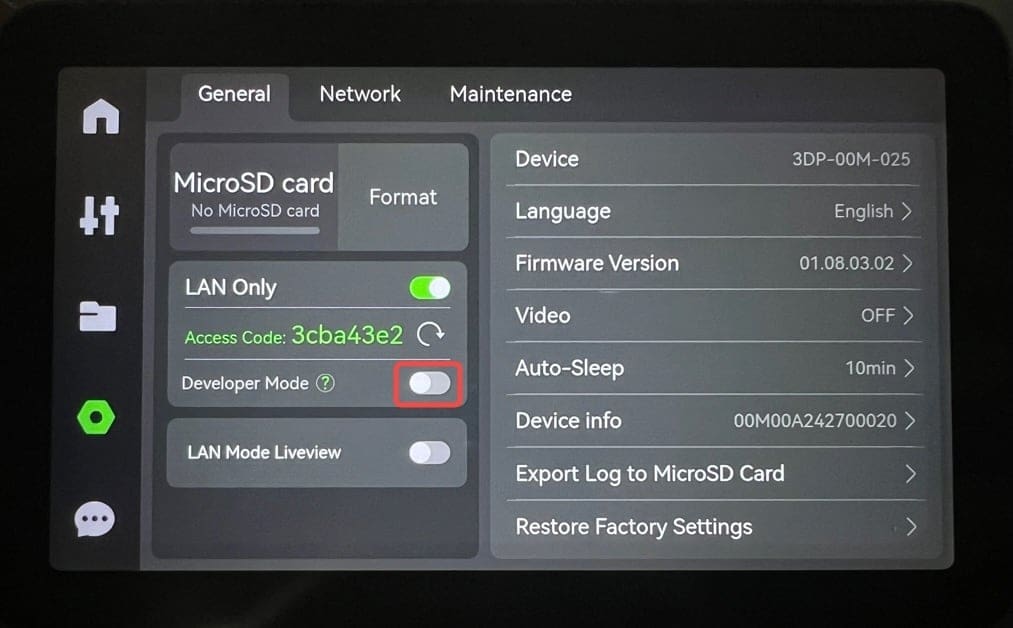
Developer Mode is a feature that builds upon Bambu Lab’s LAN Only Mode, which means this has to be enabled.
This mode is designed for advanced users who wish to integrate their Bambu Lab printers with third-party software or hardware, providing a more expansive set of controls and communication channels. By enabling Developer Mode, users gain access to additional communication protocols such as MQTT, live streaming capabilities, and FTP access. These features allow for more sophisticated control and monitoring of the printer, making it easier to integrate with custom workflows or external tools.
It’s important to note that Bambu Lab has stated that Developer Mode is unsupported. This means that while the feature is available, users should not expect official support from Bambu Lab for any issues that arise from its use. This is a common practice for features intended for developers or advanced users.
The introduction of Developer Mode came in response to community feedback regarding security updates that affected certain third-party integrations. Some users expressed concerns about the impact of these updates on their ability to customize and extend the functionality of their printers. Bambu Lab’s decision to prioritize security is a common approach in the industry, aimed at ensuring the reliability and safety of their products. This balance between security and openness is a challenge faced by many companies, and Bambu Lab’s introduction of Developer Mode reflects an effort to address the needs of advanced users while maintaining a secure environment for all customers.
To get Developer Mode running, after setting up the Lan Only Mode, simply toggle on the switch below the Access Code, located under the General Tab on the Settings panel of the printer.
License: The text of "Bambu Lab: LAN Only Mode – Simply Explained" by All3DP is licensed under a Creative Commons Attribution 4.0 International License.