Our Favorite STL Repair Tools: Free, Paid, Online, Offline & Everything In-Between

Don’t despair over a broken STL – there are many tools (free and paid) that can help repair your model, and by 2025 they’re better than ever.
If you’re 3D printing, you’ve probably encountered the dreaded “unprintable STL” problem: Your STL file looks fantastic, or you downloaded it from a reputable STL repository, but your slicer is throwing out errors, such as “non-manifold edges,” “overlapping faces,” or “inverted normals.” What are these things, and how do you fix them?
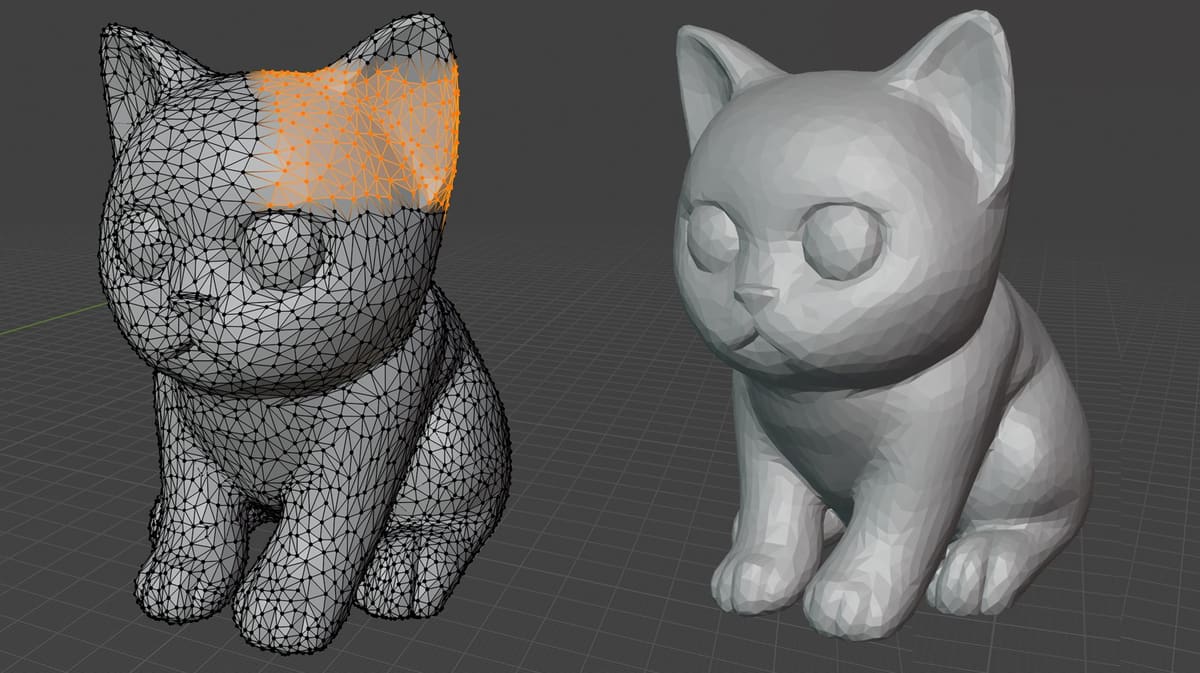
Unprintable STL files and the various reasons they are unprintable have the same root cause: mesh errors. Your 3D printable digital files are, if you zoom in very closely, made up of tiny connected triangle-shaped surfaces called a mesh. A typical STL file may contain tens of thousands of tiny triangles. Unfortunately, there are many ways in which these triangles can be misaligned, not connected, or otherwise incomplete.
We go deep into these errors and mesh anomalies in our section at the end, but now, you just want it fixed.
This is where STL repair tools come in.
These help you identify and fix mesh issues, usually automatically, resulting in a model that is complete (otherwise known as watertight). They range from free, hobbyist-friendly tools to complex, commercial software designed for professional use.
Although we cover “mesh editors,” which you’d use when you want to manually manipulate your mesh to add features or custom-fix problems, in another article, here, we cover some of our favorite tools for just repairing your STL (or 3MF) files so you can get back to printing.
Generally speaking, STL repair software falls under three broad categories:
- Dedicated, free, or open-source tools are available to use online or offline, and these remain popular choices.
- Slicer software is also increasingly embedding analysis and repair tools that can handle many issues.
- Free CAD programs often provide great automatic and manual repair functionality. These are often the best options for those who do their own designs or remixes.

Free Online & Offline Tools
Standalone, browser-based, and desktop tools are the “traditional” way to repair STL files. They range from simple “automatic” options to sophisticated solutions offering full manual control over virtually every aspect of STL fixing.

FormWare
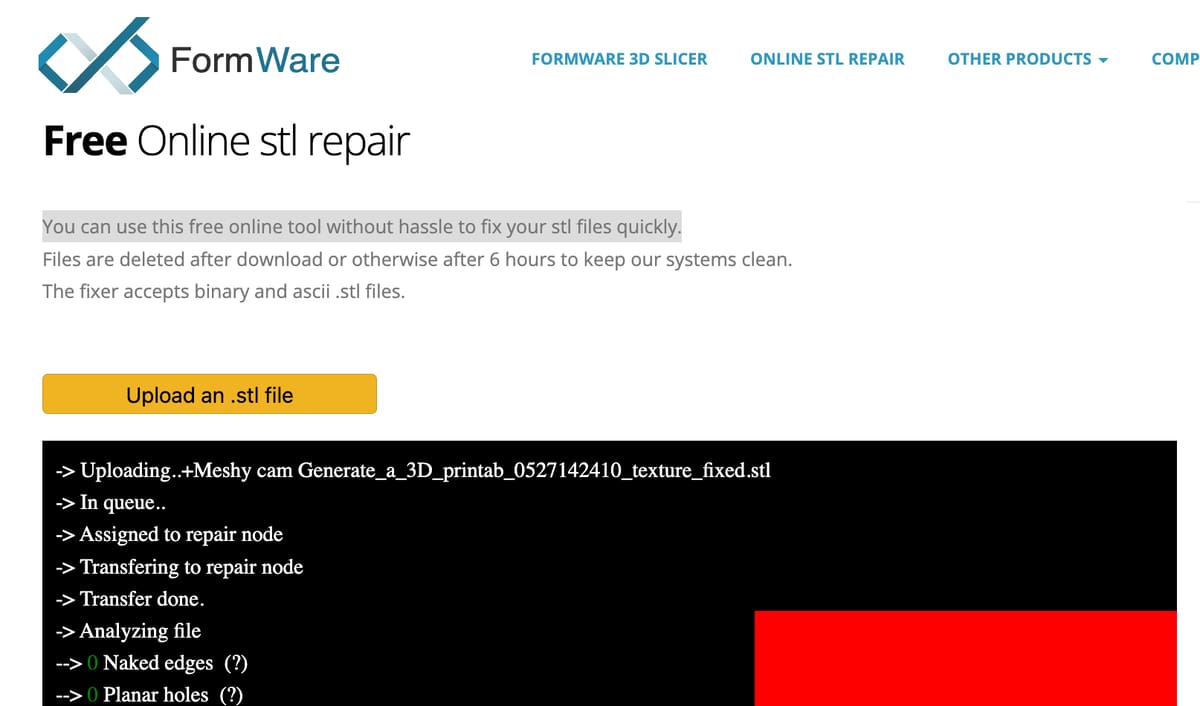
FormWare offers a free online tool without hassle to fix your STL files quickly. This is a great, quick check to see what type of errors your STL may have and get them fixed in a snap.
The repair service has a timeout of four minutes, which means if your file is not fixable in four minutes, it cancels the operation to free up processing capacity for others. There’s also a file size limit of 50MB. There’s no preview or a lot of detail about what it fixed, but if you’re looking for a browser-based quick tool, this has worked for us and is on par with the repair capabilities of most good slicer software. If you’re slicer can fix your file, odds are that this tool won’t either, but it’s worth a try.
- Platform: Browser (online)
- Cost: Free
- Ideal for: Anyone requiring STL repairs
- Available from: FormWare
Aspose
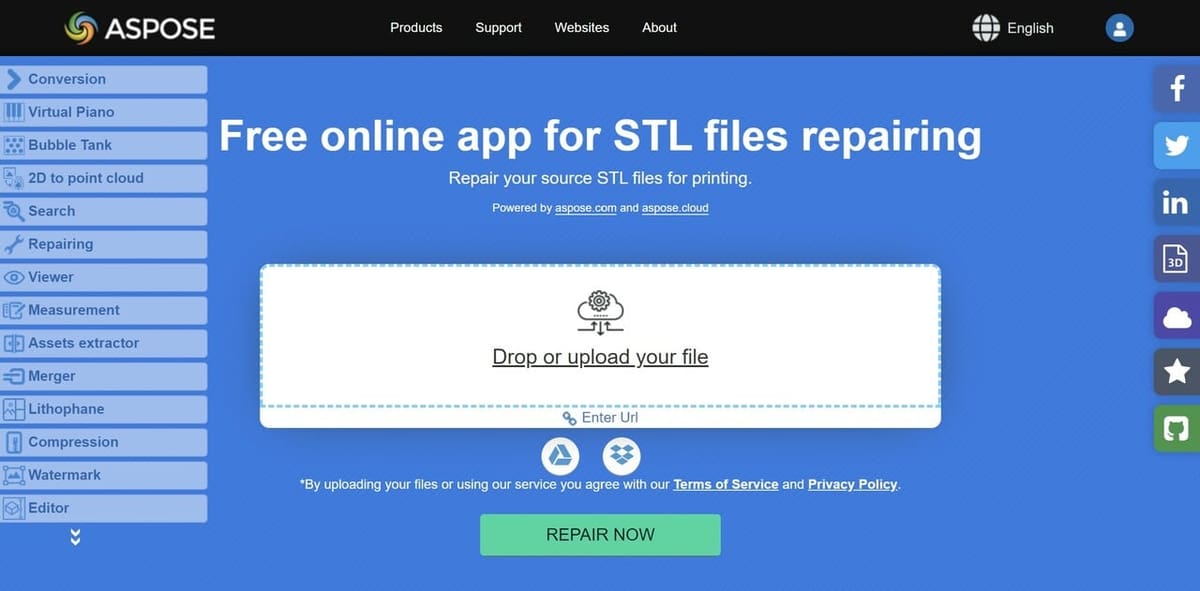
Aspose is an effective, no-cost, browser-based repair app that automatically detects and fixes errors (holes, inverted normals, non-manifold edges, etc.). Provided that you have a stable internet connection, files can be uploaded and repaired with only a few clicks. This ease of use makes it a great website to keep in your browser’s bookmarked sites, allowing any STL (or 3MF) file repair to be just a few clicks away at any given time.
It runs fully in-browser (Windows, Mac, or mobile) and lets you preview and choose which issues to fix, then download the repaired model in a variety of formats. Aspose also comes in nearly 40 languages.
Also, in case there’s doubt over the quality of the repaired STL, Aspose generates a 3D file preview for users to check and ensure that the file has been successfully repaired, all from a web browser.
- Platform: Browser (online)
- Cost: Free
- Ideal for: Anyone requiring fast, simple STL repairs
- Available from: Aspose
MeshLab
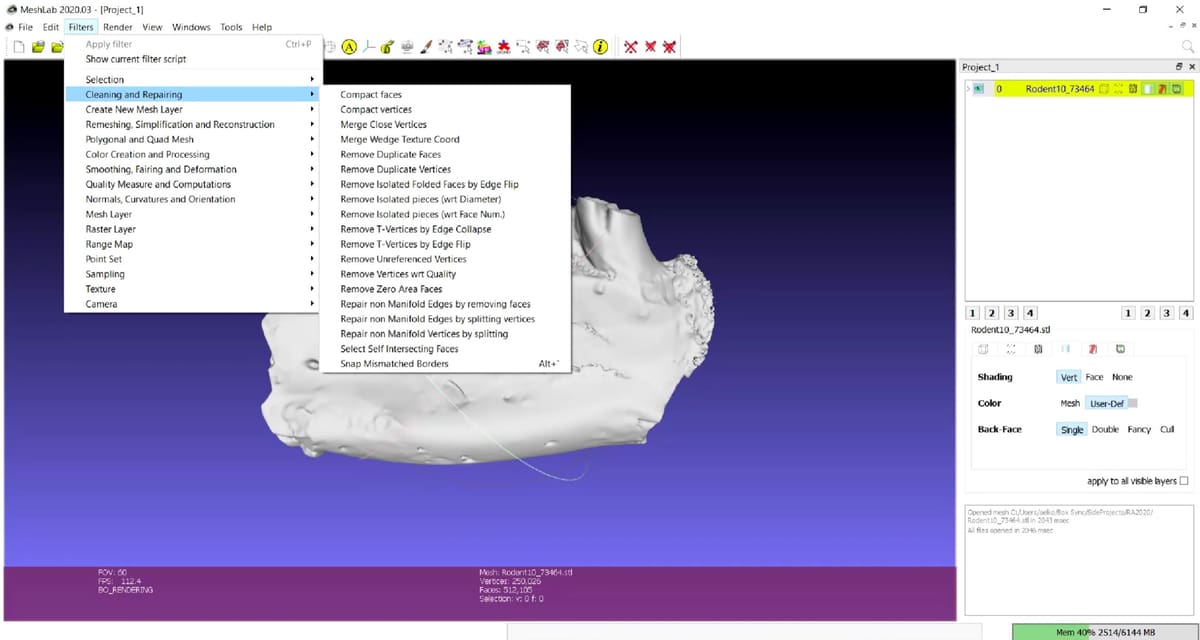
MeshLab, in stark contrast to simple services, offers a fantastically rich, downloadable toolset that enables detailed control over editing, cleaning, healing, inspecting, rendering, texturing, and converting 3D triangular meshes, including STL files. It’s a more technical utility, primarily for mesh editing rather than one-click repairs.
It’s an open-source solution in constant yet limited development (no major updates since 2023), and its focus is on processing models produced by 3D scanning and digitization tools. It can handle very large STLs, which often defy other free solutions, and it’s also useful for effectively combining more than one mesh.
A decent level of knowledge is required to understand and make the best use of the user interface.
- Platform: Windows, MacOS, Linux
- Cost: Free
- Ideal for: Experienced makers requiring advanced STL repairs
- Available from: MeshLab
Slicer-Based Repair Tools
Slicers (Prusa Slicer, Bambu Lab Studio, Cura, Simplify3D, etc.) have become far more proactive at identifying and auto-healing problematic STL and 3MF files. So much so that you may not even know that your slicer fixed common errors in your uploaded file, such as small holes or intersecting faces.
Many slicers once had repair plug-ins and special features that you could use to manually repair your file’s problems, but today, few still do. When they can’t fix the file with their own healing algorithms automatically, it’s assumed you have a major issue that you’ll need a fully robust STL editor for.
In fact, Cura may be the only slicer that still has an “extra” digital file repair plug-in. Cura’s plug-in called “Mesh Tools” (available via the “Marketplace” in the top right-hand corner of the UI) gives you the manual controls to fix issues and manipulate the digital file. This means you can diagnose and fix problems without using external tools like Meshlab or Blender. Mesh Tools can analyse your mesh (count faces and vertices, if that’s a detail that’s important to you), split models into parts (handy), apply transformations, and more. If you’re using Cura, it’s at least worth experimenting with these options, as in many cases, they will eliminate the need to resort to other repair tools.
STL Repair Inside Free CAD Tools
The STL repair solutions we’ve presented so far will repair most moderate model errors automatically. But when they can’t or they fix them in a way that alters your part’s geometry, you’ll need a more hands-on tool to really get in there and fix the mesh manually.
This is where computer-aided software comes in. You wouldn’t buy a license to a sophisticated CAD solution for just this task, but there are very capable free CAD options with tools you should learn to wield if you’re serious about 3D printing.
In fact, CAD software is one of the main ways to take an existing STL and make a remix or redesign of the STL, as long as the original creator allows remixes in the licensing. Some CAD software, like FreeCAD, even allows users to convert a mesh into a solid body, making it easier to perform structural repairs or changes, and then re-export a clean STL.
CAD software offers more precise modeling and repair capabilities on top of some automated tools, but a drawback is the learning curve—tools like Blender or FreeCAD can be difficult to master for users who are new to 3D modeling.
In the following section, we highlight a few of our favorite free solutions.
Blender
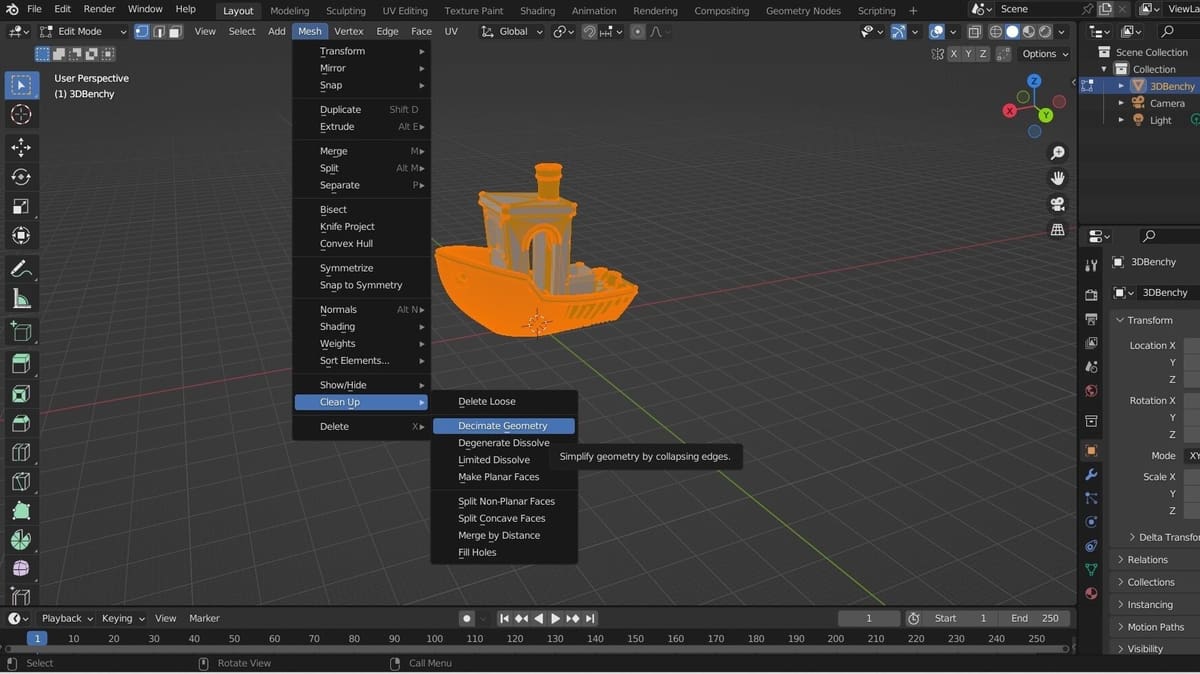
Blender has become the de facto standard tool for 3D modeling and animation. It should come as no surprise, then, that a tool focused on manipulating and managing mesh models offers powerful capabilities for fixing problematic STL files.
Yet this sophistication comes at a price: Blender isn’t well-suited for beginners, and the learning curve can be steep. However, for those looking for a well-supported, open-source, free tool capable of tackling almost any mesh modeling challenge, this program is worth considering. If you’re looking for more automation, download the free 3D Print Toolbox.
- Platform: Windows, MacOS
- Cost: Free
- Ideal for: Experienced makers who prefer sophisticated software
- Available from: Blender

Autodesk Fusion
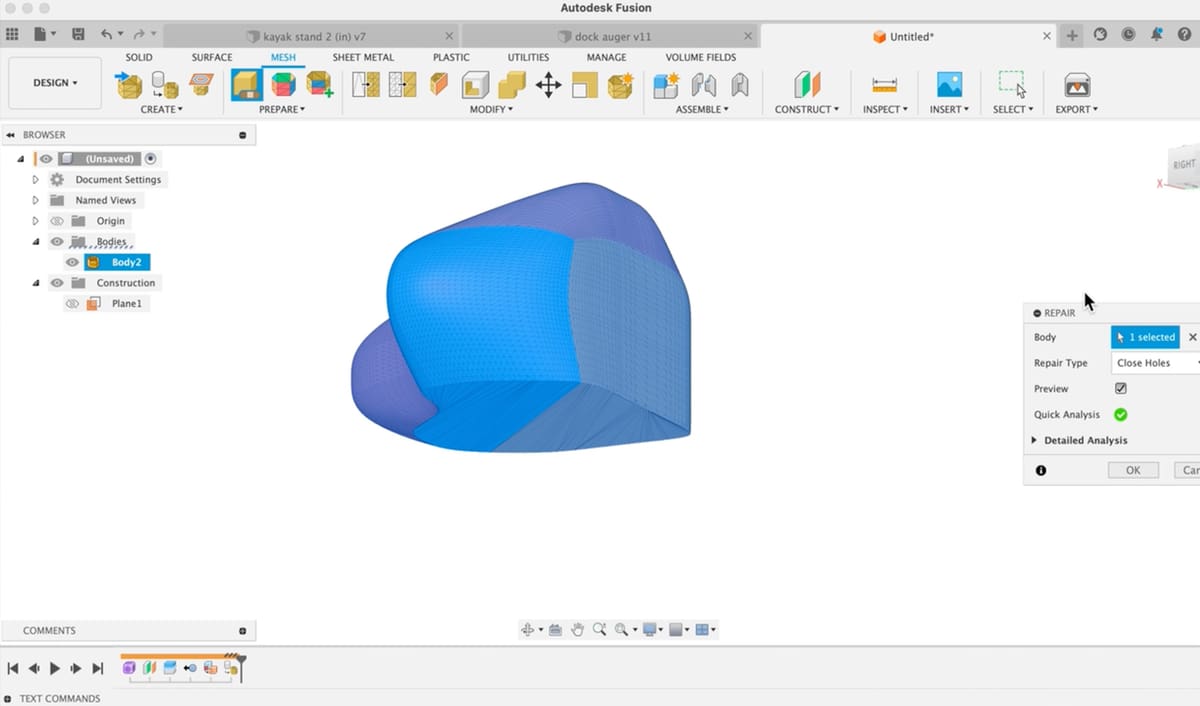
Fusion, by Autodesk, is one of the most popular computer-aided design (CAD) tools on the market, and fortunately, it’s free for students and educators, and hobbyists can use a feature-limited Fusion for free, provided it’s for noncommercial purposes. If you download Fusion for no other reason than its digital file repair features, it’s very much worth it.
In fact, Autodesk used to make a very popular STL repair tool called Meshmixer. You can still find it online, and many folks still swear by it, although it hasn’t been updated since 2018. The reason Autodesk put Meshmixer out to pasture is that it incorporated the functionality into Fusion.
Autodesk Fusion provides mesh tools under the “Mesh” workspace and the “Repair” environment. When you import a mesh (e.g., STL or OBJ), Fusion automatically checks for defects and may prompt you to “Repair Mesh” if it detects holes, non-manifold edges, or self-intersections.
The automatic repair will attempt to fill holes, remove stray triangles, stitch broken edges, fix inverted normals, and more. Once your file is fixed, you can hit export, and you’re done.
If you want to play around with your mesh and fix problems manually, Fusion is a good tool for that, too. It can do even more sophisticated actions, such as convert your mesh to a solid (BRep), so you can basically redesign it and create something new.
- Platform: Windows, MacOS
- Cost: Free for some
- Ideal for: 3D printing hobbyists who 3D model
- Available from: Autodesk
3D Builder
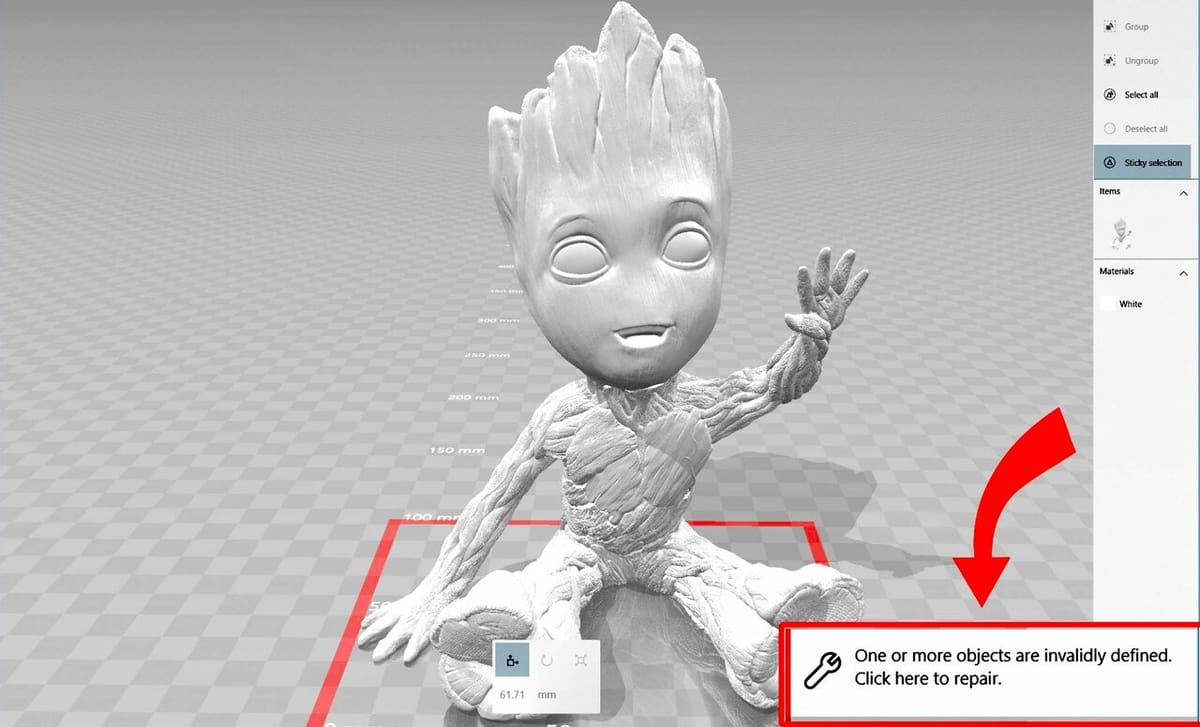
3D Builder is Microsoft’s free 3D modeling software for Windows and other Microsoft platforms. It’s primarily intended as an easy-to-use solution for simple modeling – and even 3D model scanning using a webcam – it also includes capable STL repair functionality to ensure that your 3D models are printable, since there is an automatic repair on import (with a single click fix for detected errors).
It has long been a simple go-to tool, yet it’s unclear if Microsoft will continue to support it. 3D Builder was pre-installed on Windows 10, but on Windows 11, users might have to get it from the Microsoft Store. It is no longer available in all global markets.
- Platform: Windows
- Cost: Free
- Ideal for: Anyone 3D modeling or editing of simple parts
- Available from: Microsoft
FreeCAD
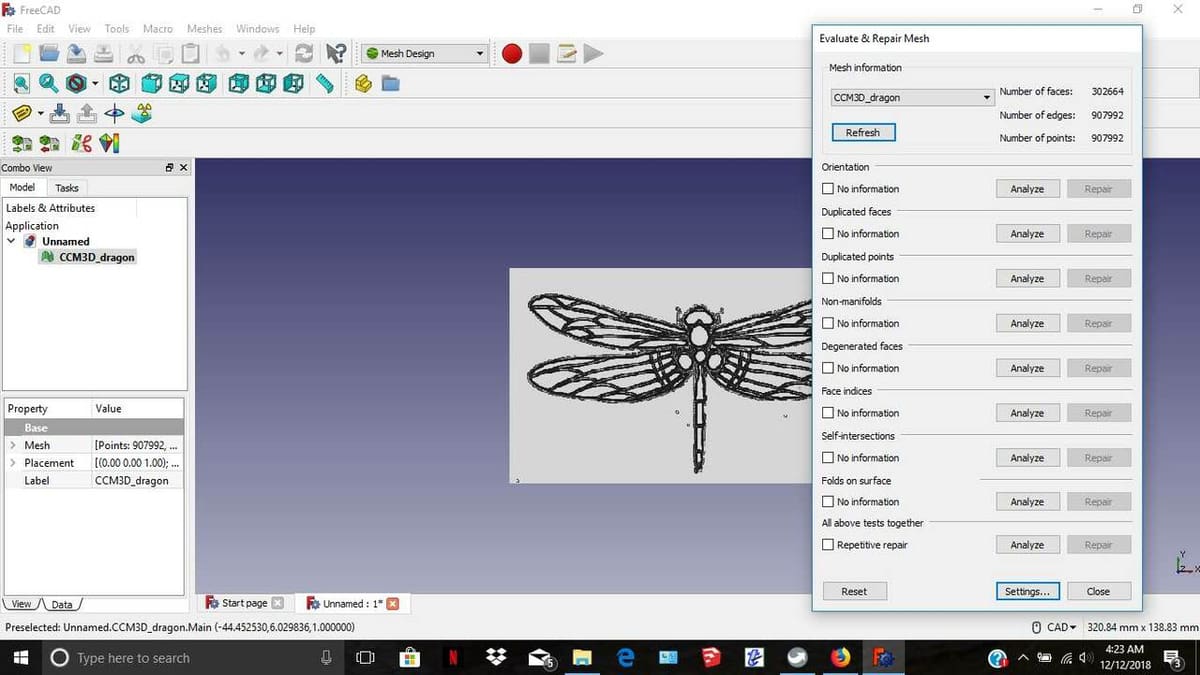
FreeCAD is an open-source 3D modeling program that was initially designed with the needs of mechanical engineering and product design in mind. Among the many features of this program are capable analysis and repair tools.
If you’re looking for a tool that gives you a high degree of control over your work, then FreeCAD may be the way to go. FreeCAD provides thorough diagnostics and is ideal if a model might need redesigning to fix (e.g., fixing a model’s geometry at the source). What it may lack in auto-healing digital files, it makes up for in letting you know exactly what’s wrong with your file.
- Platform: Windows, MacOS
- Cost: Free
- Ideal for: Experienced makers who prefer classic CAD functionality
- Available from: FreeCAD
Paid & Pro File Repair Solutions
If you’re running a business, such as a 3D printing service, and you want to ensure that your customers get the printed part they desire, it may require that you fix their SLT problems first.
So what tools do the pros use? Most likely, they’ll be experts in CAD software, like Fusion, SolidWorks, Solid Edge, Siemens NX, AutoCAD, and more. These subscription CAD tools have powerful mesh repair capabilities.
But on the professional side, we wanted to point out two examples outside of CAD: subscription-level STL repair and build preparation software.
Although we’re not going into detail in this article, note that 3D scanner software, such as Artec Studio, has also improved to offer high-quality mesh cleanup, hole filling, and smoothing tools as part of scan-to-mesh workflows.
MeshInspector
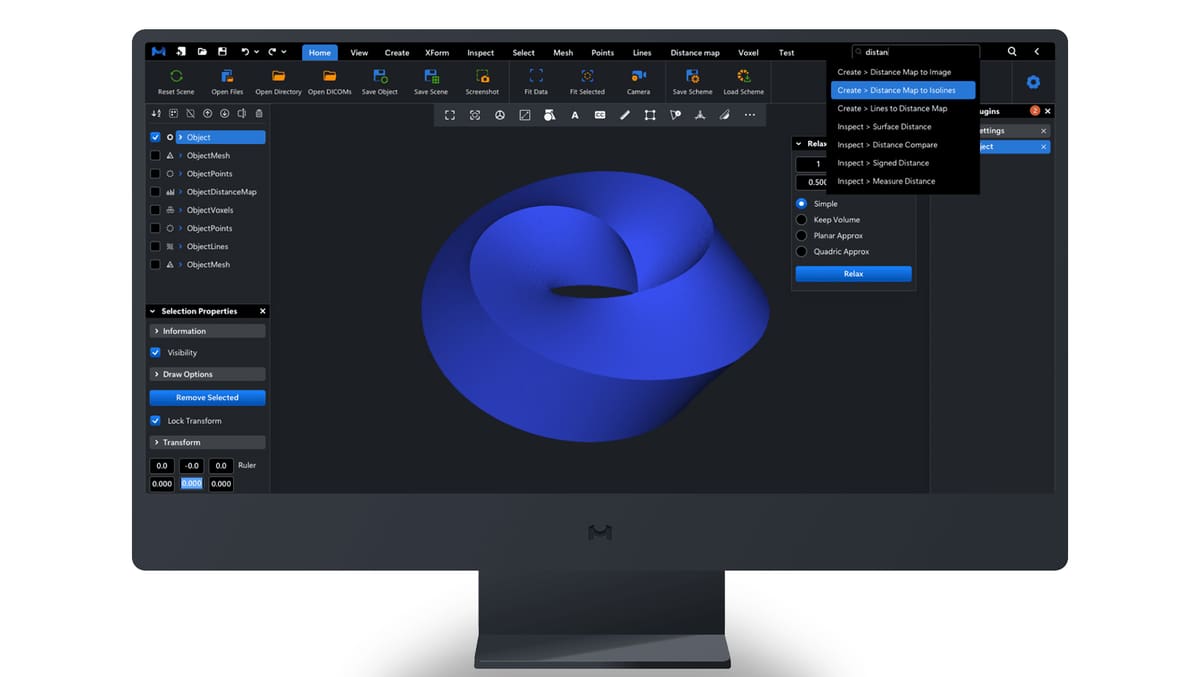
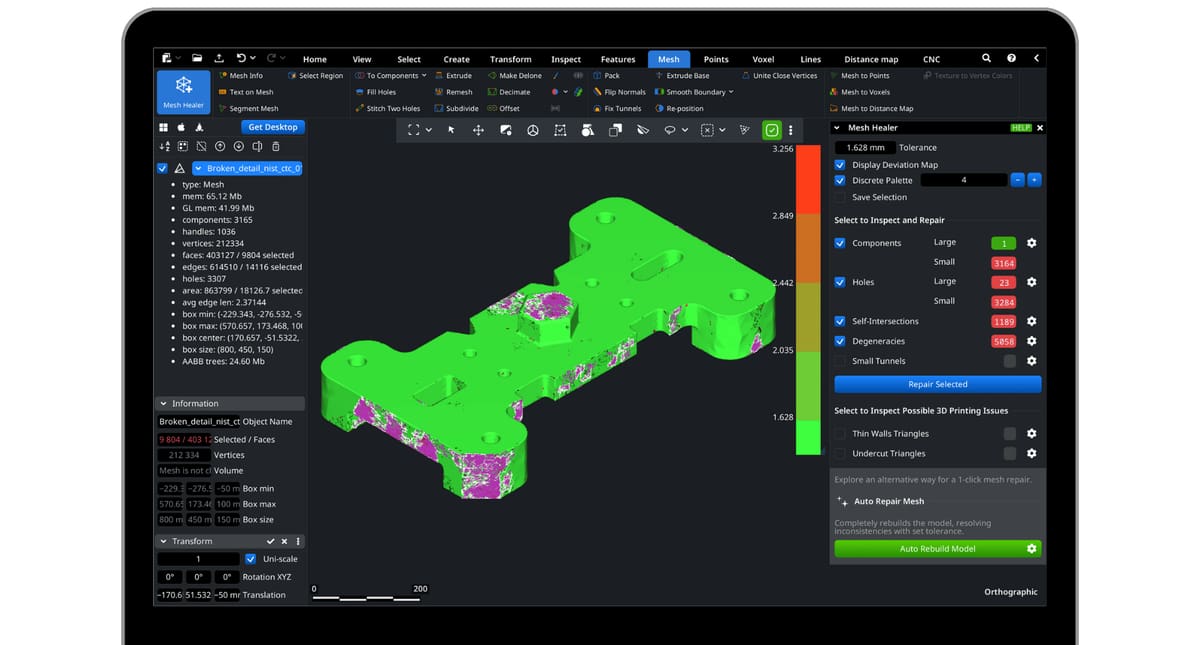
MeshInspector (browser-based + desktop, basic version is free) fixes files with one click, it says, but we found it did so much more. It can not only auto-repair but also flag issues you should repair manually using its range of tools.
If you’re looking for more than an auto-repair or if the auto-repair takes detail out of your model that you need, MeshInspector has a very user-friendly interface for learning the basics (and some advanced methods) of fixing models in the most accurate way possible. It’s not free, though. A basic version that has just limited tools, is free, and you can try the advanced version with all the repair tools free for 30 days (we used this option), but after that, you’ll need to subscribe: $300 a year for advanced mesh editing, then a pro version for $790 that includes 3D scan data to mesh, CT and MRI data to mesh and more.
- Platform: Windows, MacOS
- Cost: Free for the limited version or $300/year
- Ideal for: 3D printing advanced users
- Available from: MeshInspector
LimitState:Fix
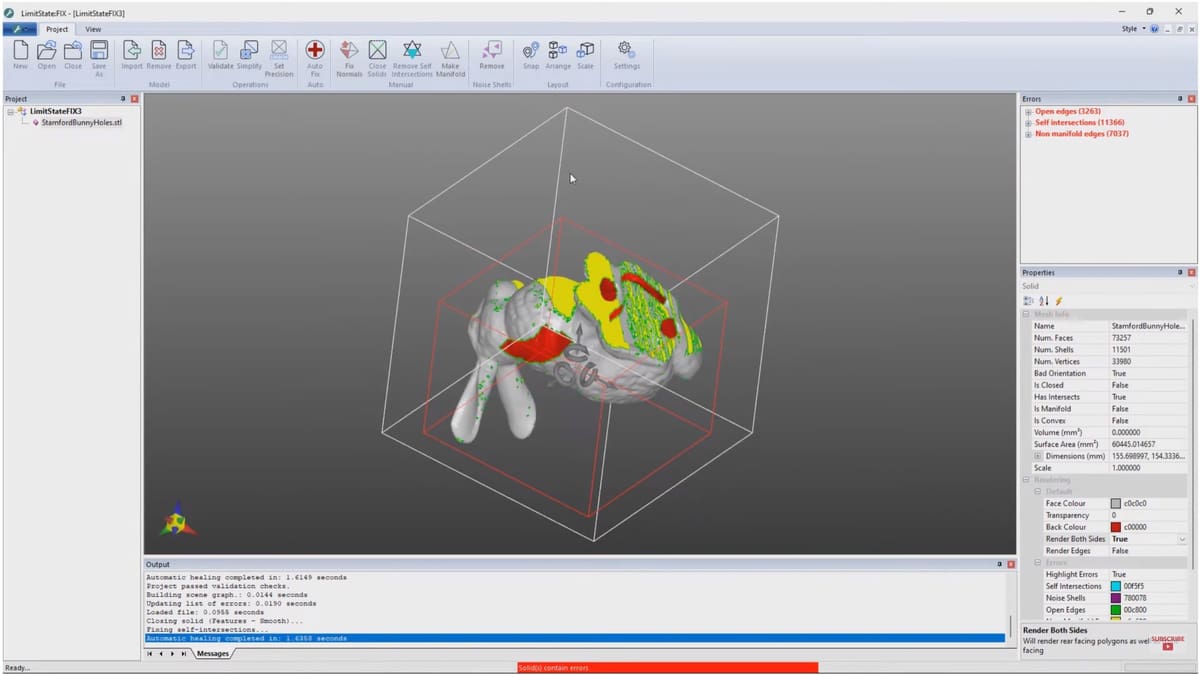
LimitState:Fix is a professional STL repair tool that claims it “fixes the 3D models other tools can’t!”
Unlike simple tools that patch holes or correct normals, LimitState:Fix uses, what it calls “advanced mesh healing algorithms derived from the industrial-grade Netfabb Core technology” to intelligently reconstruct watertight, printable models from highly flawed or non-manifold meshes. It supports automated detection and repair of complex errors such as self-intersections, internal faces, and non-contiguous shells, and it can interpret poor geometry to produce a valid solid even when the input is severely corrupted. It offers batch processing for multiple files and provides comprehensive analysis reports to help users understand the nature and extent of the original issues so they can change their design processes. These capabilities make it particularly useful in industrial, engineering, or additive manufacturing contexts where model integrity is critical and basic tools fall short.
- Platform: Windows
- Cost: ~$25/month (1 license)
- Ideal for: Professionals requiring reliability
- Available from: LimitState
Materialise Magics
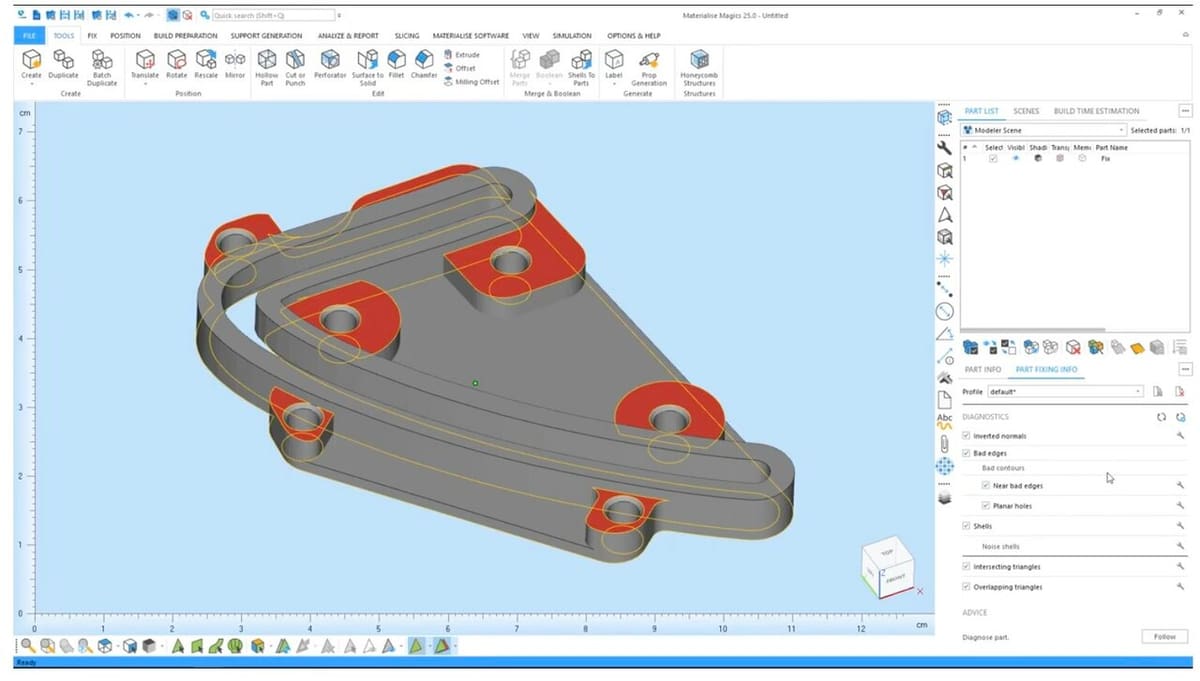
Materialise Magics is a leading industrial build preparation software (similar to a slicer for industrial 3D printers but with more features) that also has automatic fixing, semi-automatic Fix Wizard, and manual mesh editing tools. The types of industrial 3D printers you’d find at most 3D printing services typically come with their own build preparation software, or they use a product like Magics.
While Magics is expensive and aimed at professionals, it can handle extremely complex files with CAD-level mesh repair and analysis. It’s considered an industry-standard solution for STL repair and data preparation in additive manufacturing, including metal 3D printing.
The Materialise workflow goes from file upload, to fix (for errors), to edit (to enhance models), to prepare build (add supports, next, and simulate), then export to the printer. The build simulation module is a step you won’t find in any free tools and is an extra layer of assurance for your part build.
- Platform: Windows
- Cost: 30-day free trials of all versions
- Ideal for: Professionals and businesses requiring a powerful solution and the potential for expansion
- Available from: Materialise
Common STL Errors to Repair
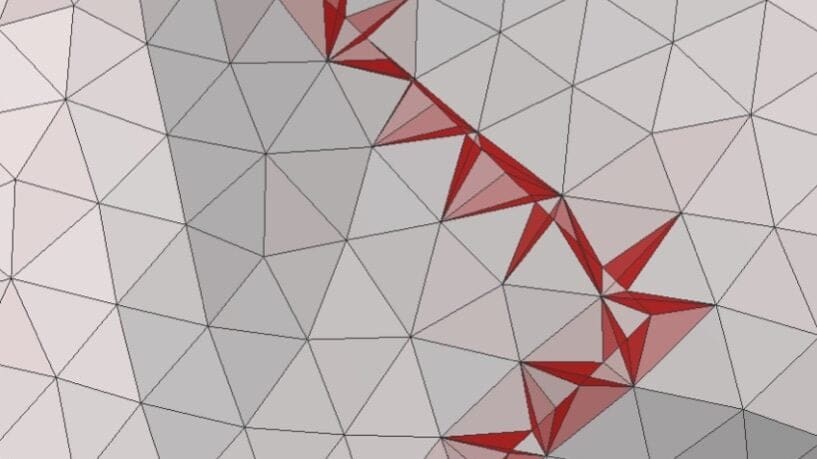
A typical STL file may contain tens of thousands of tiny triangles. Depending on the design, there are many different ways in which these triangles can be misrepresented (from a manufacturing perspective).
Therefore, let’s take a 30,000-foot view of some common types of errors that might result in unprintable files and the problems that need to be fixed.
Holes
In order to exist in the real world, a 3D model needs to describe an enclosed or “watertight” volume, with all of its edges and vertices connected. Yet, an STL can sometimes have small holes in the mesh, or perhaps triangles have edges that aren’t connected to their neighbors. Both can lead to issues when printing.
On a related note, each triangle notionally points into or away from the shape it describes, essentially having inside and outside faces. Occasionally, this orientation is flipped, causing problems in how a slicer interprets a complete surface.
Overlapping Geometry
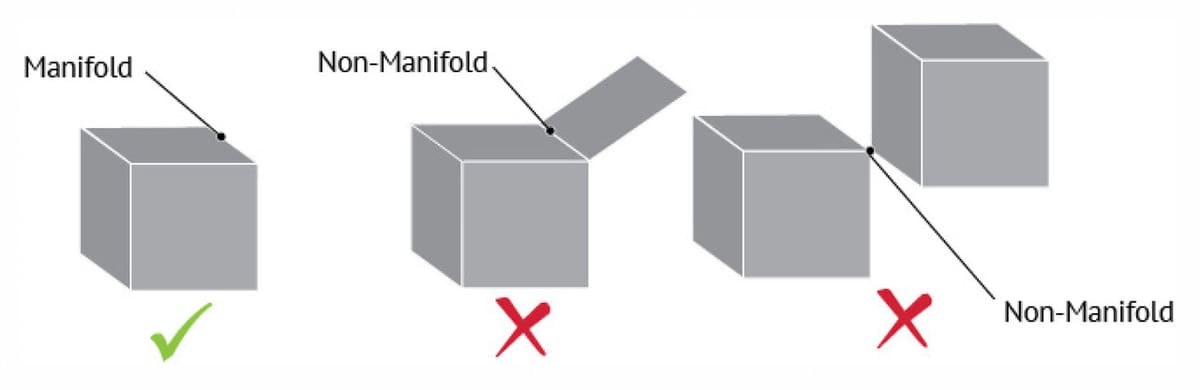
3D models usually consist of combinations of different shapes. The way these shapes (or the “shells” of these shapes) are joined is important and, if done incorrectly, can hinder slicing. A related problem occurs when an edge or vertex is shared by one or more shapes.
This can be a mind-bending concept, but consider how a modeling program might represent two intersecting cubes. Unless these two shapes are eventually interpreted as one object, your printer will have difficulty printing them together.
Noise
Some STLs can contain floating triangles that shouldn’t be present. Triangles may also overlap or intersect in a way that is hard or impossible to interpret.
Complex Geometry
There’s a thin line between an STL that has actual errors in its mesh and one with a correct mesh that describes something that’s hard or impossible to print. For example, attempting to represent hair or fur might result in an enormous STL (because of the many triangles required to represent such a “surface”), which is hard to process due to details smaller than a printer’s resolution.
Related to this, an STL may describe enclosed volumes that are too thin to be printed practically.
Fixing these types of issues is better described as an optimization step rather than a repair, although both are often handled by the same software.
License: The text of "Our Favorite STL Repair Tools: Free, Paid, Online, Offline & Everything In-Between" by All3DP Pro is licensed under a Creative Commons Attribution 4.0 International License.