Cura Settings Decoded – An Ultimaker Cura Tutorial

Discover the hidden features of the Cura slicer software. We'll show you how to take your 3D printing to the next level for perfect prints!
When it comes to slicers, Cura has always been one of the favorites, and a starting point for many. It’s free, it works with almost any printer, and it keeps the hard stuff out of your way until you go looking for it. We cover the basics first, from installing Cura to setting up your first printer. Then we go through the different modes, so you can find the one that suits your needs.
After that, the guide is organized around problems rather than menus. If your seams are ugly, your corners lift, your print strings, or your overhangs sag, there’s a section on the settings that fix it. We’ve also brought everything up to date with what has changed in recent versions, including tree supports, scarf seams, paint-on seam tools and newer infill patterns. Read it straight through, or jump to the section you need.
What is Cura?
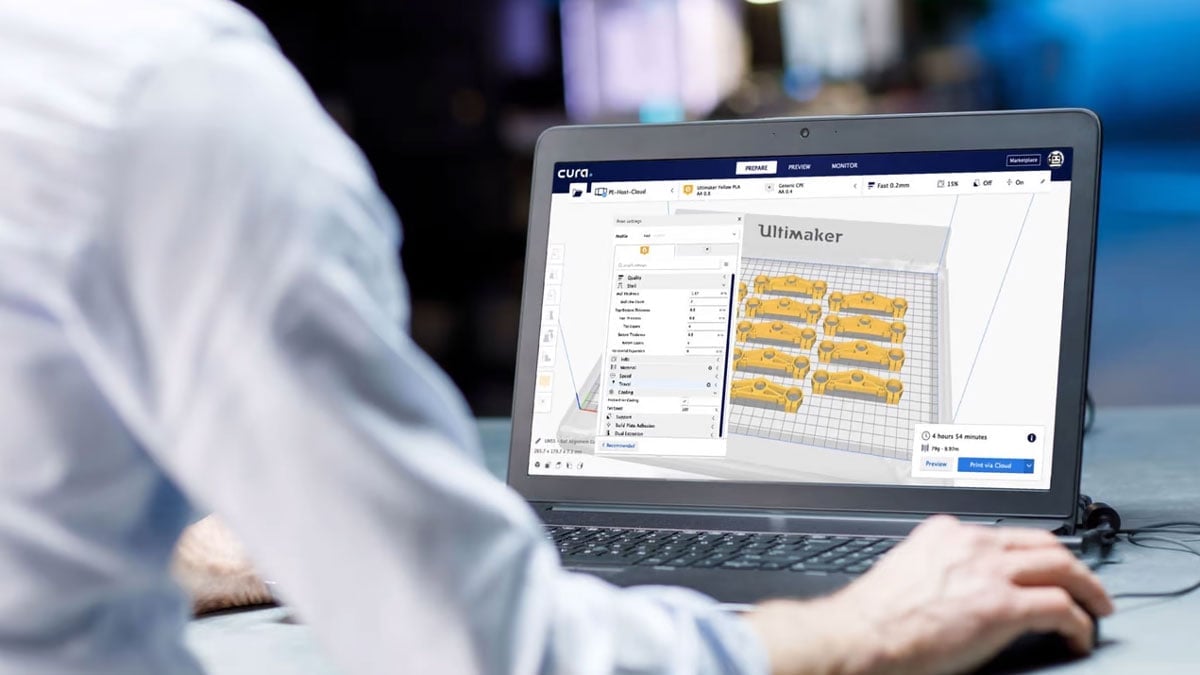
Cura is a slicer: it takes your 3D model and turns it into the G-code your printer follows. What sets it apart is the balance. You can get a decent print in a few clicks, and when you want to start tinkering, every setting is there waiting for you.
It started in the early 2010s, when David Braam wanted a slicer that was friendlier than the command-line tools of the day. UltiMaker looks after it now, and it’s still free and open source. Because the code is open, printer makers and the community keep profiles for a huge range of machines, from UltiMaker’s own printers to Creality, Anycubic, Elegoo, Sovol and plenty more.
That history shapes how Cura works today. A few things are worth knowing before we start:
Two modes, one app. Recommended mode gives beginners a short list of choices on top of tested profiles. Custom mode exposes hundreds of settings for people who want to fine-tune. We cover both below.
Cross-platform. Cura runs on Windows, macOS and Linux, and it opens common model formats such as STL, 3MF, OBJ and X3D.
Actively developed. Since the first version of this guide, which used Cura 5.1, Cura has added tree supports, scarf seams, paint-on seam and extruder tools, new infill patterns, Lightning support infill, and conditional start and end G-code, among many other changes. Where a section below is affected, we point it out.
*The showcased version is Ultimaker Cura 5.13, which at the time of writing is the latest version of Cura.
A Typical 3D Printing Workflow
Here is where Cura fits in the process from idea to finished print.
- Get a 3D model. Download one, for example from our list of free STL files, or design your own using CAD software to create a 3D printable model. If you are new to FDM printing, downloading a model first helps you learn how the process behaves.
- Export it in a format the slicer reads. STL is the best known format, and 3MF is increasingly popular because it can carry more than geometry. See our explainers on STL and 3MF. Exported files describe geometry only, so they are hard to edit afterwards; keep your original CAD file.
- Prepare and slice in Cura. Position, scale and rotate the model, choose your settings, then slice. Cura turns the model into G-code.
- Send the G-code to the printer over the network, from a USB stick or SD card, or through a tool such as OctoPrint.
What Does Cura Do? All About G-Code
The slicer’s main job is to write instructions for your printer. In most cases those instructions are G-code, a simple text-based language that also drives CNC mills, lathes and pen plotters.
You do not need to read G-code to print, because Cura writes it for you. It helps to understand the basics, though, for example when you customize start and end routines or troubleshoot a failed print. G-code is plain text, and the printer’s firmware reads it line by line, so you can open a file in any text editor and follow along.
Here is a short snippet. A printer works through lines like these in a fraction of a second:
G0 F7200 X19.698 Y28.262 Z0.36
G1 F1500 E0
G1 F1350 X22.467 Y26.175 E0.15654
- Line 1: move the axes at 7,200 mm per minute to X 19.698 mm, Y 28.262 mm and Z 0.36 mm.
- Line 2: set the extruder position to 0 mm at 1,500 mm per minute.
- Line 3: move the axes and extruder together at 1,350 mm per minute to X 22.467 mm and Y 26.175 mm while the extruder advances to 0.15654 mm, which lays down plastic along the way.
Start and end G-code, the commands that run before and after every print, can be edited in Cura’s printer settings. Since Cura 5.6 they can use variables and math, and since 5.9 they can use if/else conditions, so one profile can adapt to the material or to choices you make in the print settings.
Cura Quick Start Guide
This section covers getting Cura running, setting up your printer, loading a model and finding your way around the interface. Cura is free to download for Windows, macOS, or Linux via Ultimaker.
Set Up a Machine Profile
Cura needs to know your printer’s build volume, nozzle size, number of extruders and more, or it cannot write reliable G-code. That information lives in a machine profile.
On first launch a setup wizard walks you through adding a printer. Cura ships with profiles for a very wide range of machines. UltiMaker’s own profiles are tested by UltiMaker. Profiles for other brands are contributed and maintained by the community, so if something looks off for your printer, check the manufacturer’s recommended settings.
If your printer is not listed, add a Custom FFF Printer and enter its details by hand. The manufacturer’s website is the best source for the numbers, and some makers publish a ready-made profile you can import.
Import a Model
Click the folder icon at the top left, or choose File, then Open File(s), and pick a model. Cura accepts STL, 3MF, OBJ and X3D files, and plugins add more.
Find Your Way Around the Scene
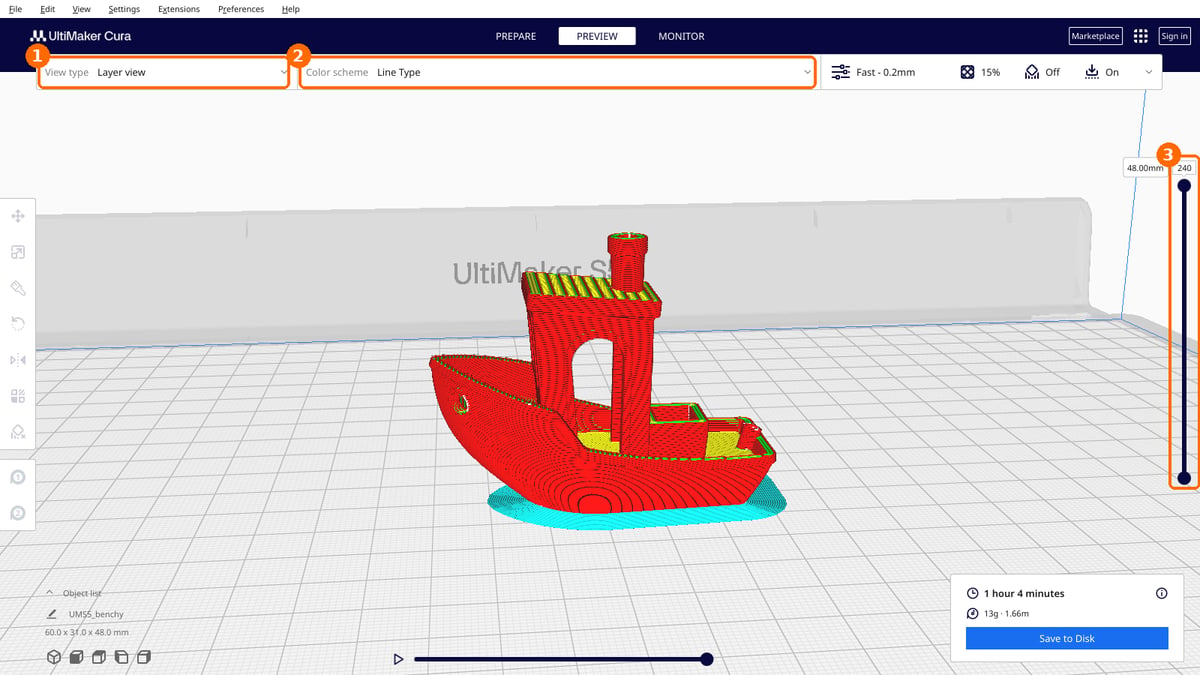
The scene is the 3D view of your build plate. You can orbit, pan and zoom, and move, rotate or scale your model.
- Pan, zoom, orbit. Hold the middle mouse button and drag to pan. Scroll to zoom toward the cursor. To orbit, hold the right mouse button on Windows, or drag with the left button on macOS and Linux. The quick-change view buttons jump to top, front, left, right and isometric views. Cura 5.7 added an alternative camera navigation modelled on FreeCAD’s trackpad controls.
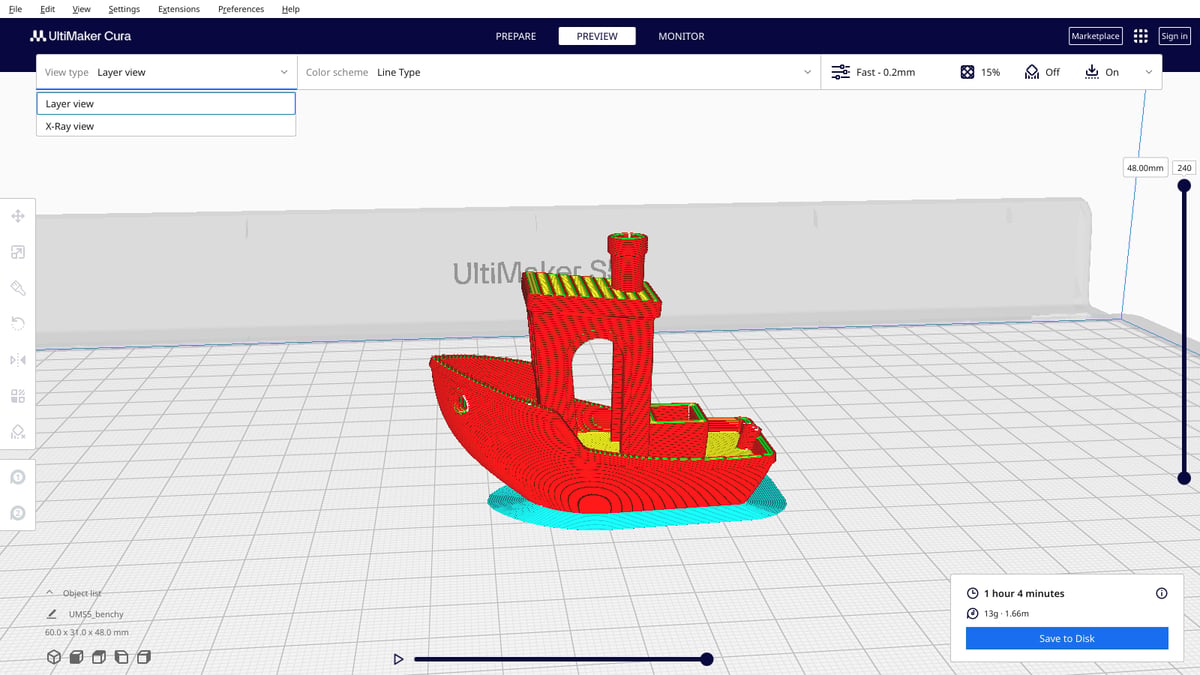
- Preview. After slicing, the Preview stage shows every layer. Drag the vertical slider, or use the arrow keys; Shift plus an arrow key moves ten layers at a time. Since Cura 5.12 the slider shows the layer height in millimetres next to the layer number. A gray shadow of your model means it has not been sliced yet.
- X-ray view. his shows the internal structure and helps you spot problems such as intersecting edges in the model. It lives in the Preview tab only. Open the View type menu at the top left of the viewport, which shows Layer view by default, and choose X-Ray view.
Move, Scale and Rotate
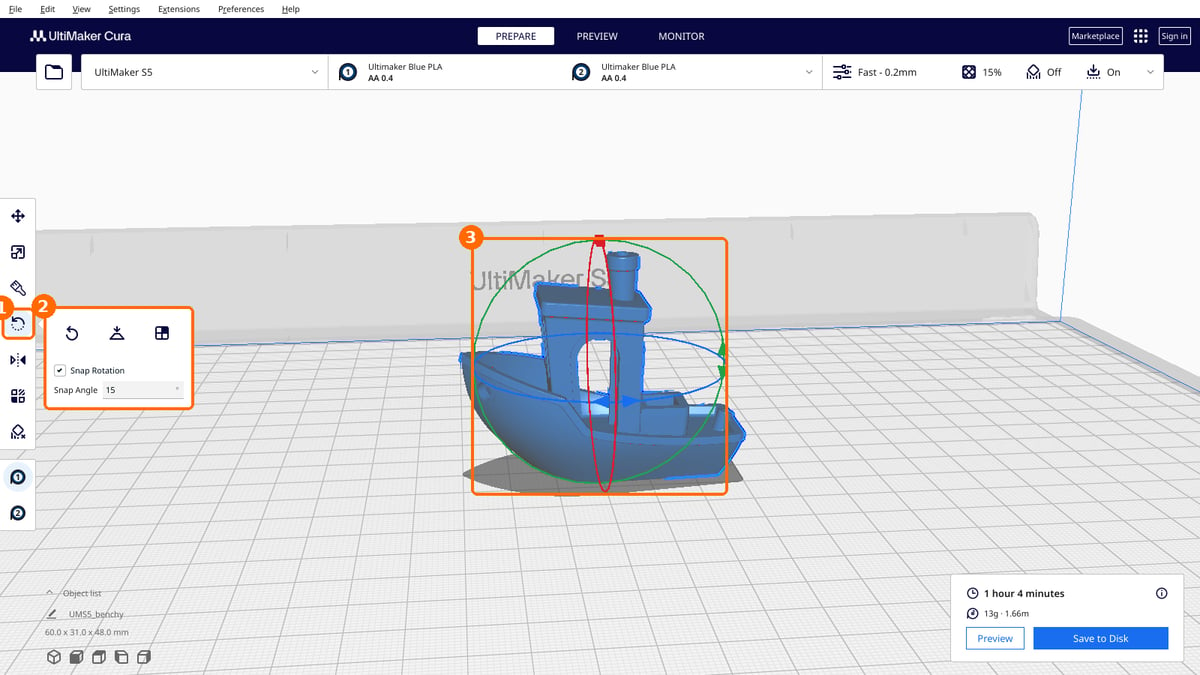
Orientation can decide whether a print succeeds. Select your model and use the toolbar on the left.
- Rotate. Click an arrow on a rotation ring to turn the model 90 degrees on that axis, or drag the ring for an arbitrary angle. Hold Shift for finer steps. Cura 5.12 added a pop-up that explains how to use Select Face, which lays a chosen face flat on the build plate.
- Scale. If the model is too large for your printer, scale it down. Models that do not fit appear gray.
- Duplicate. Right-click the model and choose Multiply. Cura arranges the copies automatically and can multiply a model up to 99 times. Copy and paste with Ctrl+C and Ctrl+V also work, and Grid Placement lines models up with the same orientation.
- Undo a mess. Right-click and choose Reset all model positions.
The Settings Panels
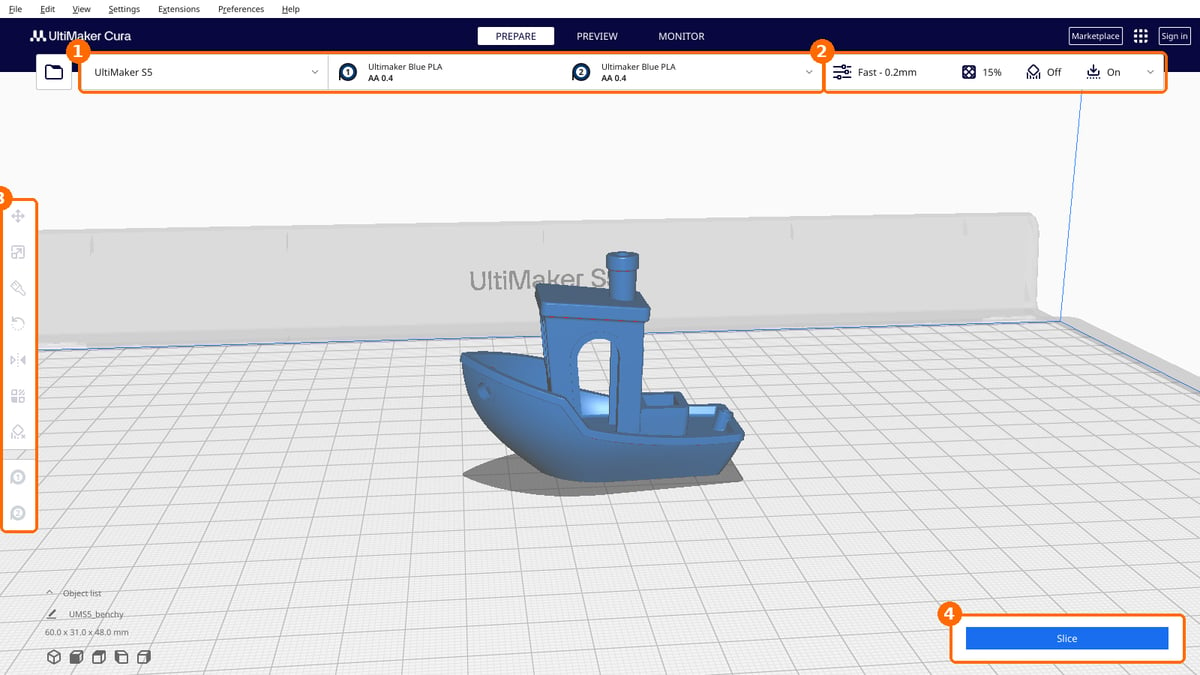
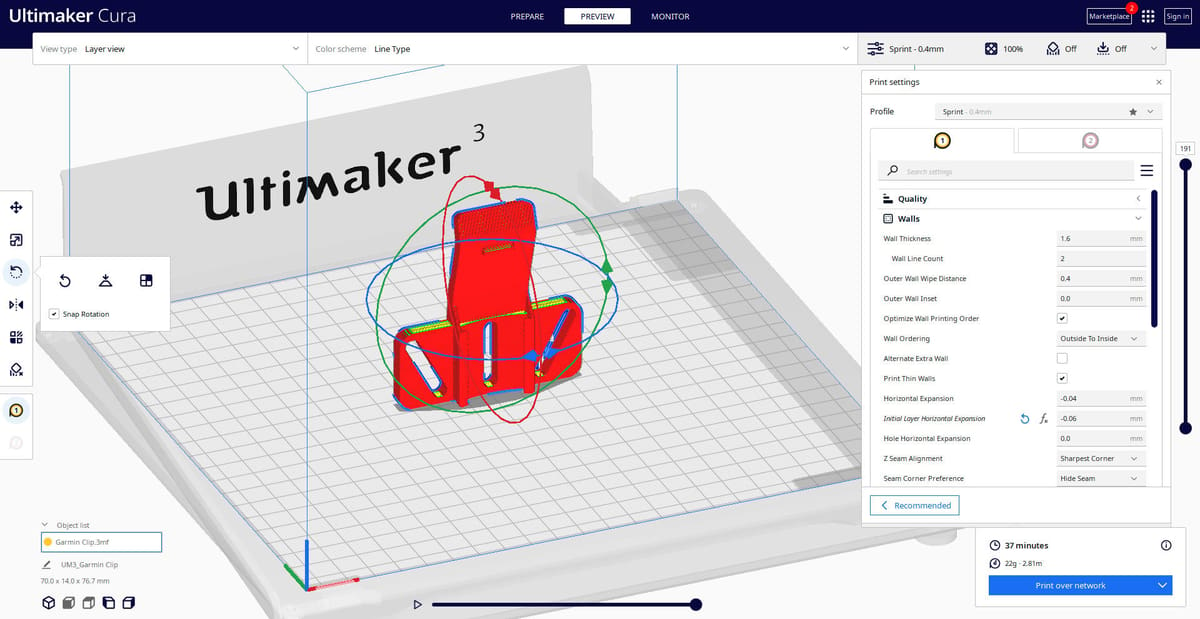
A toolbar runs along the top of the window, under the Prepare, Preview and Monitor tabs. From left to right it holds the folder icon for opening files, the printer selector, a material and nozzle selector for each extruder, and a summary of your print settings: the resolution, the infill density, and whether support and adhesion are on. Click the summary to open the Print Settings panel, where you will spend most of your time. It has two views: Recommended, for the most common settings, and Custom, which you open with the Show Custom button, for everything else. At the top right are the Marketplace button, an apps menu with links to UltiMaker support, Ask a question and Report a bug, and a Sign in button.
Using Recommended Mode in Cura
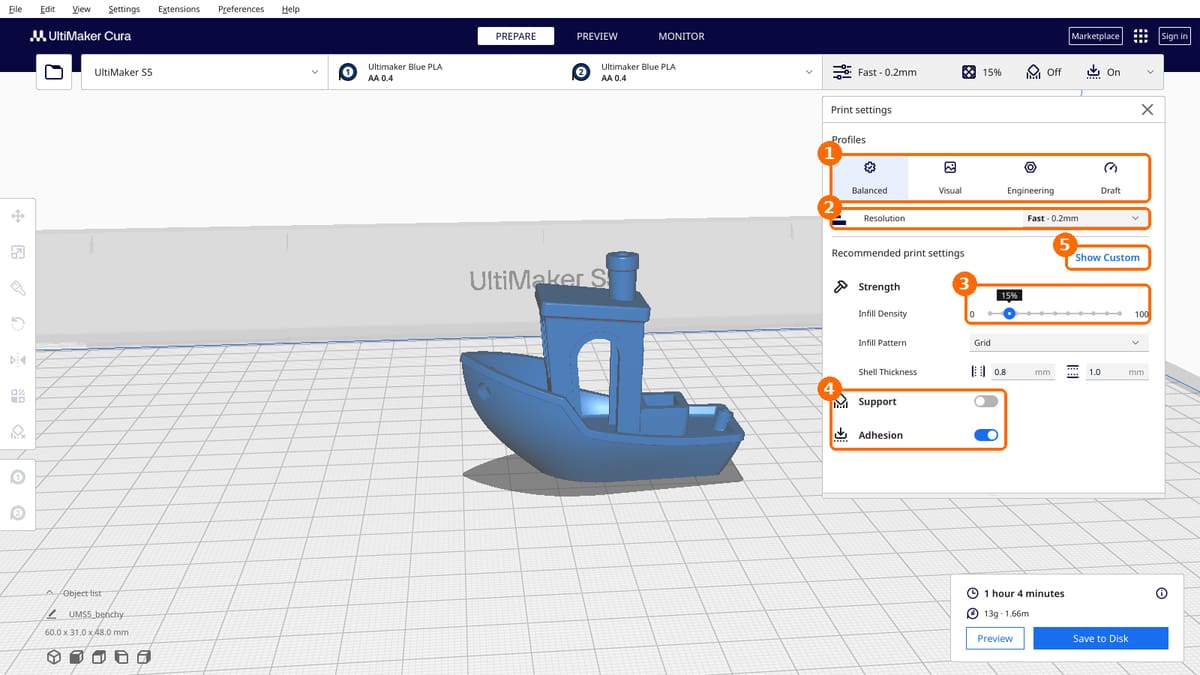
Recommended mode keeps the choices short. Pick a quality profile, set infill, decide whether you need support or extra adhesion, and slice.
Profiles and Layer Height
At the top of the Print Settings panel, the Profiles row offers intent profiles for your printer. On an UltiMaker S5 they are Balanced, Visual, Engineering and Draft, each tuned for a purpose. Below that, the Resolution drop-down sets the layer height, for example Fast – 0.2mm. Thinner layers give a smoother surface and take longer to print. Most printers use a 0.4 mm nozzle, and 0.2 mm is the usual standard. If you change a recommended setting, Cura shows a notice that the settings were altered, with icons to revert or save the change.
Infill Density
Infill is the structure inside your print. The slider sets how much of that space is filled with plastic.
- 0%: hollow, with no infill.
- 10 to 40%: light infill. 20% is a good starting point.
- 50 to 90%: medium infill, for stronger parts.
- 100%: solid.
Below the slider, the Infill Pattern drop-down lists every pattern the printer offers; on the S5 that is all 16. Gradual infill prints sparse infill near the bottom and increases the density toward the top, where the model needs more to support the top surfaces. You set it with Gradual Infill Steps in Custom mode.
On some printers hides the Grid, Triangular and Cubic infill patterns in Recommended mode to protect print quality at higher speeds. They remain available in Custom mode.
Support and Adhesion
Two toggles cover the temporary helpers that hold your print in place:
- Support adds structures under overhanging parts of the model so they do not sag. You can remove them afterwards. Turn it off if your model has no overhangs. When it is on, the panel also shows Support Structure (Normal or Tree), Print with (which extruder prints the support, on multi-extruder printers) and Placement.
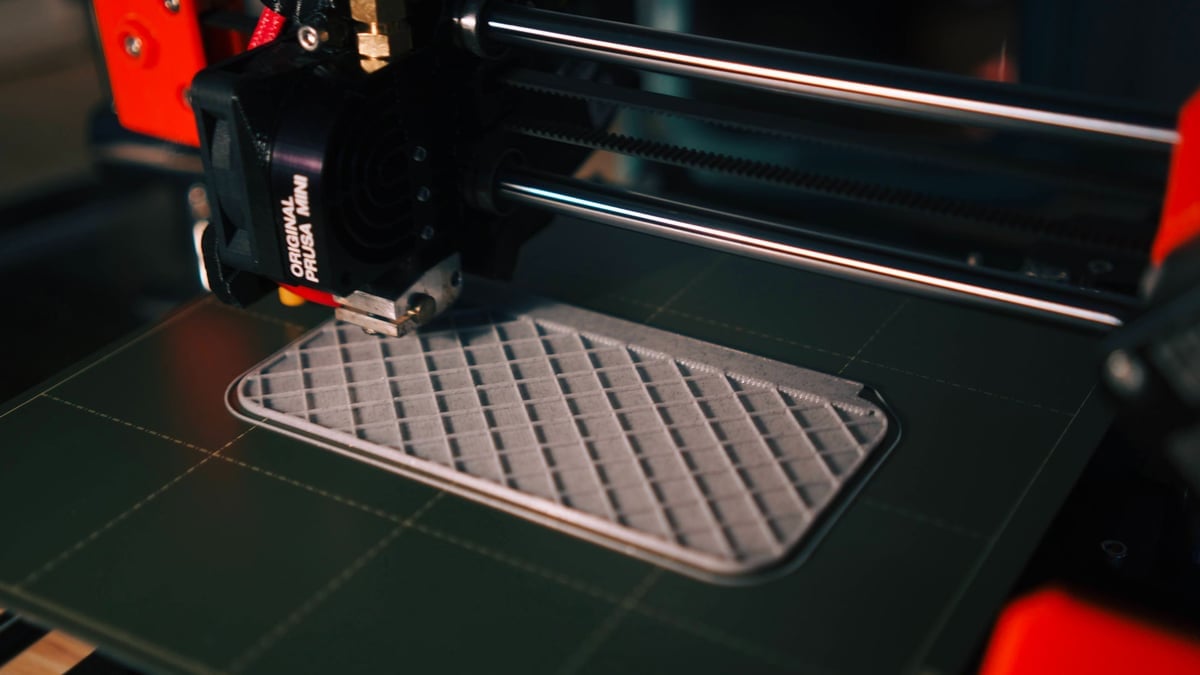
- Adhesion increases the surface area of the first layer. Materials such as ABS tend to warp and lift off the bed, and a brim reduces that risk. If your model has a large flat base, you can usually switch adhesion off.
For a first print of an unfamiliar model, switch both on.
Slice and Send to Printer
Click Slice and Cura writes the G-code. How you get it to the printer depends on your setup:
- Save to Disk saves the file on your computer.
- Save to Removable Drive writes to a USB stick or SD card when one is detected.
- Print over Network sends the job straight to a networked printer.
- Print via Cloud sends the job over a cloud connection. It works with supported UltiMaker and MakerBot printers connected through Digital Factory.
Using Custom Mode in Cura
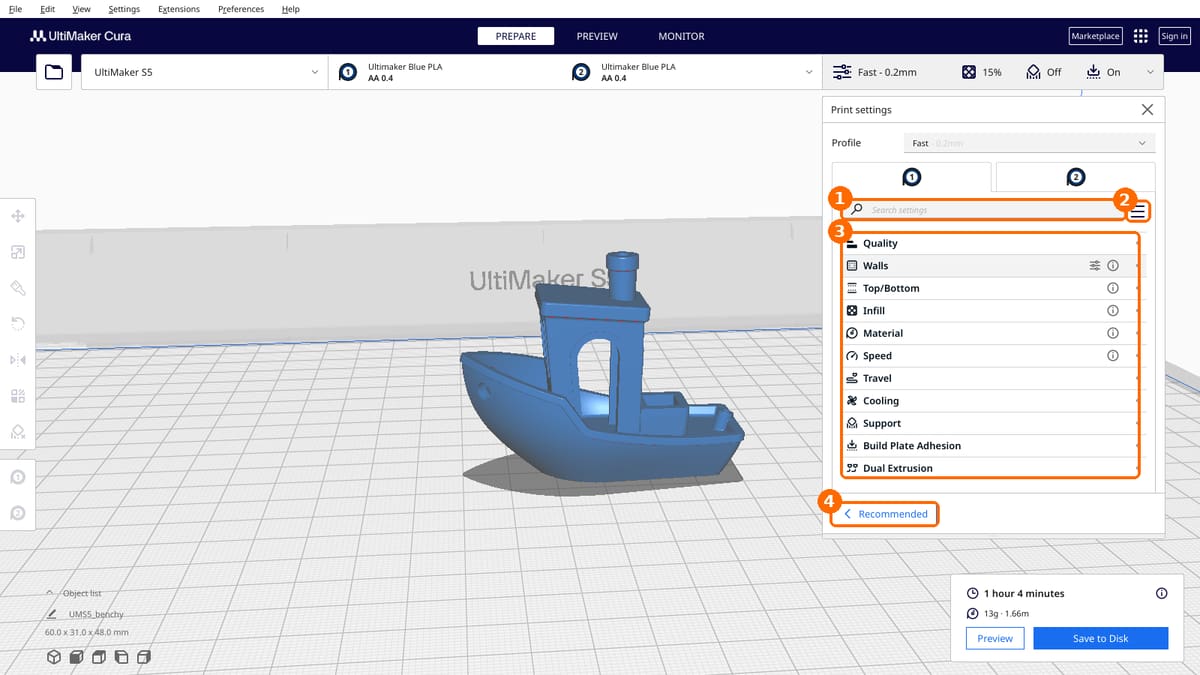
Recommended mode gives decent prints, but sooner or later you will want more control. Maybe the surface shows a seam, the nozzle leaves blobs on travel moves, the print is too slow or too weak, or the bottom corners lift. Custom mode lets you fix each of these.
To open it, click Custom at the bottom of the Print Settings panel. Settings are grouped into categories, and a search field at the top helps you find one fast. The categories in Cura 5.13 are:
Quality, Walls, Top/Bottom, Infill, Material, Speed, Travel, Cooling, Support, Build Plate Adhesion, Mesh Fixes, Special Modes, and Experimental. A printer with two extruders also shows Dual Extrusion.
UltiMaker describes Custom mode as having over 400 settings. That sounds like a lot, but day to day you will use a small handful.
Show Hidden Settings
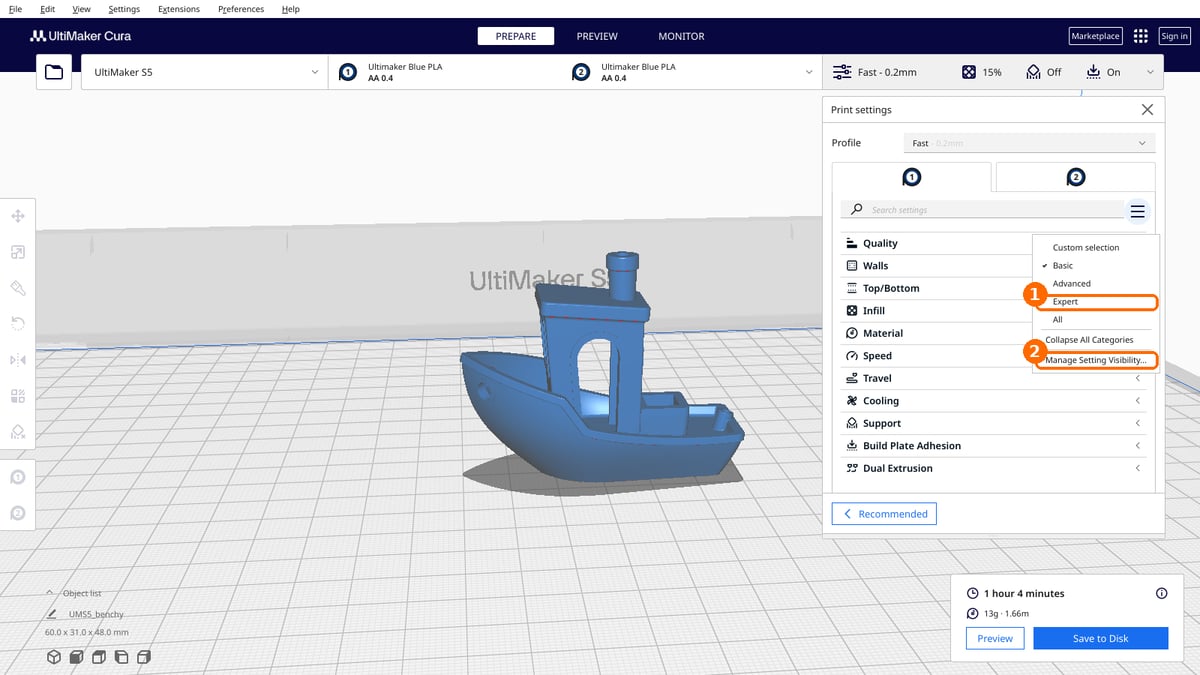
Not every setting is visible by default. The quickest way to show more is the menu icon (three lines) beside the search field. Choose Advanced, Expert, or All to reveal more settings at once, or Basic to go back to the short list.
For finer control, choose Manage Setting Visibility in the same menu. It opens the setting visibility page in Preferences. Type in the filter field to find a setting, tick the box next to each one you want, and close the window. The ticked settings appear in Custom mode, and you can untick them again any time.
Material Profiles
Much like machine profiles, material profiles in Cura contain all the ideal settings to 3D print with a given material. This holds the temperatures, fan, and retraction values suited to a filament. Printers and filaments vary, so treat a profile as a good starting point rather than a final answer.
Select the profile closest to your filament, then adjust in Custom mode. The Marketplace has profiles from filament makers.
Quality and Walls: Sharper Detail and Stronger Outsides
Quality and Walls are the first two categories in Custom mode, and a good place to start. Between them, these settings decide how smooth the surface looks, how accurate the dimensions are, and how strong the outer shell is. We begin with layer height, then move on to wall thickness, shrinkage compensation, and thin features.
Layer Height
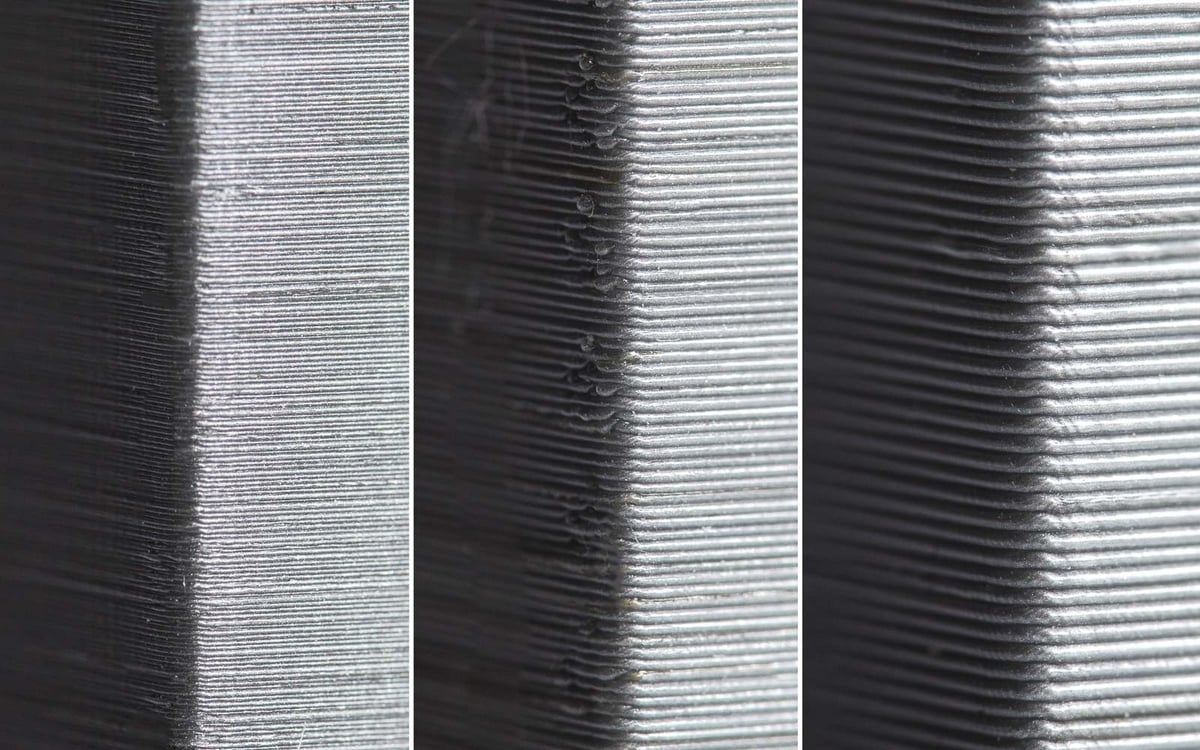
With a 0.4 mm nozzle, 0.2 mm gives good-looking prints, 0.15 mm looks noticeably smoother, and 0.06 mm is about the limit for most printers, with print times that can stretch into days for large parts. How fine you can go depends on your printer’s mechanics.
Wall Thickness
Wall Thickness sets how thick the outer shell is in the horizontal direction. It does not affect the top and bottom surfaces, which are controlled by the Top/Bottom settings. Use a multiple of your nozzle’s line width. With a 0.4 mm nozzle, a wall thickness of 1.2 mm gives three walls. Two or three walls are enough for most parts, and thicker walls with little or no infill can be a fast way to make a strong part.
Horizontal Expansion: Compensate for Shrinkage
All plastics shrink as they cool. PLA shrinks a little; ABS and nylon shrink a lot. If your part needs accurate dimensions, Horizontal Expansion adjusts the size in X and Y. Use a positive value when the printed part comes out too small, and a negative value when it comes out too large. The default is 0.
Thin Walls and Gaps
Sometimes thin walls have gaps between the inside and outside. This used to be controlled by a Fill Gaps Between Walls setting. That setting no longer exists in Cura 5.13. Cura now adapts line widths to fill narrow spaces by itself in most cases. If thin features are missing from a print, look at Print Thin Walls in the Walls category. Whether it is on by default depends on your printer profile. Ticking it reveals Minimum Feature Size and Minimum Thin Wall Line Width, which set how small a feature Cura will still try to print. Check the result in Preview.
Alternate Extra Wall
More walls make a part stronger but take longer to print. Alternate Extra Wall is a compromise: Cura adds one extra interior wall on every other layer. It is off by default.
Wall Speed: Smoother Surfaces
If the surface finish disappoints, slow down the walls. Outer Wall Speed controls how fast the nozzle moves while printing the visible outer wall, and Inner Wall Speed does the same for the walls behind it. The generic default for the outer wall is 30 mm/s. Try lowering it in steps of 10 mm/s and compare, remembering that slower walls lengthen the print.
Cura 5.10 added the option to set different overhang wall speeds depending on the overhang angle, and 5.13 adds Initial Layer Wall Ordering, which sets the order in which walls print on the first layer.
Z Seam: Hide the Line Up the Side of Your Print
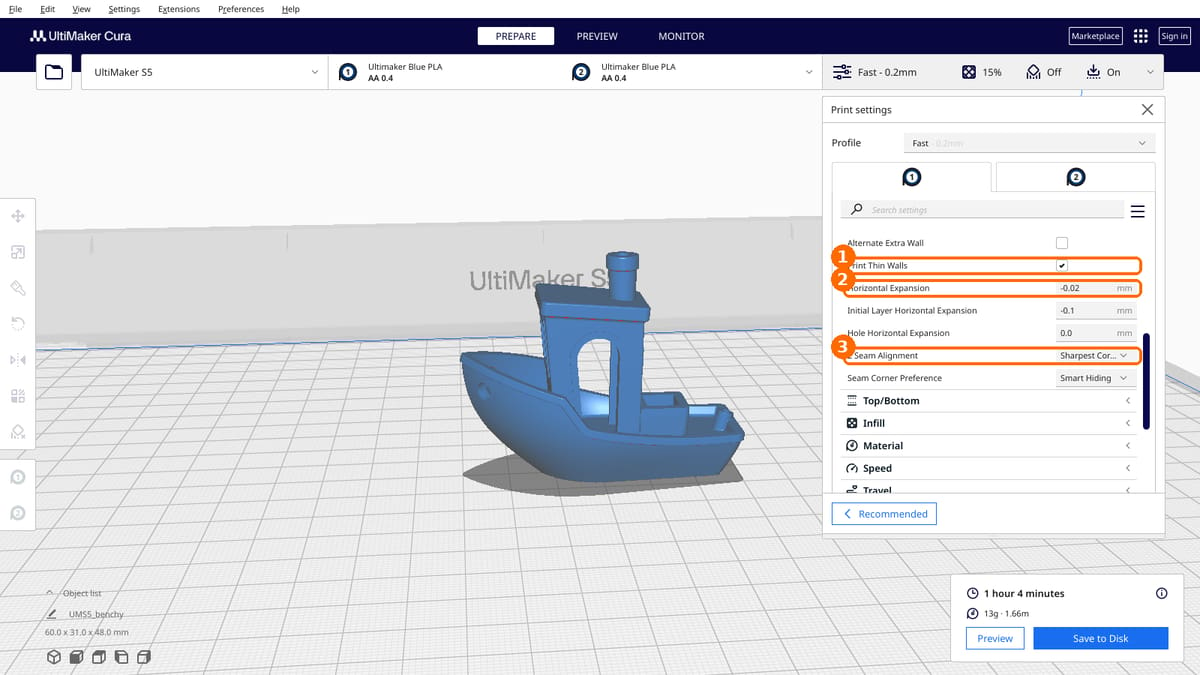
A Z seam is the spot where each layer starts and ends. The printer pauses there and a small blob or line can form. Stacked layer after layer, it becomes a visible seam up the side of the print. You cannot remove it completely, but you can choose where it appears.
Z-Seam Alignment
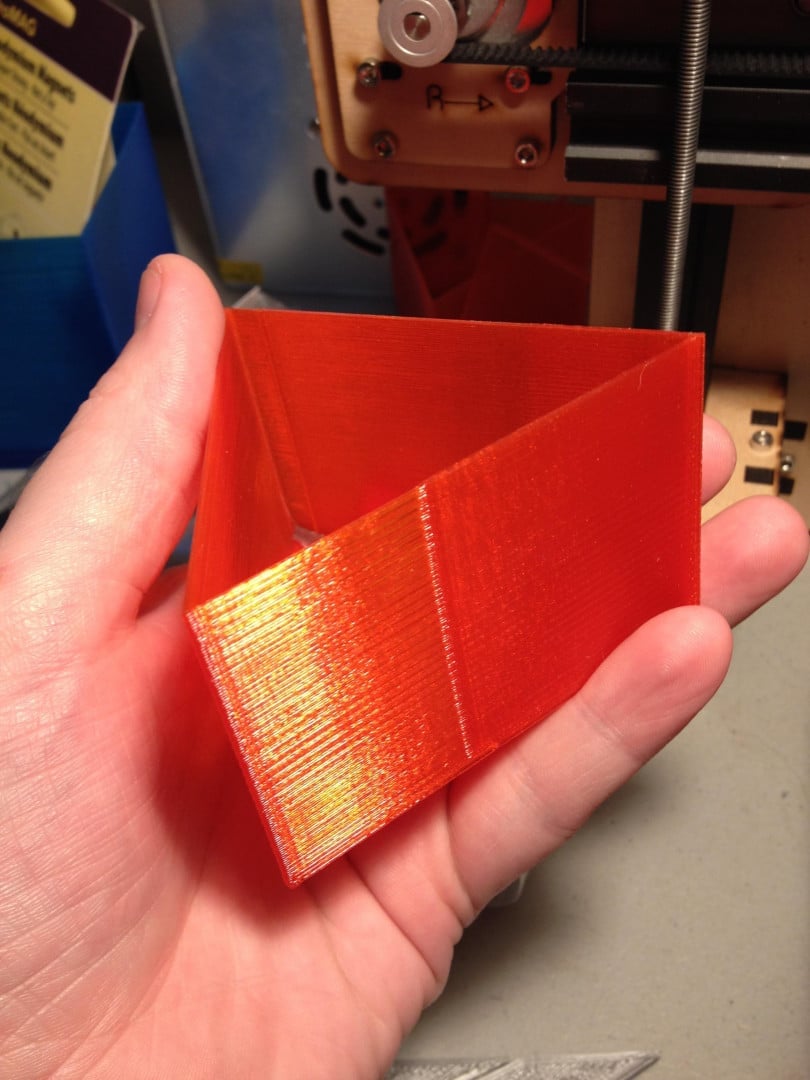
- Sharpest Corner is the default. Each layer starts at the sharpest corner of the outline, where the seam is easiest to hide. It works best on models with clear corners and does little on smooth, round shapes.
- Shortest starts each layer near where the last one ended, which keeps travel short but often leaves a visible seam.
- User Specified lets you place the seam yourself with the Z Seam X and Y settings, which gives you a seam in the same spot on every layer. there is a Middle option for the seam position.
- Random starts each layer somewhere different. This removes the line but leaves tiny blobs scattered over the surface, and it adds travel time.
Two more settings give finer control: Z Seam On Vertex (Walls), which decides whether the seam snaps to the nearest vertex or follows your chosen position exactly, and Seam Overhanging Wall Angle (Experimental), which keeps seams off steep overhangs.
Scarf Seam (Experimental)
There are experimental scarf seam settings, in the Experimental category, that blend the end of each layer into its start so the join is less visible. The key settings are Scarf Seam Length, Scarf Seam Start Height, and Scarf Seam Step Length, along with outer wall start and end speed ratios. Smaller step lengths are more precise but make the G-code larger. This feature is marked experimental, so test it on a small print first.
Paint-On Seams
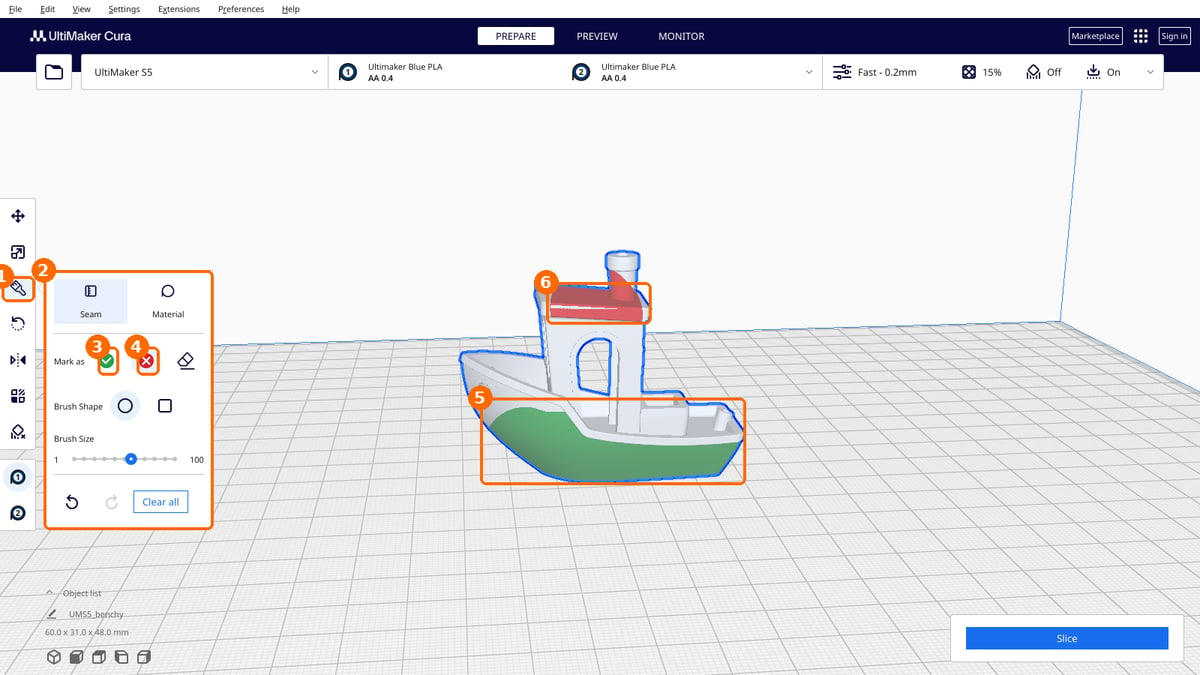
Instead of relying on one Z-seam setting for the whole print, you can brush directly onto the model to mark spots where seams are welcome and spots where they should stay out. The colors are just markers for those two instructions: green means “put the seam here,” red means “keep seams away from here.” When Cura slices, it places seams in the green areas and avoids the red ones, so you can tuck a seam into a corner or a flat back face and keep it off a smooth, visible surface. The same release lets you paint extruder assignments for multi-material prints. UltiMaker notes that overlapping meshes can give unexpected results, and painting can be slow on very detailed models. Open the tool with the paintbrush icon in the toolbar on the left. Its panel has Seam and Material tabs. On the Seam tab, choose Mark as and use the green check to mark areas where seams may go or the red X to keep seams out, and the eraser to undo a stroke. You can pick a round or square brush, set the brush size from 1 to 100, and use Clear all to start over.
Infill Patterns: Balance Strength, Material and Print Time
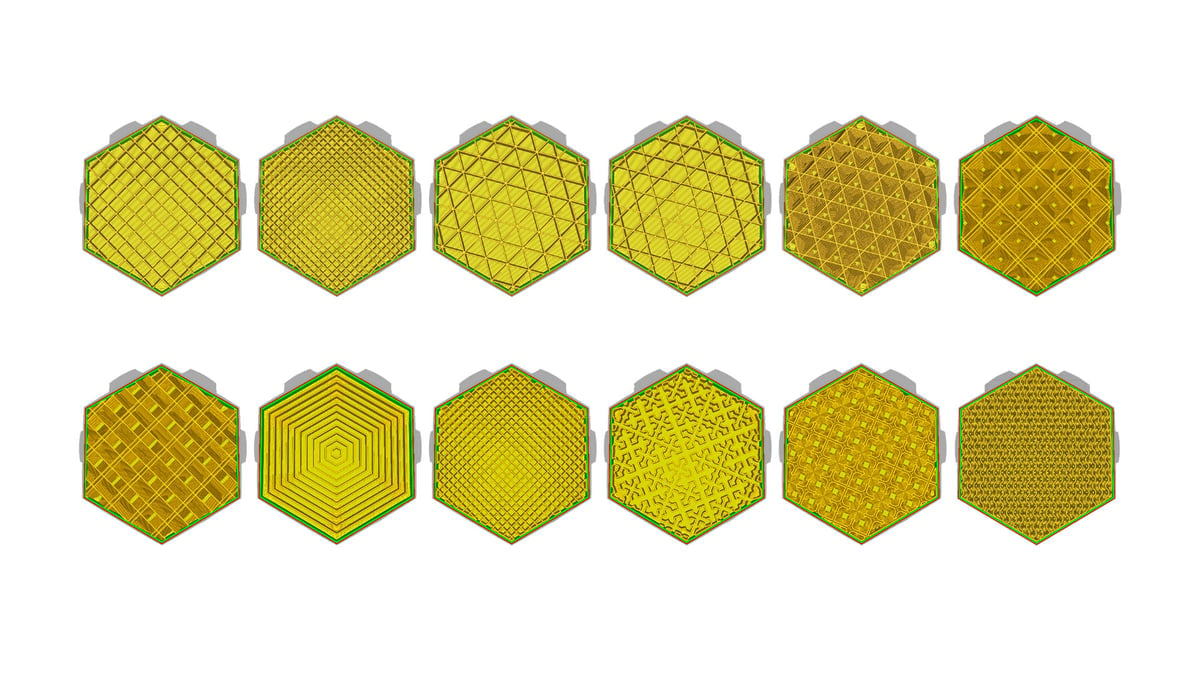
Which Pattern Should You Use?
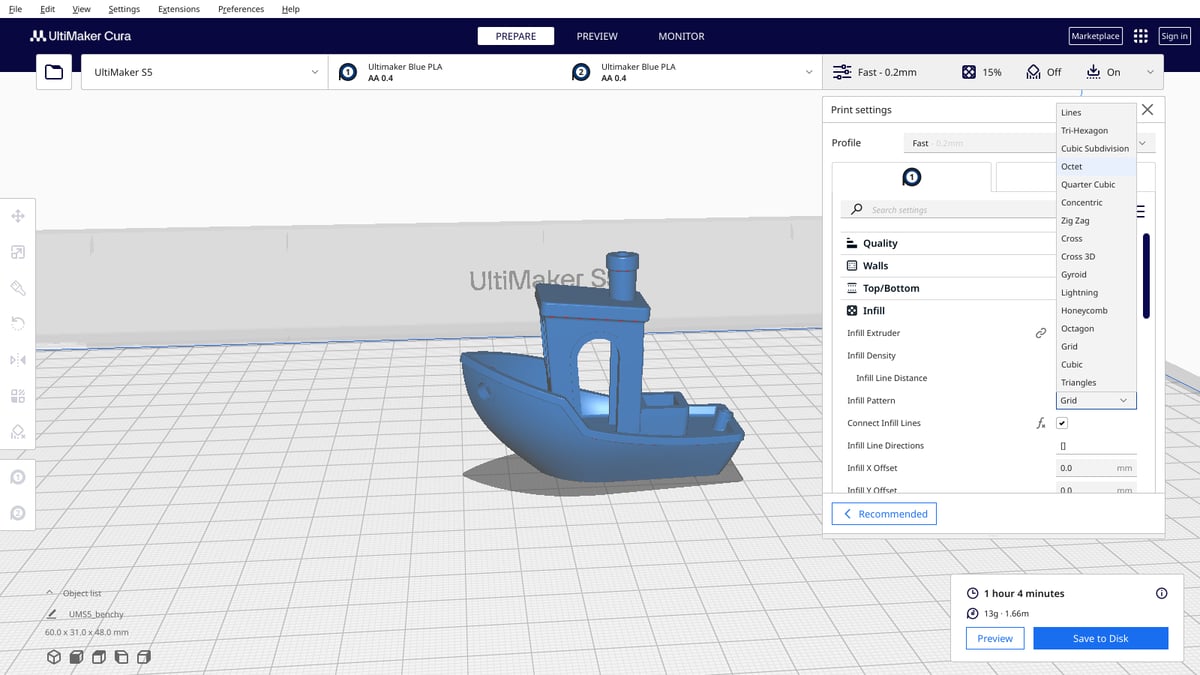
Start with two questions: does the part need to be strong, and does it have a large flat ceiling?
- Display pieces often need no infill at all. Thicker walls are enough. If the part has a large ceiling, Lightning or Concentric infill supports it from underneath with little material.
- Parts with some strength needs do well with a 2D pattern such as Grid, Lines, or Triangles.
- Mechanical parts benefit from a 3D pattern such as Cubic or Octet, which give excellent internal support and near-uniform strength.
- Parts you plan to fill with epoxy work best with Gyroid, because it has no closed pockets.
Do not confuse Lightning infill with Lightning support infill. Lightning infill is a choice in the Infill Pattern setting and sits inside your model. Lightning support infill is new in Cura 5.13 and is a choice in the support settings, with its own angle settings.
Infill Start and End
The Infill category also has settings that control where infill lines begin and end. The Infill Start/End Move settings pull the start of each line away from the wall to prevent blobs on the surface, and Infill Start/End Preference lets you choose where infill starts. Infill Skin Support replaces several older support-skin and bridging settings in one control; Cura switches it off automatically when Gradual Infill Steps is on.
Speed and Cooling: Faster Prints Without Losing Quality
Two groups of settings decide how fast a print finishes and how clean it looks. The Speed category controls how fast the print head moves, both overall and for each part of the print, such as walls and infill. The Cooling category controls the fans that harden the plastic once it leaves the nozzle. Both are in Custom mode, and you can open them from the print settings panel or find a setting by name with the search field. Speed and cooling work as a pair: printing faster usually means the plastic needs more cooling, so it helps to adjust them together.
Print Speed
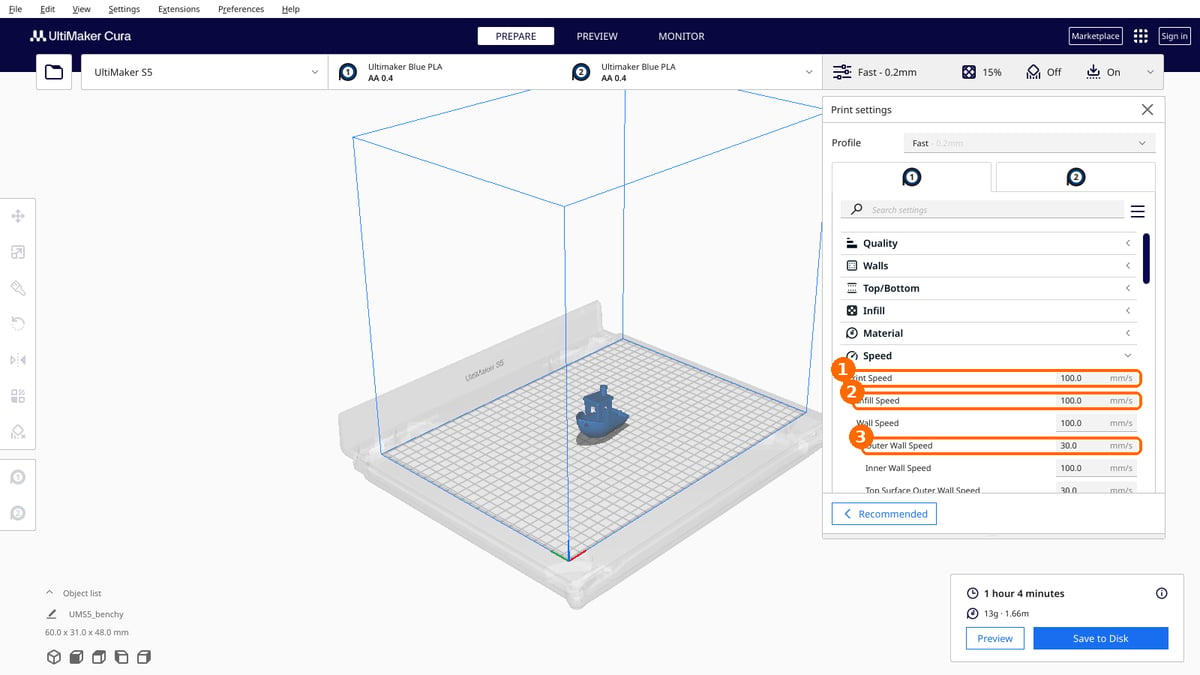
Large prints can take many hours, so Cura lets you control speed overall and for each type of structure. Print Speed is in the Speed category, and the generic default is 60 mm/s. To print faster, raise it, but remember that other things change too:
- The plastic may not have time to melt properly as it leaves the nozzle, which can make parts brittle. A slightly higher nozzle temperature often helps.
- Faster moves shake the print head, which can show up as ripples on the surface.
To find your limit, raise the speed in steps of 5 mm/s and check each result. When quality starts to drop, go back one step. If you cannot raise the overall speed, raise Infill Speed on its own. Infill is hidden inside the part, so its surface quality does not matter.
Sometimes you need to slow down. Detailed models print more accurately at lower speeds, and flexible or specialty filaments often need lower settings, so check the filament maker’s recommendation. Start with a 10 mm/s reduction, then adjust in 5 mm/s steps.
If Cura’s time estimate does not match what your printer actually takes, Cura 5.12 added a Print Time Estimation Factor in the Machine Settings window so you can calibrate it.
Fan Speed
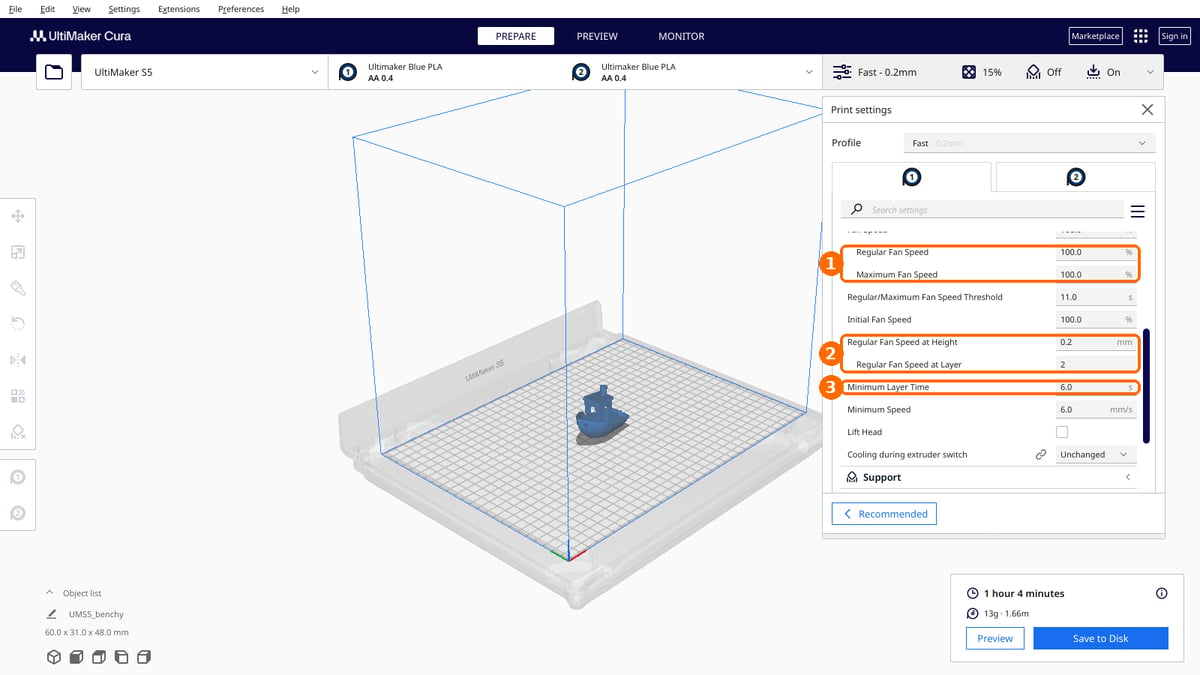
Plastic stays soft for a surprisingly long time after leaving the nozzle, so most printers use a fan to harden it as it is laid down. Cura enables cooling by default, except on the first layer, because cooling the first layer weakens bed adhesion.
Too much cooling can stop the nozzle from reaching temperature, and the printer’s firmware may halt the print. If that happens, lower the Fan Speed setting in the Cooling category, which is a percentage of the fan’s maximum. Try 80% first. Below about 20%, many fans will not spin at all.
Minimum Layer Time

Very small layers can print so fast that the plastic has no time to cool before the next layer lands on it, which causes warping and drooping. Minimum Layer Time, in the Cooling category, sets the shortest time a layer is allowed to take. If a layer would finish sooner, Cura slows the print head down so the plastic has time to cool. The generic default is 5 seconds. If small layers distort, try 10 seconds, then raise it in 5-second steps.
Turn Off Cooling for Some Materials
Materials such as nylon, polycarbonate, and PET+ usually need an enclosed printer and no direct airflow. With cooling on, they tend to warp and the print can fail. For those materials, turn off Enable Print Cooling in the Cooling category, or start from a material profile that was made for them.
Fans at Height
The fan stays off on the first layer. Regular Fan Speed at Height, in the Cooling category, controls the height at which it reaches full speed. A slightly higher value than the default gives the first layers more time to stick. If your printer has extra fans for the build volume, the Build Volume Fan Speed settings in the same category control them.
Warping and Bed Adhesion
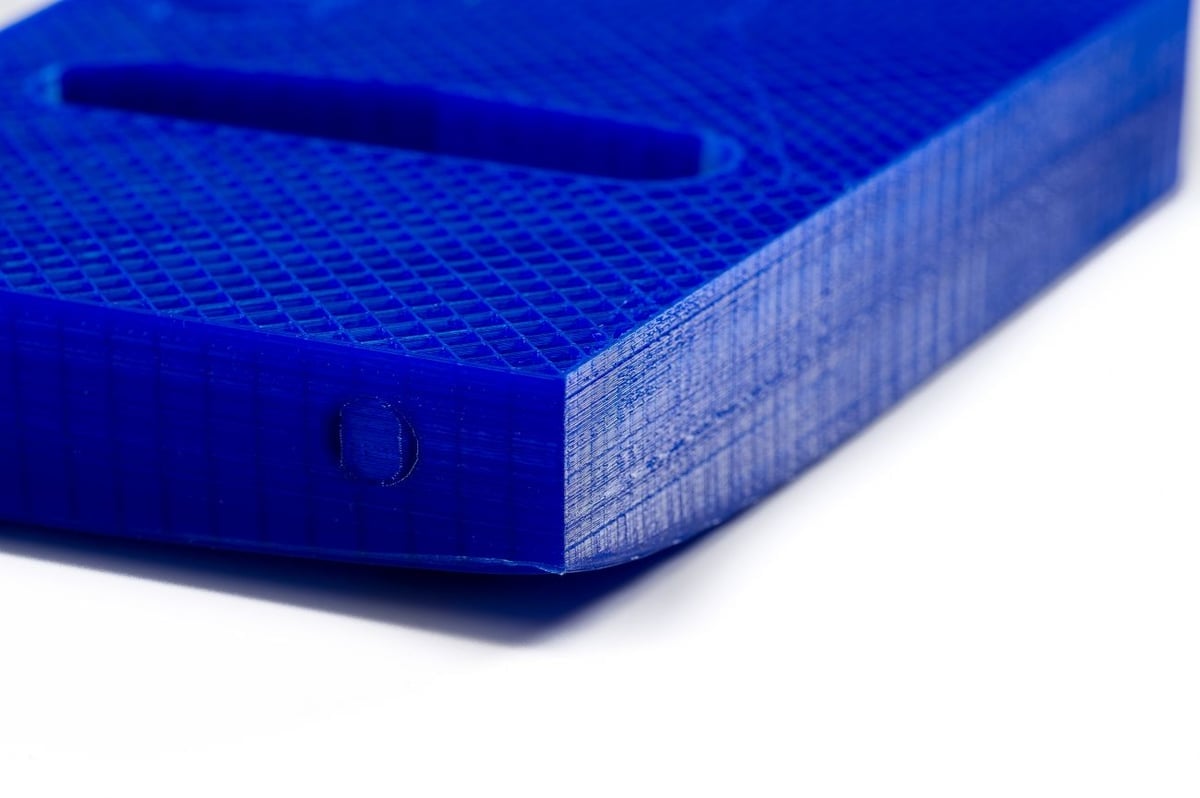
Plastic expands slightly when printed and contracts as it cools. If it contracts too much, the corners lift or the whole print pops off the bed. Some materials shrink more than others: ABS, PET+, polycarbonate, and nylon shrink more than PLA.
Fix Hardware Problems First
Warping can come from a poorly leveled bed, a dirty or uneven surface, or a bed that is not hot enough. The slicer cannot solve those, so sort them out before you change settings.
Build Plate Adhesion Type
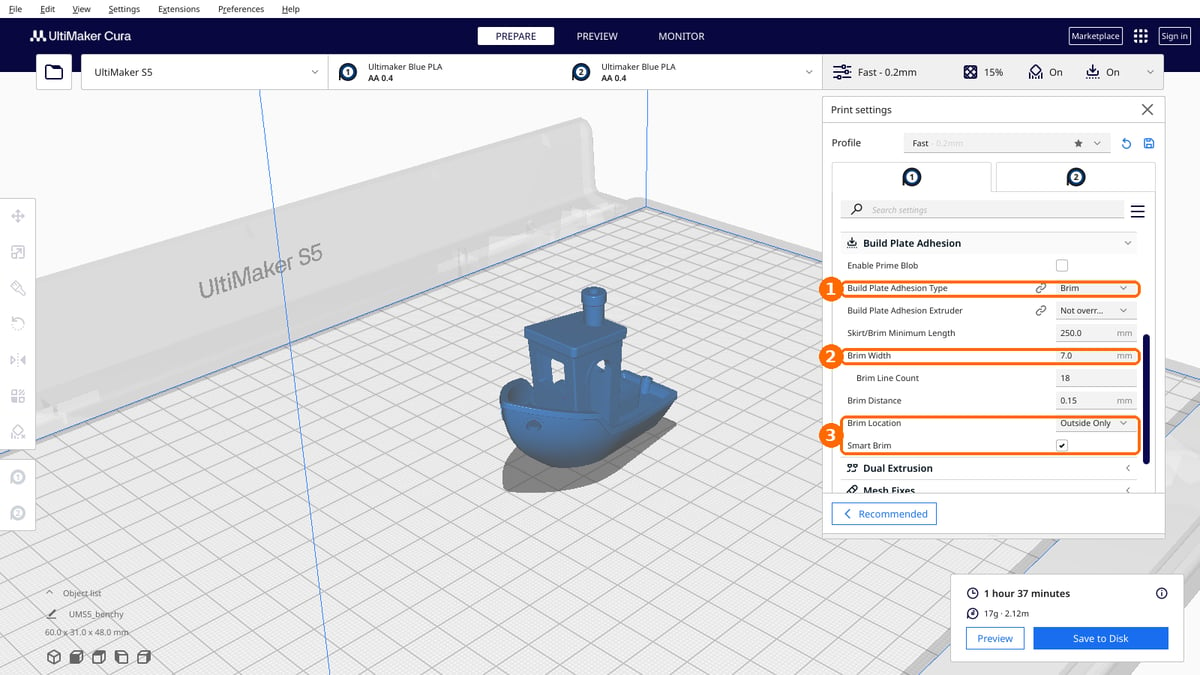
Cura offers some settings to help prevent warping. The most important of these is the “Build Plate Adhesion Type” setting, found under the “Build Plate Adhesion” section. There are three options for this setting – “Skirt,” “Brim,” and “Raft.”
Brim is the default and adds a thin flat area around the base of the part that resists the pulling forces as it cools. It is one layer thick, so it is easy to remove. Smart Brim changes the print order to make brims easier to remove, Brim Only Inside is for parts with holes, and Minimum Hole Area in Brim Support ignores tiny holes for a more consistent brim.
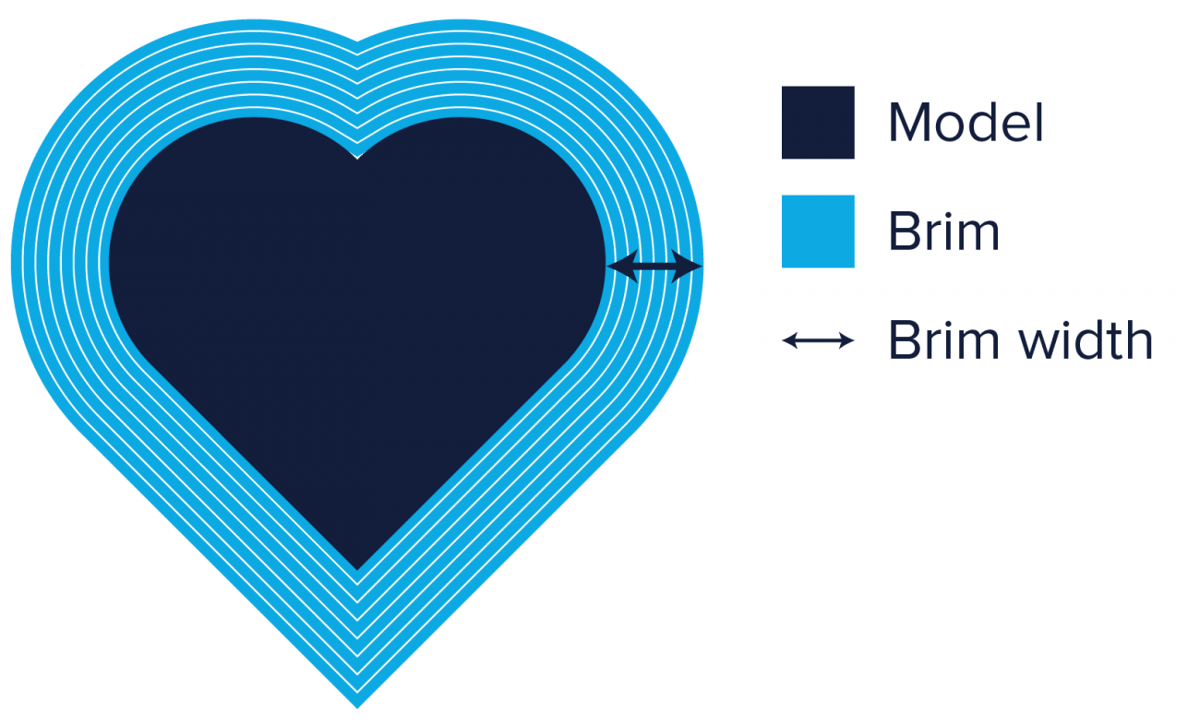
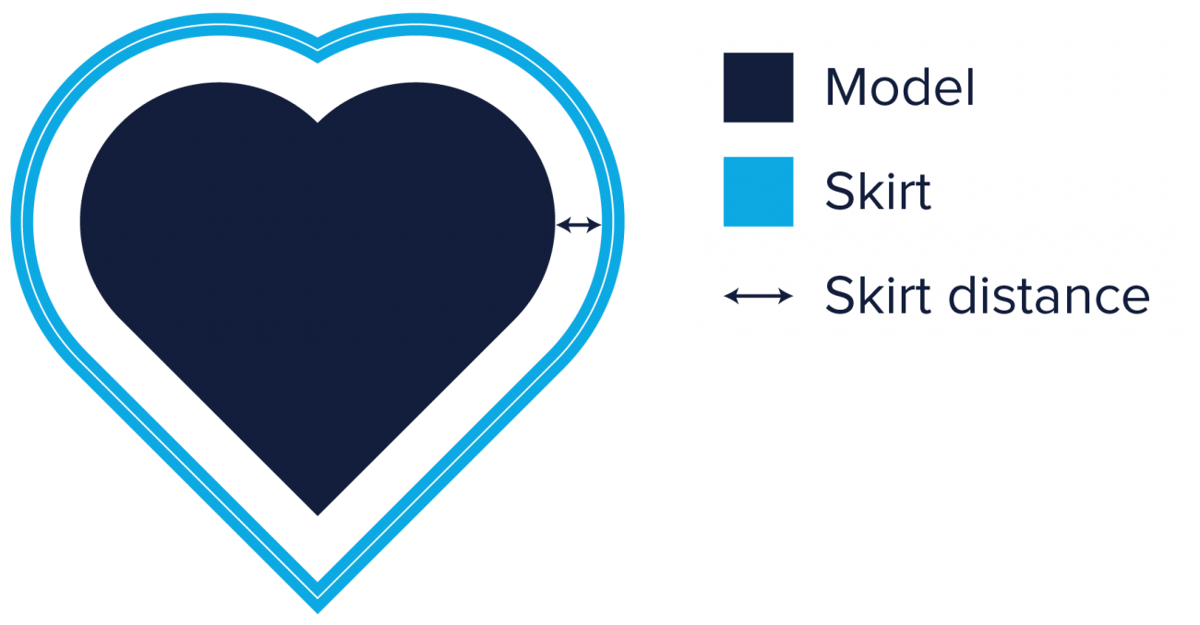
Skirt prints a few lines around the base without touching the part. It does not help adhesion, but it primes the nozzle and lets you check the first layer.
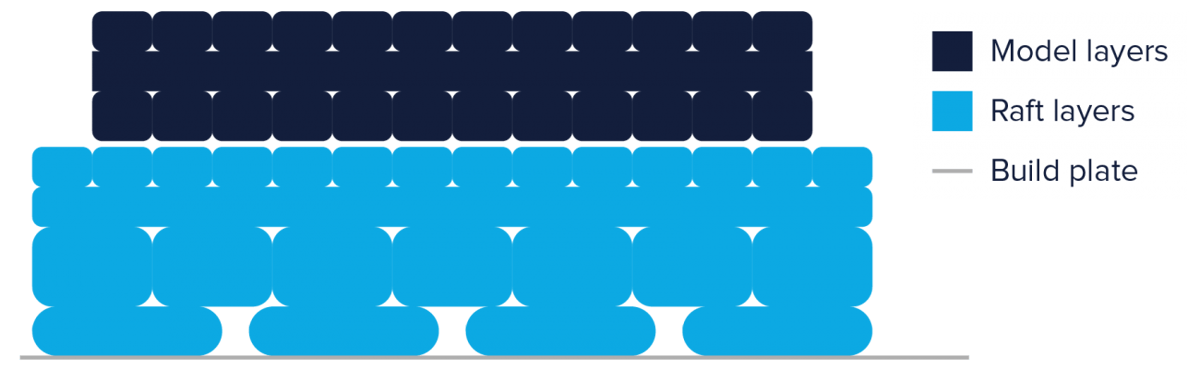
For some materials or models, a brim might not be enough to prevent warping. In these instances, using Raft in the Cura settings is advisable. A raft adds a thick grid between the model and the build plate, ensuring that the heat is distributed equally. It is particularly useful when the bottom of a model is not completely flat, or when printing with industrial materials.
Other Ways To Prevent Warping In Cura
- Initial Layer Height. A thicker first layer improves adhesion. It is in the Quality category.
- Initial Layer Speed. Printing the first layer slowly helps the plastic stick. Too fast and the nozzle can drag the material around. It is in the Speed category.
- Number of Slower Layers. This sets how many layers it takes to speed up from the initial layer speed to the normal print speed. The generic default is 2. A higher value reduces warping but can add print time. It is in the Speed category.
- Regular Fan Speed at Height. This brings the fan up gradually from zero. It is in the Cooling category. A slightly higher value than the default gives the first layers more time to stick.
Fix Pillowing and Stringing
Two common surface problems have fixes that live in different categories of the settings. Pillowing is a top-surface problem, and most of its fixes are in the Top/Bottom and Cooling categories. Stringing happens when the nozzle travels between parts of the print, so its fixes are mostly in the Travel category and in your material’s temperature. Each section below names the settings and where to find them.
Pillowing
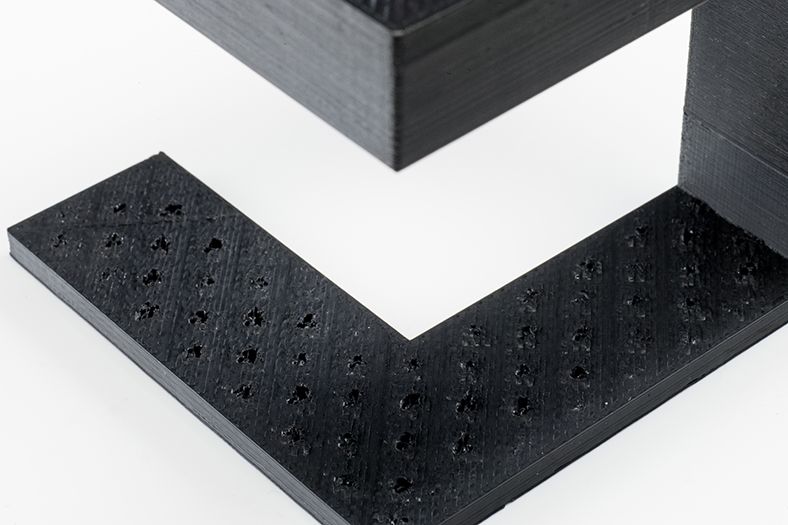
- Make the top thicker. Increase Top Thickness. A common rule of thumb is about six times the layer height, so 0.6 mm for 0.1 mm layers. Top Thickness is in the Top/Bottom category. The generic default is 0.8 mm.
- Cool better. If material does not cool, it sags where it crosses infill lines, leaving an uneven surface for the next layer. Thin layers curl more easily, so try increasing Fan Speed, in the Cooling category.
- Try the newer surface settings. Top Surface Expansion (Top/Bottom) helps with curved or detailed top surfaces, and Temperature Delta Top Surface (Experimental) prints the top surface at a different temperature.
Stringing
Stringing is when the nozzle oozes plastic across gaps between parts of the print, leaving thin strands.
- Turn on retraction. Retraction, which is in the Travel category, pulls filament back to relieve pressure in the nozzle before a travel move. It is the main defense against stringing, and Cura will not fix stringing without it.
- Increase retraction distance. If strings remain, retract a little further.
- Lower the temperature. Hotter plastic flows more easily and drips. Reduce the printing temperature in steps of 10 degrees until the strings go. The right value depends on the machine and filament.
- Check travel behavior. The Travel category has settings for retraction and for priming during travel moves, including several Retract Before Outer Wall options. Settings that let the printer prime or retract while moving can interact with pressure advance, so watch the first print after changing them. Inside Travel Avoid Distance helps reduce oozing over thin parts.
Supports: Print Overhangs Successfully
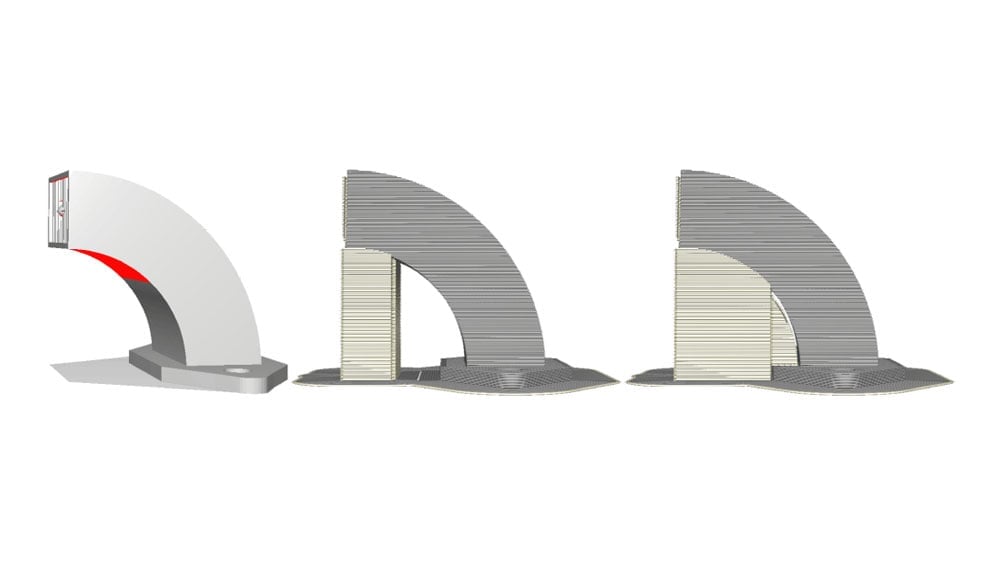
Many models have overhangs: parts that stick out with nothing underneath. They need support structures that you break off afterwards. Cura can generate them automatically, and its Support settings let you tune three things: whether the support is strong enough to hold the part, whether it is easy to remove, and whether it harms the surface it touches.
Generate Support
After you position your model, look for red areas. Those are overhangs that need support. Orbit around the model to see them all. Tick Generate Support in the Support category and Cura adds support under the red areas. You will not see the support until you slice, and then Preview shows it in a different color as you move through the layers.
Normal or Tree Support
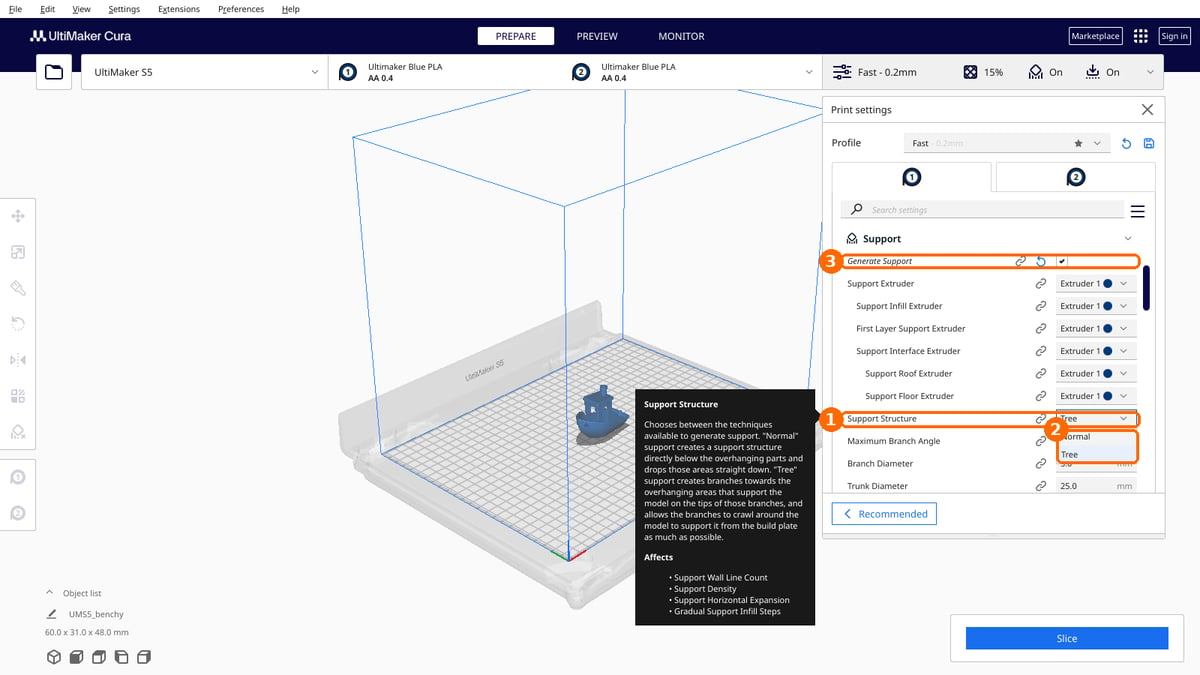
The Support Structure setting, in the Support category, offers two choices.
- Normal builds straight columns and walls under overhangs. It suits broad flat undersides, where tree branches would need many contact points.
- Tree grows branches that reach from the bed, or from the model, to small contact points under the overhang. It uses less material, touches the model in fewer places, and tends to work well for localized, irregular overhangs.
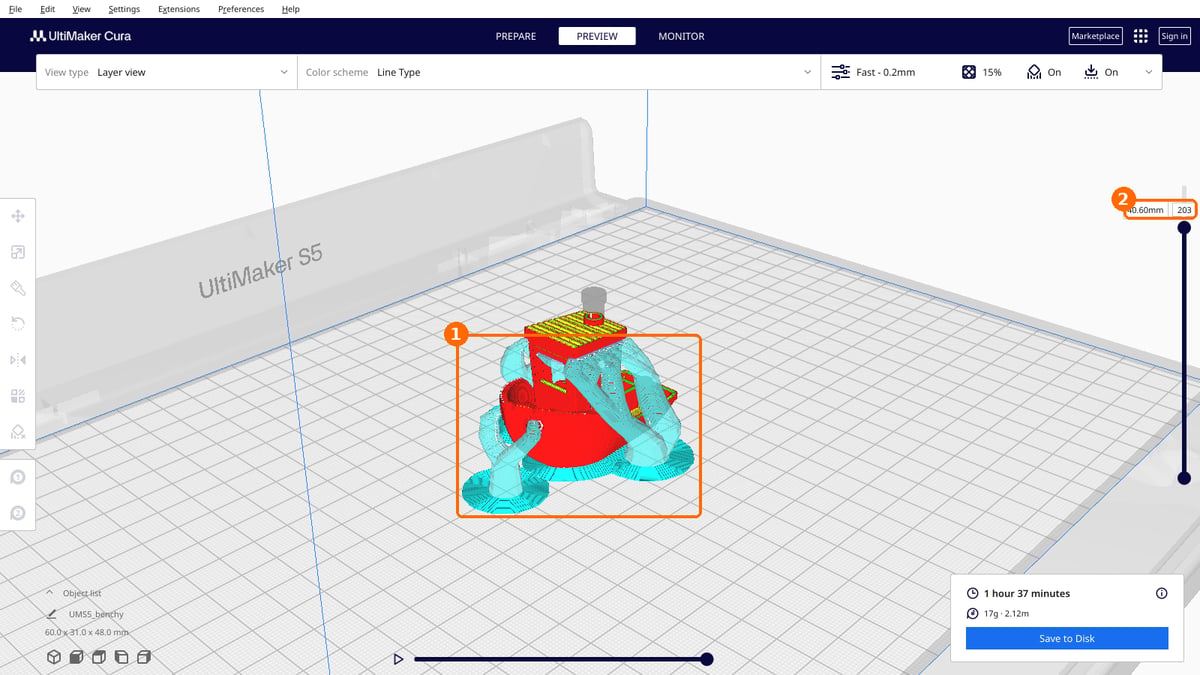
Choosing Tree reveals extra settings such as Maximum Branch Angle, Branch Diameter, Trunk Diameter, and Preferred Branch Angle. A thicker trunk is sturdier, while a thinner one takes up less space. Neither structure is always easier. Check both in Preview, and compare how much of the model each one touches. Tree support was contributed by Thomas Rahm, and Cura has refined it in several releases since.
Placement
The Support Placement setting, in the Support category (just Placement in Recommended mode) has two options. Everywhere, the default, adds support wherever it is needed, including on top of the model. On a complex model that can bury it. Touching Buildplate only supports overhangs that can be reached straight down from the bed.
Support Roof
A model’s overhangs print on top of the support, which can leave a rough underside. Enable Support Roof, which is off by default and sits in the Support category, adds a dense layer at the top of the support for a better finish. The cost is that supports are harder to remove, so use it only when the overhang surface matters.
Distance to the Model
- Support X/Y Distance, in the Support category, is the gap between the model’s vertical walls and the support. The generic default is 0.7 mm. If support marks the walls or sticks to them, increase it in steps of 0.2 mm. Watch for small overhangs, though: moving support away can leave them unsupported, and then you may need to decrease it instead.
- Support Z Distance, also in the Support category, is the gap above and below the support, which keeps the join weak enough to break. The generic default is 0.1 mm. If supports are hard to remove, increase it. Since Cura 5.6, this setting is no longer limited to multiples of the layer height.
Support Patterns
The Support Pattern setting, in the Support category, has ten options: Lines, Grid, Triangles, Concentric, Zig Zag, Cross, Gyroid, Lightning, Honeycomb, and Octagon. Zig Zag is the default and is a good balance of strength and easy removal. Others trade those off differently, so try them if you are unhappy.
Cura 5.13 added Lightning as a support infill type, with settings for the lightning angle, overhang angle, prune angle, and straightening angle. A Support Infill Line Multiplier is also available. With lightning support and an even multiplier, you get a single extrusion line per island.
Special Modes in Cura
The Special Modes category holds a few ways of printing that depart from the usual layer-by-layer approach.
Spiralize Outer Contour (A.K.A. “Vase Mode”)

Spiralize Outer Contour will print a hollow model instead of a solid model. The extruder will trace a continuous path that spirals upwards along the walls of the model, printing a solid base and a one-nozzle-width-thick wall. It will not print any infills or support.
This mode is very different from standard layering in 3D printing as the extruder moves in the Z direction at all times, instead of stepping up only when a layer is complete. Since the extruder moves continuously and prints only the walls, this reduces the print time to a fraction of normal. It also enables you to save a lot of material because you’re not using infill.
However, this setting isn’t ideal for parts that need durability, because they are only one wall thick and don’t have any infill.
There are a few caveats to using this mode:
- “Spiralize Outer Contour” doesn’t work if your model has overhangs exceeding 45 degrees
- Flat areas parallel to the build platform cannot be printed with this mode
Surface Mode Lets You Print Non-manifold Designs
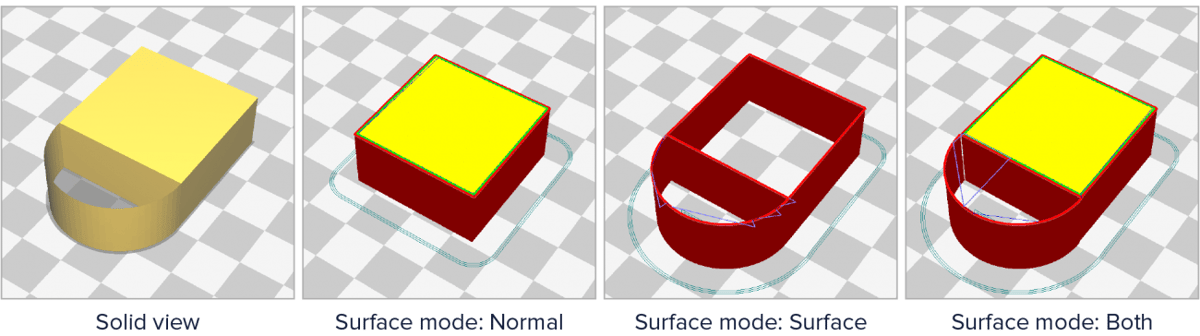
If you want to print non-manifold designs or orphaned geometry, “Surface Mode” can help with this. It has three options:
- Normal prints the object as usual.
- Surface prints only the walls, one nozzle width thick, so you can print walls that are not connected to any solid volume.
- Both prints solid parts normally and prints only the walls for non-manifold or orphaned areas.
Troubleshooting Cheat Sheet
Change one setting at a time and print a small test, so you know what made the difference. Fix hardware problems such as bed leveling first.
You Might Also Like:

License: The text of "Cura Settings Decoded – An Ultimaker Cura Tutorial" by All3DP is licensed under a Creative Commons Attribution 4.0 International License.