Orca Slicer Retraction Settings: How to Use Them for Cleaner Prints

Can’t seem to get a print right without stringing? The solution might lie with your retraction settings. Here is how to get them right.
Retraction is one of those useful slicer settings for printing quality parts. Sometimes a well-designed model isn’t enough, and you have to tinker with slicer settings to get a print right.
Mastering retraction will help you avoid the unwanted deformities, like stringing, that can throw a print off. It’s a setting available on all slicers in circulation, but Orca Slicer in particular offers some great tools for tuning it. This guide shows where to find the settings, what each one does, and how to get them right.
Why Use Retraction
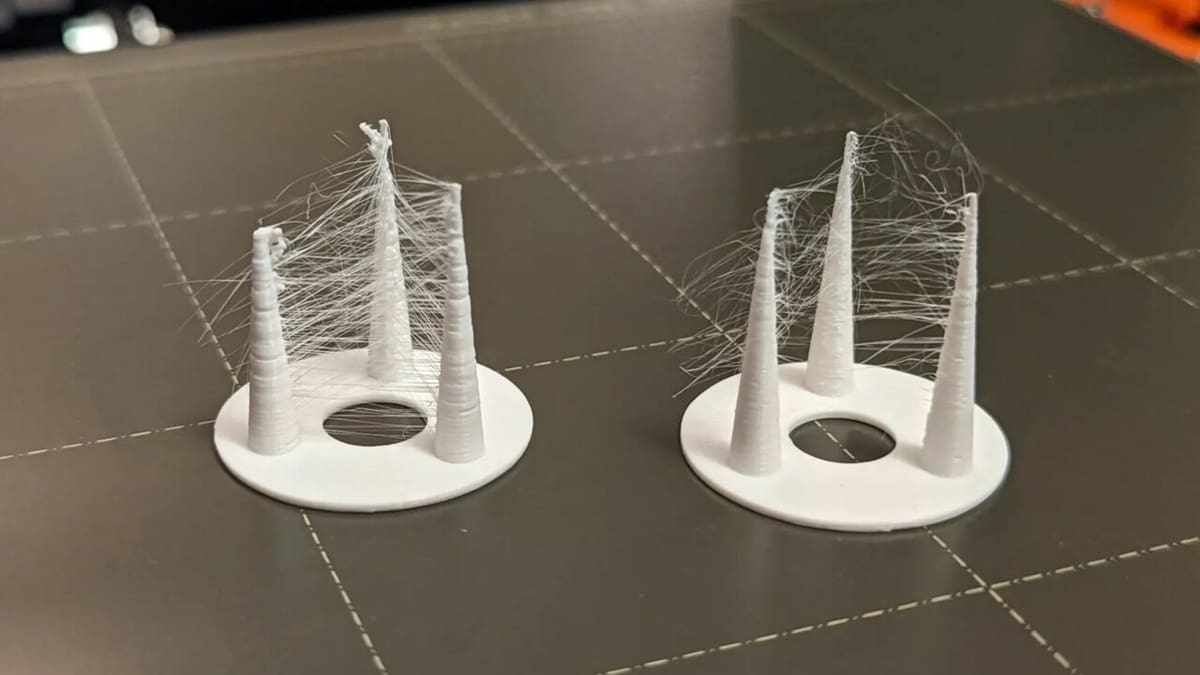
As you probably already know, fused deposition modeling (FDM) 3D printing works by extruding melted plastic in layers that fuse together. Between different points of the print, the toolhead makes travel moves. Sometimes, the melted plastic keeps flowing during those moves and leaves strings of material on the print. This defect is aptly name “stringing”. It can happen when you filament is wet, but, if you’ve already ruled that out, it’s also a sign that your retraction settings are off.
During retraction, the extruder pulls the filament back slightly before the next travel move. You can set how far (in mm) the filament is pulled back, how fast it’s pulled back, and other points that all affect the overall retraction, which varies by materials and printer.
When the toolhead arrives to the next point where it should extrude, the extruder pushes the filament forward so it flows again. This relieves pressure in the hot end, but it has to be tuned: too much or too little “push” can cause under-extrusion or over-extrusion (blobs) on the surface. There are settings to optimize this, too.
For PLA, PETG and ABS, retraction generally improves print quality. Flexible filaments such as TPU and TPE are trickier. Because they stretch, retraction can cause jams or other extrusion problems. Orca’s own documentation notes that PETG and TPU often need a longer retraction than PLA or ABS, so treat any starting value for them as a test, not a rule.
Most retraction settings only appear in Advanced mode or higher, so switch the mode first (see the next section).
Where to Find the Retraction Settings
Orca Slicer has two places for retraction: the printer settings hold the generic values, and each filament can override them. Both are reached from the sidebar on the Prepare tab.
Switch to Advanced Mode
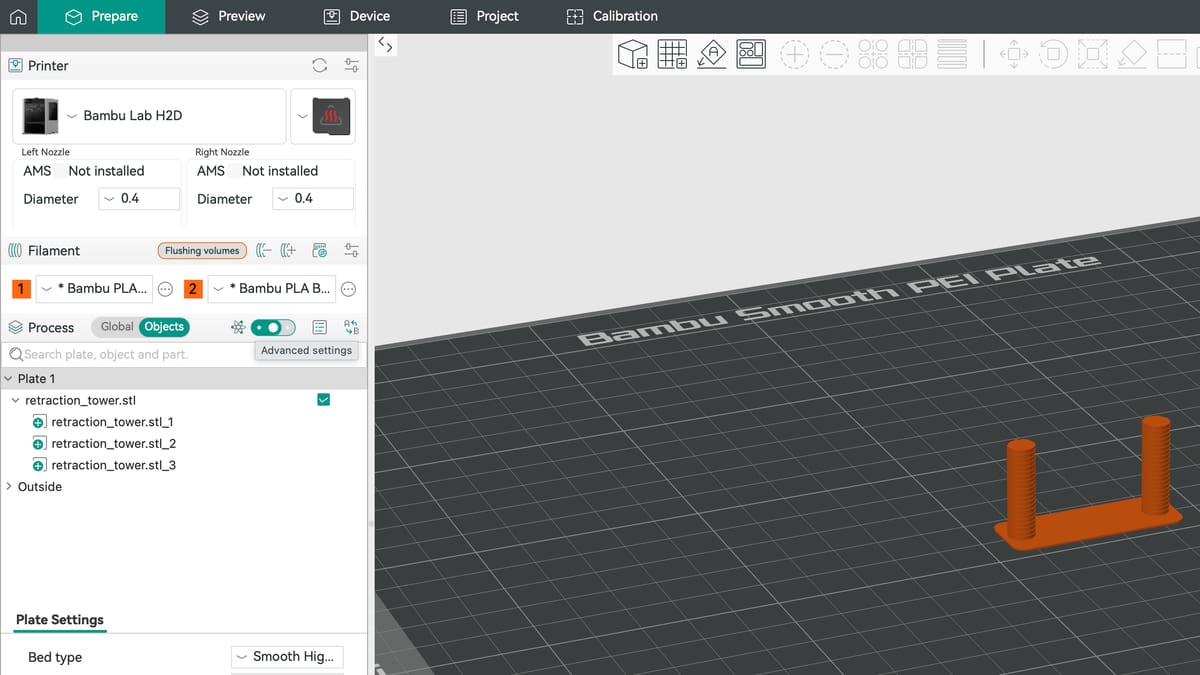
Most retraction options are hidden until you raise the option mode, so do this first. Otherwise you will not see the settings the steps below point to.
Orca’s settings are tagged by option mode: Simple, Advanced, Expert and Developer. Only the retraction Length and the Z-hop (the setting that temporarily raises the print nozzle along the Z-axis) are Simple settings; the rest of the retraction options need Advanced mode, and a few need Expert. Use the mode selector in the sidebar to switch. The same switch also sits at the top right of the settings windows.
Printer settings
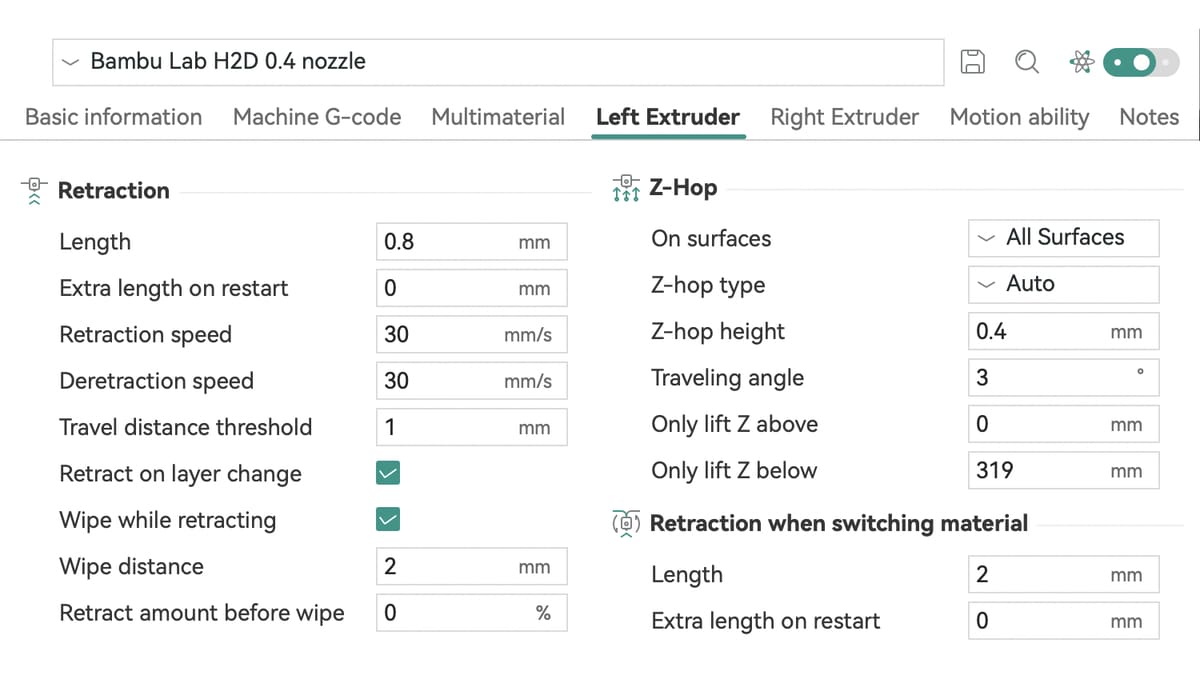
This is where you set retraction for the whole printer. These values apply to every filament you print with, unless a filament profile overrides them (next step)
- In the sidebar on the Prepare tab, find the Printer section.
- Hover over the printer preset box (the one with the printer picture and name). An edit icon, a pencil over a square, appears on its right. Its tooltip reads “Click to edit preset”.
- Click it. The printer settings window opens.
- Open the Extruder tab. On a dual-nozzle printer such as the Bambu Lab H2D, there is one tab per nozzle, Left Extruder and Right Extruder.
- Scroll down to the Retraction group. The Z-Hop group and a separate group for retraction when switching material sit directly below it.
Careful: the sliders icon at the right end of the Printer and Filament title rows does not open these settings. It opens the printer and filament selection screens instead.
Filament Settings
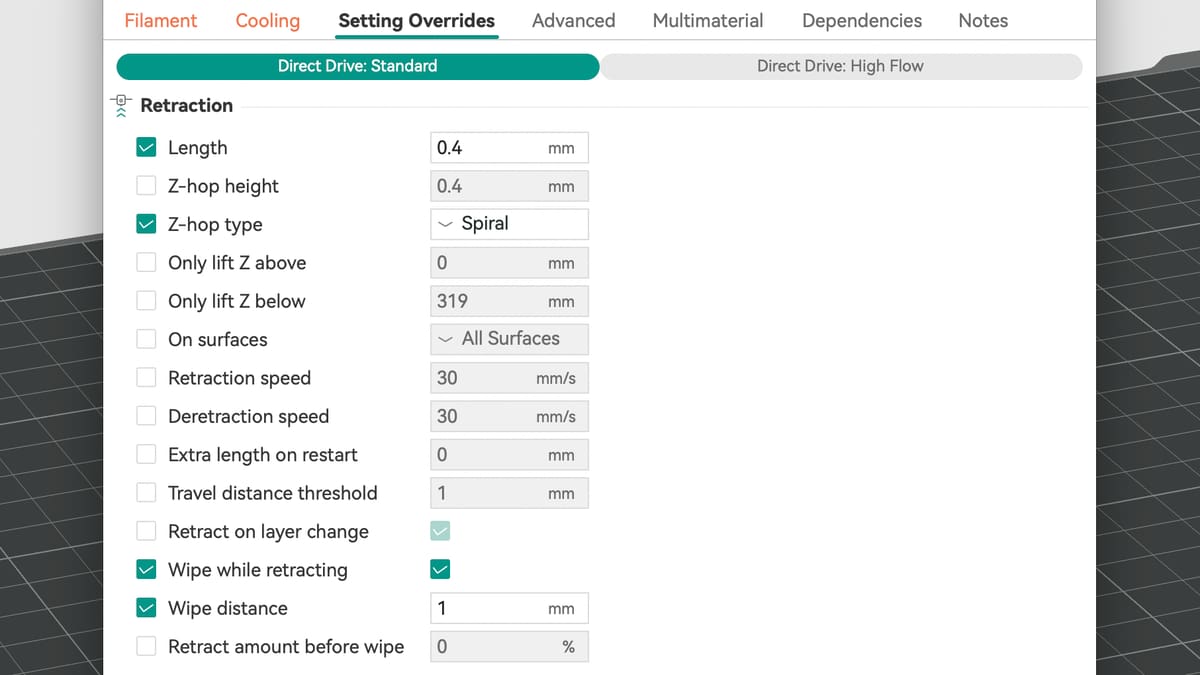
Use this window when one material needs different retraction from the rest. Orca’s wiki notes, for example, that PETG and TPU often need a longer retraction than PLA or ABS. A change made here affects only that filament and leaves your printer settings alone.
- In the sidebar, find the Filament section and the dropdown for the filament you are using.
- Click the edit button next to that dropdown (tooltip: “Click to edit preset”). On a printer with several filament slots, such as the Bambu Lab H2D, it is a three-dot button that opens a small menu; choose Edit. With a single filament slot, the button opens the window directly.
- The window is titled Material settings. Its tabs are Filament, Cooling, Setting Overrides, Advanced, Multimaterial, Dependencies and Notes. Open Setting Overrides.
- The Retraction group is at the top of that tab. By default, retraction follows the printer profile unless you tick an override (more on that below).
Starting Values: What Your Profiles Already Set
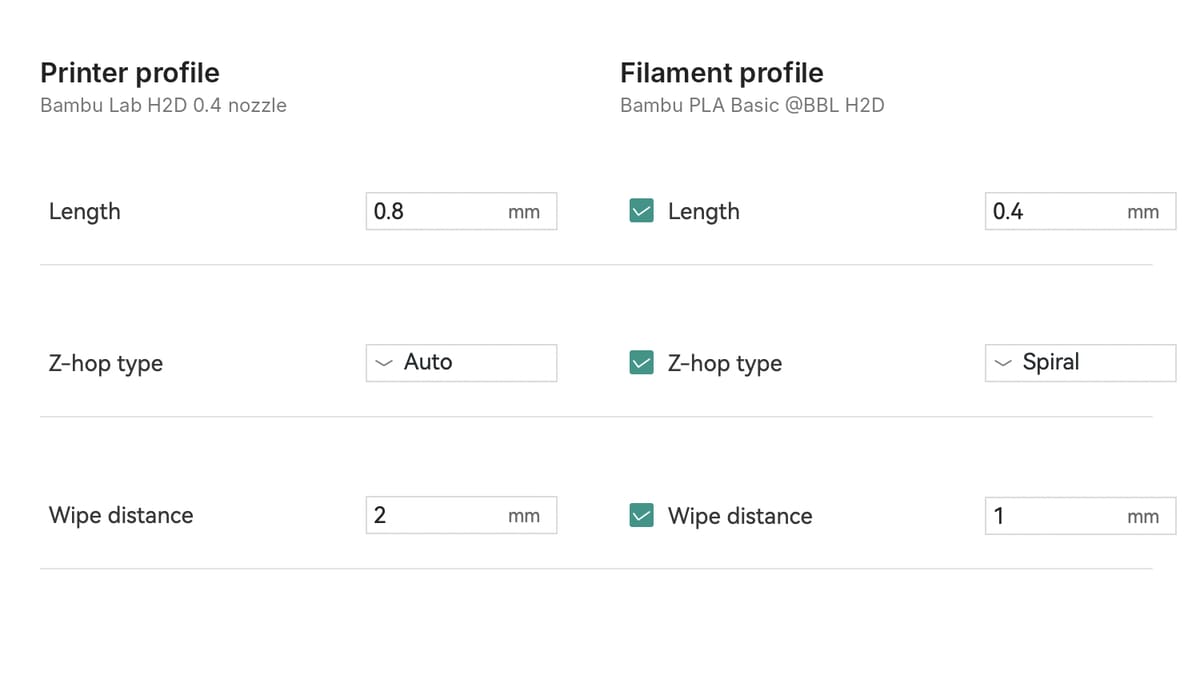
Now you know where the retraction settings live. Before you change anything, it helps to see what values you already have. The printer profile and the filament profile can each set retraction, and Orca combines the two when it slices, so the number you see in one window is not always the one that gets printed.
Orca Slicer has no single set of “standard” retraction values. Each printer profile ships with its own, and a filament profile can override some of them. When you print, Orca uses the filament’s value if it sets one, and the printer’s value if it doesn’t. The table below shows this for one real combination: the Bambu Lab H2D with a 0.4 mm nozzle printing Bambu PLA Basic. The filament profile changes three values, shown in bold; everything else follows the printer.
If a profile doesn’t set a value at all, Orca falls back to a built-in default, which is defined in its source code. Those defaults are a length of 0.8 mm, a retraction speed of 30 mm/s, a deretraction speed of 0 (the same as retraction), a travel distance threshold of 2 mm, and a 0.4 mm Z hop of the Slope type.
Before you change anything, check the values your own printer and filament profiles use. If you then adjust a value, change one setting at a time and judge the result with Orca’s retraction test (see Tuning below).
The Settings Explained
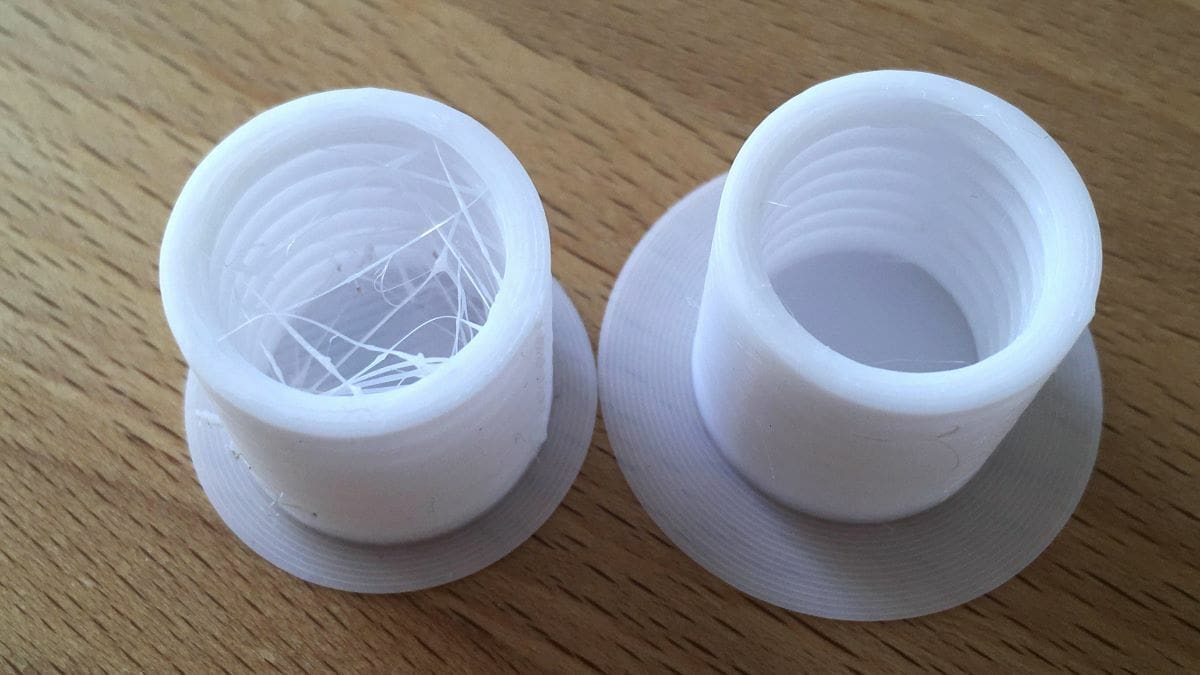
Now that you have seen the values your profiles use, here is what each setting does, so you know what you are changing before you touch it.
The Retraction group in the printer settings holds nine settings, in this order. The descriptions follow Orca’s own tooltips and wiki. The mode column shows the lowest option mode in which each setting appears.
Retraction
The Orca wiki adds a detail about the two wipe settings: depending on the wipe length and the retraction speed and length, some retraction may still be needed after the wipe. If Retract amount before wipe is above zero, the excess retraction happens before the wipe.
A newer setting, Retract amount after wipe, is documented in the wiki as an Expert-mode option. It does a fast retraction after the wipe, as a percentage of the retraction length, and the before and after values together cannot exceed 100 percent. The wiki says it requires a nightly build or a release newer than 2.4.2, so you may not see it yet.
Z Hop
Whenever there is a retraction, Z hop lifts the nozzle slightly to create clearance between the nozzle and the print, so it does not catch the print on the next travel move. It adds travel motion, so use it where you need it. Z hop has its own group directly below Retraction.
Multi-material printing
For printers configured for multi-material printing, Orca Slicer provides an additional group of settings called Retraction When Switching Materials, with separate Length and Extra length on restart parameters. These control how far filament is retracted during a tool change and how much additional filament is advanced when extrusion resumes.
The filament Setting Overrides tab also includes Long retraction when cut (beta) for compatible configurations. This experimental feature uses a longer filament retraction during filament changes involving a cutter to reduce the amount of filament that must be purged. Although it can significantly reduce filament waste, Orca Slicer’s documentation warns that it may increase the risk of nozzle clogs and other printing problems.
Overriding Retraction Per Filament
Different materials can need different retraction, and Orca lets each filament profile replace the printer’s values for just that material.
The Setting Overrides tab in the Material settings window repeats the retraction and Z-hop settings, each with a checkbox beside its label.
- Unticked: the filament uses the printer profile’s value. The field is greyed out and shows that value.
- Ticked: the filament uses its own value, and the field becomes editable.
The Bambu PLA Basic profile for the H2D shows how this works. Four overrides are ticked: Length is 0.4 mm instead of the printer’s 0.8 mm, Z-hop type is Spiral instead of Auto, Wipe while retracting is on, and Wipe distance is 1 mm instead of the printer’s 2 mm. Every other row stays unticked anfollows the printer.
Use overrides for materials that need their own values, and leave the rest on the printer profile. Orca’s own wiki points the same way: it notes that PETG and TPU often need longer retraction than PLA or ABS, and that per-filament overrides are where to set that.
Orca 2.4.2 also fixed a bug where a disabled filament override, such as Retract Before Wipe, could switch itself back on after a cloud sync or a restart. If you use overrides, update to 2.4.2 or later.
Tuning With the Retraction Test
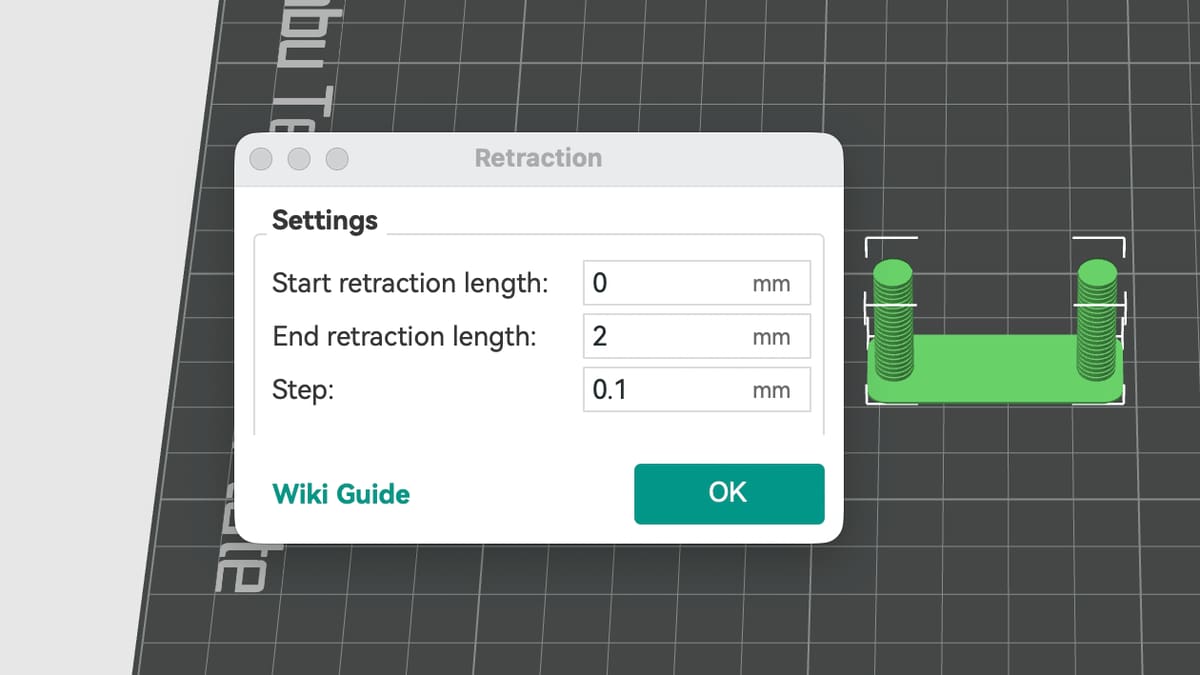
The retraction values in your printer and filament profiles are only a starting point. To find the length that works for your own printer and filament, Orca includes a built-in test, so you do not have to guess.
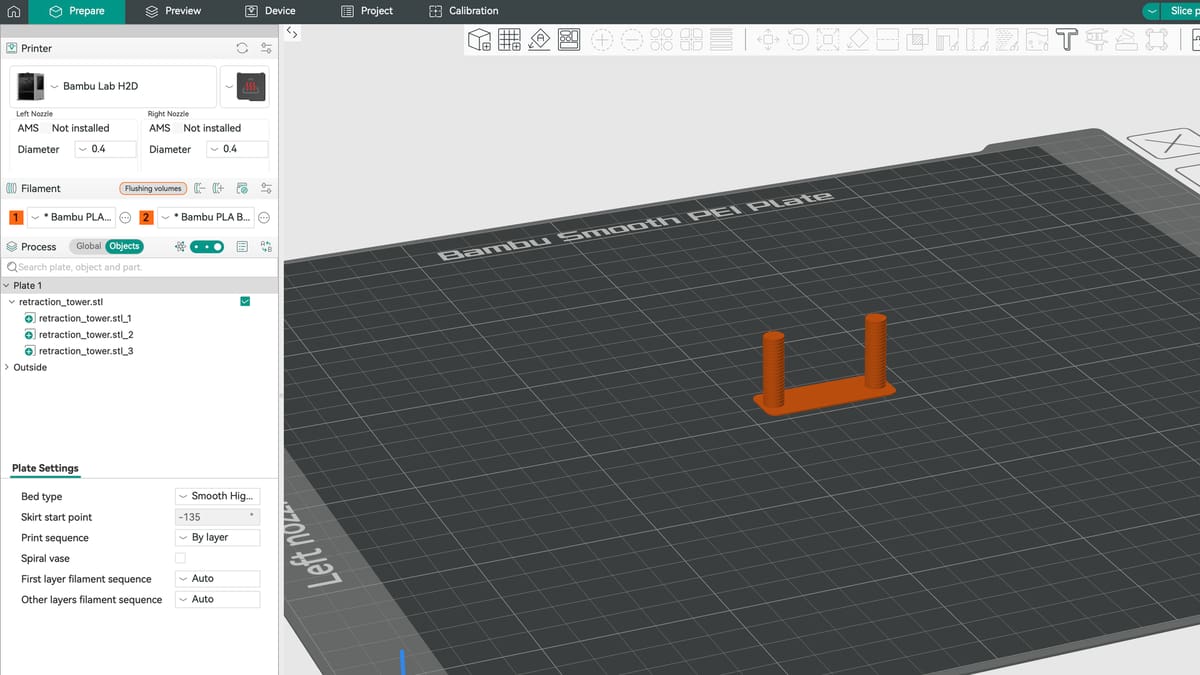
Orca’s retraction test prints a tower in which the retraction length changes with height, so one print shows you which value works. Open Calibration and choose Retraction test.
Tune retraction after the earlier calibration tests. Orca’s calibration guide lists temperature, max volumetric speed (Max flowrate in the Calibration menu), pressure advance and flow before retraction, so that the printer is already set up for optimal extrusion when you start.
- In the dialog, set the start length, the end length and the step. The defaults are 0 mm, 2 mm and 0.1 mm, which suit most direct drive extruders. For a Bowden setup, raise the range to about 1 mm to 6 mm with a 0.2 mm step.
- Print the tower and look for the section with the least stringing and oozing. Measure its height.
- Open the sliced G-code in the preview and search for the Calib_Retraction_tower comment to find the retraction length at that height. Don’t rely on the plain ; retract command: it may not show the full retraction length, for example when Retract amount before wipe adds to it.
- Use the shortest length that gives the cleanest tower, and enter it in your printer or filament settings.
For low-ooze materials such as PLA or ABS, 0.2 mm to 0.4 mm may already be enough, and the tower may look clean from the start. If stringing persists at the top of the tower, dry the filament and check the nozzle for leaks before you raise the retraction any further.
You Might Also Like:


License: The text of "Orca Slicer Retraction Settings: How to Use Them for Cleaner Prints" by All3DP is licensed under a Creative Commons Attribution 4.0 International License.