Ready to Design Your Own 3D Printable Parts? Here is the Best CAD Software for Beginners

Learning CAD can be tough, but you can ease your way in with simple newbie-friendly software. Check out our picks of the best CAD software for beginners.
There’s a pretty big learning curve when you first dive into designing your own 3D objects with CAD (computer aided design) software. So, you should at least make sure the program you’re working with is suited for beginners.
We’ve separated the CAD software listed here into three categories: Easy-peasy solid modelers any beginner can jump into to quickly design or edit a model; Approachable software with something extra that makes it suitable for more precise designs; and Advanced CAD software that, in our opinion, can be beginner friendly and offers a wealth of tutorial content to help you get over a steep initial learning curve.
Keep in mind that simplicity comes at the cost of capability; the simplest software will let you make something simple now but will quickly become limiting with if you want to make something moderately complex. If you already know you want a little more power and longevity from your software, we think the “advanced CAD software” listed here are the best to start with, but check out the Unlock Your Design Power: Our 5 Favorite Free CAD Software Options for more options.

We’re thinking of CAD in the technical sense here and have geared the listed beginner programs to software that can be used to create practical models — but not necessarily artistic ones. For 3D software that offers a more artistic expression than the ones listed here, check out our list of the Best 3D Modeling Software for Beginners. Yes, there a big difference between 3D modeling for 3D printing and CAD for 3D printing. And while we’re offing CAD alternatives, check out our coverage of AI tools for 3D printing models and — if all else fails — How to Find a Design Service for Your 3D Printing Project.
Primitive Solid Modelers
We’re dubbing the simplest category here “primitive solid modelers” in reference to the primitive shapes — simple cubes, spheres, etc. —these software typically use to create and edit objects. It’s not exactly CAD but, if your design doesn’t need to be especially precise, it can often get close enough to where you need to be.
These tools are best used, not as a first step into advanced 3D modeling, but as a quick fix for someone with a model they need to make and no, or limited, CAD background to lean on.
They can by your best bet for a product like an organizational box, a sign with lettering, or a cylinder vase.
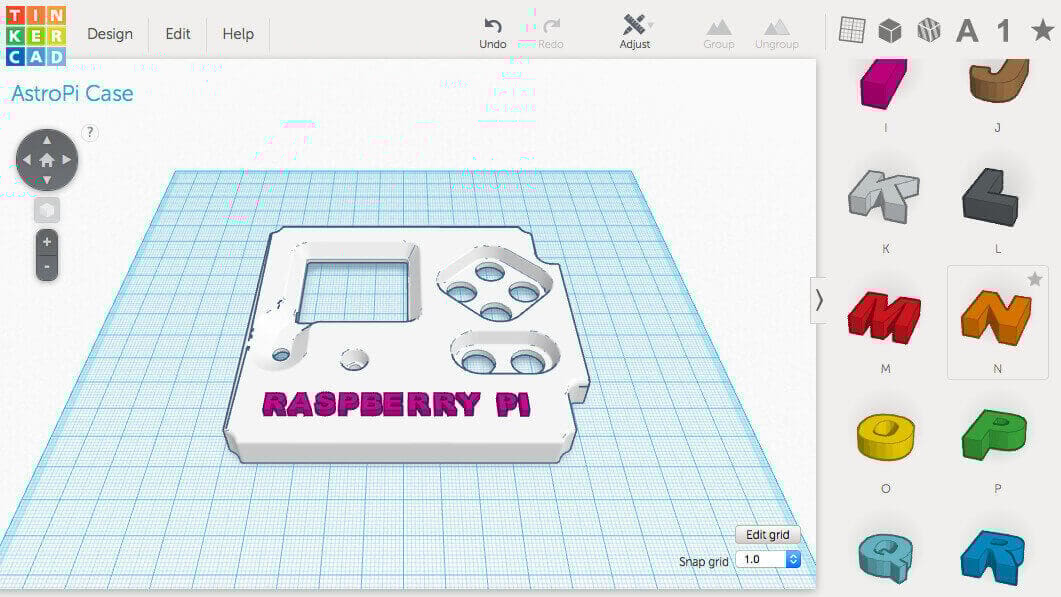
Made by the industry-leading software company Autodesk, Tinkercad is an approachable solid modeler. Though far from the most powerful CAD software on this list, it manages to suit the needs of just about anyone from time to time – be it rookie hobbyists stepping into 3D design for the first time, or more advanced users looking for a quick and easy way to throw a simple design together.
Tinkercad’s visual interface has been designed with a “building block” approach. Simple drag-and-drop controls let you pop items into place, input your measurements, and voilà – you’re on your way to a 3D model.
It does manage to go some levels deeper than that. By setting objects as a “hole” you can hollow out and create channels in other shapes; you can also create custom shapes or import new shapes and designs from other users to tinker with at will.
While it won’t offer much in the way of artistic modeling, and is very limited when creating more complex designs, Tinkercad makes up for it by offering a very straightforward, user-friendly approach to 3D design. It also has a very dedicated community around it, which allows users to see the potential of this basic, entirely cloud-based free online CAD software through the work of others. Don’t underestimate what you can do with this easy-to-learn tool; just visit the Gallery and see what the community has created.
Get it from: Tinkercad
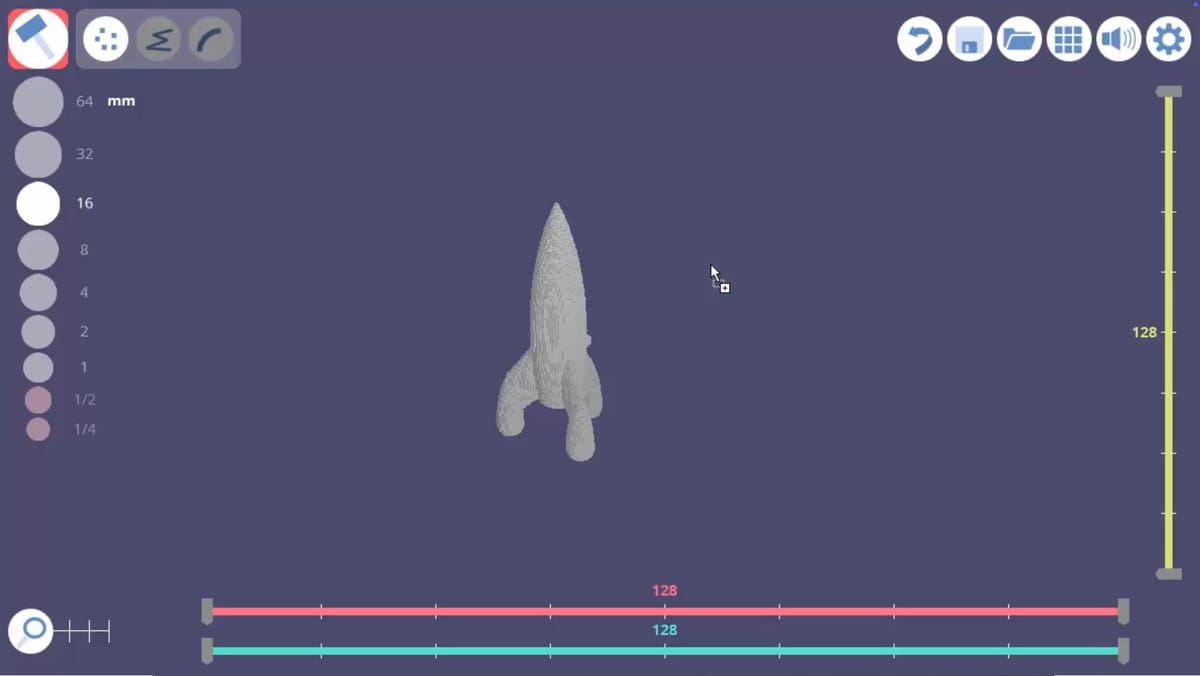
3D Slash is a beginner-friendly 3D modeling application designed to make creating models for 3D printing simple and approachable. Available as both a web-based tool and a desktop application for Windows, macOS, and Linux, 3D Slash focuses on ease of use rather than advanced CAD complexity.
Instead of traditional sketch-and-extrude workflows, 3D Slash uses a block-based modeling approach. You start with a solid shape and carve, add, or modify it using tools that feel more like building with digital blocks than operating professional CAD software. Much like working in a voxel or Minecraft-style environment, you remove material to shape your object or add blocks to build it up, making the learning curve very gentle for new users.
While simple, 3D Slash includes practical tools for real-world output. Models can be exported directly to STL format, making them compatible with nearly all slicers and 3D printers. Measurement tools and grid snapping help keep designs printable, and basic shape libraries speed up the creation of functional parts, toys, and prototypes.
3D Slash is particularly well-suited for education, quick concepts, and hobbyist projects. Its visual, hands-on workflow makes it popular in classrooms and among users who want to design printable objects without dealing with parametric constraints or complex modeling techniques. However, the block-based system does limit precision, so it’s not ideal for highly detailed mechanical or engineering-grade parts.
If you’re 3D printing, 3D Slash serves as a lightweight way to design simple objects that can be exported to your favorite slicer and printed locally or sent to a printing service. It won’t replace full CAD software, but for fast, intuitive modeling, it fills a niche that many beginners appreciate.
Get it from: 3D Slash
3DC is a 3D modeling platform intended for educational purposes. It’s about as simple as CAD programs get, using solid modeling to create designs with simple shapes, much like TinkerCAD. It’s available for iOS, Android, and web browsers. The software focuses on accessibility, global policy compliance, and 3D printable designs.
The biggest miss with 3DC by far is its lack of input fields for precision with your designs. It does tell you dimensions on one axis as you scale and move models, but doesn’t lend itself to designing with any precision at all. That said, its aim at compliance does make it an excellent choice for education or any setting that will inevitably involve red tape and approvals.
3DC aspires for “smart learning” via tablets and smartphones, so it’s getting kids and other users comfortable designing on mobile devices. Education is the niche this simple CAD application has firmly planted itself in, offering its platform as a source of “tangible outcomes” in the classroom. Though there is better software out there that gives you more precise control over models even in the primitive category, 3DC is still good for students and beginners alike.
Get it from: 3DC.io
Simple CAD Software
What we’re calling “simple CAD software” is something of a mid-point. It’s software that’s far more limited than fully-fledged CAD programs with a broad set of capabilities, but is still relatively precise and a lot more approachable. It’s the kind of software that won’t exactly be intuitive, like primitive solid modelers are, but where simple experimentation can take you a long way.
These are probably the truest “CAD programs for beginners”, as those inexperienced with CAD should be able to learn the basics and create relatively simple models without being inundated by advanced features. But, you’ll quickly hit a ceiling in the software’s capabilities. At that point, you may want to move on to more advanced software.

SelfCAD is a free browser-based CAD program with a built-in slicer, integration to MyMiniFactory, and a very cool system of integrated tutorials. It’s a true “next step” from primitive-based solid modelers in that, coming from that sort of software, your methods of working will be preserved while introducing plenty of new design features.
Crucial features here are drawing, extrusion, modification (think fillets or chamfers), and deformation. Staple features in more advanced CAD software that make the process of designing and optimizing models easier. SelfCAD also grants far more precision than simpler solid modelers. Though its likely more tedious to create precise, complex models here than in more advanced software.
With its integrated slicer, SelfCAD manages to pack the complete design-to-print workflow in one browser-based bundle. There’s a decent variety of compatible 3D printers, and if a printer isn’t included by default, you can just enter your model’s specifications.

Perhaps the most useful feature of SelfCAD for beginners is its integrated tutorials. SelfCAD users can record – in the software itself – a virtual guide that walks others through the creation of a model step-by-step. Users following the tutorial will be prompted to take every step recorded by the tutorial creator to progress until they have an identical model in front of them. It’s great for those who learn by doing and eliminates the need to follow a video and all the back-and-forth pausing that comes with that.
Everything we’ve mentioned so far is available in SelfCAD’s free version, so it’s very accessible, but the paid version offers even more. Notably, subscribers have access to a mesh modeler where they can begin more complex (and artistic) 3D modeling.
Get it from: SelfCAD
Shapr3D
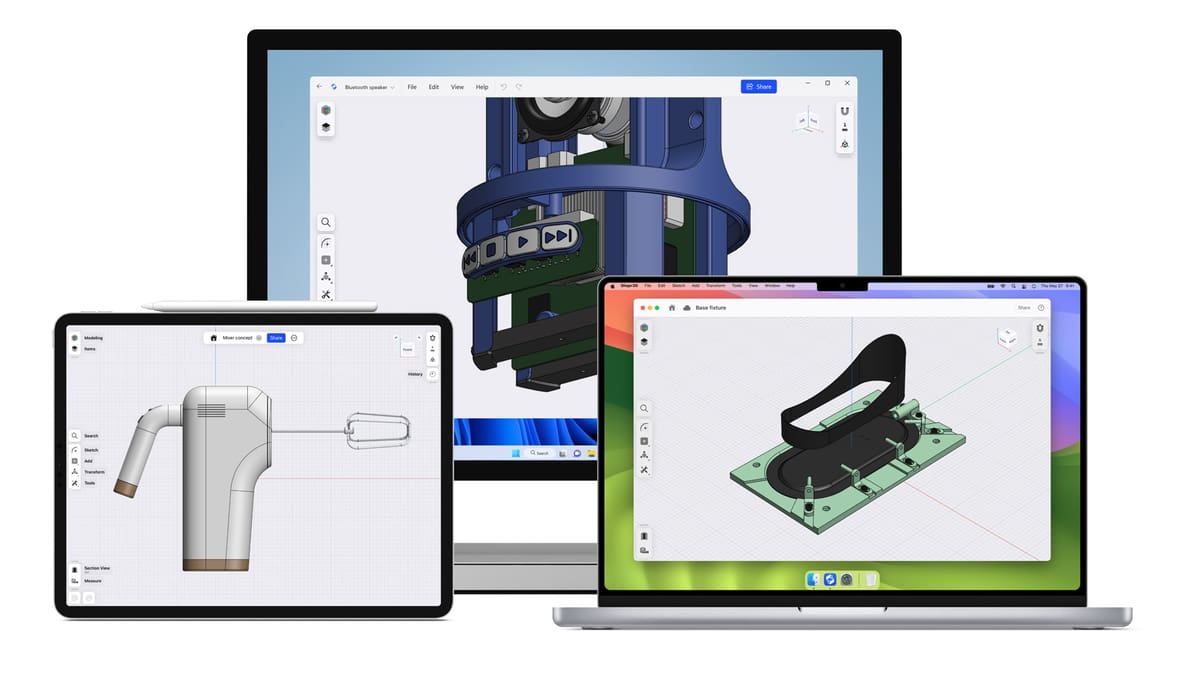
Shapr3D is a professional-grade 3D modeling and CAD application built with a strong focus on touch, pen, and direct manipulation workflows. Originally designed for iPad and Apple Pencil, it has since expanded to Windows and macOS, making it a flexible option across modern desktop and tablet platforms.
At its core, Shapr3D is a parametric solid modeler, but it presents those powerful tools through an interface that feels far more immediate and intuitive than traditional CAD software. Users sketch directly on planes or faces, then extrude, revolve, fillet, and chamfer geometry to build precise 3D models. The workflow will feel familiar to users of professional CAD tools, but with far less friction — especially when using a stylus or touchscreen.
Unlike beginner-focused tools such as Tinkercad, Shapr3D is aimed at engineering, product design, and functional part creation. Dimension-driven sketches and constraints allow for accurate, editable designs, making it well suited for parts that must fit, move, or assemble correctly. Despite this added precision, the software remains approachable thanks to its clean interface and gesture-based controls.
Shapr3D supports exporting to common industry formats such as STL, STEP, and IGES, enabling smooth workflows for 3D printing, CNC machining, or collaboration with other CAD and rendering tools. While STL export is available for printing, advanced export options and cloud features are tied to paid plans, positioning Shapr3D as a freemium product rather than a fully free solution.
For 3D printing, Shapr3D excels at designing functional, dimensionally accurate parts that can be sent to a slicer or manufacturing service. It doesn’t include built-in slicing or printer control, but it integrates cleanly into modern fabrication workflows. Overall, it’s a powerful yet accessible tool that bridges the gap between casual modeling apps and traditional professional CAD software.
Get it from: Shapr3D
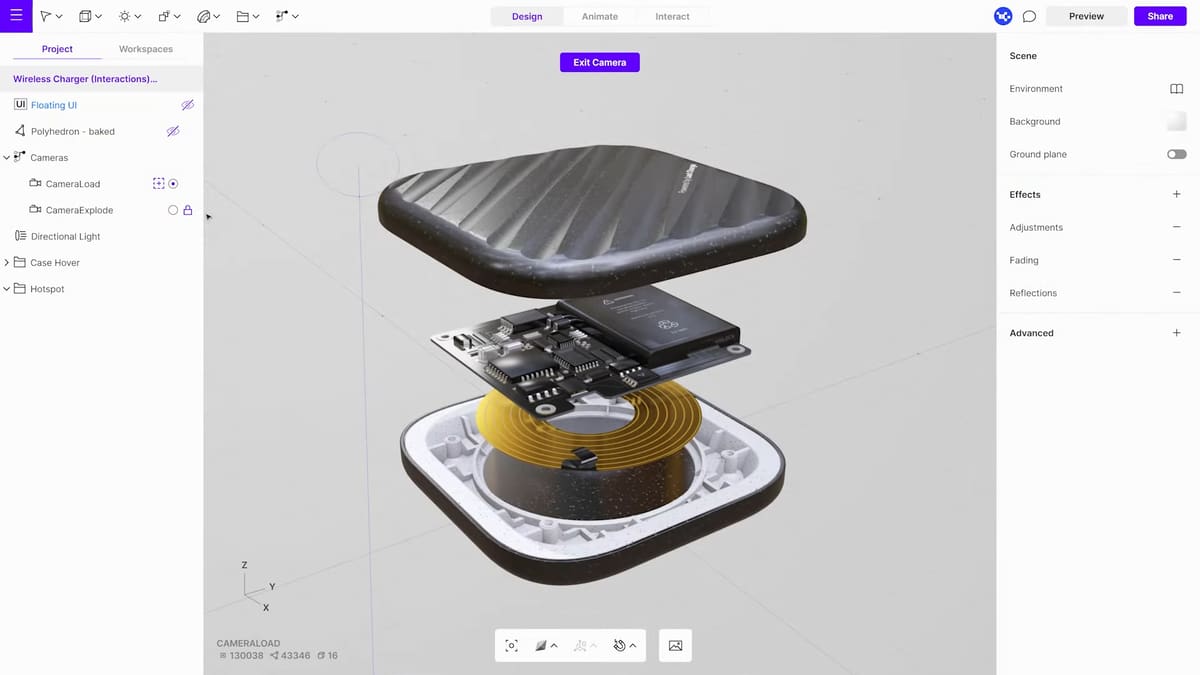
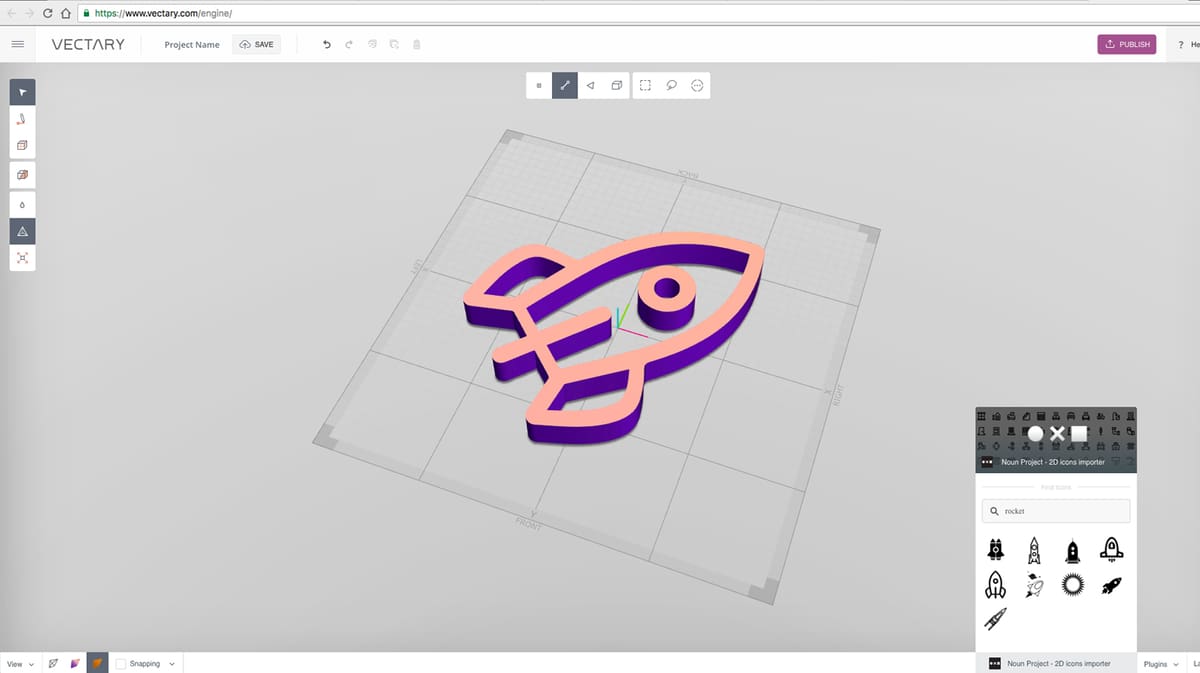
One program with a truly fresh take on CAD is Vectary. This unique software describes itself as a “combination of mesh modeling, subdivision modeling, and parametric design.” It differs from other entries on this list in that it’s not a simple solid modeler and has a focus on digital art and interactive presentation. Though it’s more geared towards organic 3D modeling than most CAD software, Vectary doesn’t forgo precision entirely. We decided to include it on this list given its approachability, unique layout reminiscent of some graphic design software, and parametric capabilities that provide an excellent resource for detailed modeling.
What is parametric modeling anyway? It’s a term you’ll hear surrounding many advanced CAD programs focused on mechanical engineering, product design, and other fields that require incredible precision and adaptability throughout the design process. Simply put, parametric modeling allows you to access a design’s history and adjust previous parameters. Once changed, the whole design will compensate for the adjustment – saving you the hassle of implementing hundreds of complimenting model tweaks that might come with a simpler solid modeler.

Now, Vectary has parametric capabilities, but designing from scratch leans heavily on manipulating primitive shapes. Tools like extrusion, deformation, and beveling help Vectary go a much longer way than simple primitive solid modelers – despite missing sketch features – but very complex designs may still be frustrating to create, making it an ideal step towards more complex CAD features.
Vectary also has the advantage of being a fairly easy tool to get used to. Aside from being a relatively intuitive solid modeler, Vectary comes with a wealth of documentation and tutorials to help you get the most out of it.
Get it From: Vectary
Advanced CAD Software
If you want to learn CAD in the truest sense, these are the programs you should be looking at. The programs listed here are professional-grade CAD programs, with features that should be able to address nearly any design problem you come across – if you know how to use them effectively. And therein lies the problem: these programs can be tough to get used to.
For this list, we’ve focused on professional-grade CAD software that has an unlimited-use free tier and a large community that provides a wealth of tutorials so you can begin to penetrate the veil of CAD complexity. Keep in mind that this list isn’t exhaustive. There’s lots of CAD software out there each with its own pros and cons. If you’re not sure these recommendations are right for you, check out our larger lists: Unlock Your Design Power: Our 5 Favorite Free CAD Software Options and The Best CAD Software.
Fusion
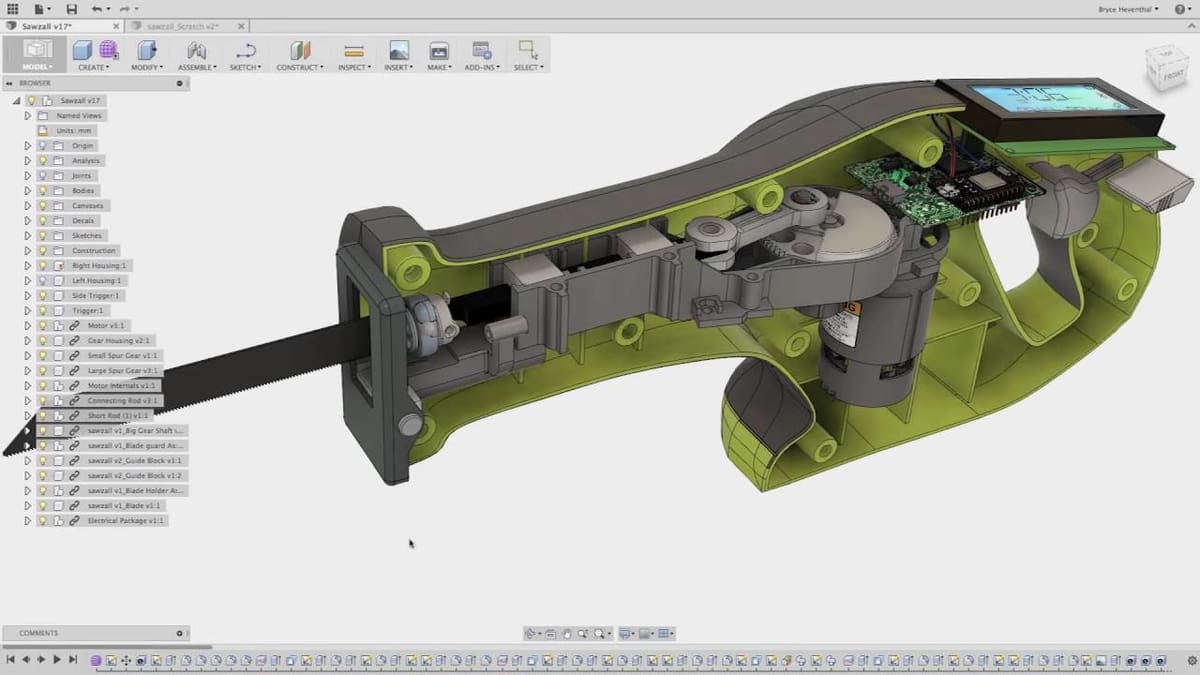
Fusion is an industry-standard in CAD software but don’t let that scare you off. If you can find a Fusion course to take online or in-person, you’ll get a huge return on your investment in terms of what you can create. Even Prusa Research offers a course on using the software in design for 3D printing.
It is incredibly feature rich and, for such an advanced and robust piece of software, surprisingly easy to navigate. Plus, there’s a free version for designing non-commercial products.
Its toolbars are contextual, reflecting the workflow you’ve selected, so you won’t be faced with a horde of unknown and inapplicable tools as you switch between designing, rendering, animating, or whatever else you may be using the software for. All menus are customizable, too, so you can change them to your preference as you get the hang of things.
This relatively easy menu makes Fusion approachable to newcomers, but that doesn’t mean the software comes without a steep learning curve. Fortunately, in part due to a long history of Fusion being freely available to hobbyists and affordable to startups, it’s an extremely popular piece of software with a wealth of tutorials for free or a fee.
The program – and its developer, Autodesk – do draw fire from the community for having significantly changed the tools hobby users have access to in Fusion’s free version, and it’s important to note that it could do it again in the future. Fortunately, as one of the older standards, anything you learn from using Fusion is likely to carry over to other similarly advanced CAD software with just a little adjustment.
Get it From: Autodesk
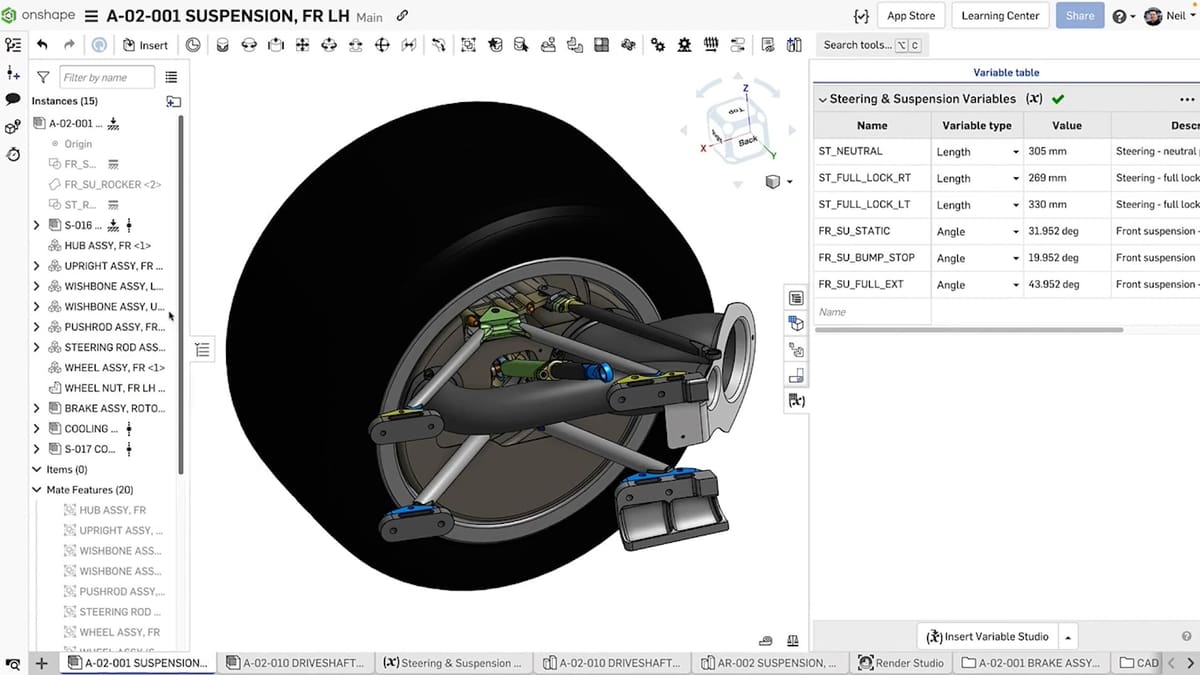
If you need a full-fledged CAD program but are working on a laptop with limited power, the browser-based OnShape is probably right for you.
OnShape is one of the programs often considered a professional standard in CAD, largely focused on collaborative tools. It has a free tier with access to most of its features, but still comes at a large cost: your designs. Everything you design with OnShape’s free tier has to be published as open source on the website. If you’re just getting started, or you want to open source your designs anyways, it’s a great deal, but you’ll want to be mindful of OnShape’s extremely steep price if you think that will cause trouble for you in the future.
If you log into Onshape as a user who’s unfamiliar with CAD programs, it’s going to startle you at first. It’s honestly very impressive that such a powerful tool with such a robust toolset is available through just a browser. But, being targeted at professional enterprise users, it seems Onshape isn’t too worried about approachability in its user interface.
Fortunately, the first time you boot up Onshape you’ll be greeted with a live tutorial that introduces you to the very basics of its interface. If you’re already familiar with this grade of CAD software, the tools will be familiar to you. From there, you can click the top-right “learning center” and find a large variety of courses to help you delve a little deeper – both free and paid. If that’s not enough for you, there are plenty of detailed guides in the community, likely boosted by OnShape’s Creator Program, from reputable personalities like Teaching Tech.
Get it From: OnShape
You May Also Like:


License: The text of "Ready to Design Your Own 3D Printable Parts? Here is the Best CAD Software for Beginners" by All3DP is licensed under a Creative Commons Attribution 4.0 International License.