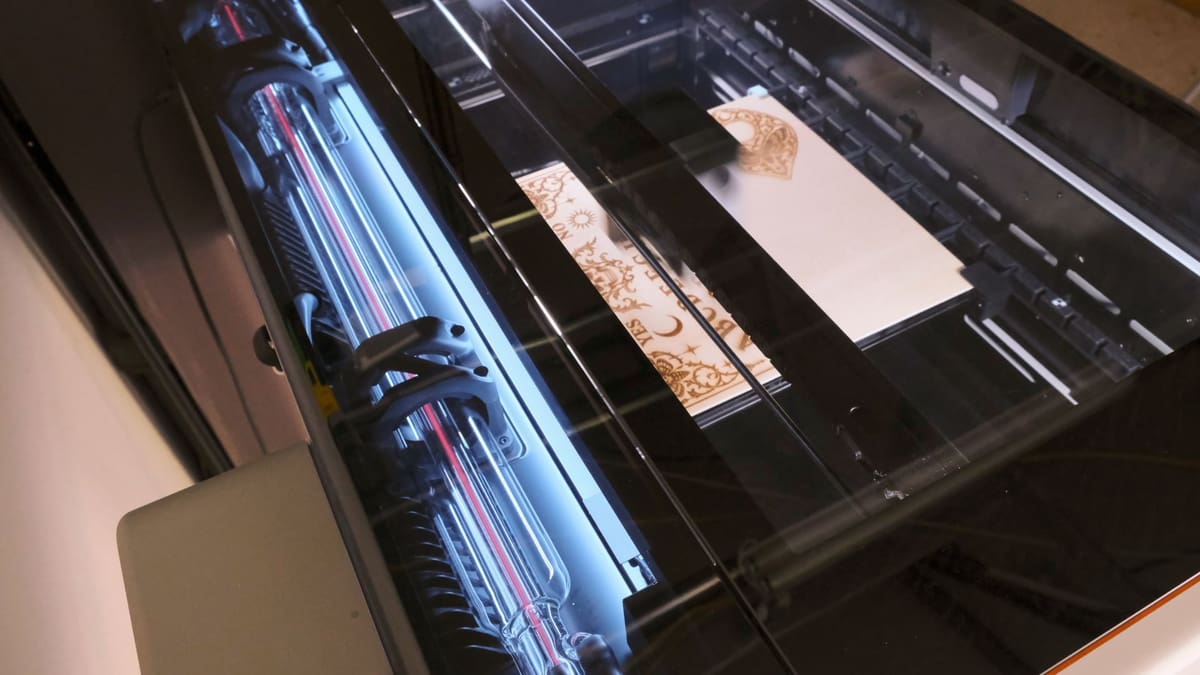
Bambu Lab R1 Review: The Desktop Laser to Beat, If You Bring Your Own Designs
Rating

Bambu Lab's first big step into benchtop laser cutting and engraving is a confident one. You get a generous work area in a tight footprint, and there are plenty of accessories to expand what you do with that space.
Entering a new hobby is full of highs and lows. There’s the initial excitement of learning something new and the potential of what you can do with that knowledge, then there’s the realization that you have no clue what you’re doing and things are sure to go wrong (and they always do!).
For the past six weeks, that’s the exact scenario I’ve found myself in after receiving the Bambu Lab R1 CO2 laser cutter and engraver. Prior to this, I’d never touched any sort of laser maker device.
The learning curve has been steep, and I sure have learned a lot. I can’t think of any better way to put Bambu Lab’s reputation for streamlining a complex hobby to the test.
And after countless projects, both successful and failures, I’m confident the R1 will be a step forward for the hobby as a whole – for beginners and seasoned veterans alike. There are many aspects about the R1 that are dead simple – you’d expect as much from a $2,499 Bambu Lab machine – but it’s not perfect. Let’s dig in.
At a Glance
- Power: 55W CO2
- Working area: 600 x 300 mm
- Max expandable work area: 710 x 380 mm (610 x 380 mm using conveyor)
- Top speed / acceleration: 1,000 mm/s / 20,000 mm/s
- Spot size: ⌀0.11 mm (short focus) – ⌀0.19 mm (long focus)
- Features: Birds-eye camera, flame shutoff, air assist pump, automatic laser ranging
The Tech
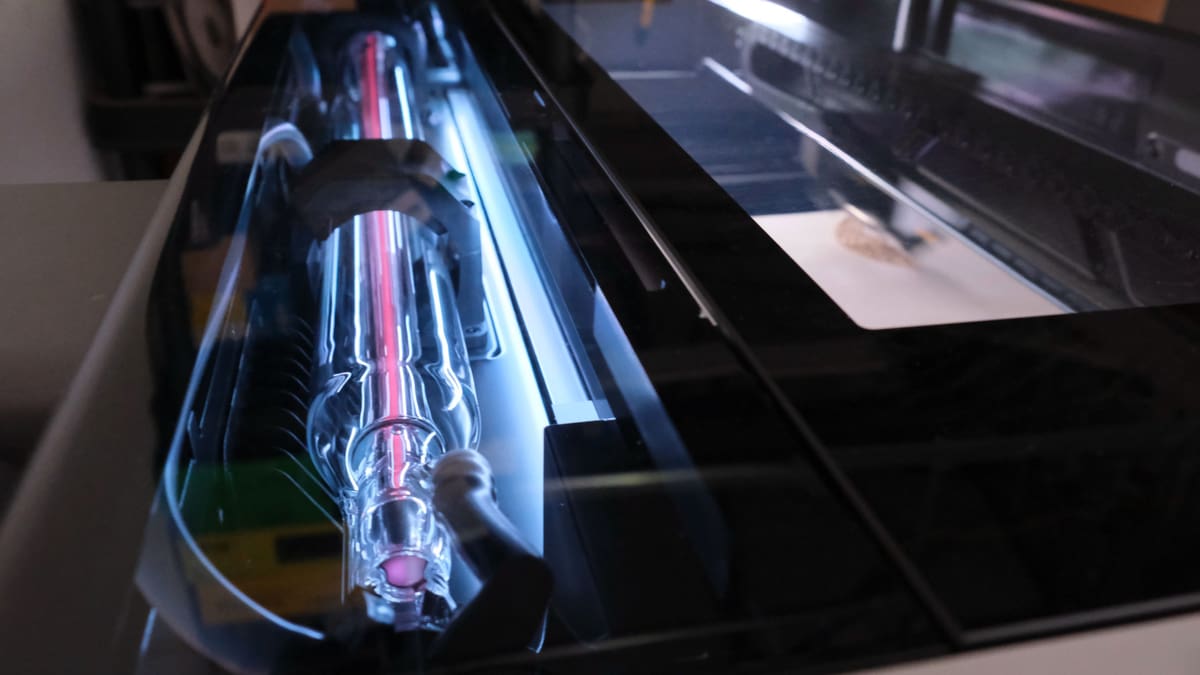
The Bambu Lab R1 is the company’s first dedicated laser cutter and engraver. It uses a 55W CO2 laser that’ll cut wood, acrylic, leather, and can even etch glass. While Bambu Lab’s H2-series 3D printers are compatible with optional 10W or 40W diode laser modules, allowing you to switch between printing and cutting with just a few minutes of effort, they lack support for clear materials and work is constrained by the chamber volume of the printer.
The R1, however, is strictly for cutting and engraving. And while that may sound like a disadvantage compared to the versatility of a 3D printer that can also cut, between the CO2 laser, larger work area and a few other tricks, the R1 is in a class of its own as far as Bambu’s lineup is concerned.
Design and Setup
My biggest concern regarding the R1 before I received it was where I’d put it: the R1 measures 940 × 560 × 200 mm and weighs 33.5 kg. Compared to the company’s 3D printers, it takes up a lot of space.
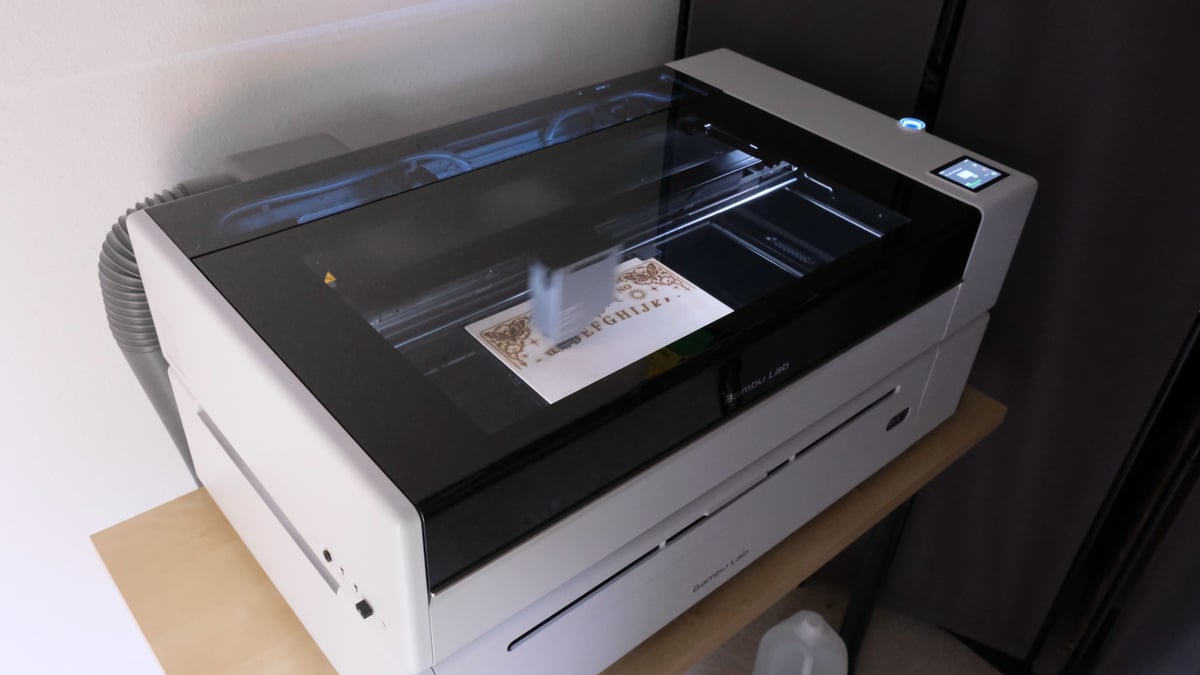
If you’ve ever set up a Bambu Lab 3D printer, you’re already familiar with the process: You remove it from the box, cut a few zip ties, throw away a couple foam inserts, open and install some accessories and then go through the calibration process.
Before going through calibration, however, I had to add distilled water to the reservoir on the back of the R1 for cooling the laser. Included in the box is a small bottle of antifreeze and instructions regarding how much to add depending on the lowest temperature the R1 will experience based on where you’ve set it up.
Once that was done, I started the calibration process, and that’s where I experienced my first Bambu Lab-ification moment of laser cutters.
Calibrating the R1 goes through a few different processes, including motor encoder calibration, vibration compensation, motion accuracy calibration, and finally, laser alignment.
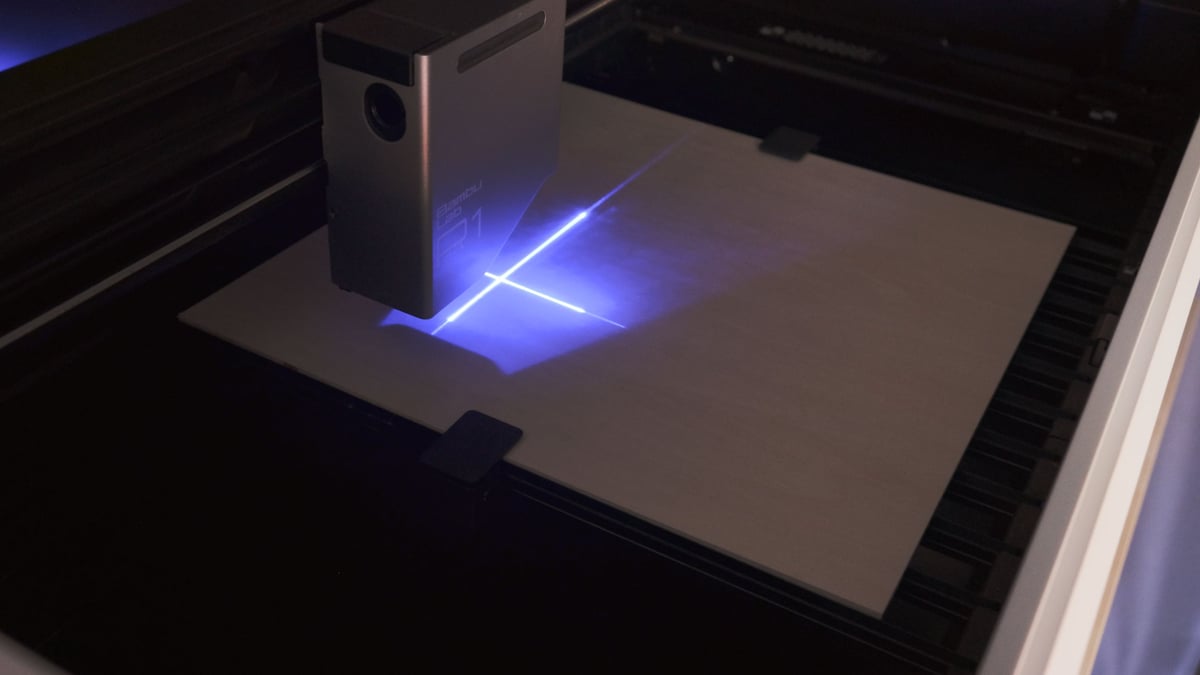
The alignment process with the R1 is automated. Included in the box is a mirror-like Laser Alignment Sensor you attach to the side of the toolhead, after which you start the alignment process in the settings menu. The toolhead will move around for a few minutes, and once it returns to its starting position you’re done. It takes just a few minutes, and is totally hands-off.
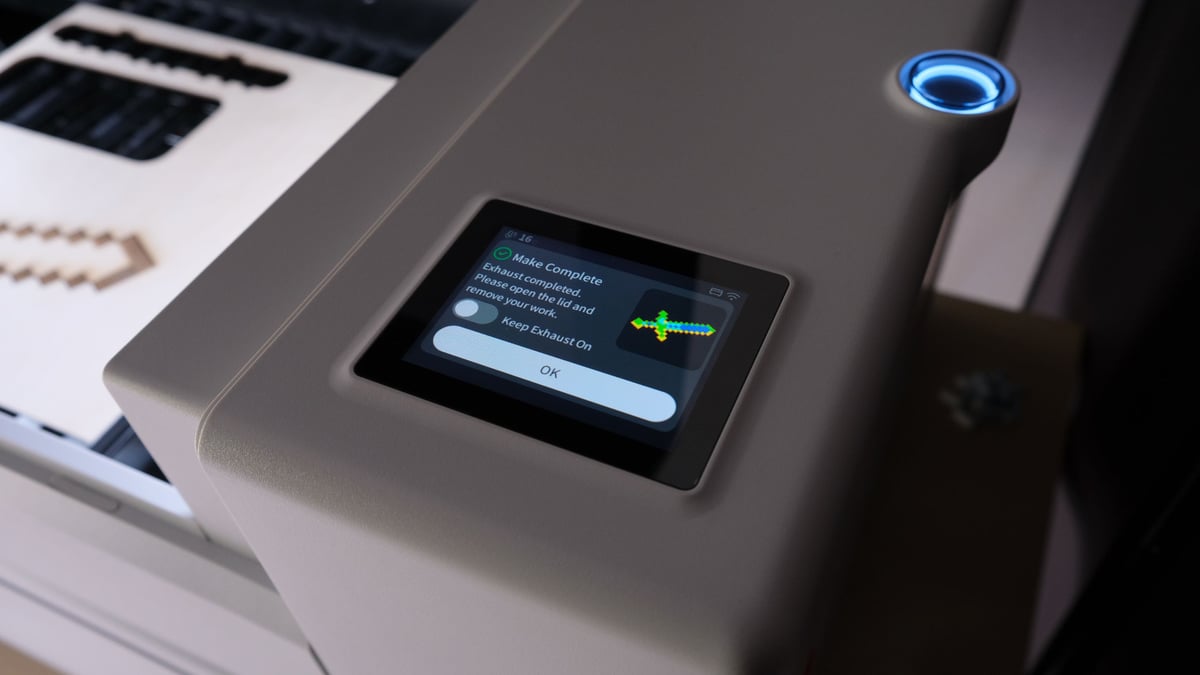
With setup and calibration out of the way, I started to familiarize myself with the machine. The exhaust fan housing attaches to the back-left corner of the machine and can be positioned with the output facing three different directions. Essential controls and buttons are all close to hand: an emergency stop button that’s flush with the housing to prevent you from accidentally bumping it and a circular button near the screen that’s used to start and pause projects.
On the left side are several ports for connecting the optional fire extinguisher ($199), a USB safety key and a USB-C port.
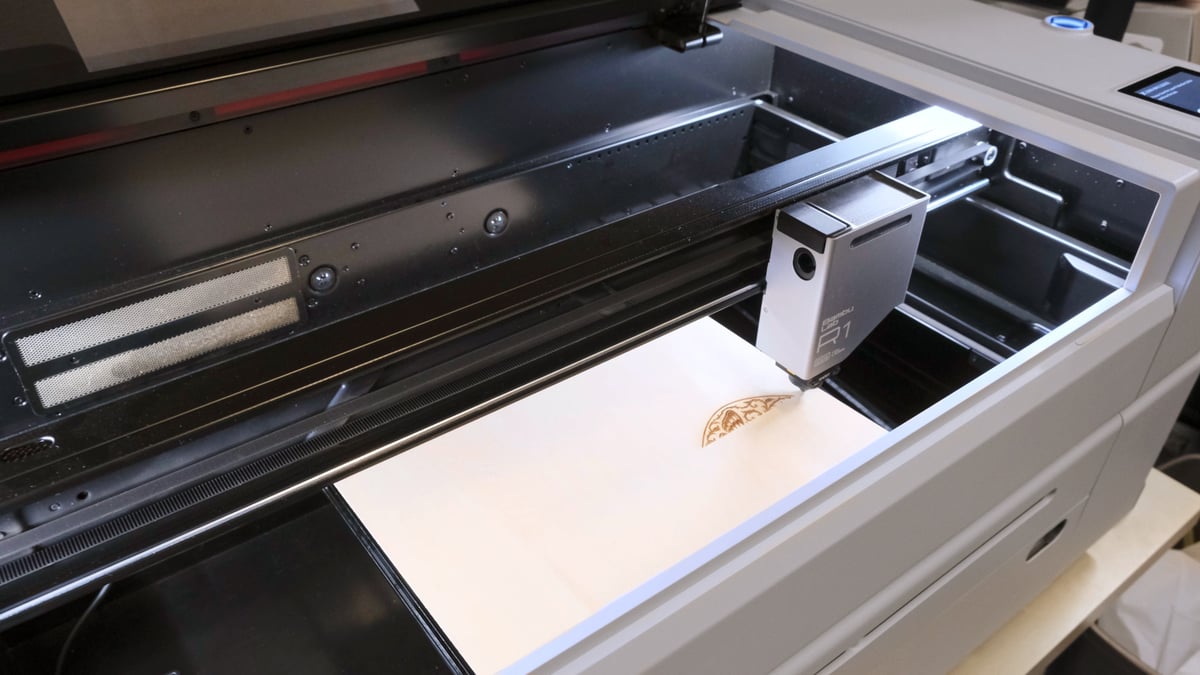
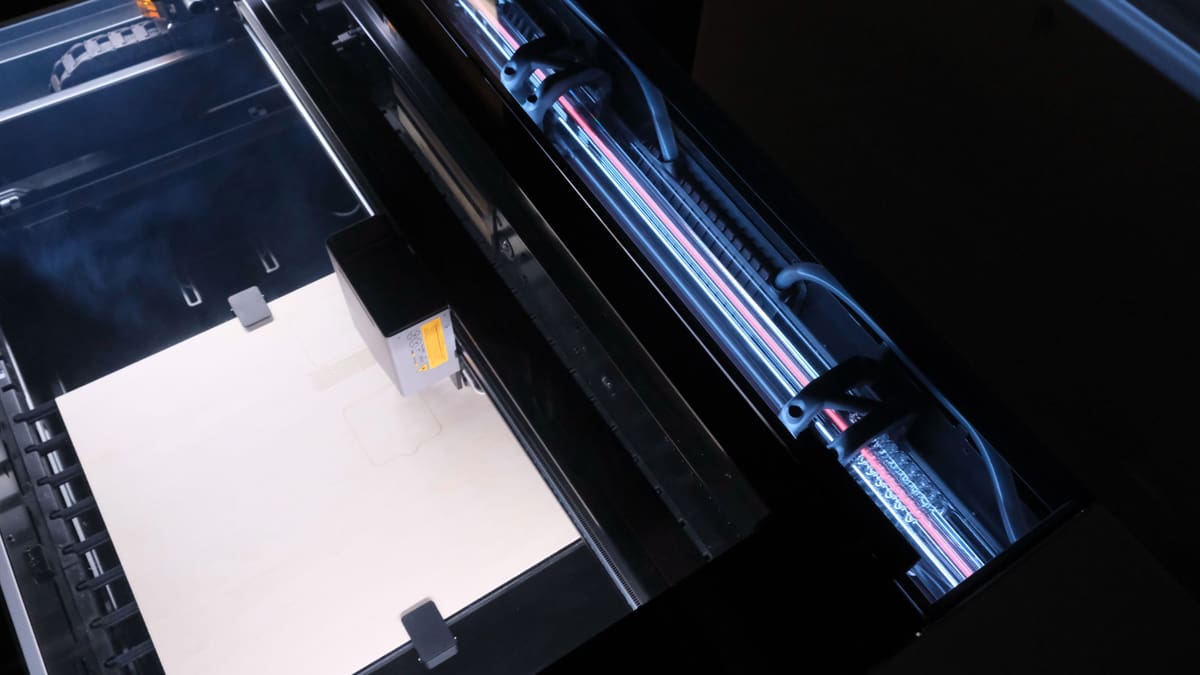
The R1 has a generous work area – 300 x 600 mm – with a removable tray and slats for work holding throughout. Built into the lid is a Birds Eye Camera that’s used to take photos of the material in Bambu Suite, letting you map a design to the material as it sits when you prepare a project.
Safety Features
The R1 in its stock configuration – that is without the riser or conveyor accessories – is a Class 1 laser. That means you don’t need personal protective equipment, like glasses, to operate the laser.
You can watch the R1 cut or engrave through the top glass without issue. And the moment you start to lift the lid while a project is in progress, the machine immediately pauses until you close the lid and clear the message on the display.
However, when you add the riser and conveyor accessories ($389 and $499, respectively), it’s considered a Class 4 device and laser-safety glasses are required.
As for fire prevention, I already mentioned the fire extinguisher accessory that connects to the side ports. It works in tandem with five flame sensors – four of which are in the base, the other in the tool head. On several occasions while watching a project I’ve witnessed the tool head pause and the screen display a message that a possible flame was detected, and then a second or two later, the machine resumed.
You can adjust the flame sensitivity in the settings if this frequently happens. I’ve left the sensitivity on high because the pause is always brief, and requires no action on my part.
There’s also an emergency stop button on the right side of the R1 that you can press to immediately stop everything in the event the flame sensors aren’t working or something else is going wrong. Additionally, if you want to hard lock the R1 and prevent unauthorized use, you can remove the safety key.
I originally set up the R1 just a few feet away from my desk, having read the literature that comes with the machine and concluding the smoke and random odors would be mitigated by its internal exhaust when fed directly into Bambu Lab’s Smoke Purifier ($599, sold separately).
I was wrong. After a couple of days cutting and engraving both wood and acrylic, I moved the R1 into a workshop area next to my office due to the constant overwhelming odors when it was running. This move, into an area that lacks any sort of heater, meant I had to drain the water, add antifreeze and fill the tank. It took about 10 minutes and was super easy. Doing so will, presumably, protect the laser tube during the upcoming downright frigid Colorado winter.
Bambu Suite and MakerWorld
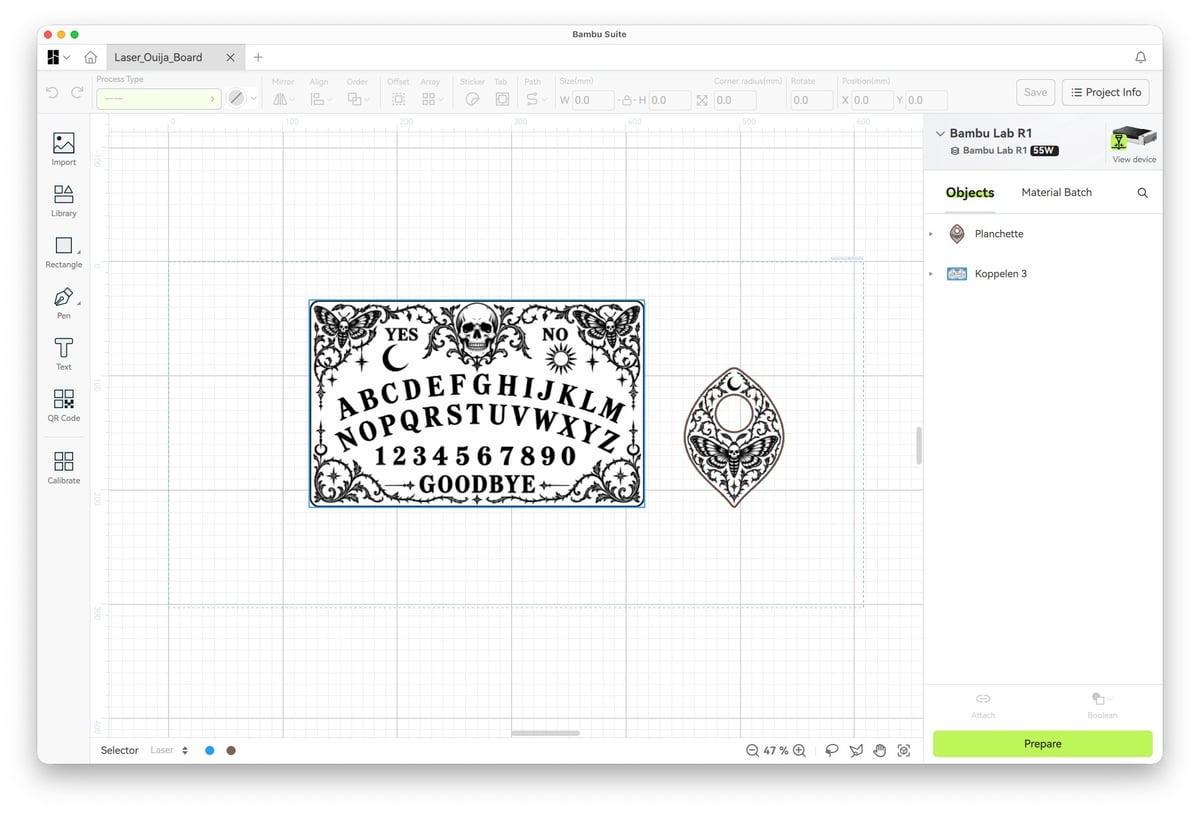
There are two main ways to interact with R1. One is through the Bambu Suite app on Mac or Windows, and the other is through the Bambu Handy app. Both give you access to projects and files on MakerWorld that you can view, but only Bambu Suite allows you to edit, prepare and send a project to the R1.
The Handy app lets you monitor the status of a project, but only its progress in percentage and time. There’s no option to livestream from the camera like you can on the company’s printers.
In other words, you’re going to spend the majority of your time on a computer using Bambu Suite to manage your projects. The same ease of use that the Handy app provides for sending print projects directly from your phone to a printer just isn’t possible with the R1.
Bambu Lab’s announcement for the R1 didn’t mention support for third-party apps like LightBurn for project management, however LightBurn itself has announced a roadmap for integration with compatible G-code generation in the upcoming 2.2 release, and direct machine control coming later in version 2.3..
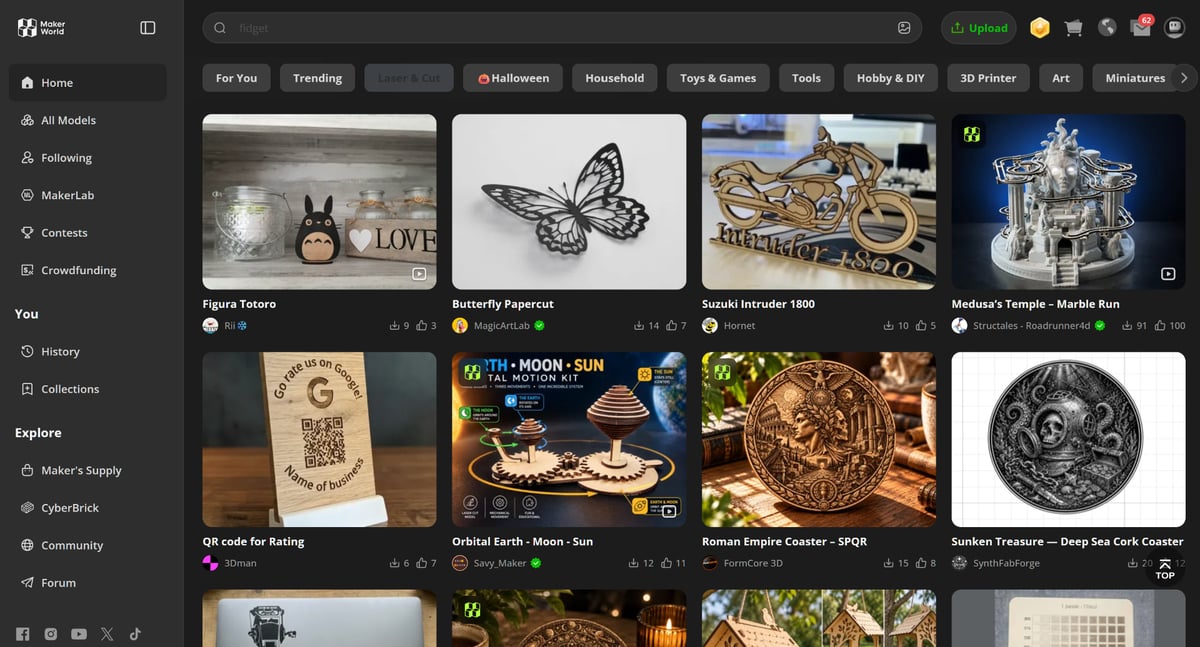
My biggest issue with the R1 right now is the lack of projects and files on MakerWorld. While the library is starting to grow as more people receive the R1, it’s incredibly limited compared to 3D-printable models. Granted, there are plenty of websites you can download projects from – and I have – but that can add steps and processes outside of Bambu Suite. Lifting some designs from xTool’s Atomm website requires you to first open the project in xTool Studio and then export them as an SVG to your computer before importing it into Bambu Suite.
That’s not quite the ease of use that Bambu Lab’s 3D printer customers have come to know and love.
The Cutting/Engraving
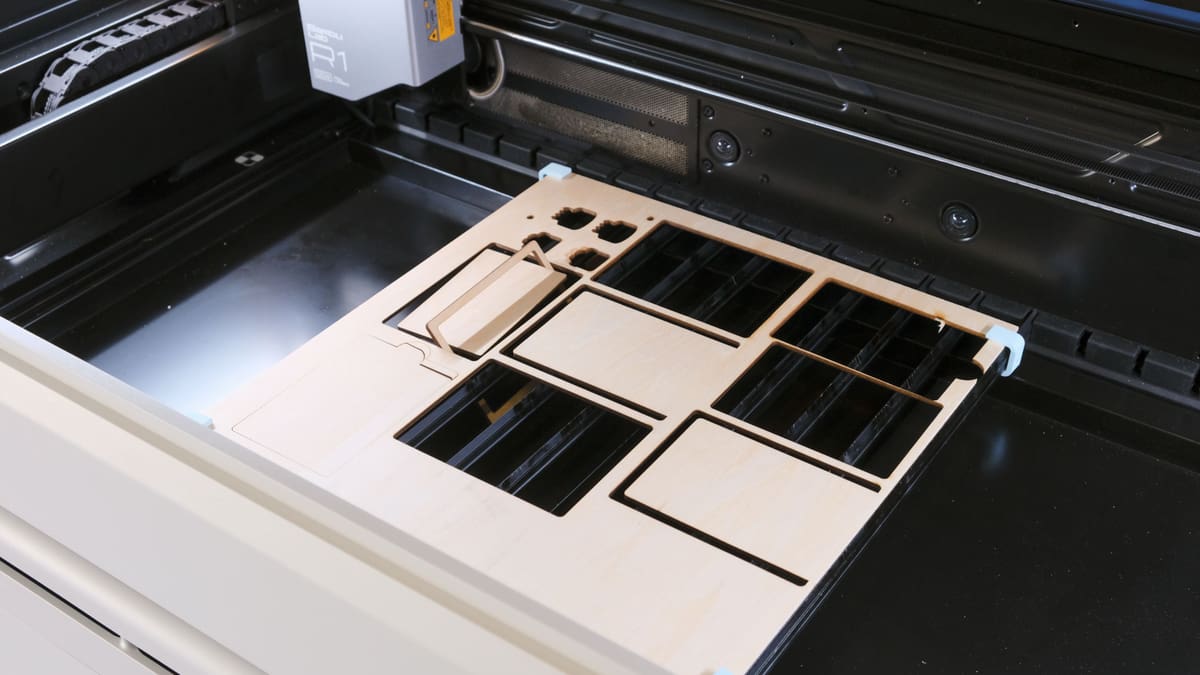
As a newbie to laser cutting and engraving, I had no idea where to start after the initial setup. Thankfully, Bambu Suite was one step ahead of me.
After binding the R1 to my Bambu account, I was immediately prompted to complete the tutorial project. It’s a small ruler with various designs, and you’re walked through the different color-coded laser settings. I clicked through the prompts, following each instruction and about three minutes later I had a ruler.
It’s a Lot of Back and Forth
Since then, I’ve gone through similar steps countless times to prepare and complete a project. Even with that familiarity, it’s a convoluted process.
Here’s the standard workflow. You start by importing a project into Suite, where you can then view the design, edit it, and indicate what type of laser process should be used on various parts of the image. The options are line, fill and cut.
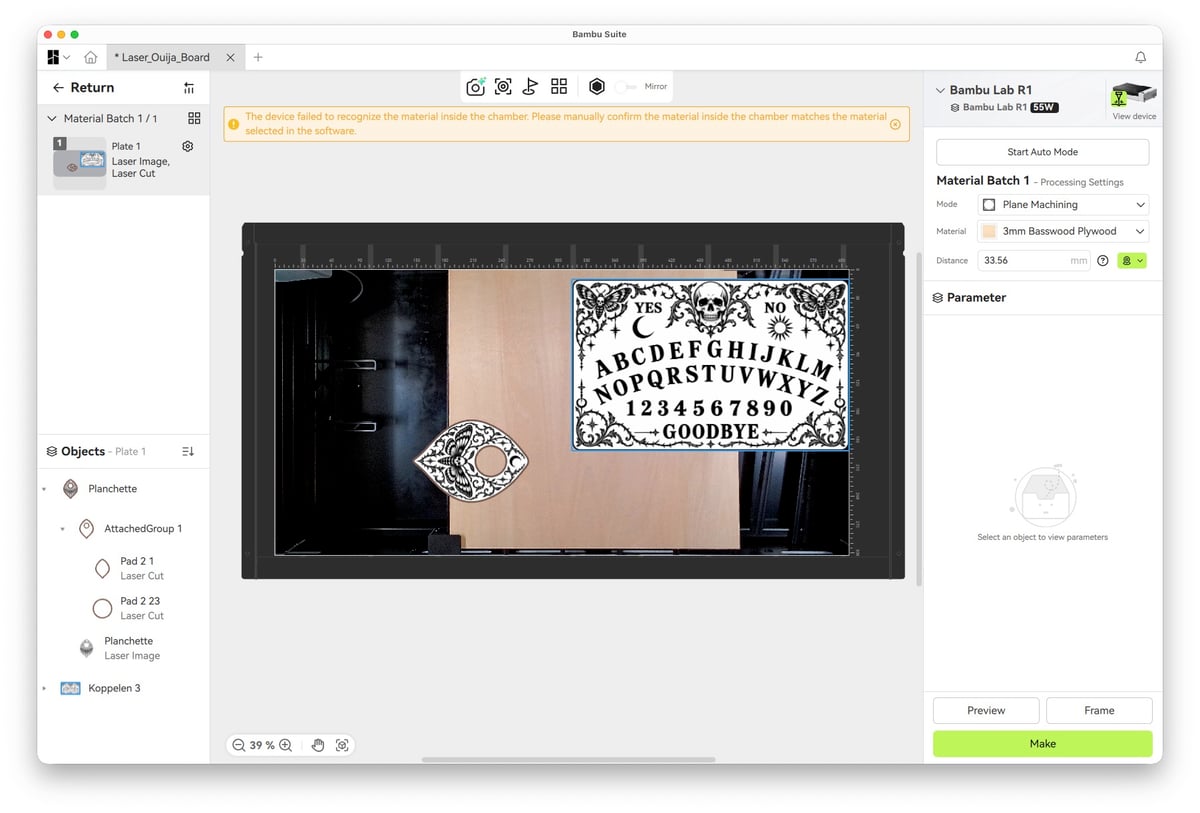
Once that’s done, click on the prepare button in the bottom-right corner of the app. Go to the R1, place your material and leave the lid of the R1 open. Return to your computer, where Suite will then prompt you to take a picture of the material, noting its placement and type, and measure how far away it is from the tool. If Suite can’t identify the material, you’ll need to choose from one of the available options.
At this point you can go back to the project section of Suite to make further edits. If you want to see a preview of the artwork on your material you can right-click in the work area and select Show Captured Image. However, I can’t tell you how many times I’ve done that only to see that the captured image is skewed and distorted.
Instead, I’ve done the majority of my final tweaks and settings changes on the Prepare tab, which features most of the same settings and options, save for adding more images or text, and has yet to show a distorted image.
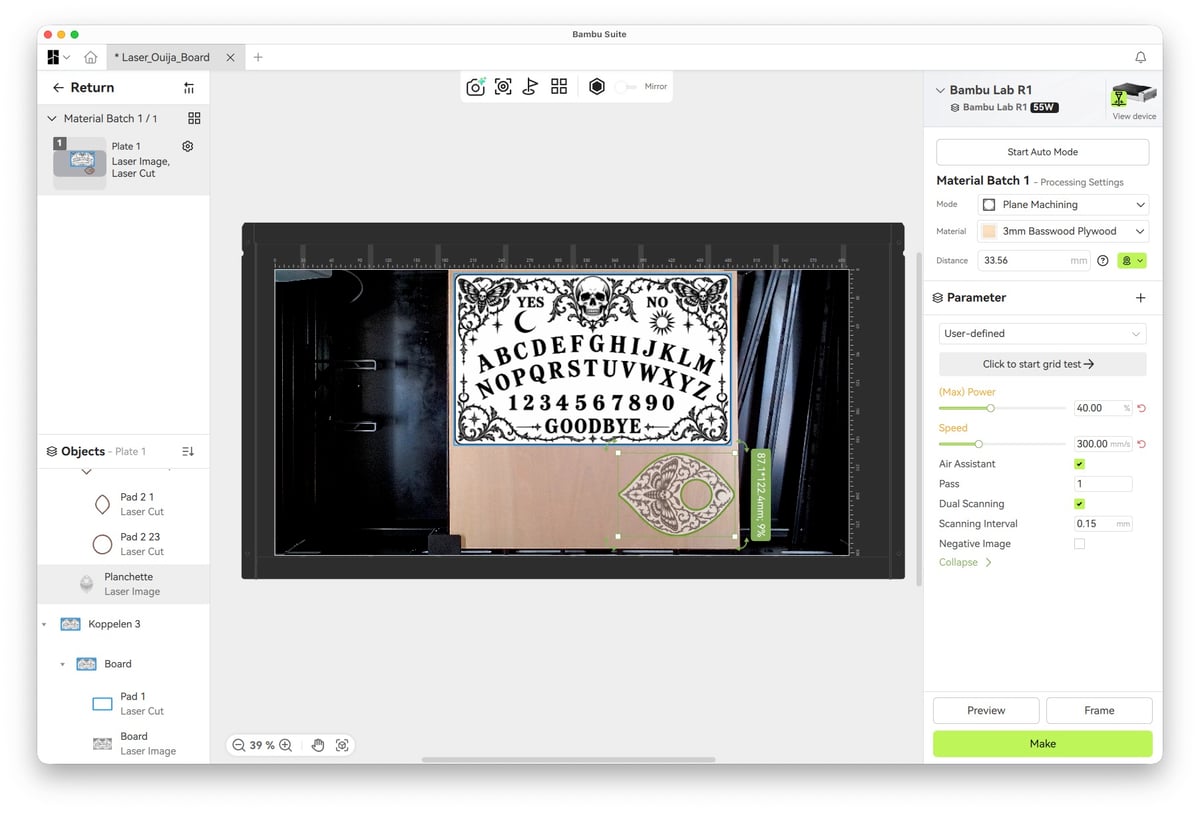
Once you’re happy, you have to click Make to send the project to the R1, then walk over to it, close the lid and press the start button.
Reading that back it doesn’t sound bad, but when the R1 isn’t next to your computer – be it across a room or in a totally different room – it feels like a lot. Especially if you forget a step, or have to adjust the material, after which you have to start the preparation process all over again.
I’ve gotten in the habit of leaving the lid open until it’s time to start. It saves me a trip or two… most of the time.
I would have much preferred for Bambu to figure out a different way to place the Birds Eye Camera (or maybe stitch together multiple cameras) in a way that allows you to place the material on the slats, close the lid and not have to go back and forth.
Reliable Cutting and Engraving
I’ve learned a lot over the last six weeks (some of which I’ll detail in a minute), and while there have been times where I’ve questioned the overall quality of cuts and imaging etching or engraving, I’m impressed with the overall performance of the R1.
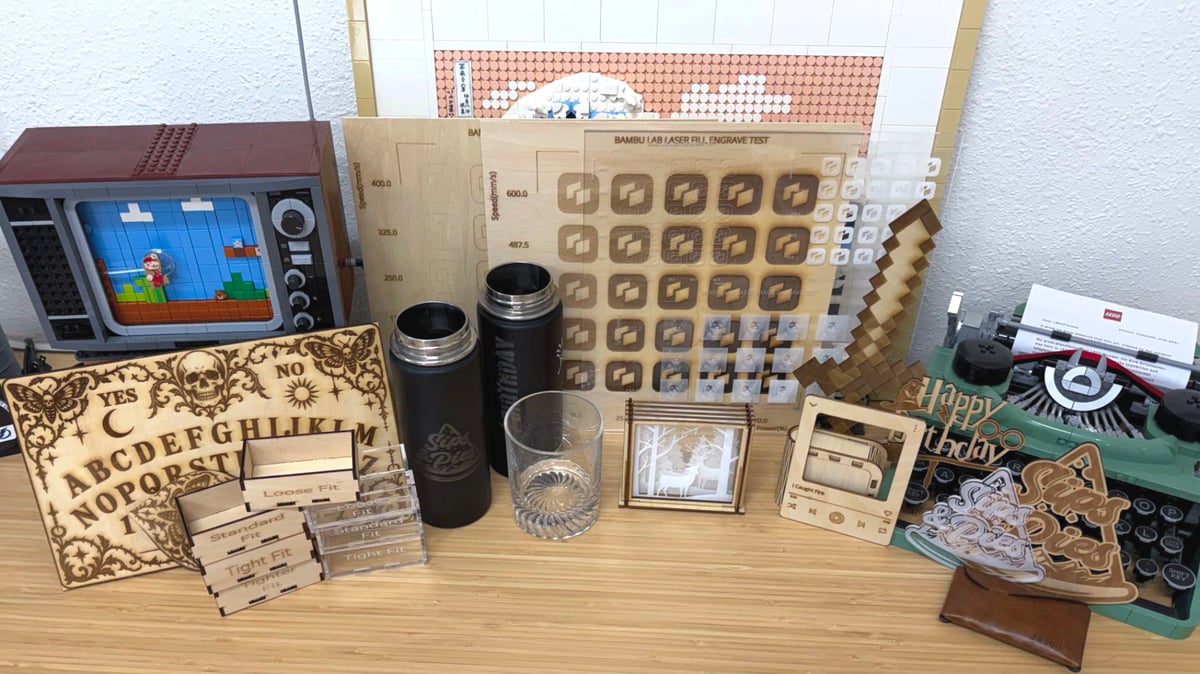
Cuts have been clean and free of any soot or debris on both wood and acrylic. Once I got the hang of etching metal and glass, those looked clean as well.
With the basics down, you spend most of your time fine-tuning and perfecting the results.
One of my favorite features in Bambu Suite is the calibration tool that allows you to choose a range of speed and power level for the laser. It then produces a grid of laser lines, laser fill, or image engraving, providing you with a preview of what settings are best for that type of material.
For example, on 3mm basswood I think 150mm/s at 10% power provides a crisp-looking image, while a setting of 70% power at 150mm/s for a laser fill nearly burns through the entire thickness of the material.
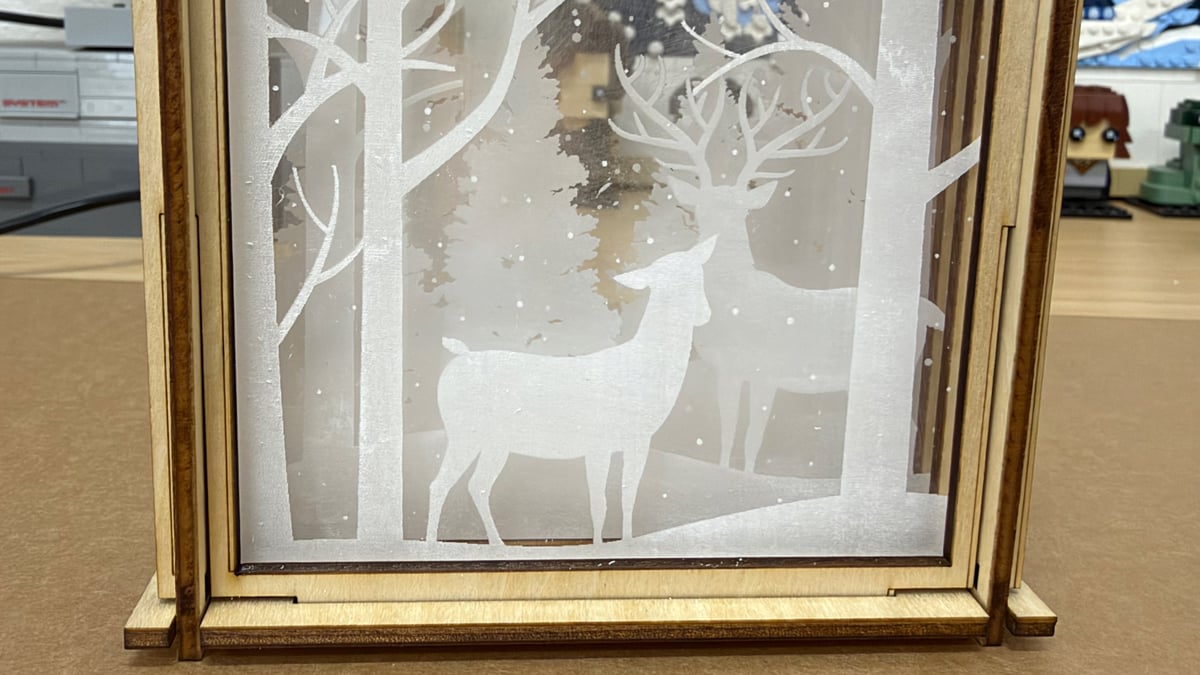
The first thing I’ve done with new material is run all three calibration tests, then keep these references near my desk so I can tweak settings for each new project. With that on hand, I’ve been able to get consistent results from the R1, on different projects, across multiple material types.
I still have a lot to learn, but I’m much further ahead in my journey than I expected to be at this point.
So Much Faster than 3D Printing
One welcome aspect of laser cutting and engraving I didn’t anticipate was just how fast a project finishes. The tutorial ruler was done so fast I double-checked it looked like the artwork. Cutting a box out of acrylic or wood also takes mere minutes, both of which would take at least a couple of hours if I were printing it.
As part of my learning journey, I spent a couple of hours going through the Laser Box Maker tool in Bambu Suite, making boxes with various settings, cutting them, then adjusting and cutting another. I did the same with wood and acrylic, adding text with the size to the front of each box.
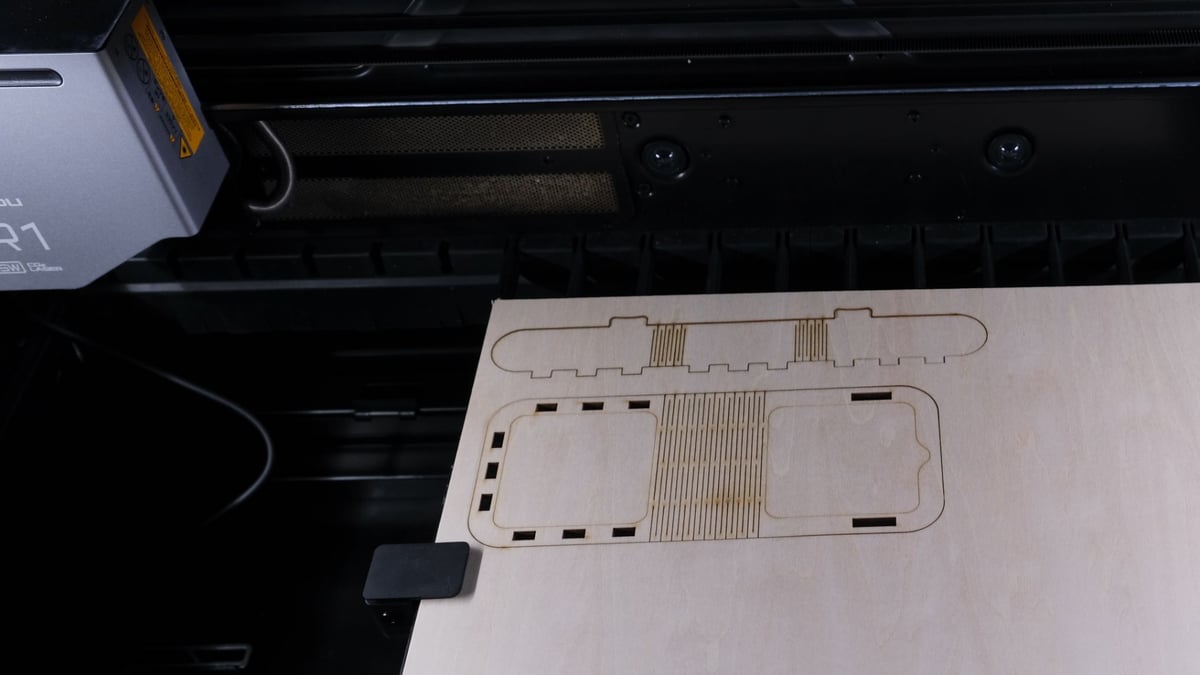
The majority of that time was spent making trips back and forth to the R1, adjusting material, taking pictures and doing the preparation dance.
Useful Accessories
In addition to the R1, Bambu Lab sent me the Riser, Automatic Conveyor Feeder, Vision Encoder, Rotary Tool and the Automatic Fire Extinguisher. I’ve installed and used everything but the conveyor and fire extinguisher (the gas cylinder it requires is out of stock).
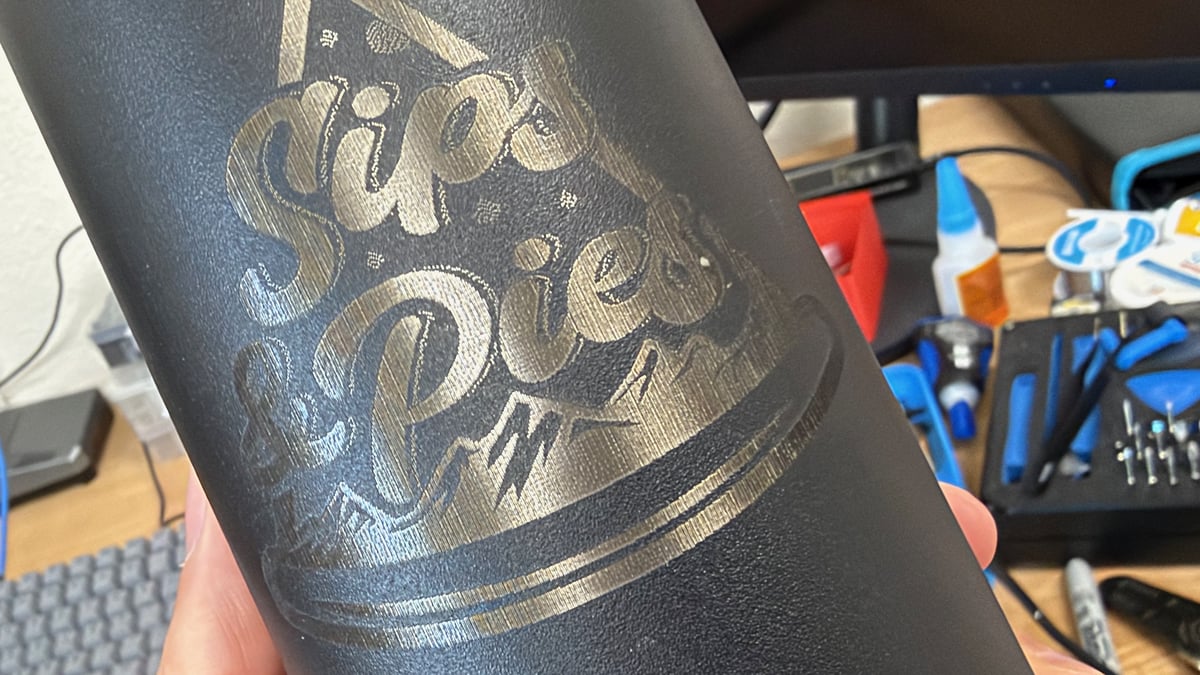
The riser is useful because it adds vertical height, meaning you can engrave on the surfaces of objects too thick to fit in the standard work volume. It also enables you to use my favorite accessory – the Rotary Attachment. At $275.99 for the rotary attachment, plus $389 for the riser base, it’s a pricey upgrade, unfortunately. That being said, having it lets you place your favorite stainless mugs or glasses in the R1’s work volume. With a few settings changed in Bambu Suite to accommodate the expanded hardware, you can etch into the entire cup or round object.
The conveyor feeder, which lets materials up to 3,000 mm pass through the work area, will be helpful if I ever want to cut or engrave any larger pieces of wood.
Lessons Learned
I’m not sold on using slats to place the material on. On several occasions, I had a gift card holder project ruined by a piece of wood only partially falling to the tray below, causing it to protrude above the work surface and collide with the toolhead. Sometimes the R1 would stop altogether after the material shifted, while other times it’d continue cutting on a section of the board it shouldn’t have.
I’ve tried placing the material on just two slats so that anything cut out in the middle would fall out of the way, and I’ve also placed every slat under the material and have experienced the same issue.
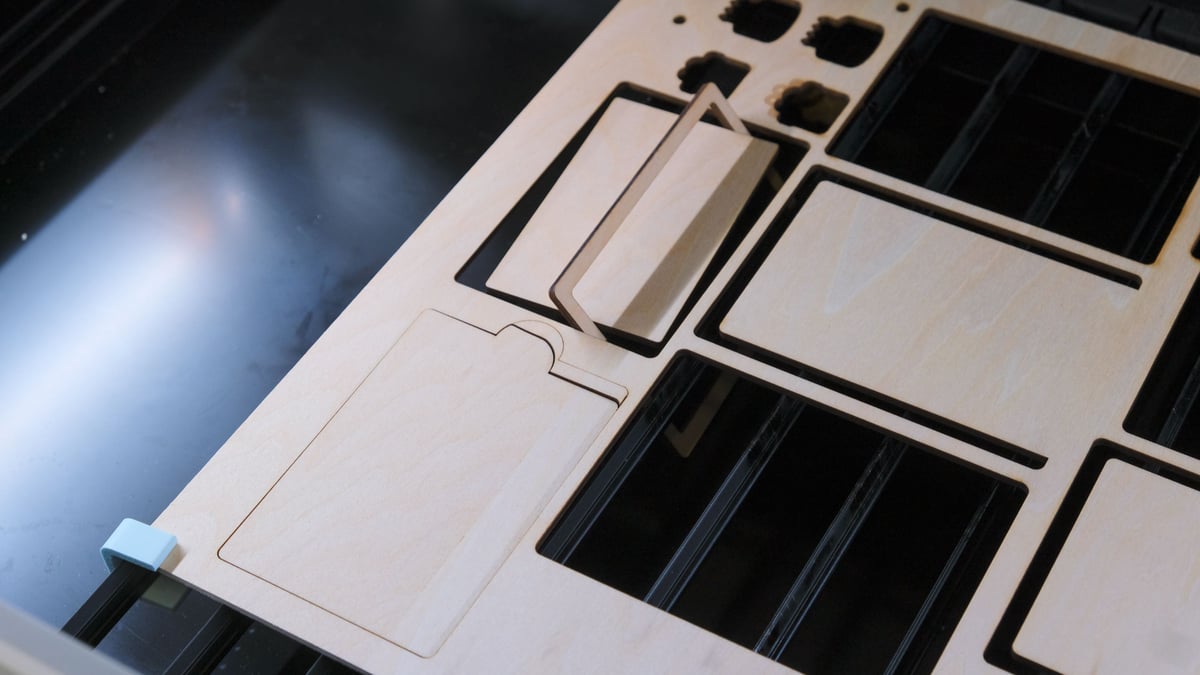
I haven’t used one, but I can’t help but think that a honeycomb panel would eliminate this issue by providing uniform support below the material.
In the end, I had to cut one piece of the gift card holder at a time to prevent issues, prolonging the amount of time (and the number of trips back and forth to the R1) it took to complete the project.
I also wish that Bambu included more than just two of its material pins. I’ve had better luck with a successful project when holding down the material in more than two spots, but the 3D printed clips I’ve been using aren’t nearly as reliable as Bambu’s pins.
Is It Worth It?
Ah yes, the $2,500 question – is the Bambu Lab R1 worth it? But as is usually the case, the answer is more complicated than that. It really depends on your use case, but I don’t think your experience with a laser cutter and engraver should factor into the decision-making tree.
The P2S from xTool has an MSRP of $2,999. On paper it’s the closest comparison for the R1, offering an almost identical work area in a larger footprint. For the $500 saving, plus the footprint-efficient design, it’s hard not to make the argument that the R1 is the desktop laser to beat.
I knew nothing about laser cutting before using the R1, and I’ve learned a lot in a very short amount of time. I think Bambu Lab succeeded in making this section of the creator hobby more approachable and easier to use.
The lack of depth in R1 files and projects on MakerWorld will take time to fix. For the casual user browsing for inspiration, there’s a gulf between what’s available for the R1 and the diversity of 3D prints on the platform. That might be jarring for someone coming to the R1 from Bambu Lab’s printers and used to leaning on that ecosystem.
But if you’re someone who’s itching to get into laser cutting and engraving, can create your own original designs – or live with extra steps in the workflow from sourcing outside MakerWorld – and want a stand-alone device that can do it all, the R1 is a solid choice.
License: The text of "Bambu Lab R1 Review: The Desktop Laser to Beat, If You Bring Your Own Designs" by All3DP is licensed under a Creative Commons Attribution 4.0 International License.
CERTAIN CONTENT THAT APPEARS ON THIS SITE COMES FROM AMAZON. THIS CONTENT IS PROVIDED ‘AS IS’ AND IS SUBJECT TO CHANGE OR REMOVAL AT ANY TIME.